

Performance
Performance Management
Set up a review once with the wizard; employees enter their goals, managers approve them, reviewers fill in the form, and results land in score distribution, 9-box and competency gap reports the same day.
What does it solve?
When a review cycle runs on emailed forms and spreadsheets that take days to merge, nobody knows who hasn't filled in their form, which goal is waiting for approval or how a result was calculated. NetKurum keeps reviews, goals and results in one process.
- Rebuilding the process every cycle Copy a review from the previous period; competencies, questions, weights and reviewers move to a new draft, and you only enter the new dates.
- Scores resting on one person's view Choose self, manager, direct reports, peers and others with weights; 90, 180, 270 or 360-degree presets get you started.
- Goals forgotten by year end Goals are approved at the start of the period, check-ins are logged along the way, and results can be pulled from attendance and training records.
- Scores drifting with each manager's habits The calibration screen sets the final score with a justification, and the 9-box grid shows performance and potential together.
- Results that never turn into action Competency gaps and the skills matrix show who falls short, and training is assigned from the same window.
Performance management, screen by screen
These images are real screens from the NetKurum demo organization; names of people and companies are fictitious.
Every review in the period
Performance reviews
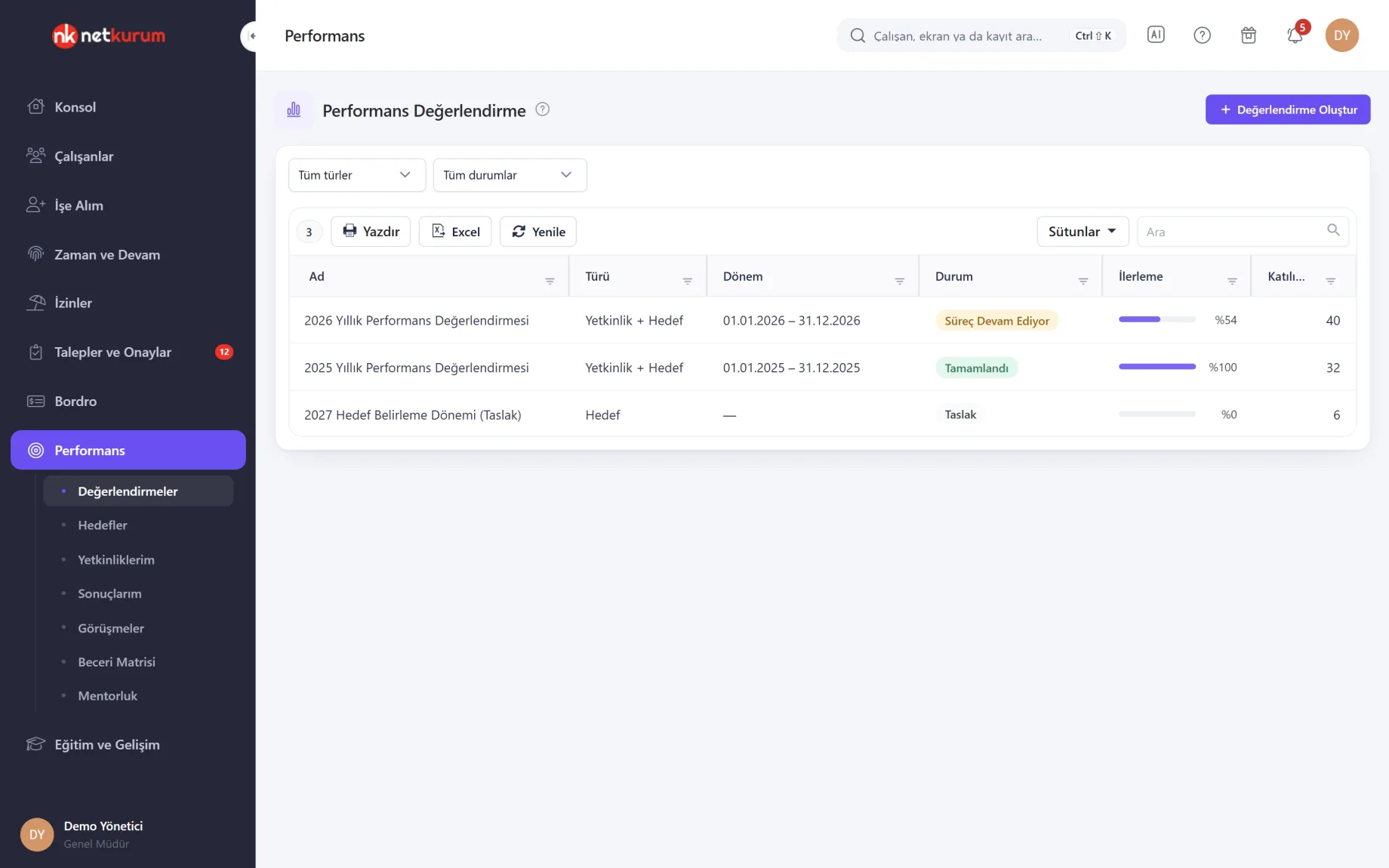
All of the organization's reviews sit in one list with their type, period, status, progress bar and participant count. Double-click a draft to open the wizard, or a published review to open its detail page.
See details
There are three types: competency, goal or both; when combined, the overall score is calculated from the goal and competency weights.
Create Review opens the wizard: after the General, Period, Competency, Goal, Participants, Questions and Access steps, the Publish step lists anything missing. Built-in basic, manager and sales templates can be imported and edited.
Scoring uses a 100-point, 5-point or custom scale, and reviewer category weights add up to one hundred percent. Quick Settings assigns first and second-line managers, peers and direct reports to every participant at once.
The detail page shows overall progress, participant status and process dates; the Actions menu sends reminders to those who haven't finished and produces Excel and PDF reports.
- Type: competency, goal, competency + goal
- Degree: 90, 180, 270, 360
- Copying: structure carries over, answers don't
The manager's approval list
Goals
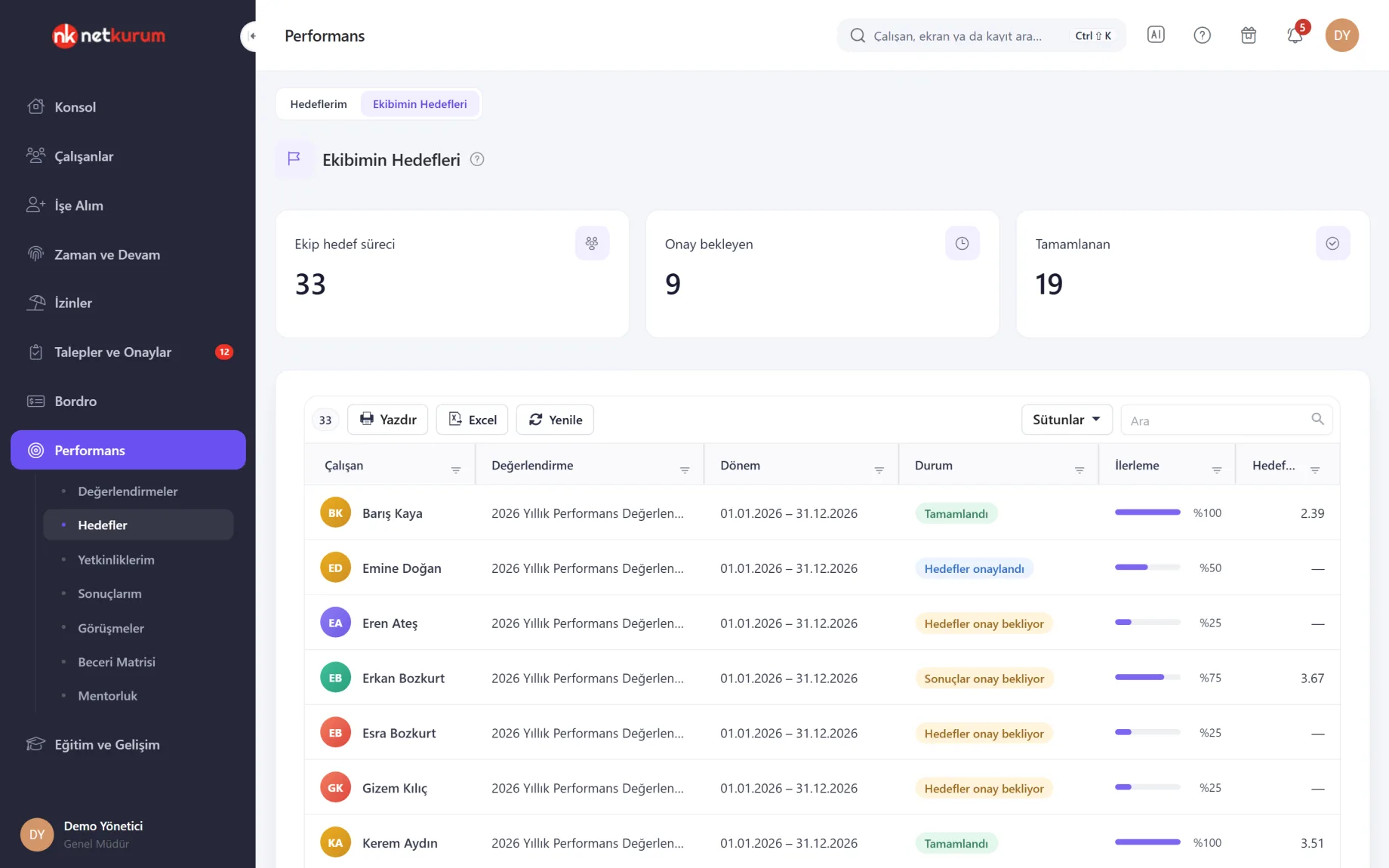
My Goals shows employees their own goal processes as cards; My Team's Goals gives the first-line manager each team member's goal status, progress and goal score in one table.
See details
The stages are explicit: goal entry, approval, result entry, result approval, completed.
Enter the goal name, category, weight, target value and scale; weights must add up to one hundred percent. Managers approve or send goals back and approve results at the end of the period.
For measurable goals, pick a data source: absence days, leave days, overtime hours or completed training hours. Fetch from data calculates the value from attendance and training records and writes it into the result field.
During the period, Check-in records a progress percentage and a short note; the higher-level goal it serves and its due date show on the card.
- Scale: proportional score between two values on a numeric scale
- Data source: attendance and training records, read-only
- Check-in: shows the trend without changing the score
Saved on every click
Competency review form
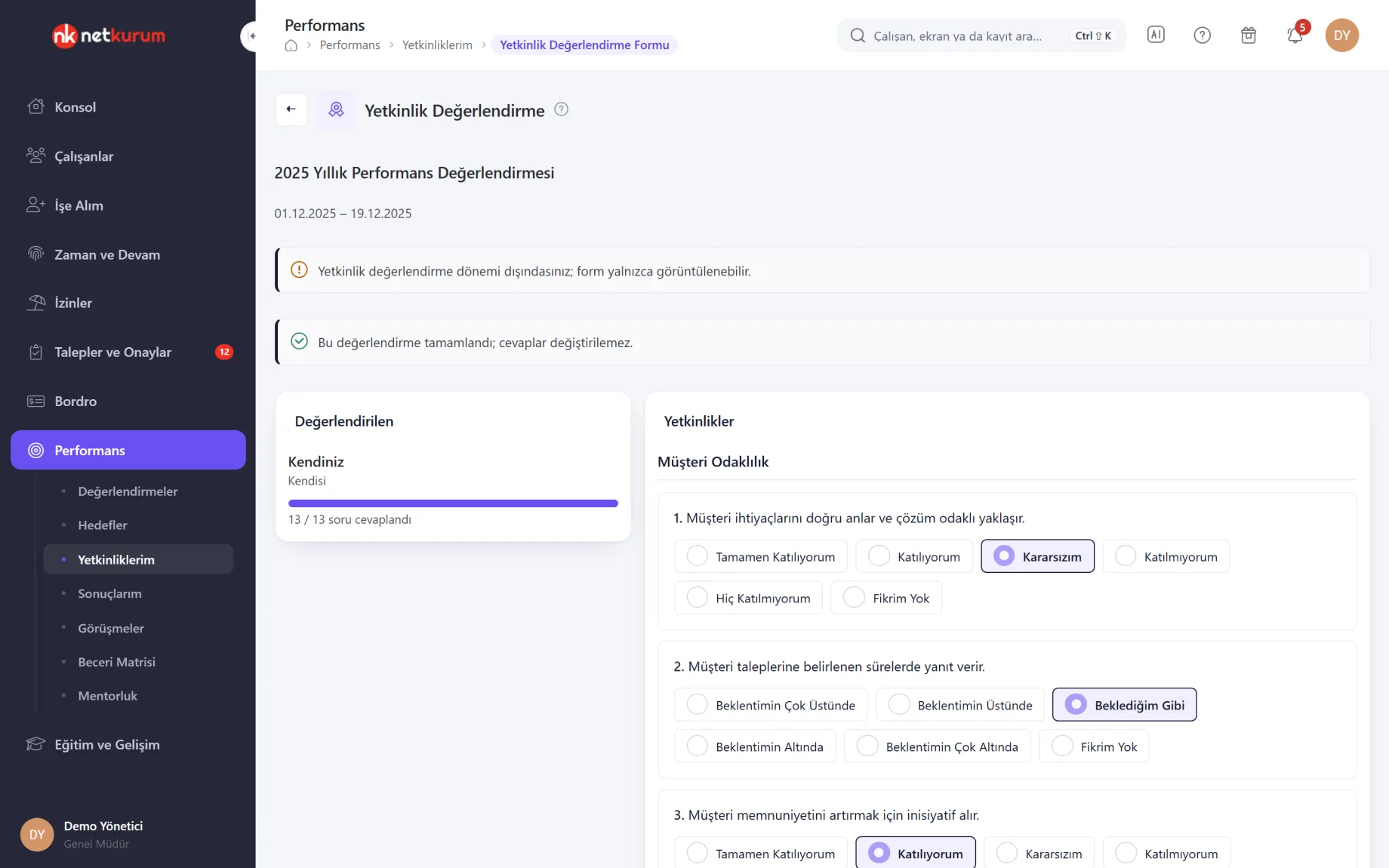
Employees review themselves, and managers and other reviewers review the people assigned to them, on the same form. Answer options are laid out as buttons; each choice saves instantly and the card on the left counts answered questions.
See details
A half-finished form is never lost; reviewers pick up where they left off.
Questions that require a comment, always or at the lowest and highest score, cannot be completed without one. General remarks about the person go into Notes and appear in the individual report.
Forms outside the review period are read-only, and answers cannot be changed after Complete Review. A "No opinion" answer does not count towards the score.
- Answer types: built-in scales and the organization's own types
- Comments: required, or required at extreme scores
Employees see their results
My performance results
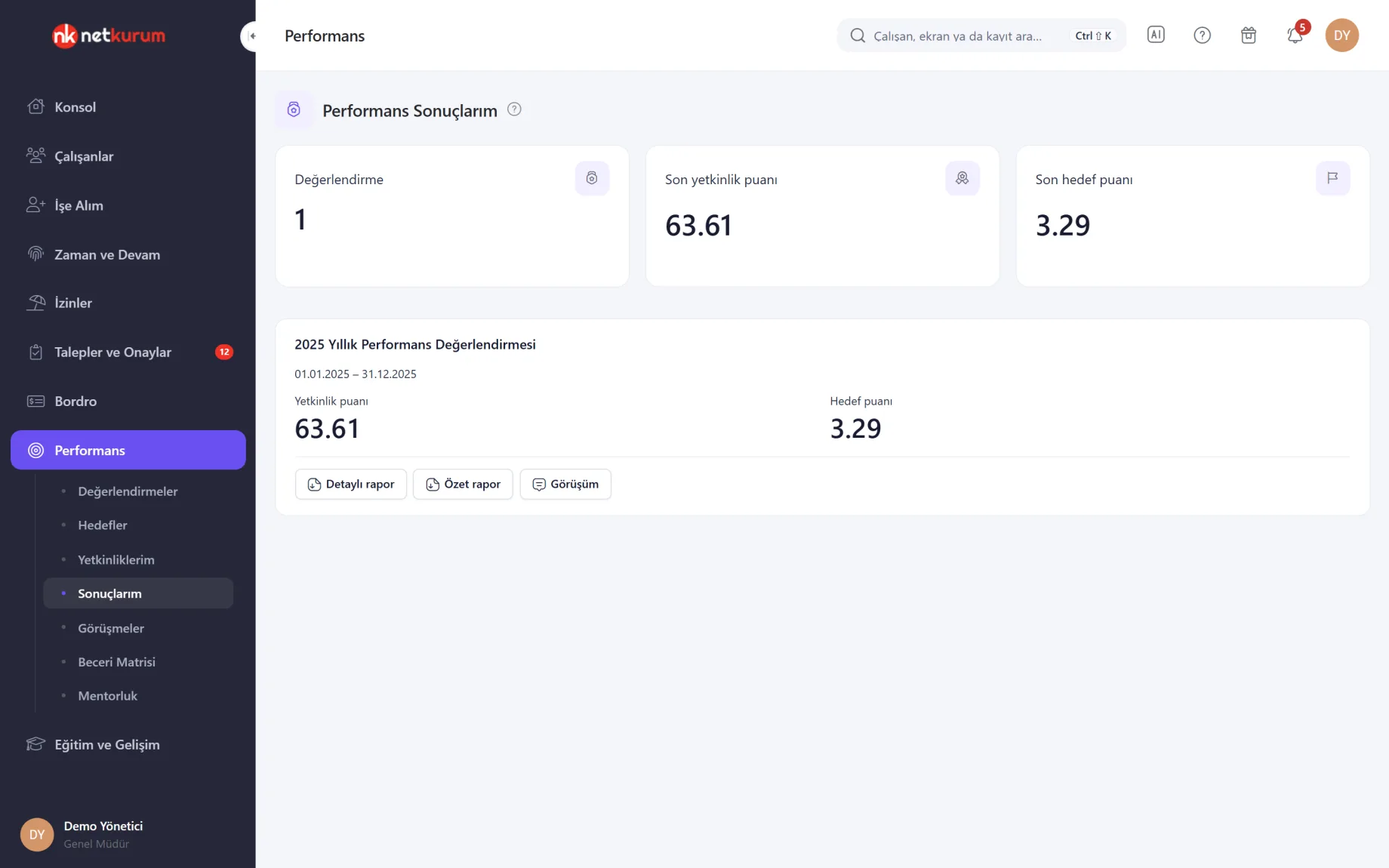
For reviews with results access turned on, employees see their competency and goal scores and download the detailed and summary PDF reports. The My Opinion button lets them record agreement, an objection or a development plan.
See details
The employee's opinion is recorded and their first-line manager is notified.
The opinion can be edited or deleted by saving it empty; managers and performance administrators see it, and it appears in the detailed report.
Which reports employees can see is set in the review's Access step.
- Reports: detailed (with reviewers and comments) and summary PDF
- My Opinion: the employee's note on record
Who has which skill?
Skills matrix
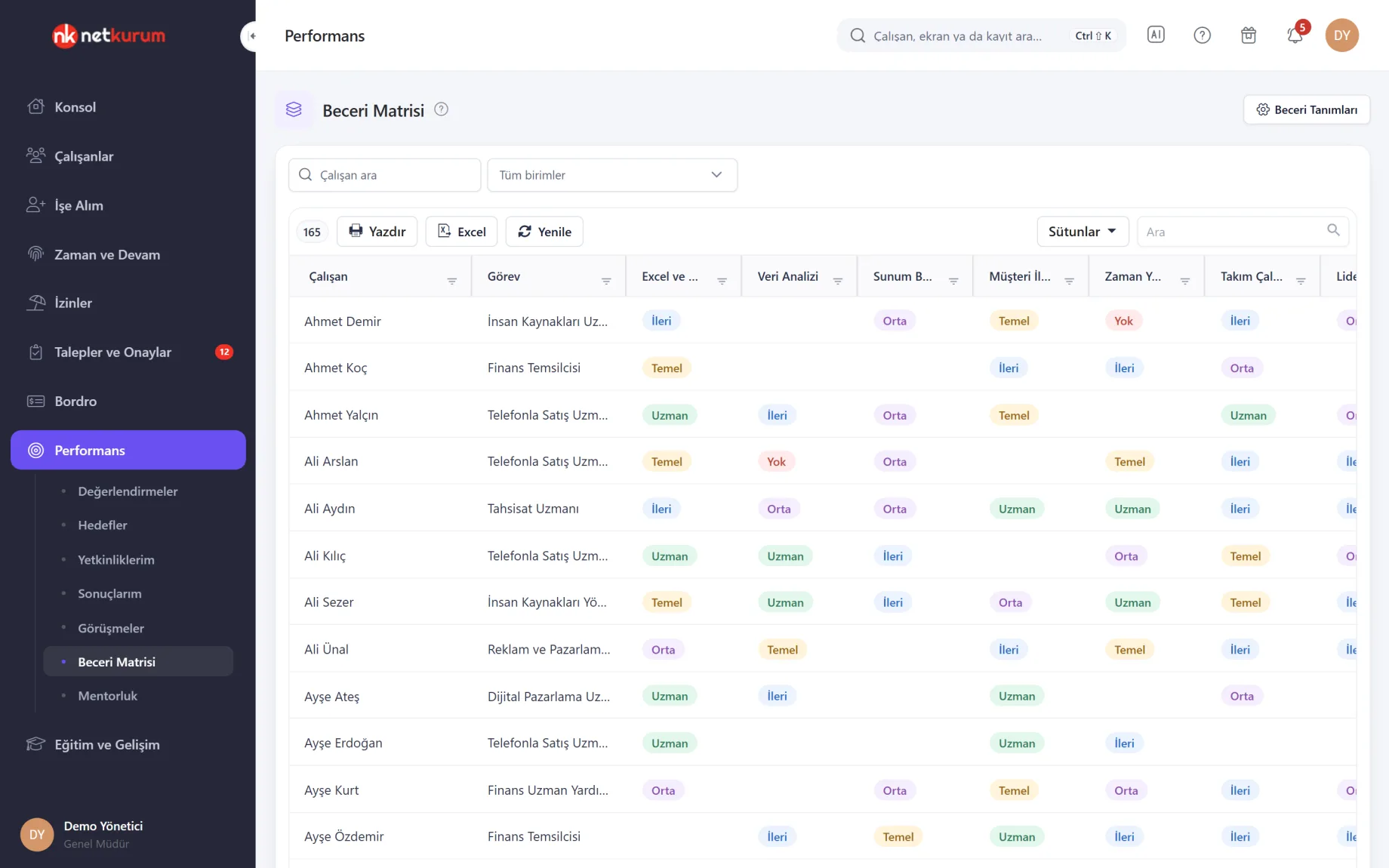
Rows are employees and columns are defined skills; each cell shows the level as a coloured pill: none, basic, intermediate, advanced, expert. The Gap column counts skills below the target level.
See details
A competency is behaviour measured each period; a skill is knowledge or ability a person holds, with a level you mark.
For each skill, define a target level and the trainings that close the gap. Double-click an employee's row to mark levels, see matching trainings for skills with a gap, and open the employee's training screen with Assign Training.
Performance administrators work across the organization, managers with direct reports only on their team; search and unit filters narrow the rows.
- Levels: none, basic, intermediate, advanced, expert
- Link: one step from a gap to a training assignment
Knowledge transfer on record
Mentoring
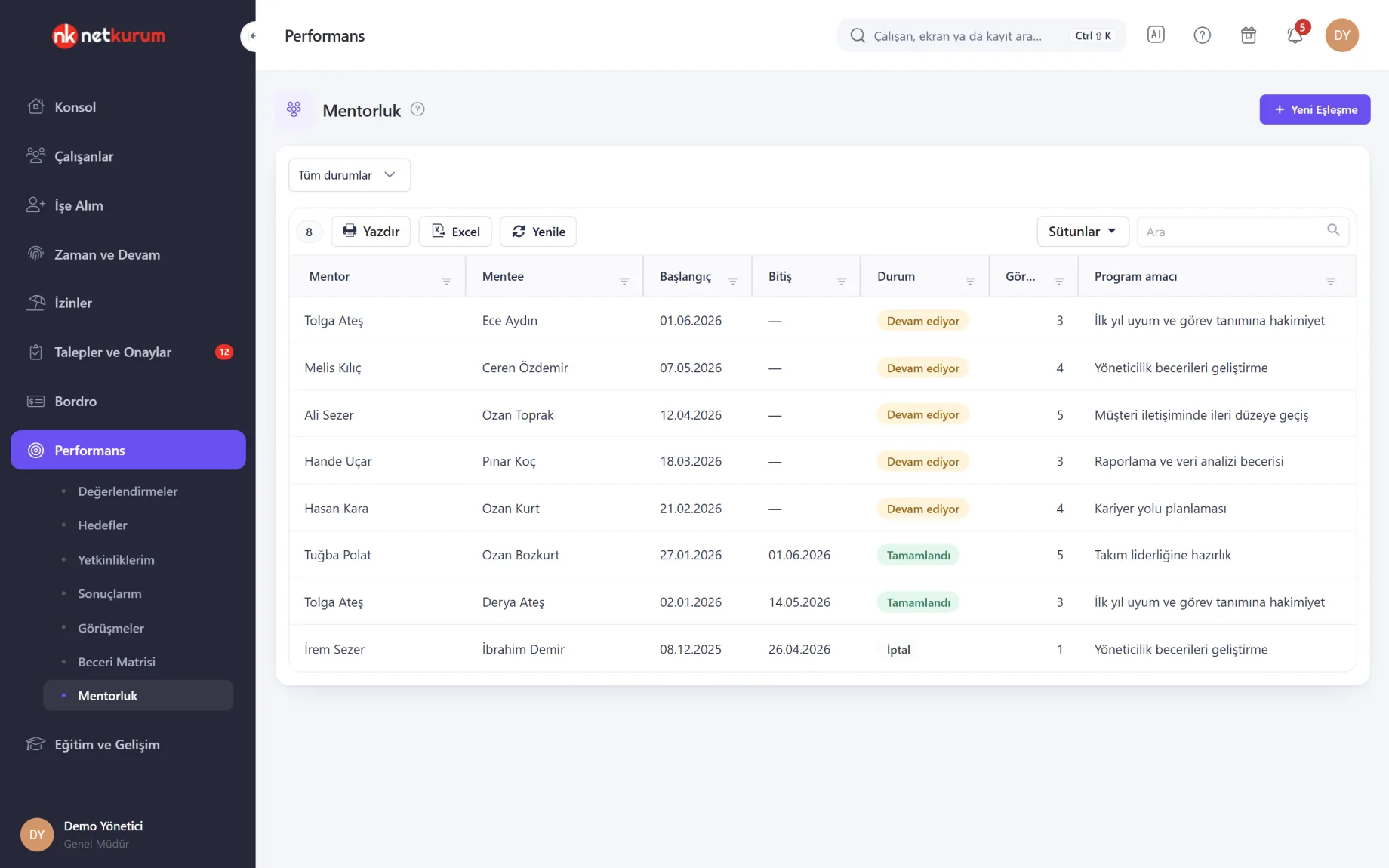
An experienced employee is paired as mentor with a mentee you want to develop; the programme goal, start and end, status and number of sessions appear in the list.
See details
Mentors and mentees only see their own pairings.
Double-click a row to open session notes; the mentor or mentee adds dated notes to an ongoing programme. When the programme ends, status and outcome are updated.
A mentor and mentee can have only one ongoing programme at a time, and pairings are made by a performance administrator.
- Statuses: ongoing, completed, cancelled
- Record: programme goal, session notes and outcome
Your organization's scoring language
Performance settings
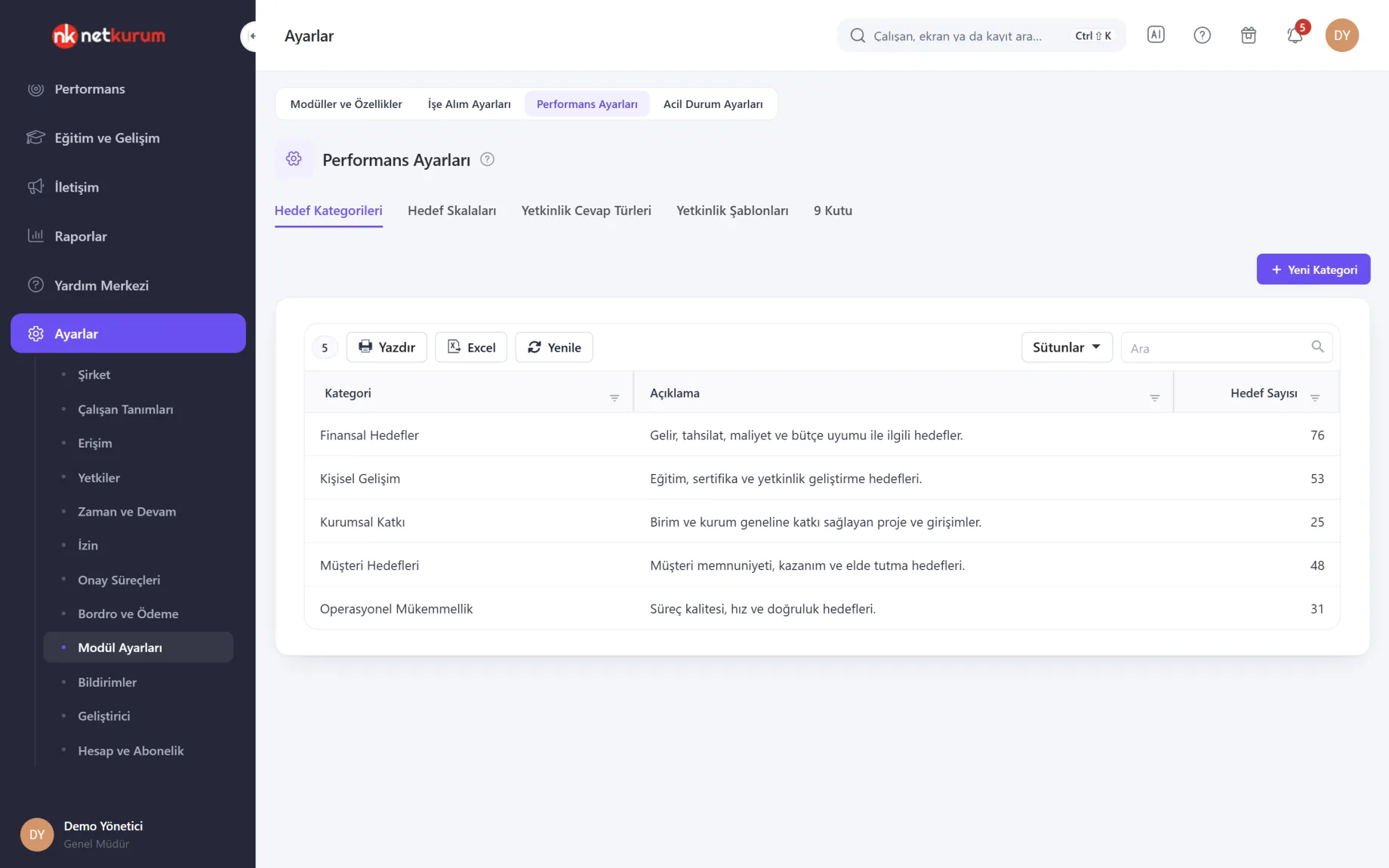
Goal categories, goal scales, competency answer types, competency templates and 9-box thresholds are defined per organization. Categories group goals in reports.
See details
Definitions set up once are reused in every review cycle.
On a numeric scale, a result between two values gets a proportional score; on a text scale only the listed values are scored. Categories and answer types in use cannot be deleted.
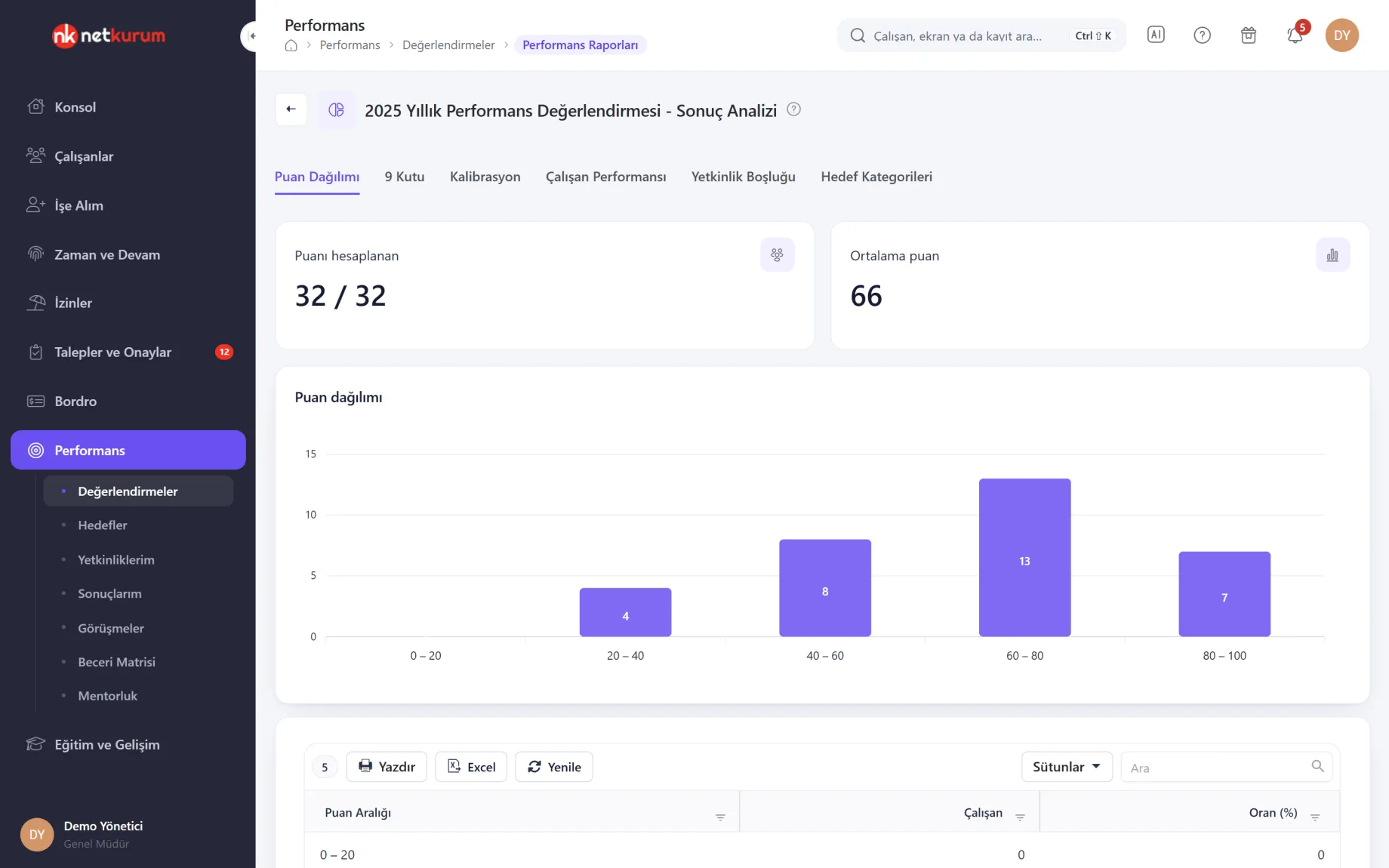
9-box thresholds split the performance axis into low, medium and high, and the results analysis is drawn with them.
- Tabs: categories, scales, answer types, templates, 9-box
What's included in performance management?
- Reviews that measure competencies, goals or both
- 90, 180, 270 and 360-degree presets with weighted reviewer categories
- A step-by-step review wizard, built-in templates and copying from the previous period
- Goals with approval, check-ins and results pulled from attendance and training records
- Reminders, tracking report and individual PDF reports
- Results analysis: score distribution, 9-box, calibration, competency gaps and goal categories
- Employees viewing their results and adding their opinion
- One-on-one, feedback and recognition records, with notes that can be hidden from the employee
- Skills matrix with target levels and training mapping
- Mentoring pairs and session notes
- Performance history on the employee record
How do you get started?
- Set up your scoring language Define goal categories, scales and answer types in Performance Settings.
- Create the review Choose the type and enter the period, competencies and questions in the wizard; you can start from a built-in template.
- Assign participants Pick the people to review and set reviewers in one go with Quick Settings, then publish.
- Read the results Calibrate in the results analysis, check the 9-box grid and assign training to those with competency gaps.
Frequently asked questions
Can we run 360-degree reviews?
Yes. Choose self, manager, direct reports, peers and others with weights; the 90, 180, 270 and 360-degree presets fill in the weights for you, and you can change them afterwards.
Who enters the goals?
You decide per review: the employee enters them and the first-line manager approves, or the manager enters goals and results directly. Weights must add up to one hundred percent.
Can employees see their results?
It depends on the review's access settings. When enabled, employees see their scores and permitted reports and can add their opinion, which is sent to their first-line manager.
Do we have to rebuild the process every cycle?
No. Copy the review from the previous period; scoring, weights, competencies, questions, participants and reviewers carry over, and you only enter the new dates.
Can performance results be linked to training?
Yes. Competency gaps and the skills matrix show who falls short, and Assign Training in the individual report or the skills matrix takes you to the employee's training record.
Related features
-
 Learning and Development
Training catalogue, employee trainings, mobile courses, badges, certificates of attendance and surveys. Review Now
-
 Employee Management
Employee records, personnel files, assets, org chart and bulk data import from Excel. Review Now
-
 Reports
Ready-made reports, a report builder of your own, scheduled emails and an activity log. Review Now
Try NetKurum in your organization
Create your own demo in minutes and explore an organization full of sample data for 14 days.