

Requests and Approvals
Requests and Approvals
Expense, advance and overtime requests move through a defined approval chain step by step, and every approver decides from a single approval inbox, in bulk when needed.
What does it solve?
When receipt photos travel by chat, advances are asked for in the corridor and approvals sit in email threads, nobody knows where a request is waiting. NetKurum opens every request as a record and ties who approves, and in what order, to a rule.
- Requests nobody can locate Each request moves through ordered steps; requesters follow it on My Requests and approvers see it under Awaiting My Decision.
- Every amount going to the same person Add a "minimum amount" condition to a step, so that expenses above a set amount also need the general manager's approval.
- Work stalling while an approver is away Define a delegation, and steps in requests opened during those dates go to the delegate.
- Expenses with lost receipts Expenses are entered with amount, VAT, category and receipt date, with the receipt attached as an image or PDF; paid expenses are marked separately.
- Scattered document and advisory requests Visa document requests with their required documents and payroll advisory requests with response times (SLA) are tracked in the same module.
Requests and approvals, screen by screen
These images are real screens from the NetKurum demo organization; names of people and companies are fictitious.
One inbox, one decision
Approval inbox
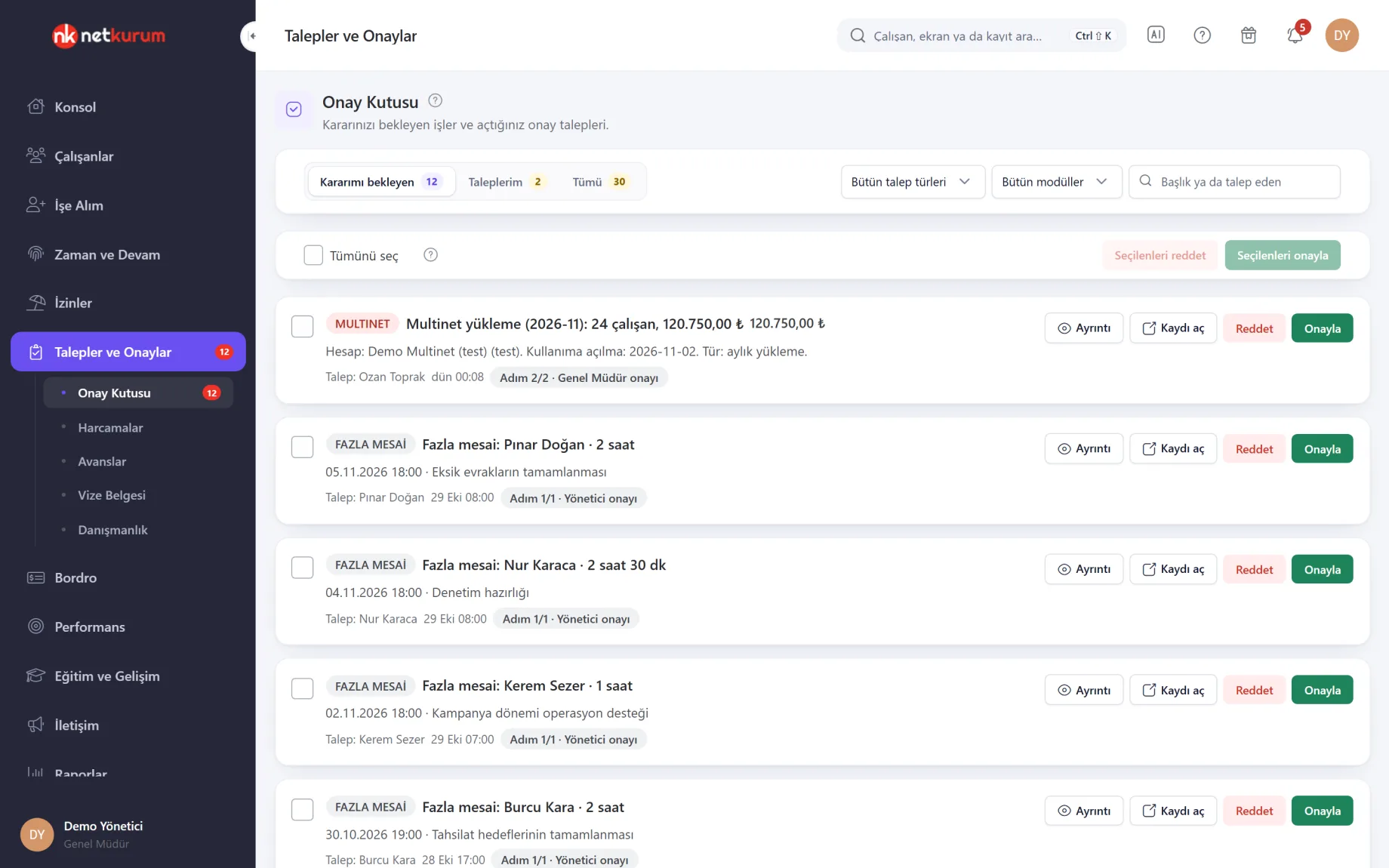
Expense, advance, overtime and meal card top-up requests awaiting your decision are listed as cards. Each card shows the type, title, amount if any, requester and the step it is waiting on.
See details
Approvers don't go from module to module; every decision is in this inbox.
There are three tabs: awaiting my decision, my requests and all. Filter by request type, module or search, and "Open record" shows the underlying record before you decide.
Tick cards and use approve selected or reject selected for a bulk decision; a reason is required for rejection. Nobody can decide on their own request, and decisions cannot be reversed. Where the module allows it, requesters can withdraw a request that has not been decided yet.
- Tabs: awaiting my decision, my requests, all
- Bulk decision: up to 50 requests at once
- Detail: steps shown as a timeline
Who approves, in what order
Approval flows
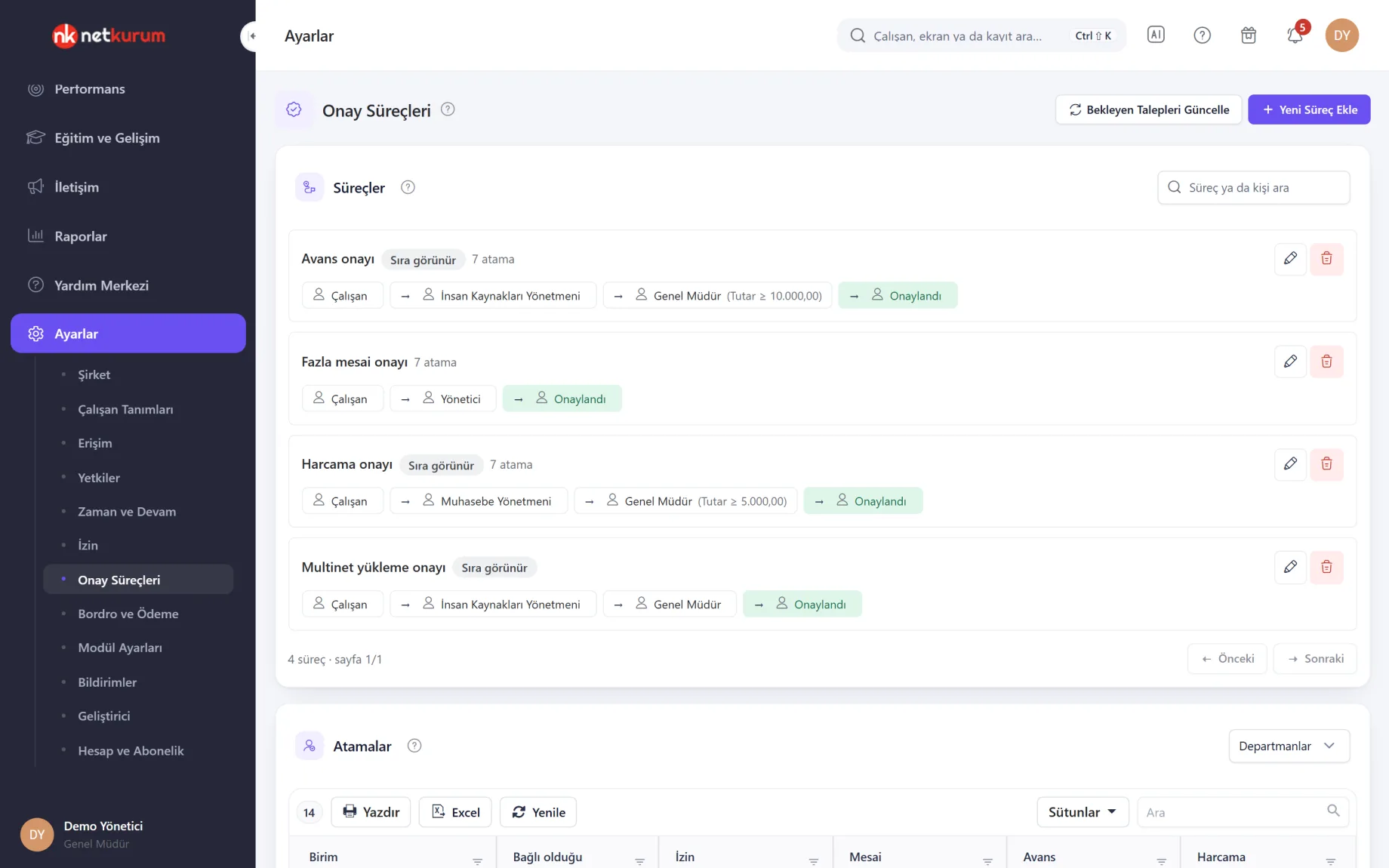
Each flow has a name and ordered approvers: a specific person, a position, a role, the employee's manager or the account owner. The same flow can be used for leave, overtime, advances and expenses.
See details
Define the approval chain once and assign it to units, positions, sites or people.
A flow has up to six steps, reordered by dragging. If "minimum amount" or "minimum duration" is filled in, a step only applies to requests at or above that value. Requests can show whose turn it is.
The flow that applies is chosen in this order: a person-specific assignment, position, department, site and the organization's default flow. Requests opened after an assignment follow the new flow; pending ones are refreshed with "Update Pending Requests". Delegations are defined on the same screen.
- Approvers: person, position, role, manager, account owner
- Condition: minimum amount or duration
- Assignment: department, position, site, person
Expenses with receipts
Expenses
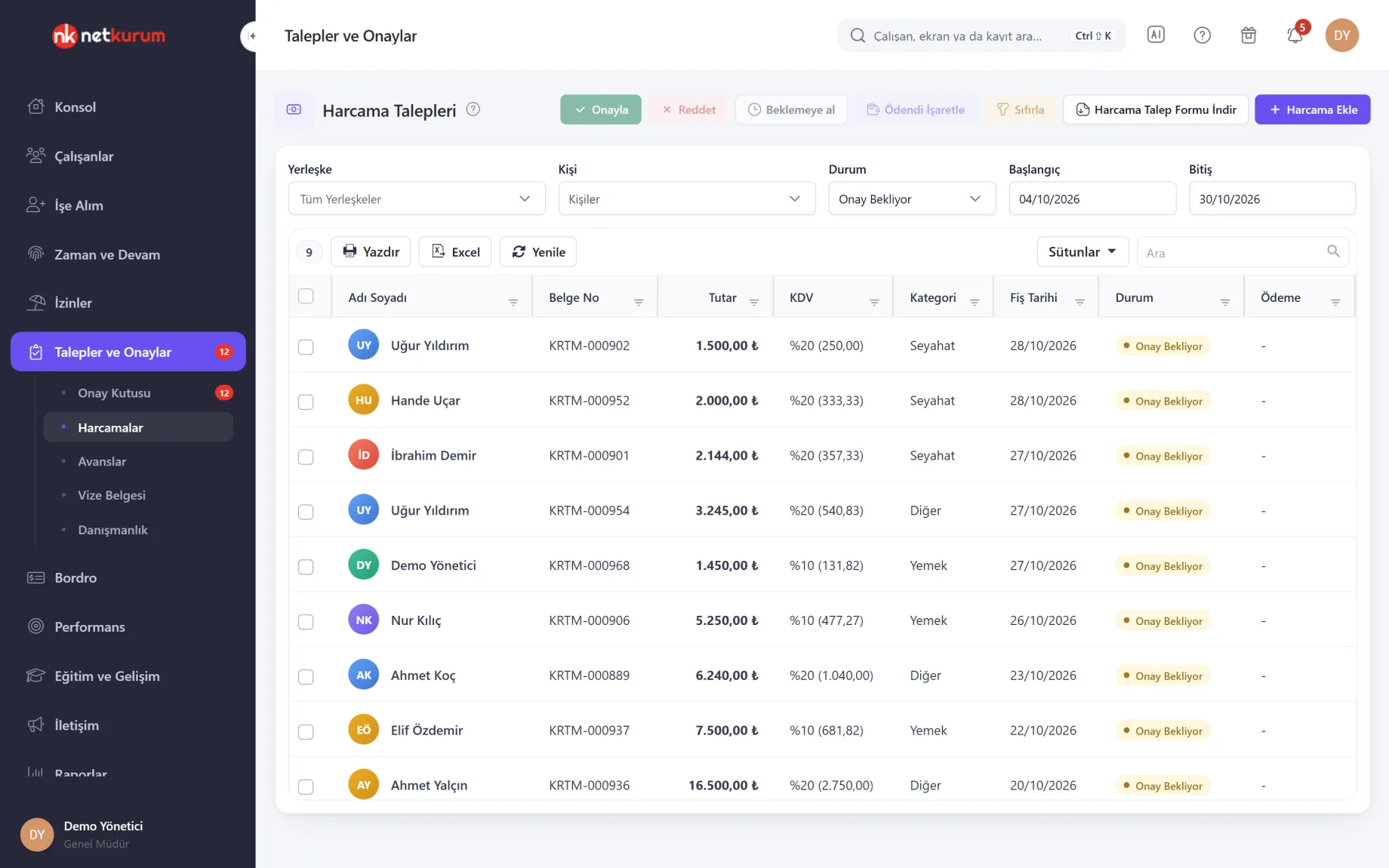
Expense requests are listed with document number, amount, VAT, category, receipt date, status and payment, and can be filtered by site, person, status and date range.
See details
Every expense reaches accounting with its receipt and approval history.
The expense form takes the person, type, date, amount, currency, vendor and a note; the receipt is uploaded as an image or PDF and previewed immediately. Only expenses awaiting approval can be edited or deleted.
Authorized users select rows to approve, reject, put on hold or mark approved expenses as paid with a payment date. The expense request form for a chosen person and date range downloads as an Excel file with a signature section.
- Columns: amount, VAT, category, receipt date, payment
- Bulk status: approve, reject, hold, paid
- Form: Excel with signature section
Advances and instalments
Advances
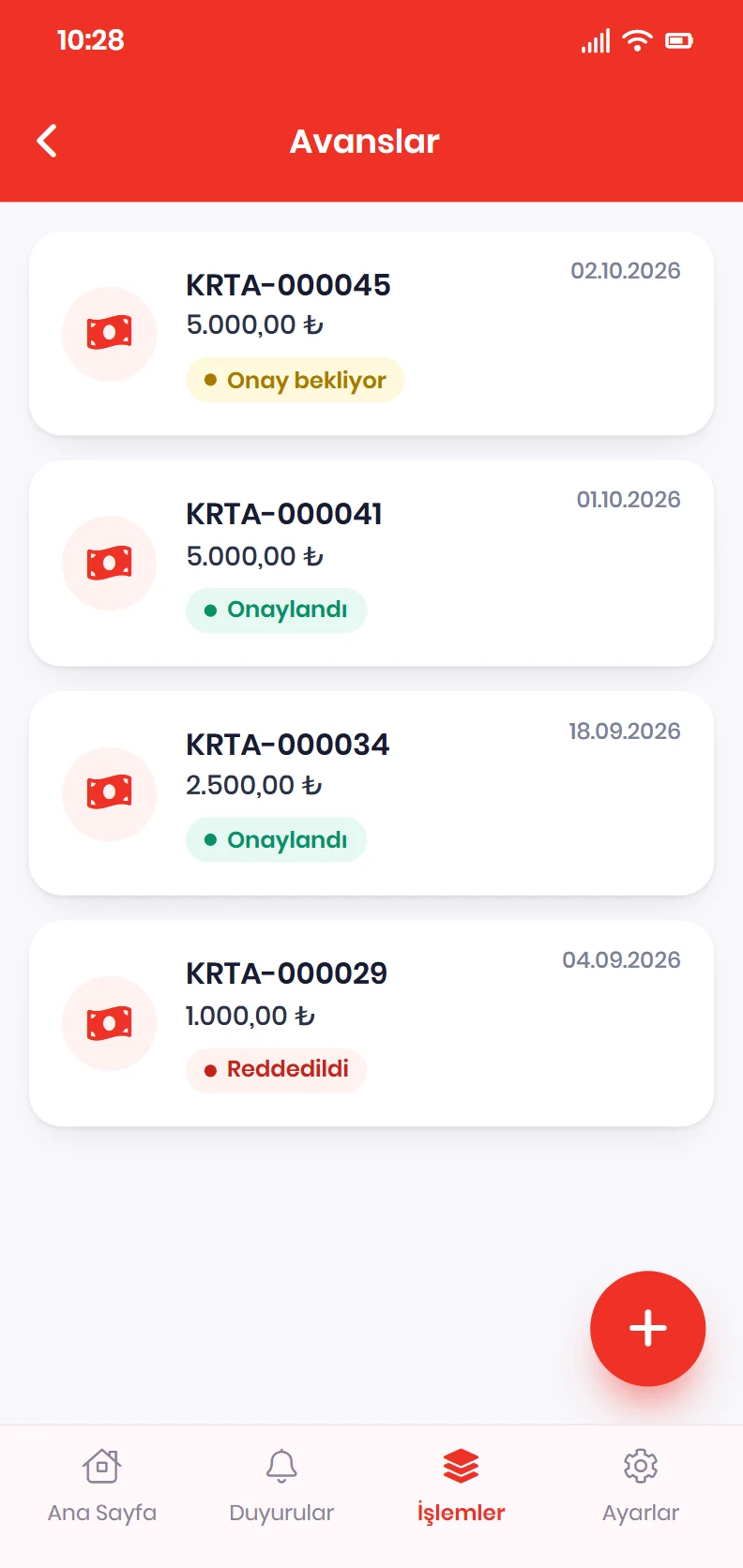
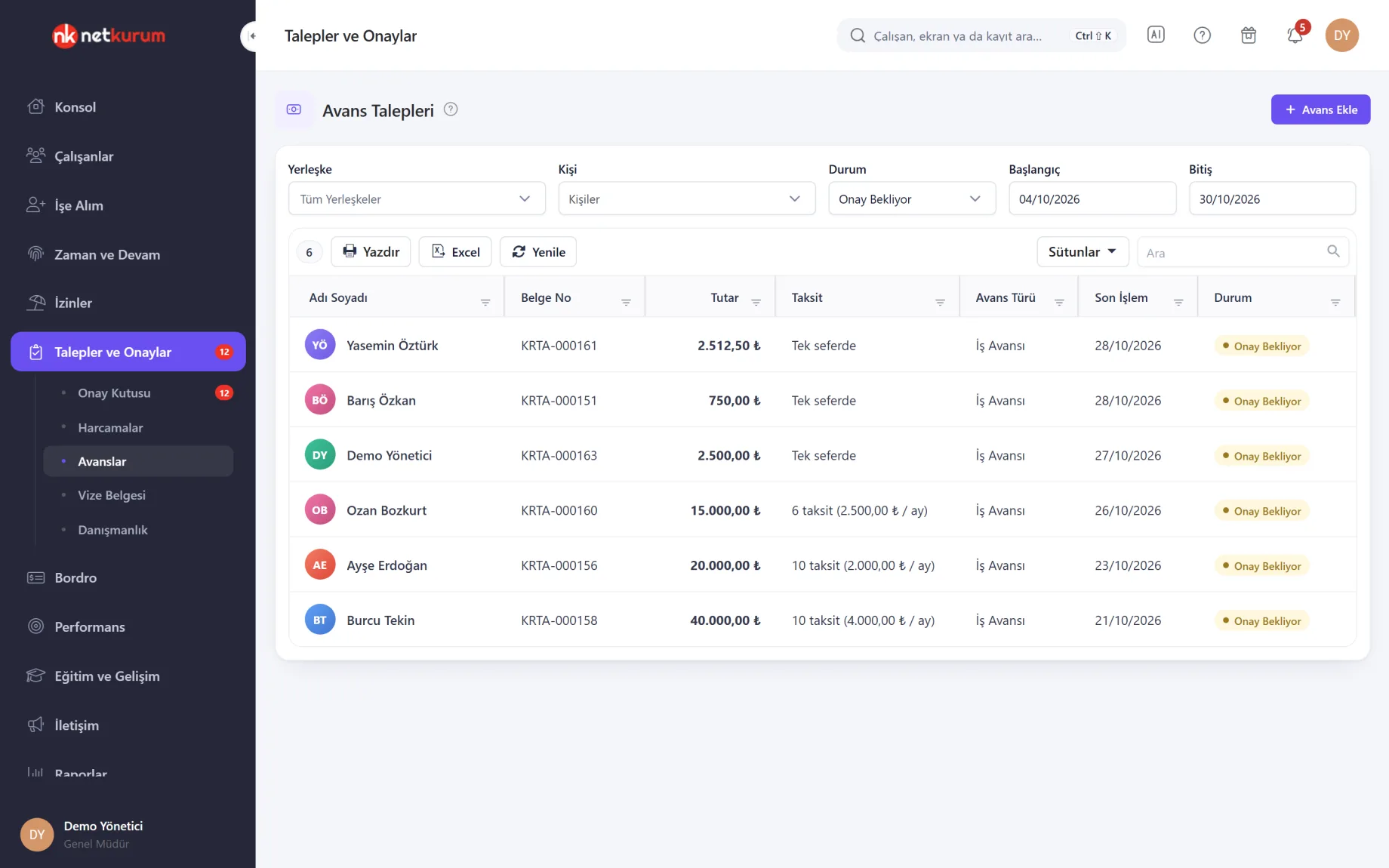
Advance requests are listed with amount, instalments, advance type, last action date and status. The screen opens on requests awaiting approval, and employees without advance rights see only their own.
See details
When an advance was granted and who approved it is recorded event by event.
An advance request takes the person, advance type, amount and a note, and starts as awaiting approval. Advance types are defined for your organization.
The advance detail records every approval or rejection with who acted, when and with what status. With an approval flow assigned, the advance goes to the approval inbox; otherwise an authorized person approves it.
- Columns: amount, instalments, type, status
- History: every approval and rejection recorded
Expenses from the phone
Mobile requests
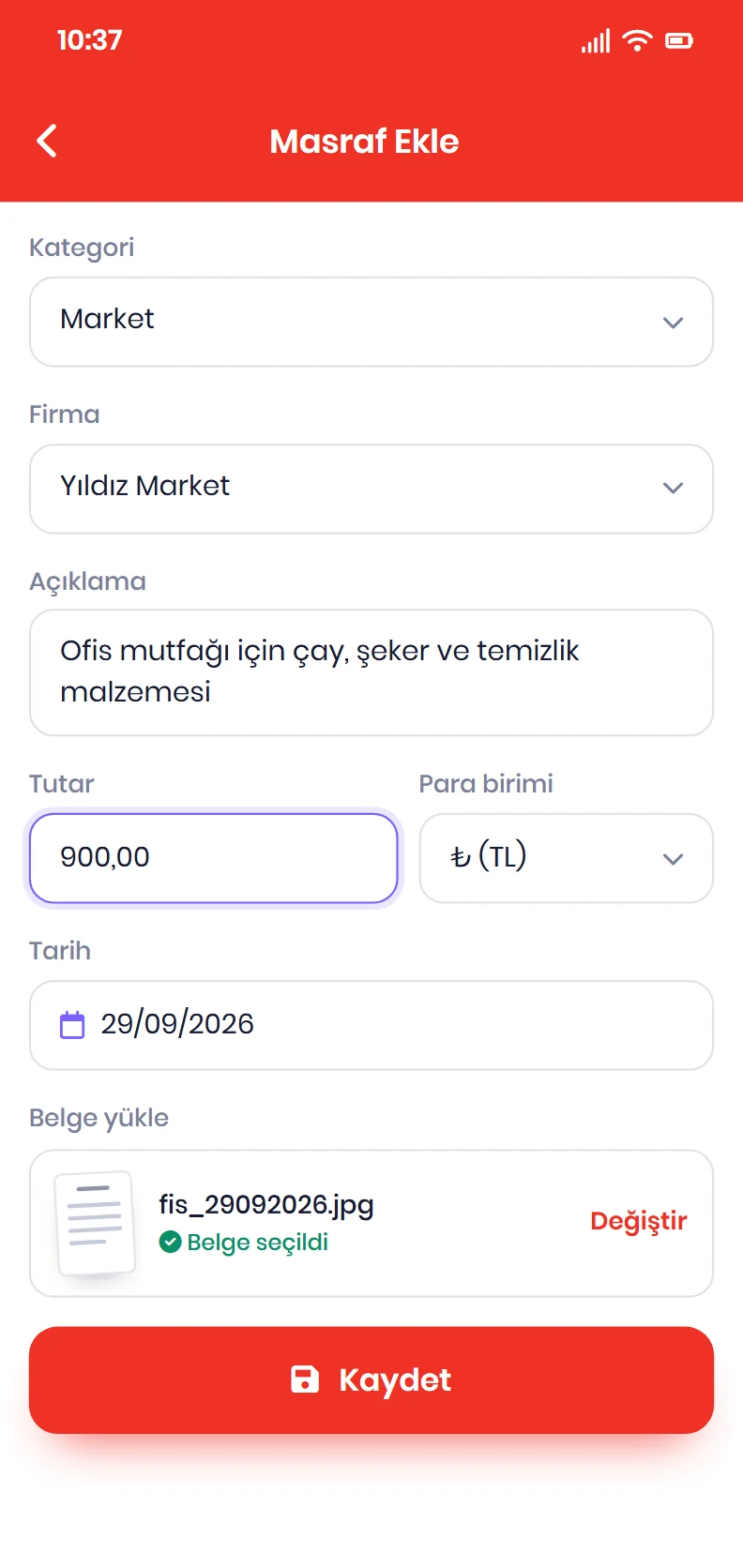
Employees request expenses with a receipt, advances and overtime from their phone, and follow the status of all their requests in one list.
See details
The receipt is recorded where the money was spent.
Approvers also make their approval inbox decisions in the mobile app, and employees are notified when a request is settled.
- Employee: expense, advance, overtime, leave request
- Manager: approve or reject from the phone
Visa documents, one by one
Visa documents
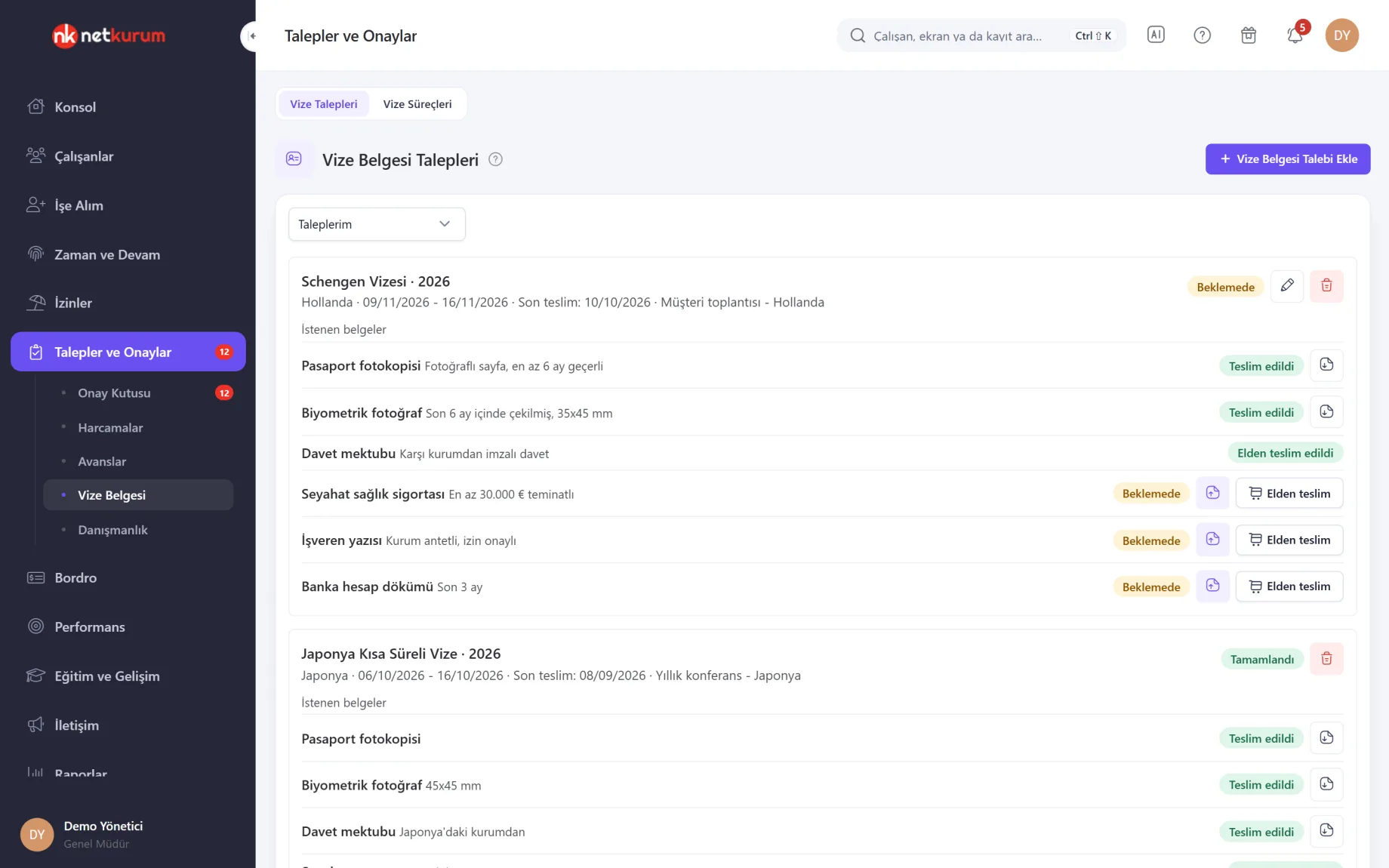
Employees open a document request for a trip abroad with the destination country, travel dates, deadline and visa type. Each document required for that visa type is listed with its own status.
See details
Visa paperwork does not get lost in email, and missing documents show at a glance.
Visa processes define each visa type and the documents it requires; documents with a ready file are delivered to the employee as soon as the request is opened. The organization's single visa process manager is notified of new requests.
The manager uploads each document or marks it as handed over in person; country, dates and note can be edited while the request is pending.
- Request: country, dates, deadline, visa type
- Document status: pending, delivered, handed over in person
Advisory requests with deadlines
Advisory requests
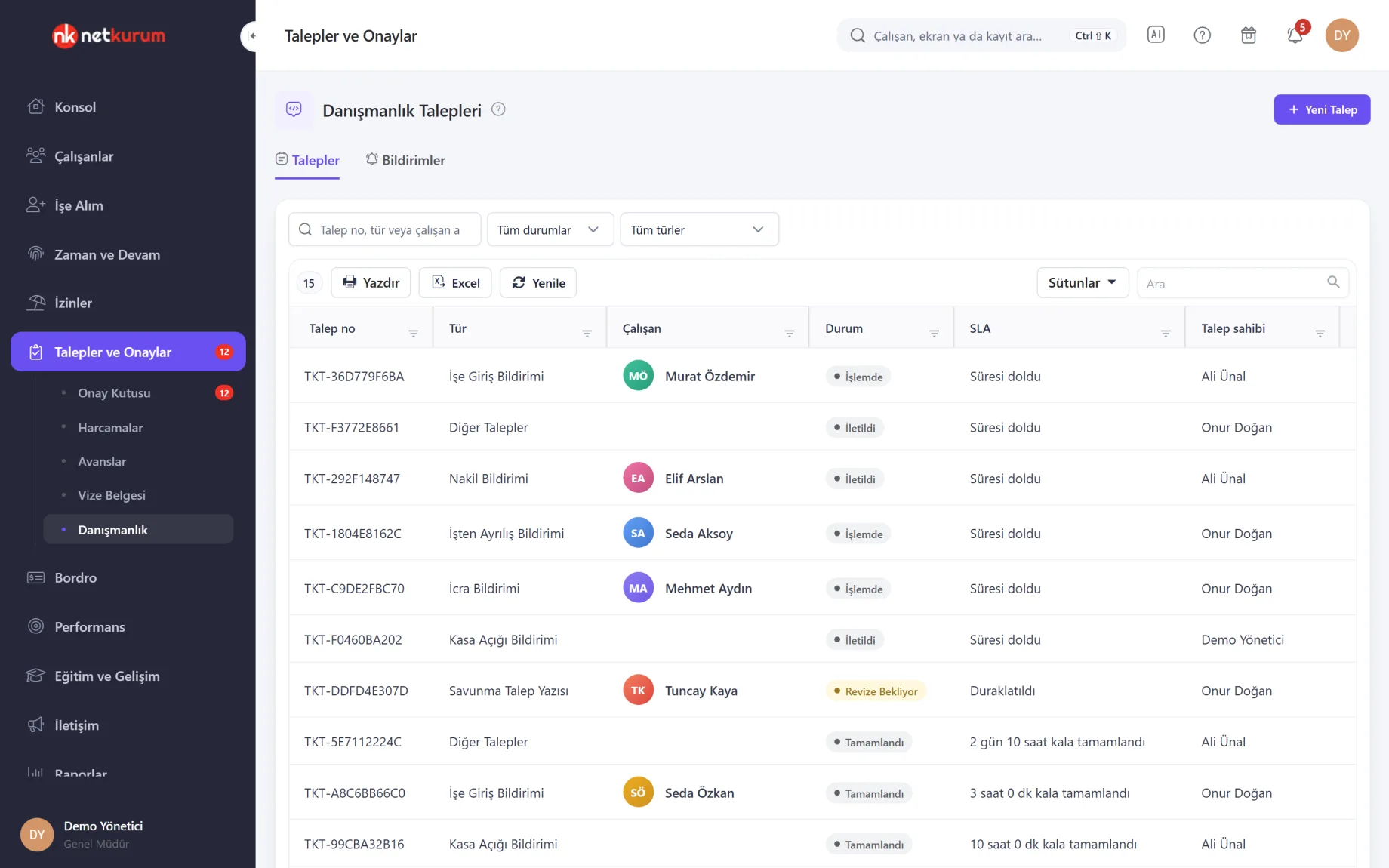
Payroll advisory notices such as new hires, leavers, cash shortages, disciplinary defence, transfers, wage garnishments and work accidents are sent and tracked here. Each request shows its status and response time (SLA).
See details
Every notice to the advisor is recorded with a number, a deadline and the conversation.
"New Request" starts with a type; each type card states its description, response time and any deadline rule. Statuses are sent, in progress, awaiting revision, completed and cancelled, and the SLA colour shows how much time is left.
In the request detail you message the advisor and upload documents; if a correction is requested, you upload a new version and earlier versions are kept. The disciplinary defence process runs step by step from the incident report to the signed warning.
- Types: hire, leaver, cash shortage, defence, transfer, garnishment, work accident
- Deadline: response time (SLA) per type
What's included in requests and approvals?
- One approval inbox for expenses, advances, overtime and meal card top-ups
- Approval flows of up to six steps with person, position, role and manager approvers
- Approval steps triggered by amount or duration
- Flow assignment by department, position, site and person, with delegation
- Expense requests with receipts, VAT and category, a paid flag and an Excel form with signatures
- Advance types, instalment details and approval history
- Expense, advance, overtime and leave requests from mobile, with approvals on the phone
- Visa document requests with their required documents
- Payroll advisory requests with response times and a disciplinary defence process
- Field tasks: assignees, customers, location, estimated amount and mileage, with approval or revision
- Approval flow report showing which flow is assigned to which unit
How do you get started?
- Define the types Enter advance and expense types and, if needed, the expense authority and visa processes.
- Set up approval flows Order the approvers, add amount conditions and assign flows to departments, positions or sites.
- Invite employees Employees open requests from the mobile app or the panel and attach their receipts.
- Decide from the inbox Approvers decide from one inbox, in bulk if needed, and the result is sent to the employee.
Frequently asked questions
Which requests go to the approval inbox?
Overtime requests, expense and advance requests with an approval flow assigned, and other items that need approval such as meal card top-ups. Leave requests are approved on the leave management screen according to the leave approval route.
What happens if no approval flow is assigned?
The organization's default flow is used if there is one. With no flow at all, advances and expenses are approved by an authorized person and overtime by the employee's manager.
Do requests wait while an approver is on leave?
With a delegation in place, the relevant step goes to the delegate according to the delegation valid on the day the request is opened. Requests already pending can be moved to the new order with "Update Pending Requests".
Can a decision be reversed?
No. An approved or rejected request is not reopened; corrections are made with a new action in the relevant module. A request that has not been decided yet can be withdrawn by the requester.
Can employees enter expenses from their phone?
Yes. Expense, advance and overtime requests are opened in the mobile app, and approvers can make their approval inbox decisions on the phone as well.
Related features
-
 Leave Management
Leave policies and accrual, mobile requests, approval flow, leave calendar and balance reports. Review Now
-
 Payroll and Compensation
Payroll periods, salaries, additional payments, meal cards, pension auto-enrolment and statutory payroll reports. Review Now
-
 Mobile App
Check-in, requests, leave balance, payslips, announcements and approvals in every employee's pocket. Review Now
Try NetKurum in your organization
Create your own demo in minutes and explore an organization full of sample data for 14 days.