

Time and Attendance
Timesheets, Attendance and Overtime
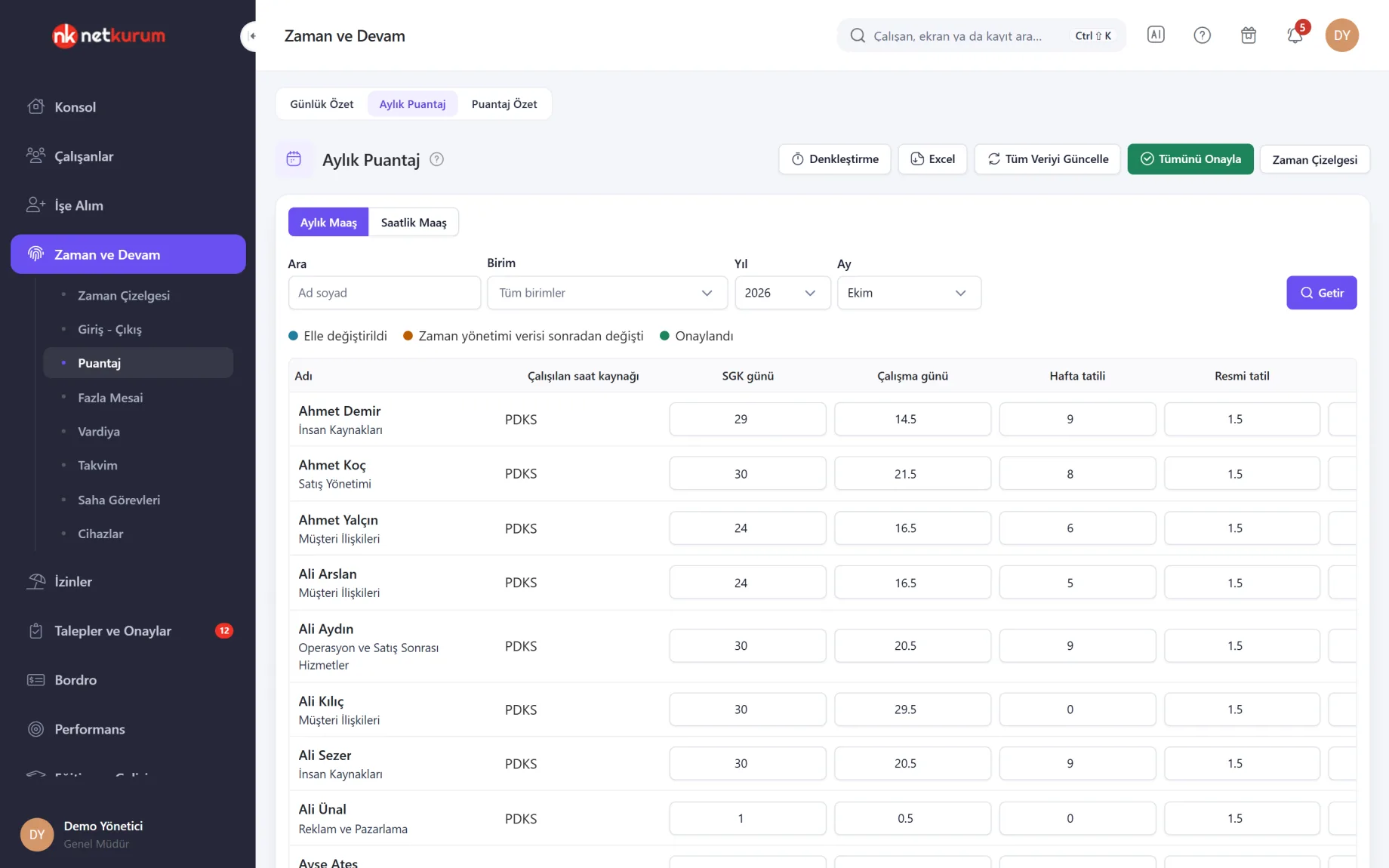
Check-ins are compared with each shift, mismatched days are flagged, and at month end SGK days, absences and overtime hours come together in an attendance sheet ready for payroll.
What does it solve?
When attendance is added up by hand at month end, missing check-ins surface on payroll day and overtime turns into a debate. NetKurum compares hours every day and closes the month on an approved, locked sheet.
- Missing records found at month end The timesheet compares planned and actual time every day; days with short hours, late arrival or early leave turn red and are fixed from the day window.
- Working out SGK days and absences by hand The monthly attendance sheet calculates weekly days off, public holidays, paid and unpaid leave, sick days and the absence reason from time data; any row can be corrected.
- Attendance that changes after the fact Approved rows are locked, and if time data changes after approval the row is flagged.
- Overtime approved on paper Employees request overtime from My Overtime, the request follows the approval flow, and approved overtime becomes pay or time off in lieu.
- Lateness judged differently by every manager Check-in, check-out and minimum overtime tolerances are set once for the whole organization; warning thresholds can be tuned separately.
Timesheets and overtime, screen by screen
These images are real screens from the NetKurum demo organization; names of people and companies are fictitious.
Planned against actual
Timesheet
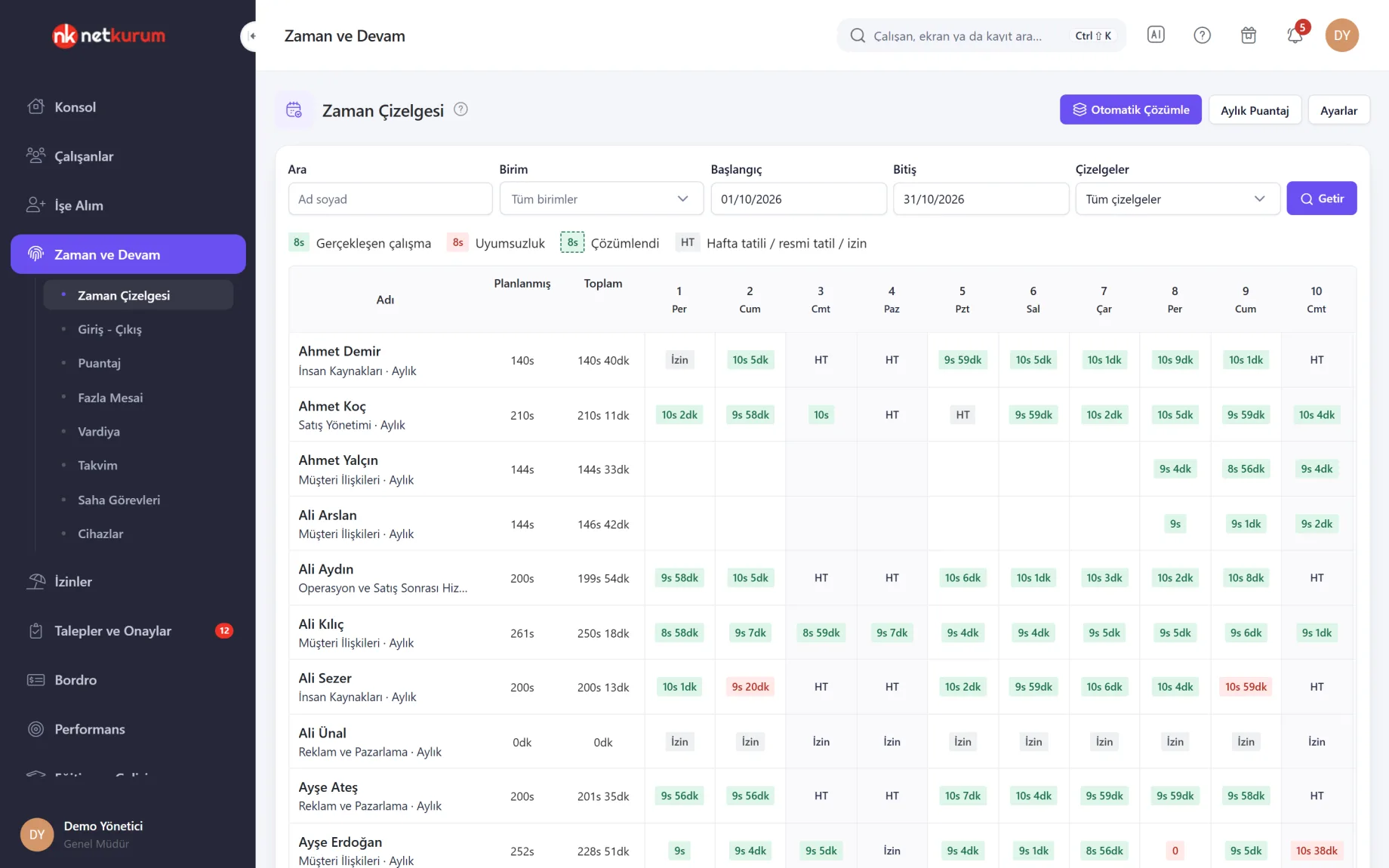
Each employee's days in the selected range sit on one row with planned and total hours. The value in a cell is the time actually worked; a red cell marks a day where planned and actual do not match.
See details
You clean up attendance every day instead of at month end.
Mismatch types are short hours, extra hours, late check-in, early check-in, early check-out and late check-out. Clicking a day opens a timeline with planned work (breaks shaded), actual work and the check-in and check-out events.
"Add Time" creates a check-in record for missing hours, or you can mark the day as resolved without adding one. "Auto Resolve" marks every mismatched day in the range at once, leaves check-in data untouched and can be undone.
- Row: planned, total and daily actual hours
- Day window: timeline, Add Time, Resolved
- Scope: unit managers see only their own units
A month ready for payroll
Monthly attendance sheet
The days that go into payroll are calculated from time data: SGK (social security) days, working days, weekly days off, public holidays, leave, absences and overtime hours. Rows can be edited, approved and locked.
See details
The month closes on an approved sheet that no longer changes.
Absence days are made up of unpaid leave and unpaid sick days, and a setting can add unexcused absences too. The absence reason code is picked automatically and can be changed.
Monthly-salaried and hourly-paid employees have separate tabs; for part-timers, SGK days are derived from total paid hours. "Approve All" locks everyone on the list, and "Refresh All Data" reloads unapproved rows from time data.
The Equalization button estimates normal hours, actual hours and the difference per person for the configured period; it does not change the attendance sheet or payroll.
- Columns: SGK days, working days, holidays, leave, absences, overtime
- Status: edited by hand, changed later, approved
- Export: Excel
Turn it into pay or time off
Overtime management
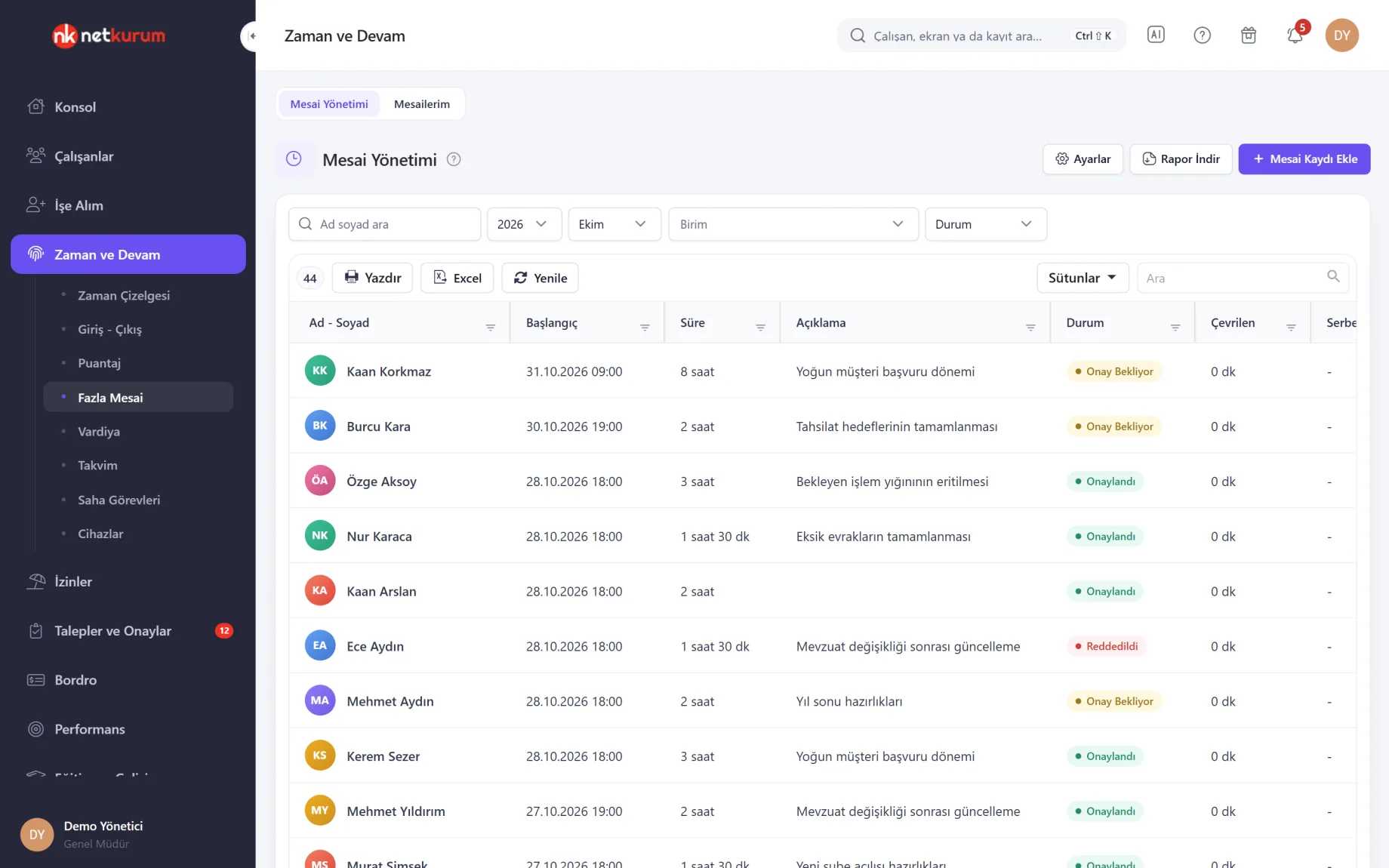
Filter overtime records by employee, year, month, unit and status. Administrators see everyone and unit managers see their own team; records are approved, rejected or, once approved, converted into pay or extra leave.
See details
Each overtime entry is tracked on one record, from approval to pay or time off.
Converting to pay calculates the amount from duration, multiplier and the employee's hourly rate and records it as an overtime payment. Converting to leave turns duration and multiplier into hours of time off; the last date to use it is listed, with a warning as it approaches.
Overtime can be converted in part, and the remainder is suggested next time. When adding a record, a warning appears if the employee's yearly overtime approaches the legal limit or written consent is missing from the personnel file. "Download Report" exports the filtered records to Excel.
- Add: employee, start, duration, note
- Convert: pay or time off, in part if needed
- Warnings: yearly total, written consent, personnel flags
Requested by the employee
My overtime
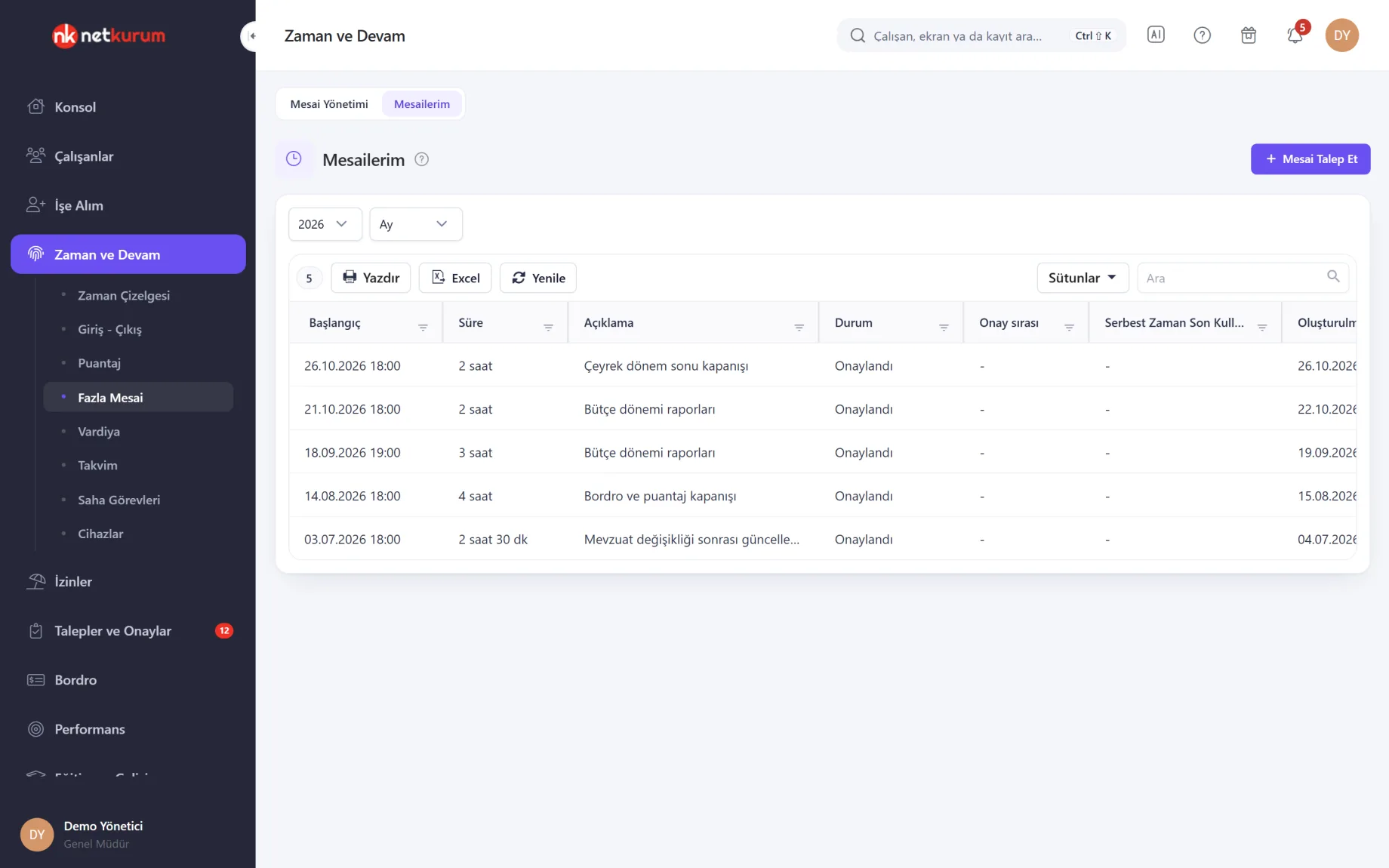
Employees see past and upcoming overtime by month and year. "Request Overtime" takes a date, time and duration; the request goes to the assigned approval flow, or to their manager if none is assigned.
See details
Overtime requests arrive as records, not as emails.
The decision reaches the employee as a notification. If the approval flow allows it, the list also shows who the pending request is waiting on, and overtime converted to time off shows its last date of use.
The same request can be made from the mobile app. Whether employees can see their own overtime is switched on or off in overtime management.
- Request: date, time, duration, note
- Tracking: status, approval step, time-off deadline
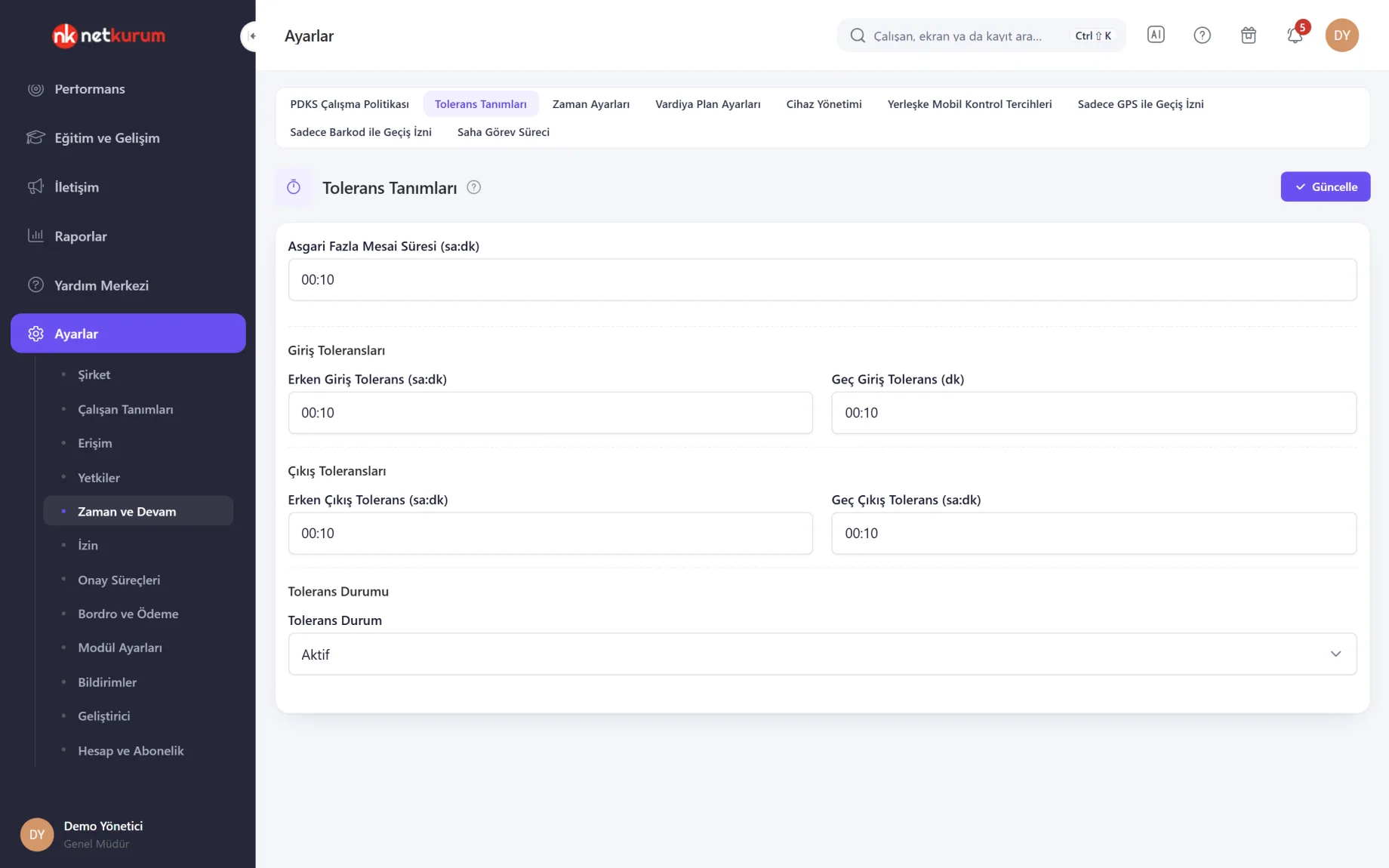
Tolerances in one place
Tolerance settings
Minimum overtime, early and late check-in and early and late check-out tolerances are entered in hours and minutes. Setting tolerance to inactive switches them off.
See details
One organization-wide rule decides whether a few minutes count as lateness or overtime.
These values are also the default thresholds for warnings on the timesheet and daily summary; unless a threshold is customized in the time management settings, the tolerance applies.
- Check-in: early and late tolerance
- Check-out: early and late tolerance
- Overtime: minimum duration
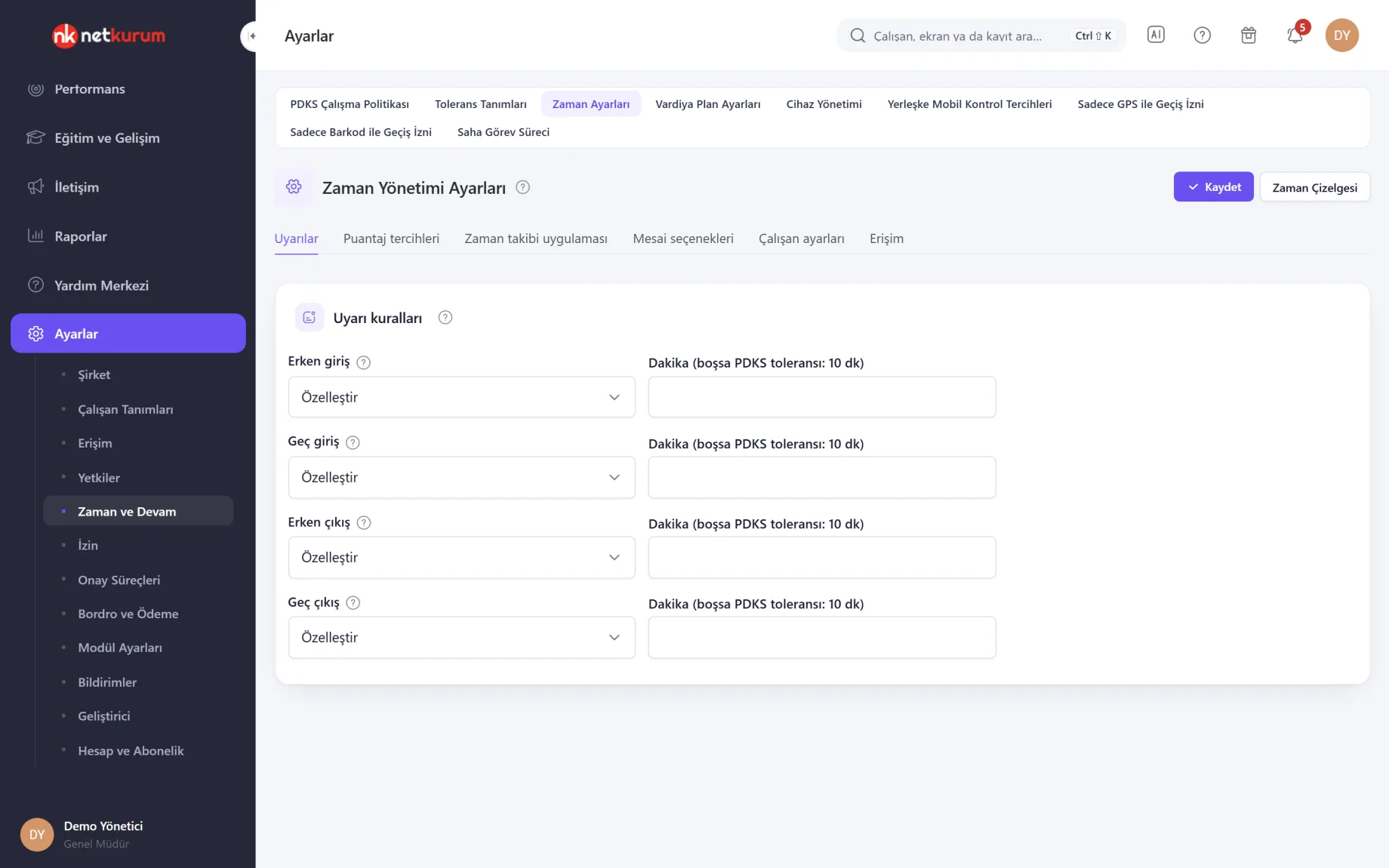
Warning and calculation preferences
Time management settings
Warning rules, attendance preferences, overtime options, employee settings and access are arranged in tabs on one screen. For each mismatch type you choose always warn, never warn or a custom number of minutes.
See details
You shape the calculation to your organization's practice; existing attendance reports stay as they are.
Attendance preferences cover the +1 paid day in 31-day months, counting unexcused absences, treating sick leave as paid, including company holiday calendars and the equalization period.
Employee settings decide whether a person is included in time management, their pay period (monthly or hourly) and whether worked hours come from check-ins or from the plan. The access tab opens time management to other users, limited to selected units.
- Tabs: warnings, attendance preferences, overtime options, employee settings, access
- Hours source: check-in records or planned hours
What's included in timesheets and overtime?
- Person-by-day timesheet with planned, actual and mismatched days
- Day timeline with added time and a resolved flag
- Monthly attendance sheet with SGK days, absence reasons, leave and holidays
- Separate sheets for monthly-salaried and hourly-paid employees
- Row-by-row or bulk approval and lock, Excel export
- Estimated difference for the working time equalization period
- Colour-coded person-by-day attendance list in monthly and weekly view
- Overtime entry, approval and conversion to pay or time off
- Overtime requests from employees on web and mobile
- Check-in, check-out and overtime tolerances with adjustable warning thresholds
- Daily summary with who is in and who is out
- Excel import of past check-in times
How do you get started?
- Enter tolerances Set late check-in, early check-out and minimum overtime to match your rules.
- Choose attendance preferences In the time management settings, decide on absences, sick leave, paid days and pay periods.
- Close mismatches daily Open the red days on the timesheet, add missing time or mark them resolved.
- Approve the month Review the monthly attendance sheet and lock it with Approve All; days and hours are ready for payroll and can be exported to Excel.
Frequently asked questions
Where does the attendance sheet get its data?
From check-in records, shift definitions, approved leave and public holidays. Entries from mobile, web and card access all count the same way; organizations that prefer planned hours can choose that per employee.
Can an approved attendance sheet change later?
No. Approved rows are locked, and approval has to be withdrawn for a change. If time data changes after approval, the row is flagged.
How does overtime become pay or time off?
Approved overtime converted to pay is calculated from duration, multiplier and hourly rate and recorded as an overtime payment. Converted to leave, it is kept as hours of time off and its last date of use is tracked.
Can employees enter their own overtime?
Yes, from My Overtime or the mobile app. The request follows the defined approval flow and the employee is notified of the decision.
Are legal overtime limits checked?
When a record is added, a warning appears if the employee's yearly overtime is close to the limit or the personnel file shows missing written consent, age or pregnancy restrictions. Warnings do not block the record; the decision stays with you.
Related features
-
 Check-In and Check-Out
Clock in from the phone with QR code and location checks; you choose the method for every site and access point. Review Now
-
 Shifts and Work Calendars
Shift plans per unit, employee availability, flexible shifts, holiday calendars and bulk assignment. Review Now
-
 Payroll and Compensation
Payroll periods, salaries, additional payments, meal cards, pension auto-enrolment and statutory payroll reports. Review Now
Try NetKurum in your organization
Create your own demo in minutes and explore an organization full of sample data for 14 days.