

Features
Organizational Structure and Subcontractor Management
Define your sites, departments, position hierarchy and subcontractor companies; approval flows, permissions and reports are built on top of this structure.
What does it solve?
Who should a leave approval go to, which manager sees which report, which company does a subcontractor employee belong to? The answers to these questions lie in the organizational structure.
- A system that doesn't match the real organization Sites, departments and positions are defined according to the organization's own hierarchy; each position's superior position and department are set.
- Adding a branch takes too long A new site is created with its name, type, contact details and location on the map; as soon as a QR code is generated for the branch, it is ready for mobile check-in/out.
- Permanent and subcontractor staff on the same list Subcontractor companies are defined separately; reports use a subcontractor company filter and company information.
- Not just employees Person types such as student, customer, member, donor, supplier and guest can be enabled and managed in the same structure.
- Reports cluttered with unnecessary filters Whether the subcontractor company and collar type filters appear in reports is set with an organization setting.
Organizational structure, screen by screen
The visuals are illustrations based on NetKurum screens; person and company names are examples.
Site type
Sites
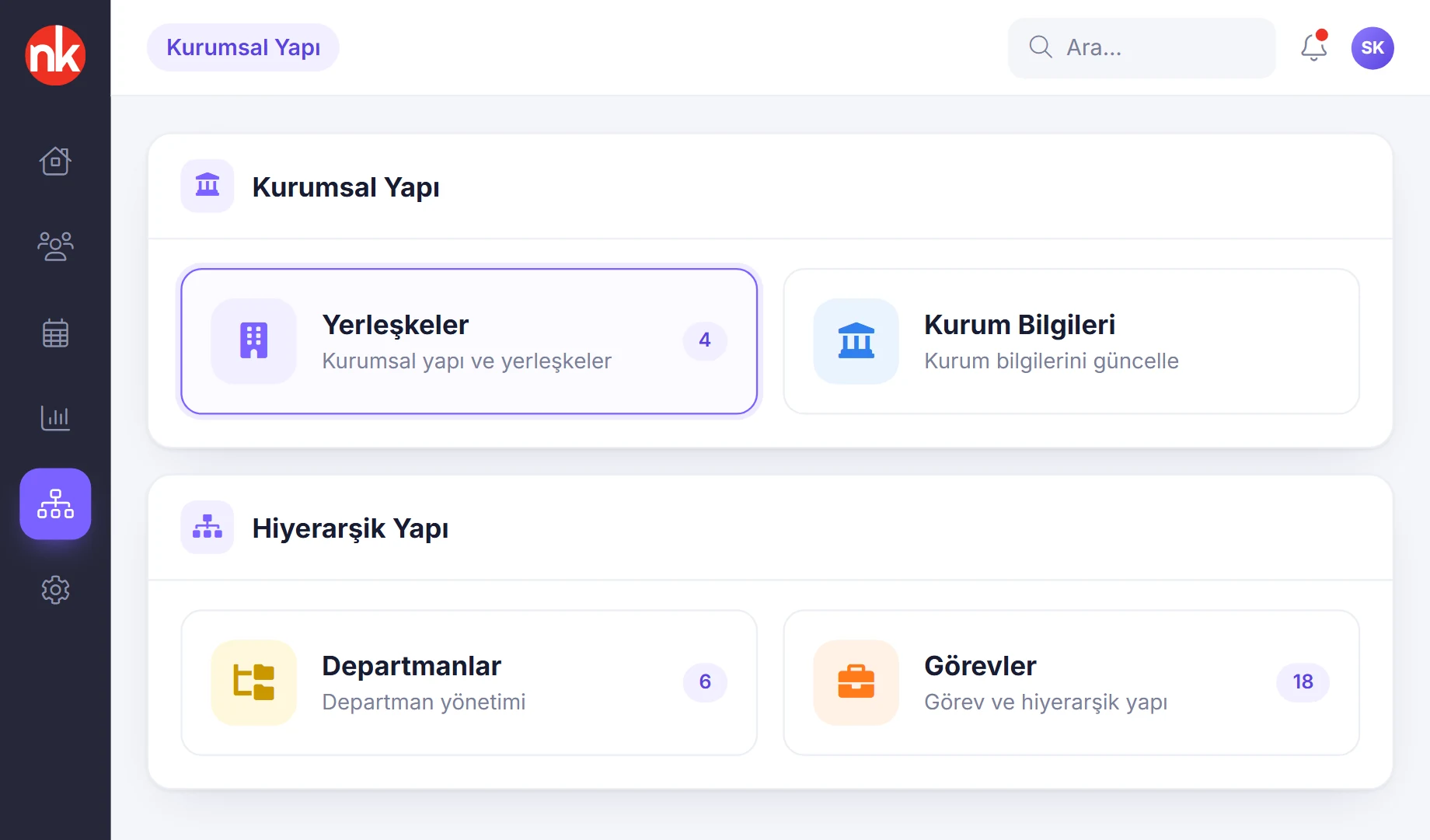
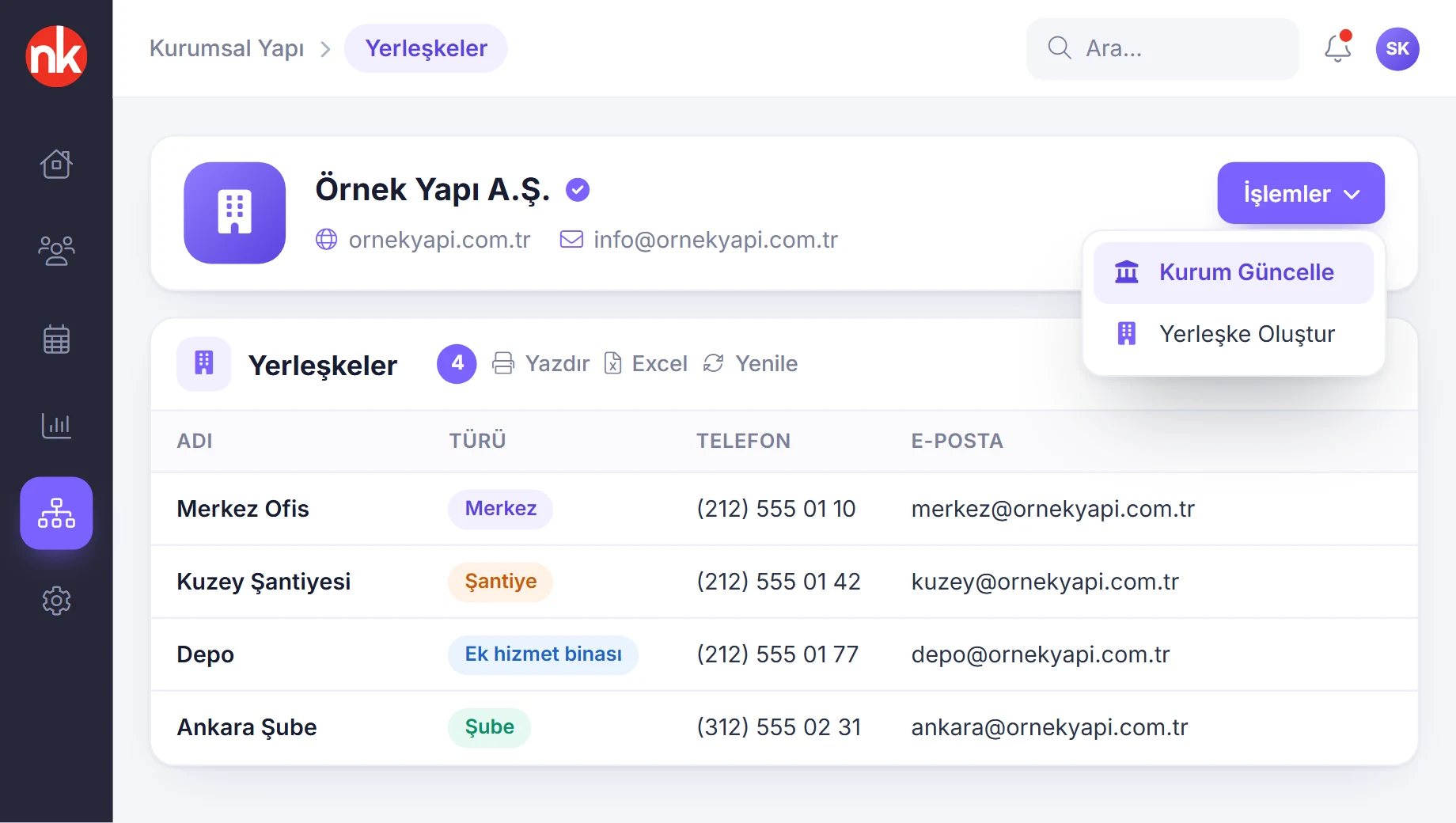
Organization details and registered sites appear on the same page. Each site is listed with its name, type, phone, email and description; from the Actions menu, organization details are updated or a new site is created.
See details
Sites define the organization's headquarters, branches and service buildings; check-in/out rules and reports work on a per-site basis.
Double-clicking a site opens its details page: the number of people at the site, devices, the mobile check preference and QR codes are managed here.
The site list can be printed and exported to Excel.
- Details: name, type, phone, email, description
- Details page: people, devices, mobile check preference, QR codes
Location on the map
New site and its location
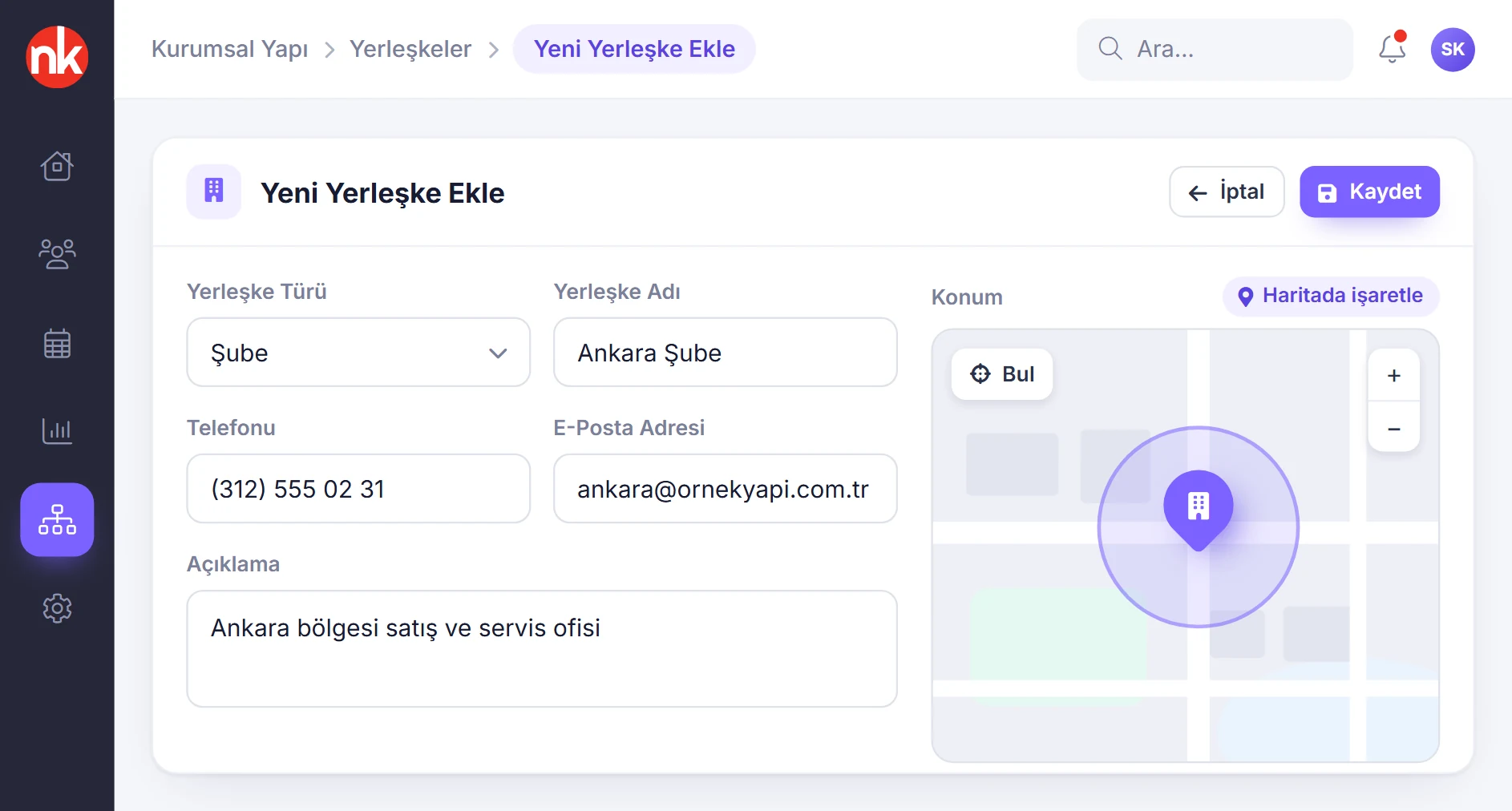
When adding a new site, you enter its type, name, phone, email address and description; the branch's location is marked on the map.
See details
The site's location on the map is the basis for location-verified check-in/out in the mobile app.
The location is selected by searching on the map or by placing a marker. The site type distinguishes structures such as headquarters, branch or additional service building.
A site saved with the Create Branch button can be used immediately in employee forms, reports and permission settings.
- Fields: type, name, phone, email, description
- Location: selected on the map
Normal or dynamic
Branch QR codes
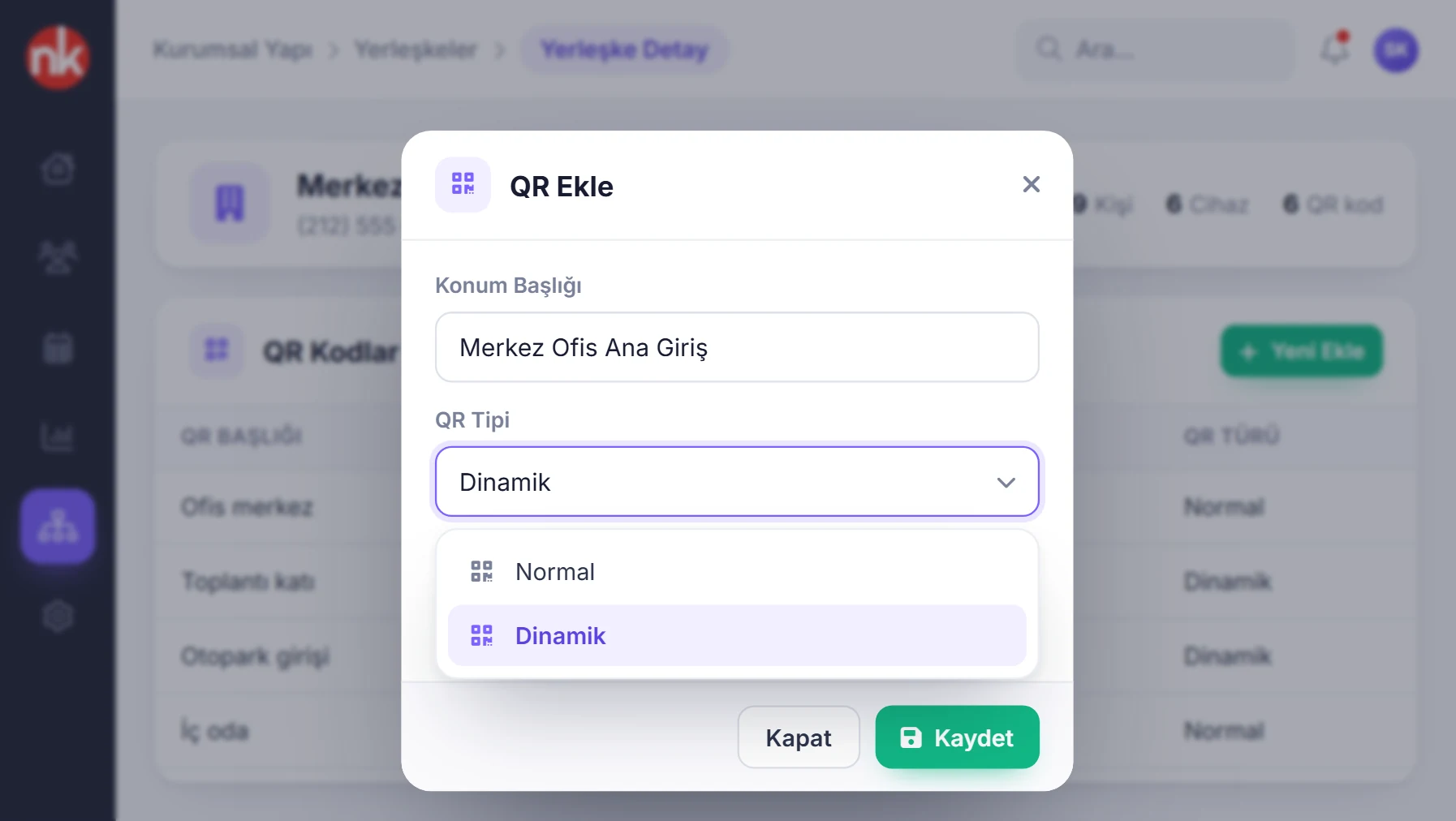
The QR Codes table in the branch details lists the codes belonging to the branch. With Add New, a new code is created by selecting a location title, QR type (normal or dynamic) and status.
See details
More than one QR code can be defined for a branch; for example, separate codes for the main entrance, the office floor and the service door.
The table shows each code's title, creation time, status and type. A code taken out of use is deactivated.
When creating a dynamic QR code, a PIN is set and an expiration date can be defined for the code.
- Code details: location title, type, status
- Types: normal, dynamic
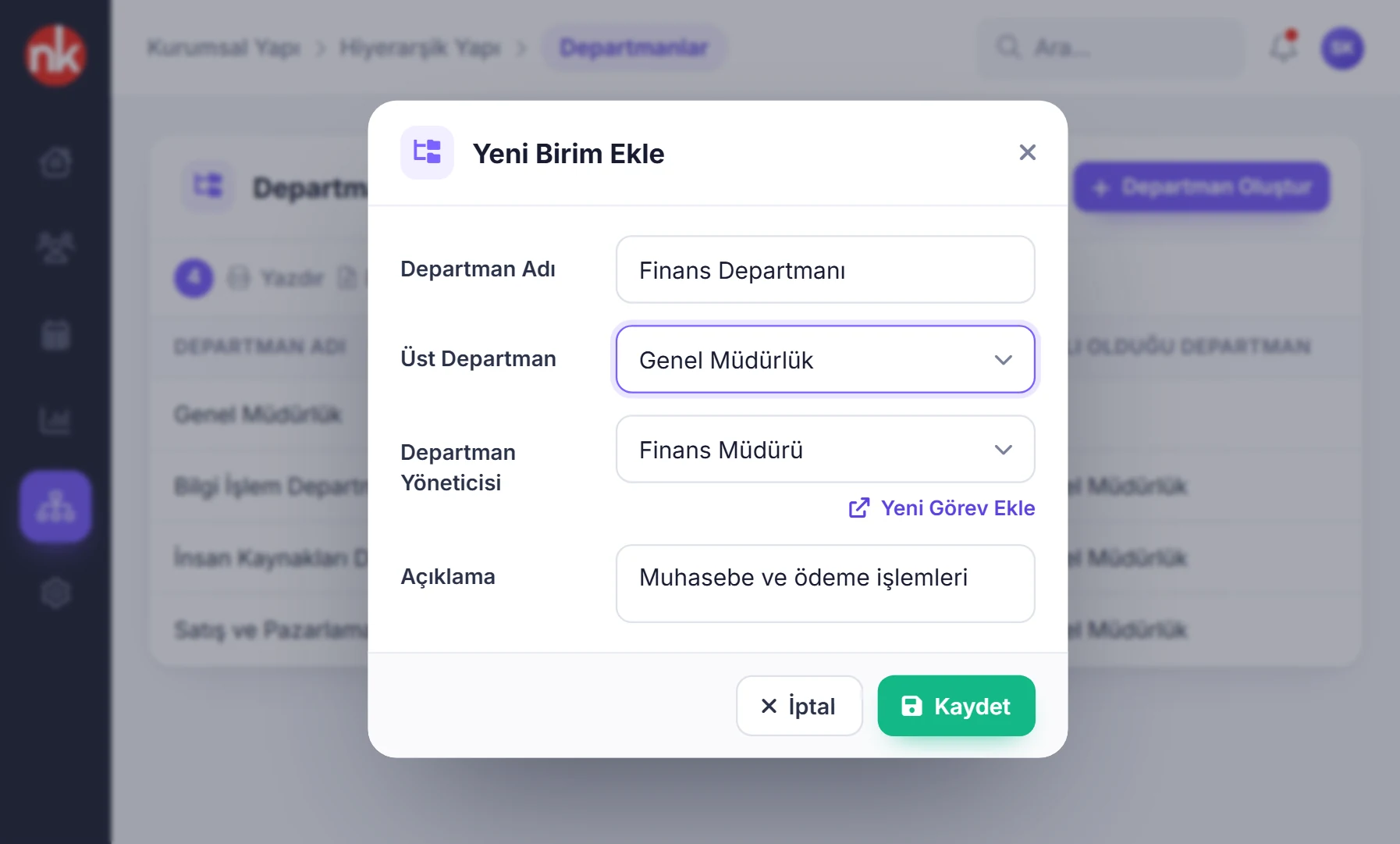
Parent department and manager
Departments
Departments are defined with a name, parent department, department manager and description. The list also shows the parent department; a department is edited by double-clicking it.
See details
The department tree defines the organization's units and the manager of each unit.
The department manager is selected from the defined positions; a position not in the list can be added directly from the window.
Departments are used in position definitions; department information appears in the employee list and in leave reports.
- Fields: name, parent department, manager position, description
- Use: positions, lists and reports
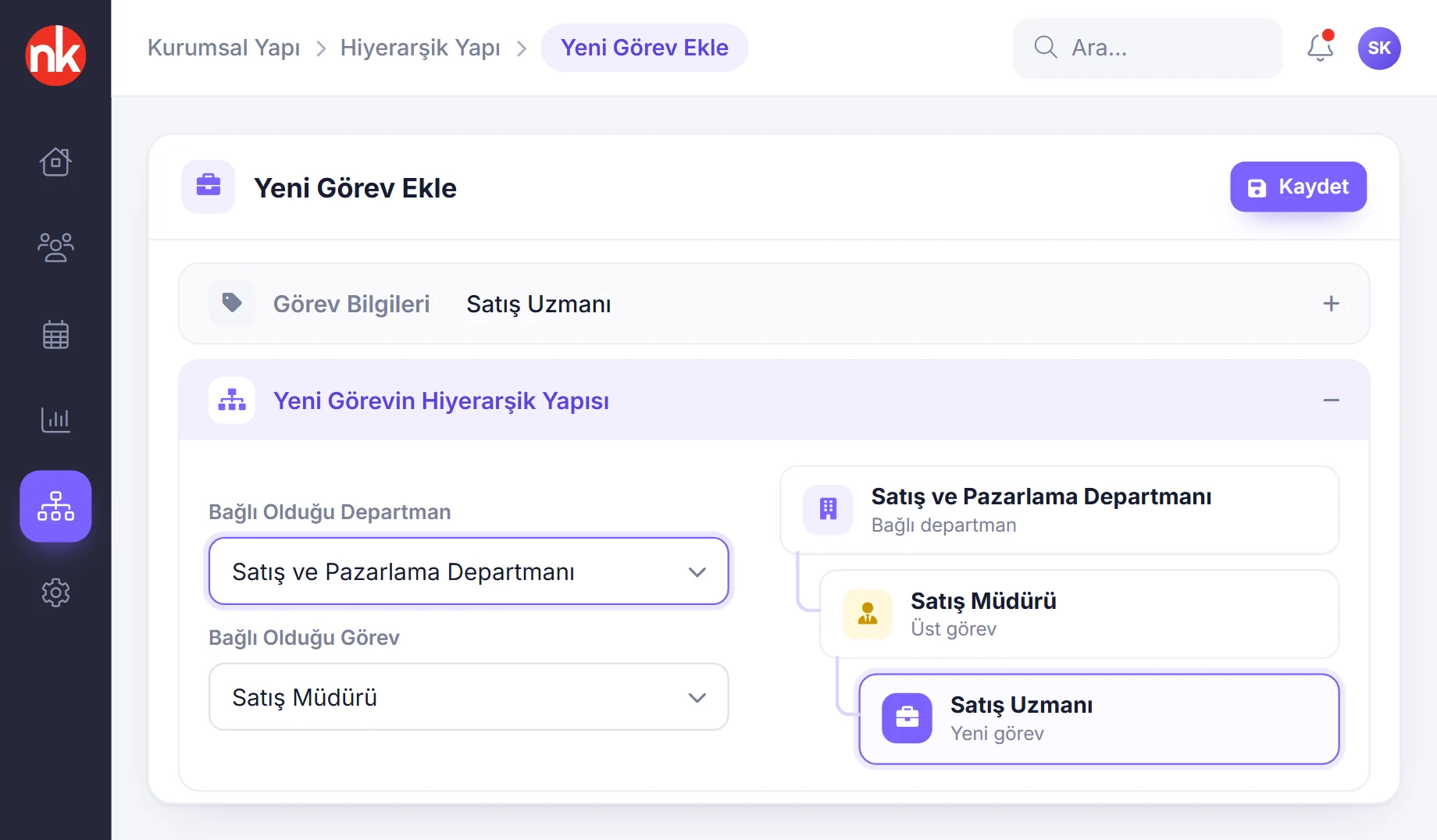
Department and superior position
Positions and hierarchy
When adding a new position, you select its name, the department it belongs to and its superior position; the roles the position will be authorized for are also ticked on the same form.
See details
The position hierarchy determines who a hierarchical leave approval goes to and who sees whom in reports.
For example, the positions Human Resources Manager, Assistant Manager and Specialist can be defined in the Human Resources department. Each position is linked to a superior position.
The Position Definitions list shows the position name, the superior position and the department; the list can be printed and exported to Excel.
- Position details: name
- Hierarchy: department, superior position
- Permissions: roles the position is authorized for
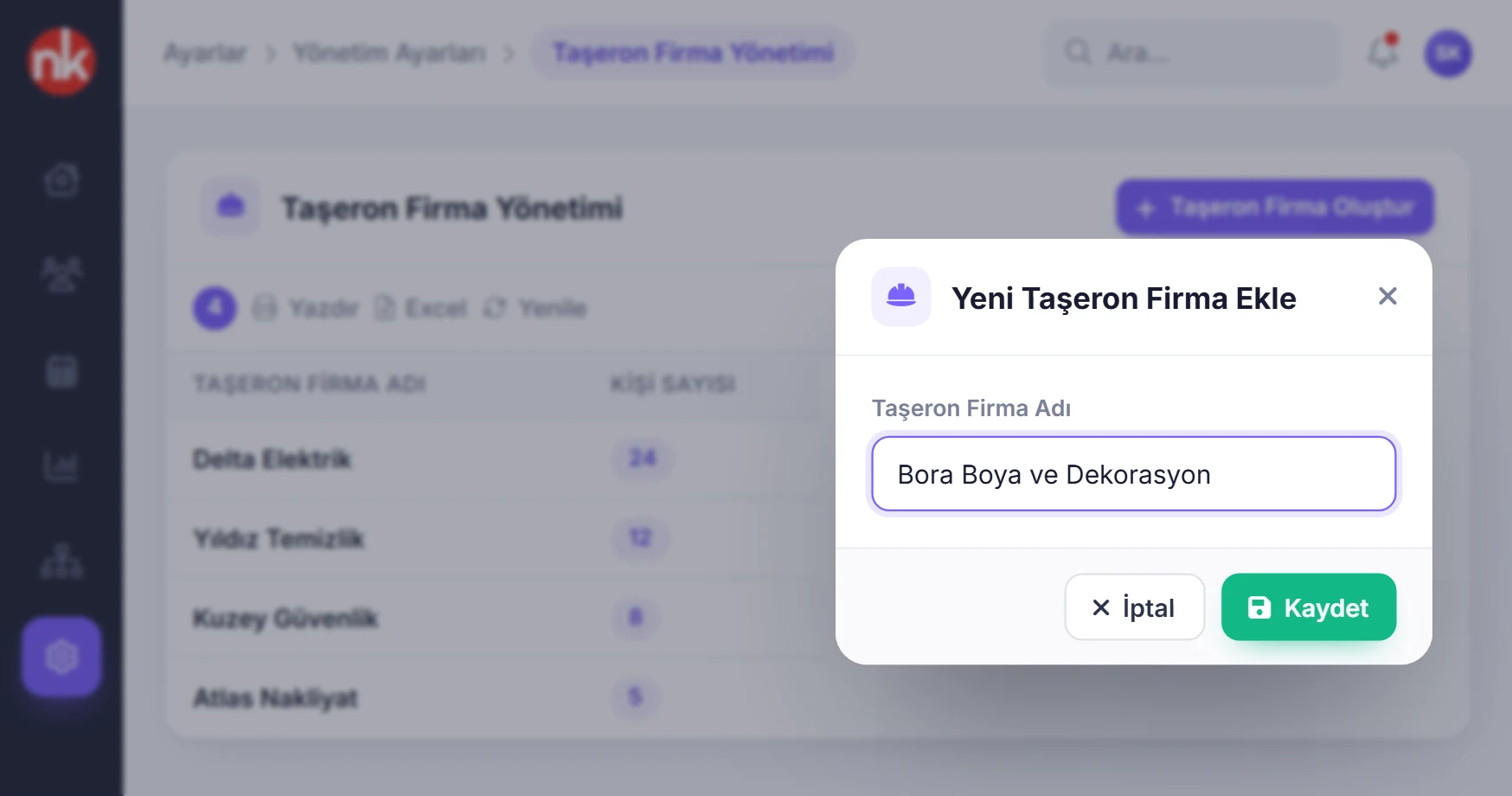
New subcontractor company
Subcontractor companies
Subcontractor companies working for the organization are listed with their names and headcounts; a new company is added from a single-field window. Subcontractor employees are tracked under their company.
See details
Defining subcontractor companies lets permanent and subcontractor staff be tracked in the same system but separately.
The daily check-in/out, late arrivals, early departures and overtime reports show the subcontractor company, and reports are filtered by subcontractor company.
In subcontractor-heavy settings such as construction sites, company-based lists and timesheets can be used; in Excel imports, rows with the subcontractor column filled in can be linked to the relevant company.
- List: company name, headcount
- Reports: subcontractor company filter and column
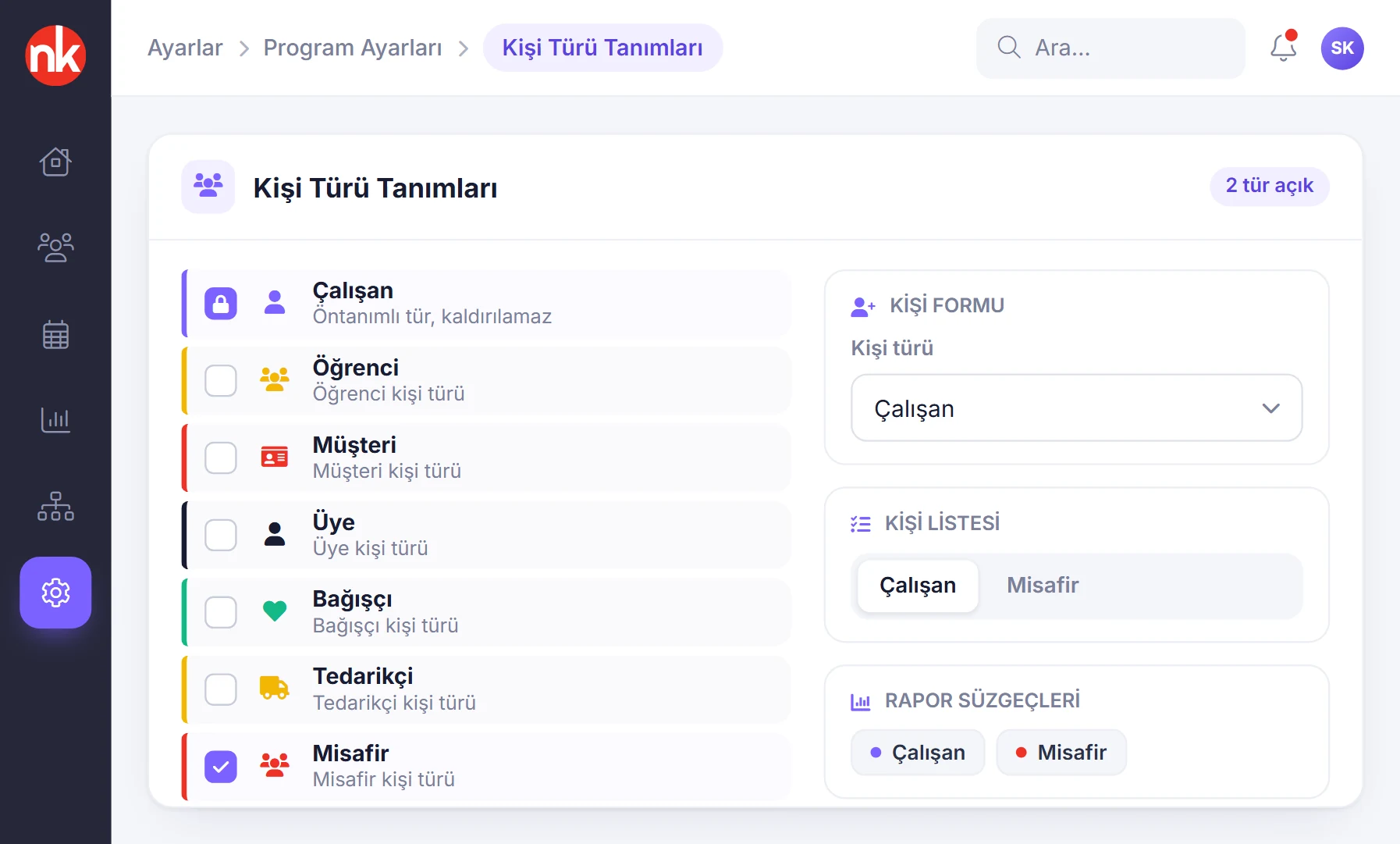
Person types
Person Type Definitions
You tick the person types to be used in the program: employee, student, customer, member, donor, supplier and guest. The employee type is always on.
See details
Person types let you use NetKurum not only for personnel but also for other people who enter the organization.
Enabled person types are used as person categories in the new person form, in lists and in reports. For example, guest entries are tracked separately from employee reports.
On the Organization Module/Feature Management screen, you set whether the subcontractor company and collar type filters are shown in reports and whether lists are sorted alphabetically by name.
- Types: employee, student, customer, member, donor, supplier, guest
- Use: forms, lists, report filters
What does the organizational structure include?
- Organization details
- Creating sites: type, contact, description and map location
- Site details: people, devices, mobile check preference
- Multiple normal or dynamic QR codes per branch
- Departments, parent departments and department managers
- Positions, superior positions and position hierarchy
- Roles the position is authorized for
- Subcontractor company management and a subcontractor filter in reports
- Person types for employees, students, customers, members, donors, suppliers and guests
- Collar type filter and alphabetical list setting
- Importing branches, departments, positions and people with Excel
How does it work?
- Define the organization and sites Enter the organization details and create sites with their locations.
- Set up departments and positions Define the department tree and each position's superior position.
- Add subcontractors and person types Define the subcontractor companies and the person types you will use.
- Build on top Leave approvals, role permissions, shifts and reports use this structure.
Frequently asked questions
Can we import our existing organization in bulk?
Yes. Branch, department, position and person records can be imported from Excel files, so the system starts out populated on day one.
What is the position hierarchy for?
It determines which superior a request goes to in hierarchical leave approval, and who sees whose records in hierarchy-based permissions.
Can a branch have more than one QR code?
Yes. Multiple normal or dynamic codes with different location titles can be added to the QR Codes table in the branch details.
How is subcontractor staff kept separate?
Subcontractor companies are defined separately; the company of subcontractor employees is shown in reports, and reports are filtered by subcontractor company.
Can we manage people other than personnel?
Yes. The student, customer, member, donor, supplier and guest person types can be enabled.
Related features
-
 Personnel Management
Employee records, bulk updates, person profiles and personnel files in one place. Review Now
Personnel Management
Employee records, bulk updates, person profiles and personnel files in one place. Review Now
-
 Access Management
Role-based page permissions, position-based action permissions and mobile devices. Review Now
Access Management
Role-based page permissions, position-based action permissions and mobile devices. Review Now
-
 Card Access and Turnstiles
Connect turnstiles and card reader panels to the cloud without opening ports. Review Now
Card Access and Turnstiles
Connect turnstiles and card reader panels to the cloud without opening ports. Review Now
Try NetKurum in your organization
Request your free trial; our team will contact you to set up your account.