

Time and Attendance
Check-In and Check-Out
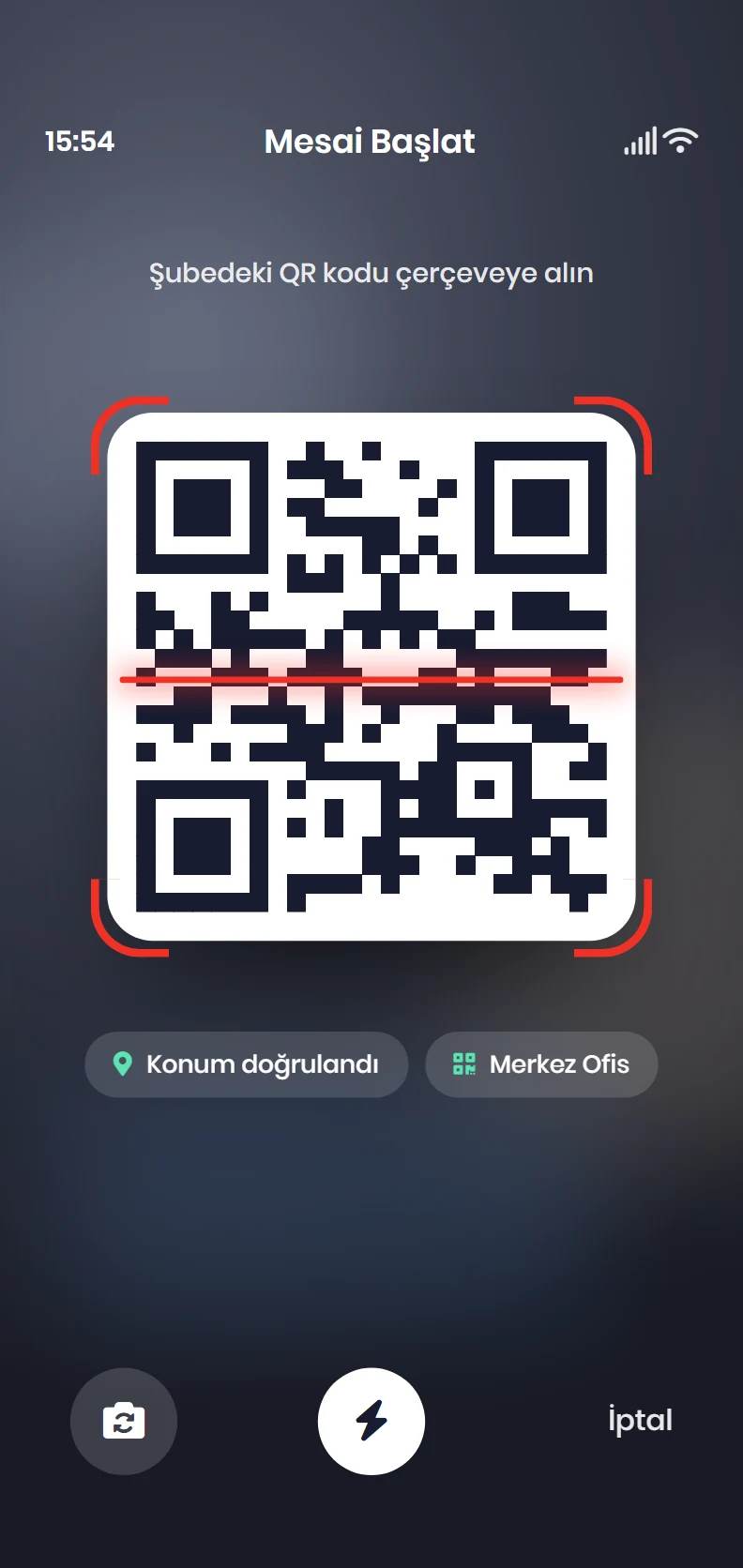
Employees start their day from their phone by scanning the QR code at the site or passing a location check, and the entry lands in the panel, the attendance sheet and the daily summary at once.
What does it solve?
When check-in records can't be trusted, every timesheet, overtime figure and leave balance becomes a debate. NetKurum verifies each entry the moment it is created and keeps every manual correction on a separate record.
- Buddy punching Mobile check-in asks for the site's QR code, the phone's location or both, so clocking in without being on site gets hard.
- One rule for every door A site preference covers the whole branch with one rule; access points let you give the main entrance, the car park or the warehouse their own location, QR and unit rules.
- Having to install card readers No extra hardware is needed. Employees without a smartphone use the same rules in the browser, and organizations with turnstiles can connect card access too.
- Check-ins from other branches A single setting decides whether employees may clock in only at their own branch or at any branch.
- Hours stuck on paper or in another system Past check-in times are imported in bulk with an Excel template; invalid rows are not written but handed back to you for correction.
Check-in and check-out, screen by screen
These images are real screens from the NetKurum demo organization; names of people and companies are fictitious.
A rule for each door
Access points
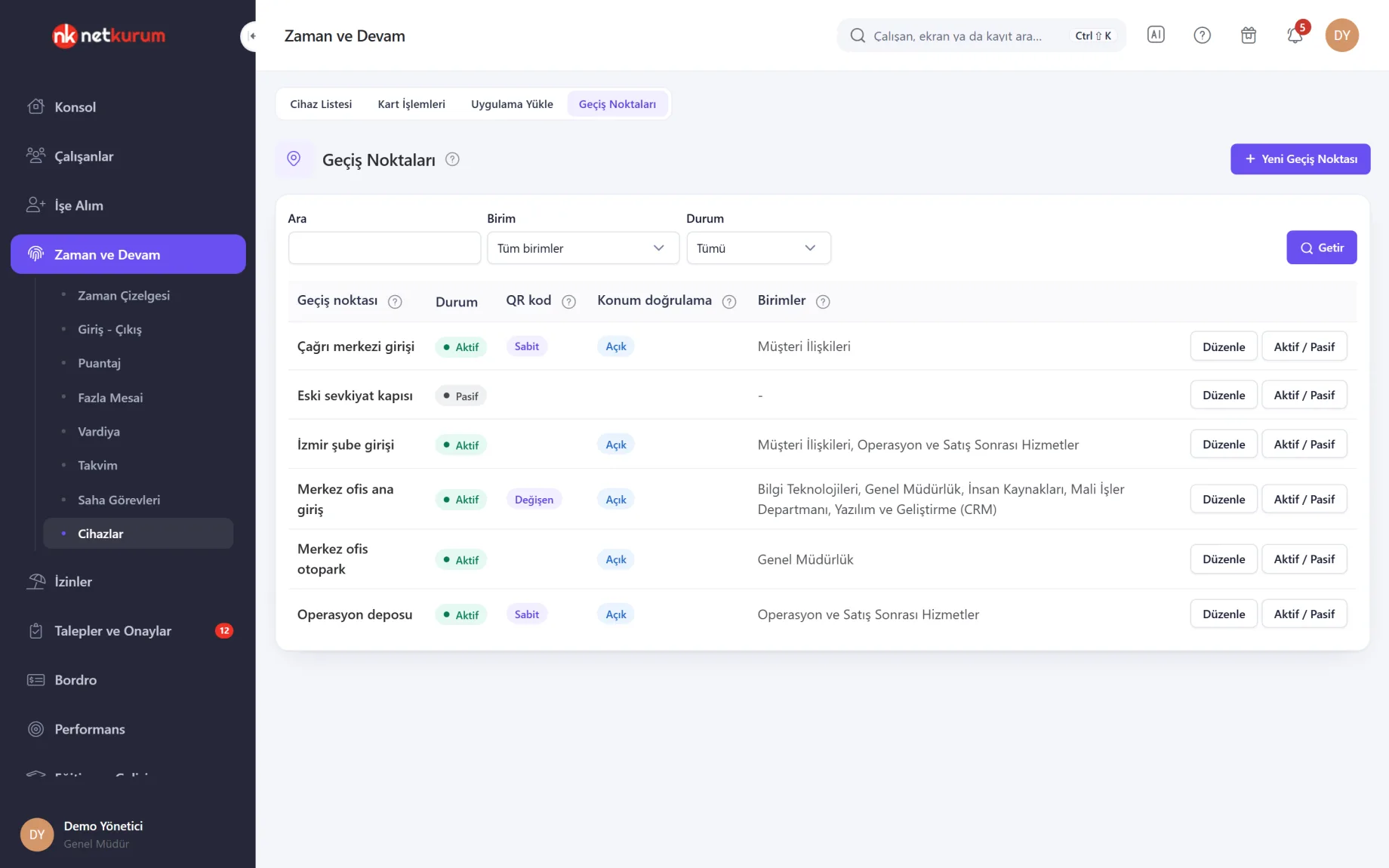
Define the main entrance, the car park or the warehouse of the same site as separate access points. The list shows each point's status, QR code type (static or rotating), location check and the units allowed to use it.
See details
An access point is the "who can pass here, and how?" rule for phone check-ins; it is not a device.
For each point you choose the units that may use it, whether a QR scan is required and whether the location is checked. For the location check you enter latitude, longitude and radius; standing at the point, "Use my location" fills them in.
A rotating QR code refreshes at short intervals and is shown on a screen, so a photo of the code is useless from elsewhere. "Check out from other locations" lets people come in through the main entrance and leave through the car park.
Point rules are applied by the current mobile app version, which queries the points before check-in; deactivated points are never sent to the app.
- QR code: static (printed and posted) or rotating (shown on a screen)
- Location: latitude, longitude and a radius of at least 100 metres
- Unit restriction: with no units selected, the point is open to everyone
GPS only, QR only or both
Site mobile check preferences
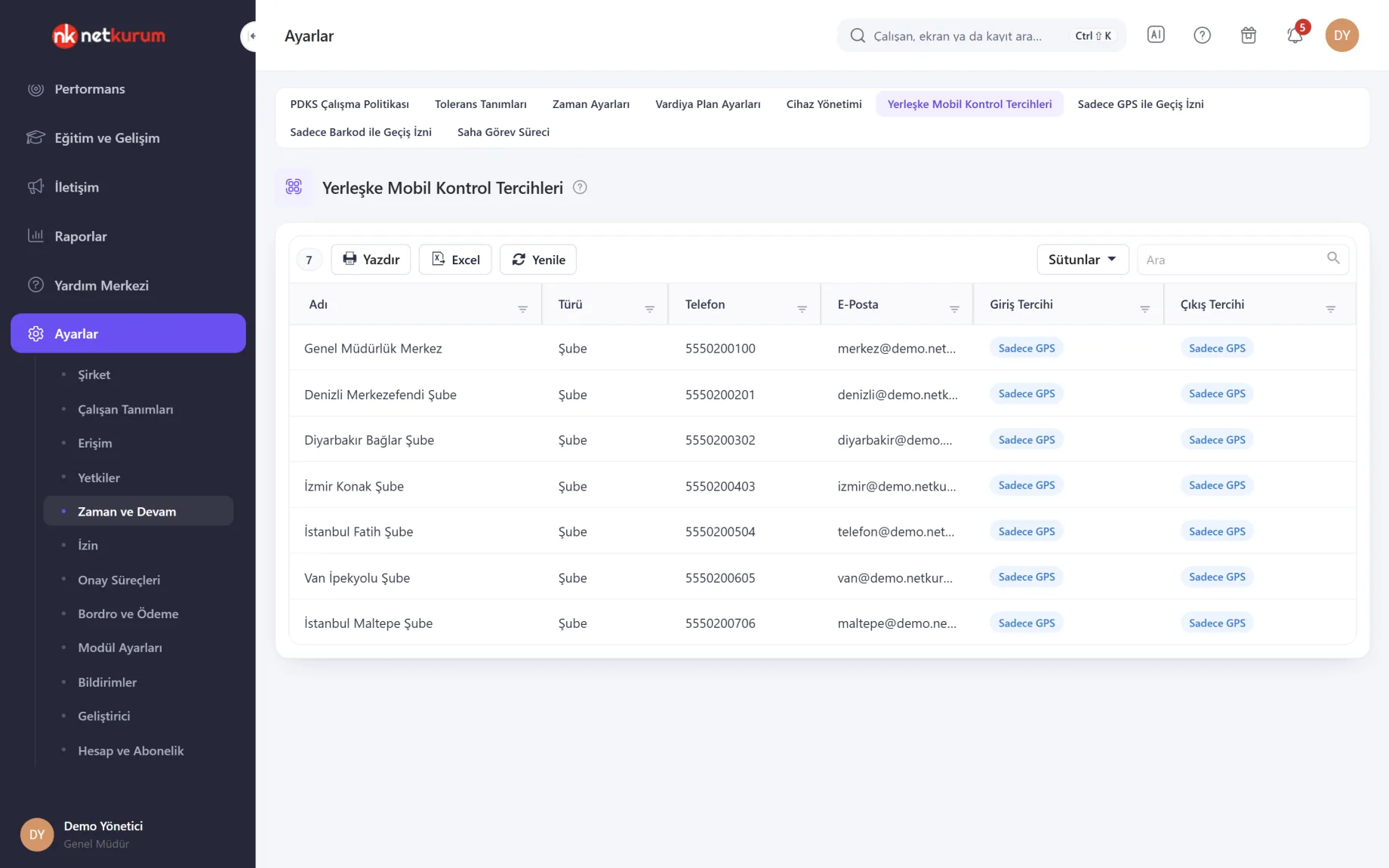
For each site, choose which verification the mobile app asks for at check-in and at check-out. The preferences of all branches sit in one list.
See details
For teams working from a single office the site preference is usually enough; when doors need different rules, use access points.
Check-in and check-out are set separately: GPS only, barcode (QR) only or both. For example, check-in may require QR and location together while location alone is enough at check-out.
Changes ask for confirmation, and the list can be printed or exported to Excel.
- Check-in preference: GPS only, QR only or both
- Check-out preference: set independently of check-in
- Export: print and Excel
Own branch or every branch
Attendance policy
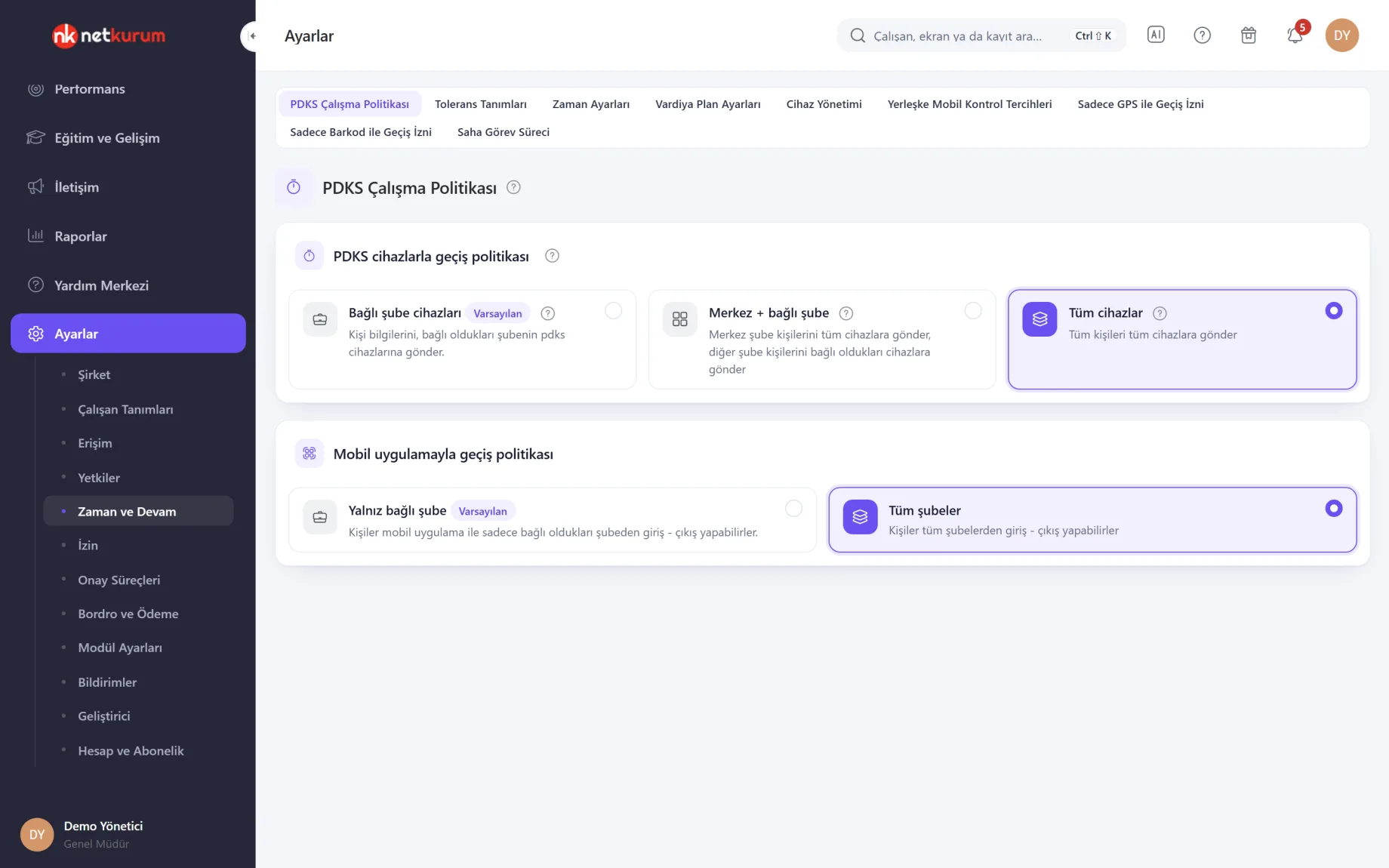
One choice decides whether employees may use the mobile app to clock in only at the branch they belong to or at any branch. The same screen sets which branch devices receive card data.
See details
For multi-branch organizations, this is where you decide whether a check-in at another branch counts.
The mobile policy has two options: "Own branch only" (default) and "All branches". Field teams and people who work at several branches are a good fit for the all-branches option.
The device policy is for organizations using card access: person data goes only to the devices of the employee's branch, head office staff go to every device, or everyone goes to every device.
- Mobile: own branch only or all branches
- Devices: own branch, head office plus own branch, or all devices
Exceptions per person
GPS-only and barcode-only permissions
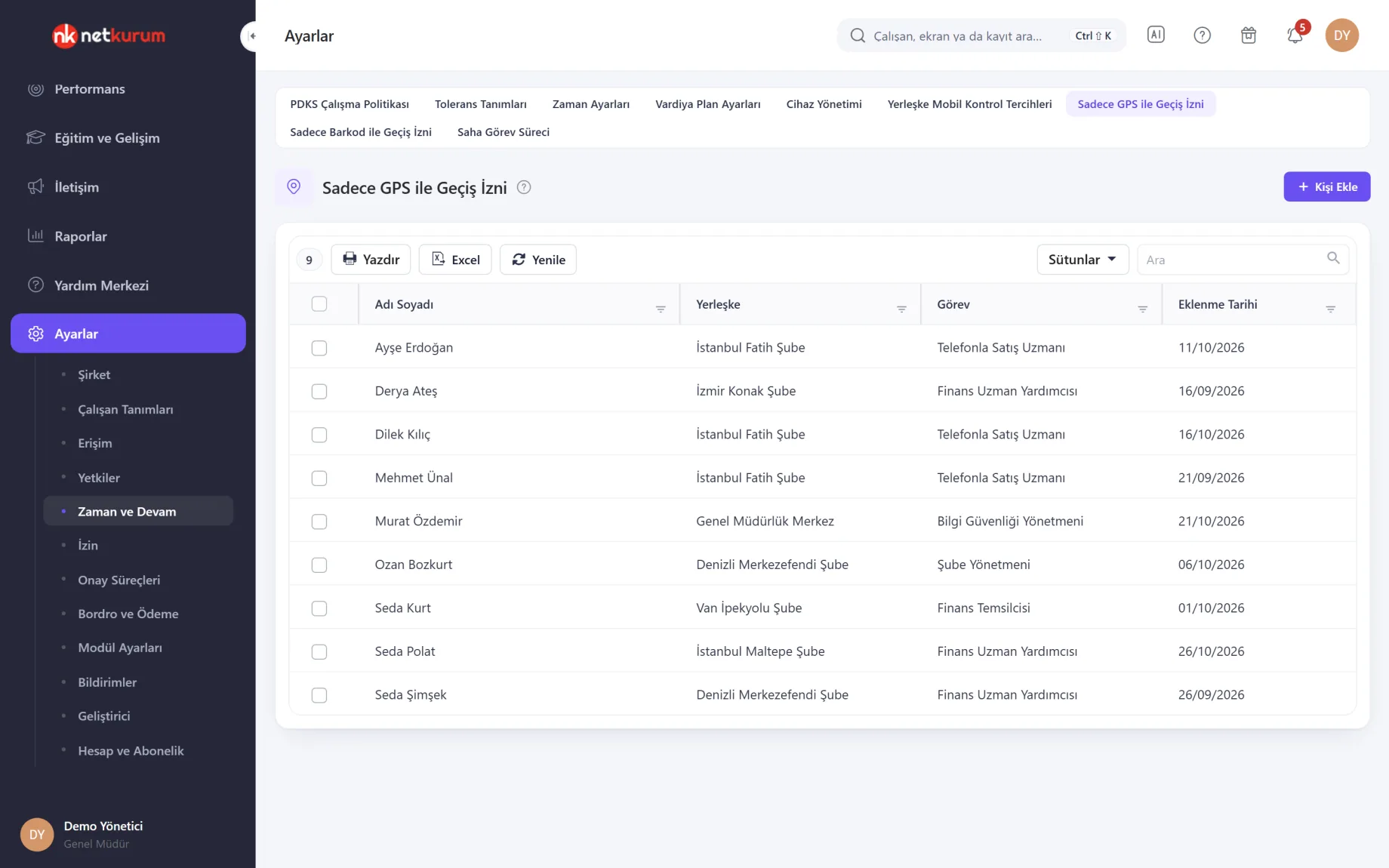
For employees who need to step outside the site rule, define a personal exception: clock in by location without scanning a QR code, or by barcode without a location check.
See details
You give individual people flexibility without loosening the rule for the whole site.
The GPS-only list shows who may check in by location without a barcode, with their site, position and the date they were added; "Add Person" puts a new employee on the list.
The barcode-only list works the same way for people who pass with a QR code and no location check. For an employee whose phone has a faulty location service, the mobile check preference on their employee record also helps.
- Lists: GPS only, barcode only
- Scope: selected people only
For people without a phone
Web check-in
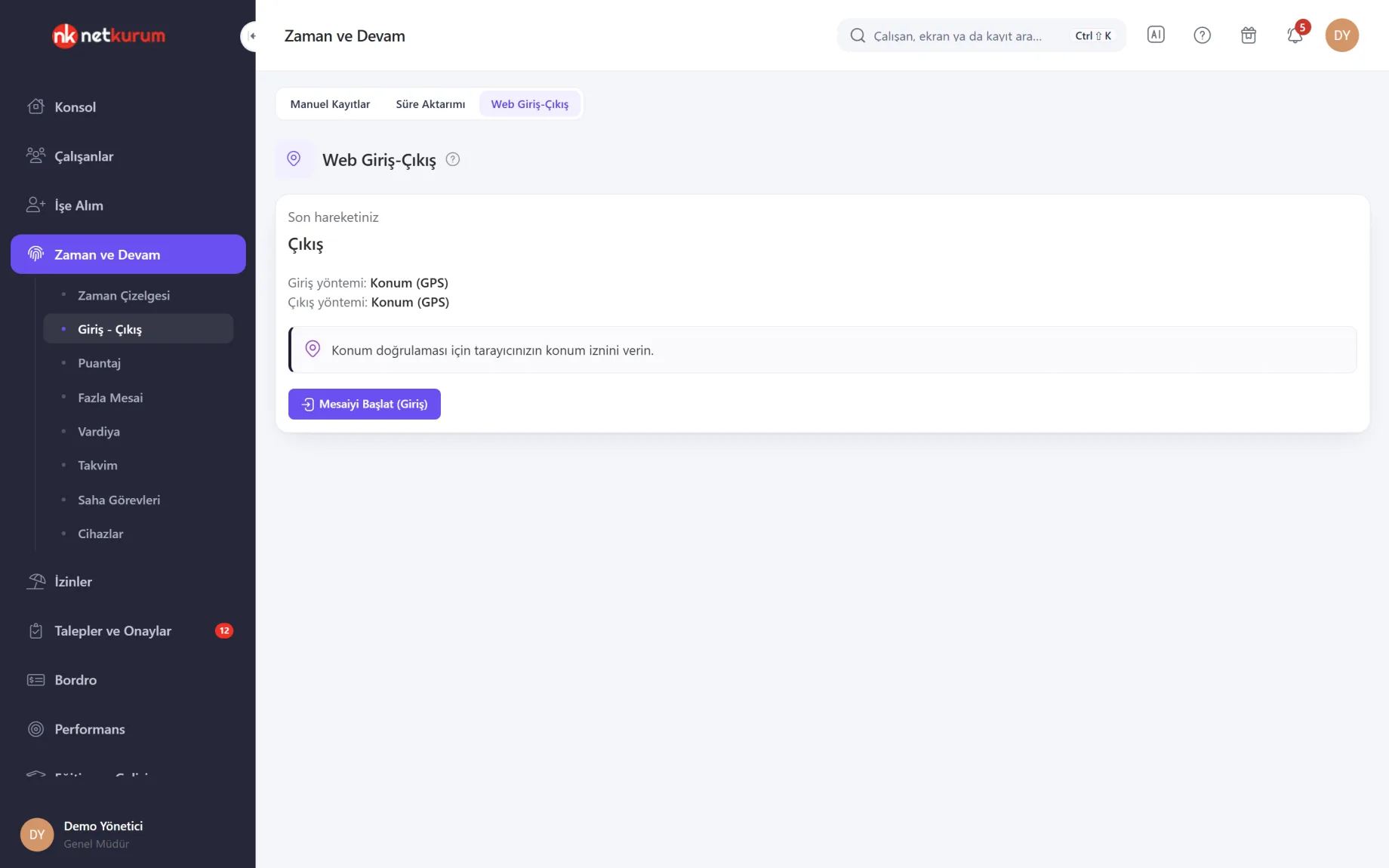
Employees without the mobile app or a device clock in and out from their browser. The rules are the same as in the app: if the site uses location, the location is checked; if it uses QR, the code is.
See details
Teams working on an office computer need nothing extra installed.
The browser asks for location permission for the location check; when a QR code is required, the code text is entered. Employees can only create records for themselves.
Web check-ins are treated as regular entries and flow into the attendance sheet and the timesheet.
- Verification: the site's location and QR rules
- Scope: employees open only their own record
Movements, who is in, who is out
Daily summary
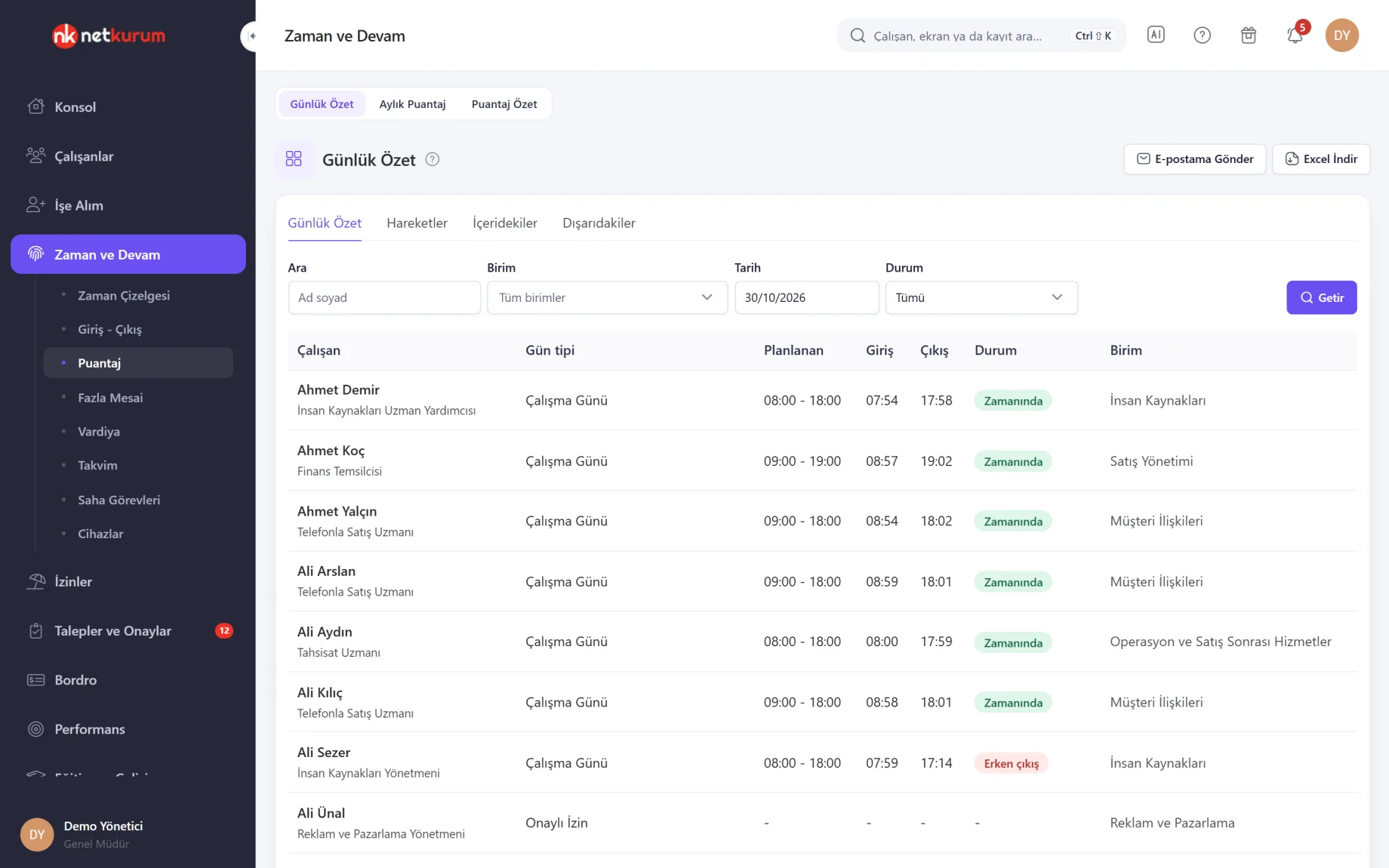
For the selected day, each row shows an employee's day type, planned hours, check-in, check-out and status. Separate tabs list who is inside and who is outside right now.
See details
The first screen of the morning: who arrived, who didn't, who is on leave.
Filter the list by unit, date and status. The Movements tab shows every check-in and check-out of the day in time order.
Download the list as Excel or send it by email; add the same report to the automatic email list and managers receive it every day at a set time.
- Tabs: daily summary, movements, inside, outside
- Sharing: Excel download and email
Bulk import from Excel
Import working hours
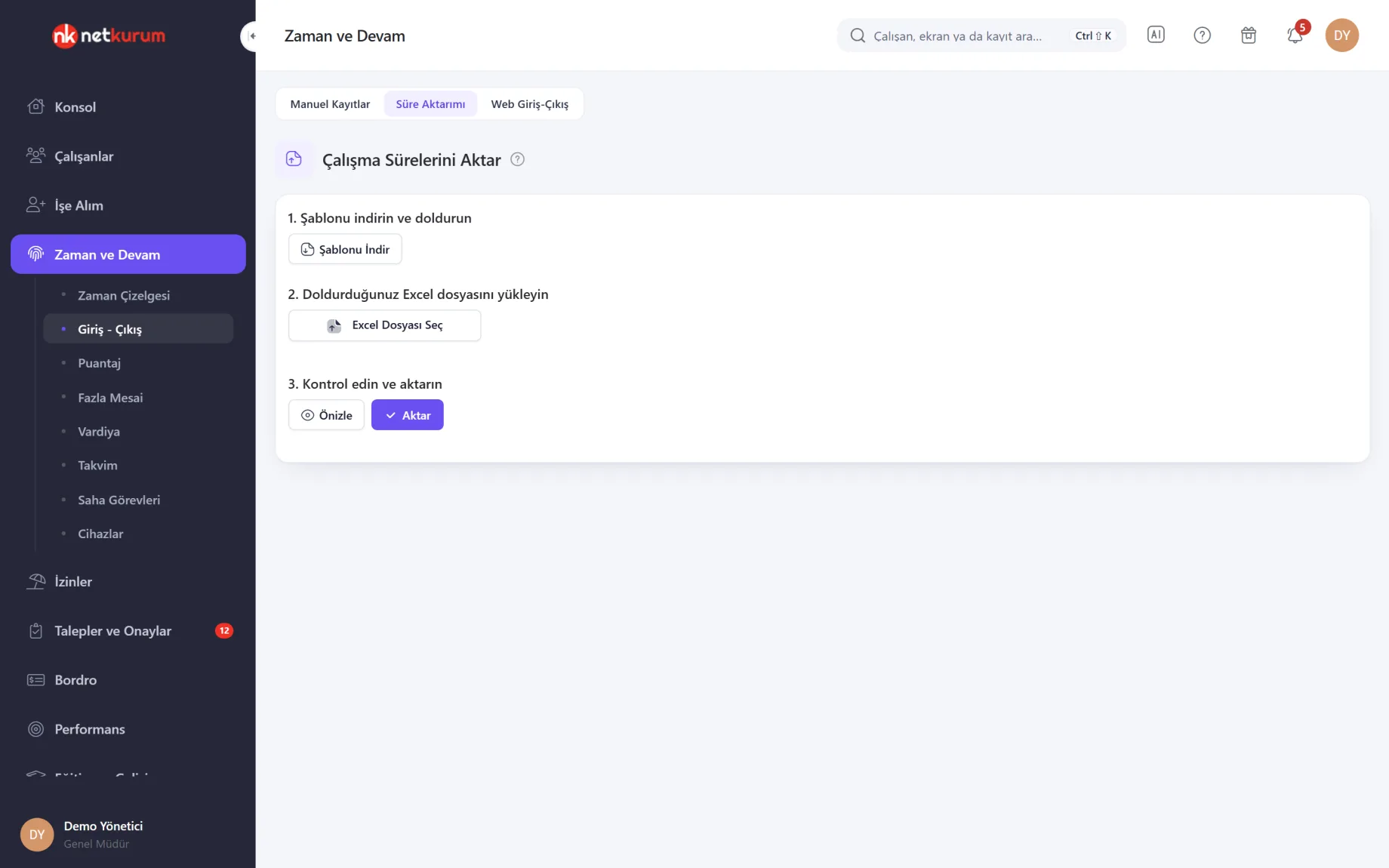
Check-in times kept in another system or on paper come in through an Excel template: download the template, fill it in, preview, import.
See details
Hours from previous months are not lost during the switch.
The template has name, national ID number, date, check-in and check-out time. The preview highlights invalid rows; overlapping or out-of-order times are not written.
Invalid rows come back as an Excel file to fix and upload again. Valid rows pass the same validation as "Add Work" on the attendance sheet.
- Steps: template, upload, preview, import
- Errors: returned as a separate Excel file
What's included in check-in and check-out?
- Start and end the working day in the mobile app with a QR scan and a location check
- Check-in and check-out method per site: GPS only, QR only or both
- Separate access point and unit rules for doors, car parks or warehouses
- Static QR codes or rotating codes refreshed on screen
- Own-branch or any-branch check-in policy
- GPS-only or barcode-only permission per person
- Web check-in for people without a smartphone
- Turnstile and card reader entries collected in the same record
- Manually added records kept on a separate list with a note and the user who added them
- Daily summary, who is in and who is out
- Excel import for past working hours
How do you get started?
- Pin the site Choose the branch location on the map, then generate the QR code and post it at the entrance or show it on a screen.
- Pick the method For each site, decide whether check-in and check-out need GPS, QR or both.
- Invite employees Employees sign in to the mobile app with their own account and tap Start Shift.
- Follow the daily summary See who arrived, who is in and who is on leave; at month end the hours are ready on the attendance sheet.
Frequently asked questions
Do we need to buy devices for check-in?
No. Employees clock in with the NetKurum mobile app using QR code and location checks, and people without a smartphone use the same rules in the browser. Organizations that want turnstiles or card readers can connect card access as well.
Is biometric data (fingerprint, face) used?
No. Mobile and web check-ins process no biometric data; records are created with a QR code, location or card.
What is a rotating QR code for?
A rotating code refreshes at short intervals and is shown on a screen at the door. Since a photo of the code cannot be scanned elsewhere, you know the check-in really happened at the door.
What if an employee forgets to clock in?
An authorized user adds the entry from the day detail on the attendance sheet or from the Manual Records screen. The entry is stored on a separate list with its note and the user who added it.
Can an employee clock in at another branch?
That depends on the attendance policy: you choose between own branch only and all branches.
Related features
-
 Mobile App
Check-in, requests, leave balance, payslips, announcements and approvals in every employee's pocket. Review Now
-
 Timesheets, Attendance and Overtime
Planned and actual hours side by side, a monthly attendance sheet, tolerance rules and overtime approval. Review Now
-
 Card Access and Turnstiles
Connect turnstiles and card panels to the cloud without opening ports; card, mobile and web entries in one record. Review Now
Try NetKurum in your organization
Create your own demo in minutes and explore an organization full of sample data for 14 days.