

Time and Attendance
Shifts and Work Calendars
Plan each unit's week person by person and publish the draft with one click; employees see their shifts on their phone and enter the hours they are unavailable themselves.
What does it solve?
When the rota lives in spreadsheets and chat groups, nobody is sure who works which day, who is on leave or which version is final. NetKurum keeps the plan, leave, availability and rules on the same screen.
- Half-finished plans reaching employees Every new shift starts as a draft only planners can see. Publish releases the drafts in the visible range and notifies the employees affected.
- Scheduling someone on leave or unavailable Approved leave and the "unavailable" hours employees enter show up on the plan, and the plan settings can block such conflicts altogether.
- Rebuilding the same week every week Repeat a week into the weeks you choose, apply a weekly template, or assign many employees to the same shift over a date range in one go.
- Short-staffed peak hours Open a support shift that sister units under the same parent unit can see; if nobody picks it up, escalate it one level higher.
- Working time and night shift limits Set daily, weekly and monthly caps, consecutive working days, night work and break times; shifts over a limit are not saved or are flagged with a warning.
Shifts and work calendars, screen by screen
These images are real screens from the NetKurum demo organization; names of people and companies are fictitious.
Draft first, then publish
Shift plans
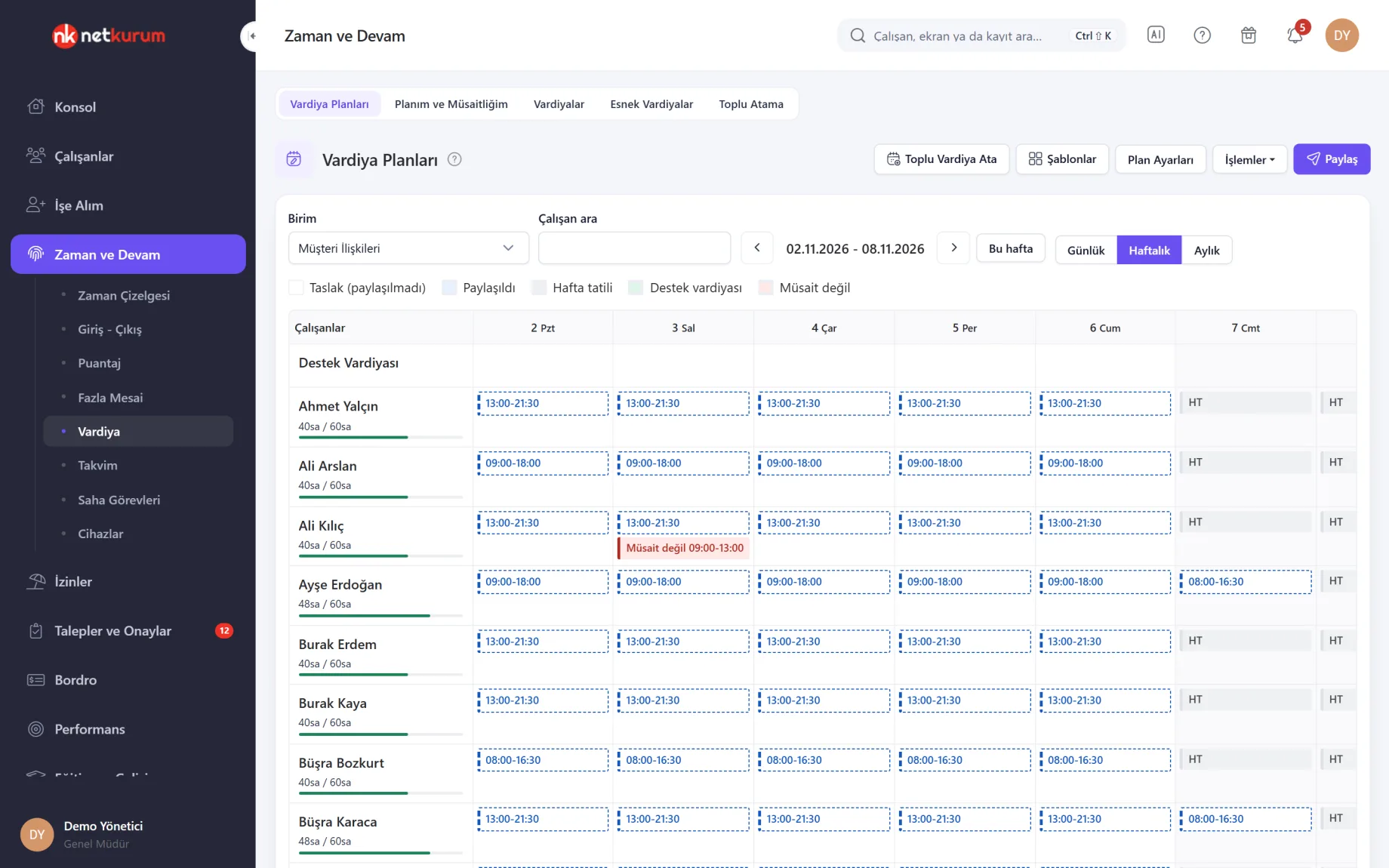
The employees of the selected unit are listed day by day; in daily, weekly or monthly view you enter shifts, breaks and notes. Boxes with a dashed outline are drafts that have not been published yet.
See details
The plan is the manager's workspace until it reaches employees; Publish makes it live.
Clicking a day opens the shift window: shift and break segments, flexible break, a note and the work location (office, remote, field). If the end time is earlier than the start, the shift is treated as a night shift running into the next day.
The Actions menu offers Repeat, Apply Template, Clear All, Print and Excel import. Import recognises weekly grid, list and time-band layouts; if a single row is invalid nothing is written, and the errors can be downloaded as Excel.
The bar under each name shows planned weekly hours against the limit; the Reports menu exports the shift plan report and a monthly breakdown per employee to Excel.
- Views: daily, weekly, monthly
- Bulk actions: bulk shift assignment, repeat, apply template
- Support: peak-hour cover from sister units
Each employee's own week
My plan and availability
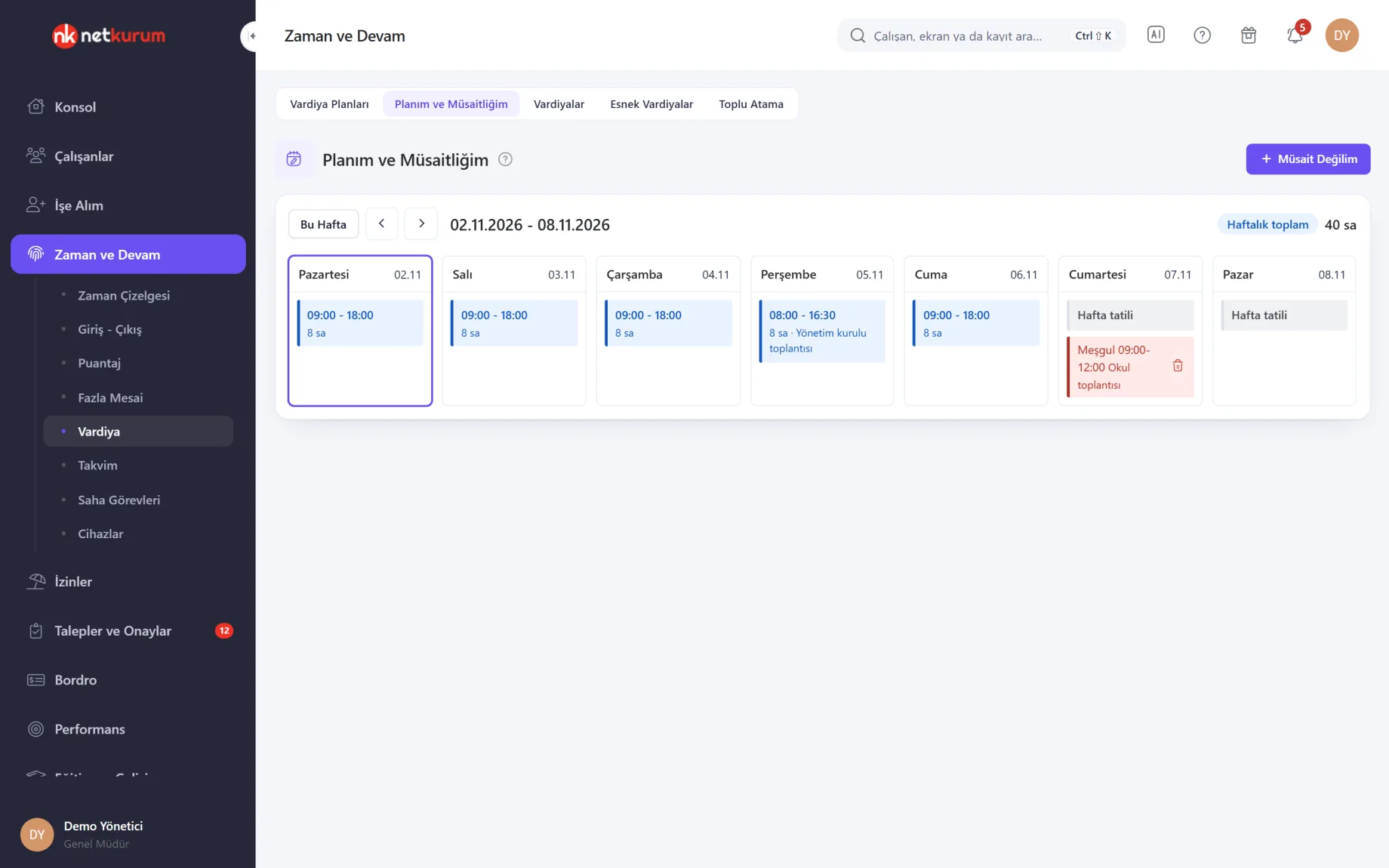
Employees see the shifts their manager has published as weekly cards; drafts stay hidden. With "Unavailable" they enter a busy time range, and the manager sees it while planning.
See details
Employees check their own screen instead of messaging to ask about the rota.
Approved leave days are marked, and the weekly total is the net shift time after breaks. Availability cannot be entered for past days, and employees can delete only their own entries.
An organization setting limits how many weekday hours someone can mark as busy and allows only one busy day at the weekend. The plan and availability screens in the mobile app use the same data.
- Visible: published shifts and approved leave only
- Availability: day, time range and a note
- Mobile: the same plan on the phone
Rules that guard the plan
Shift plan settings
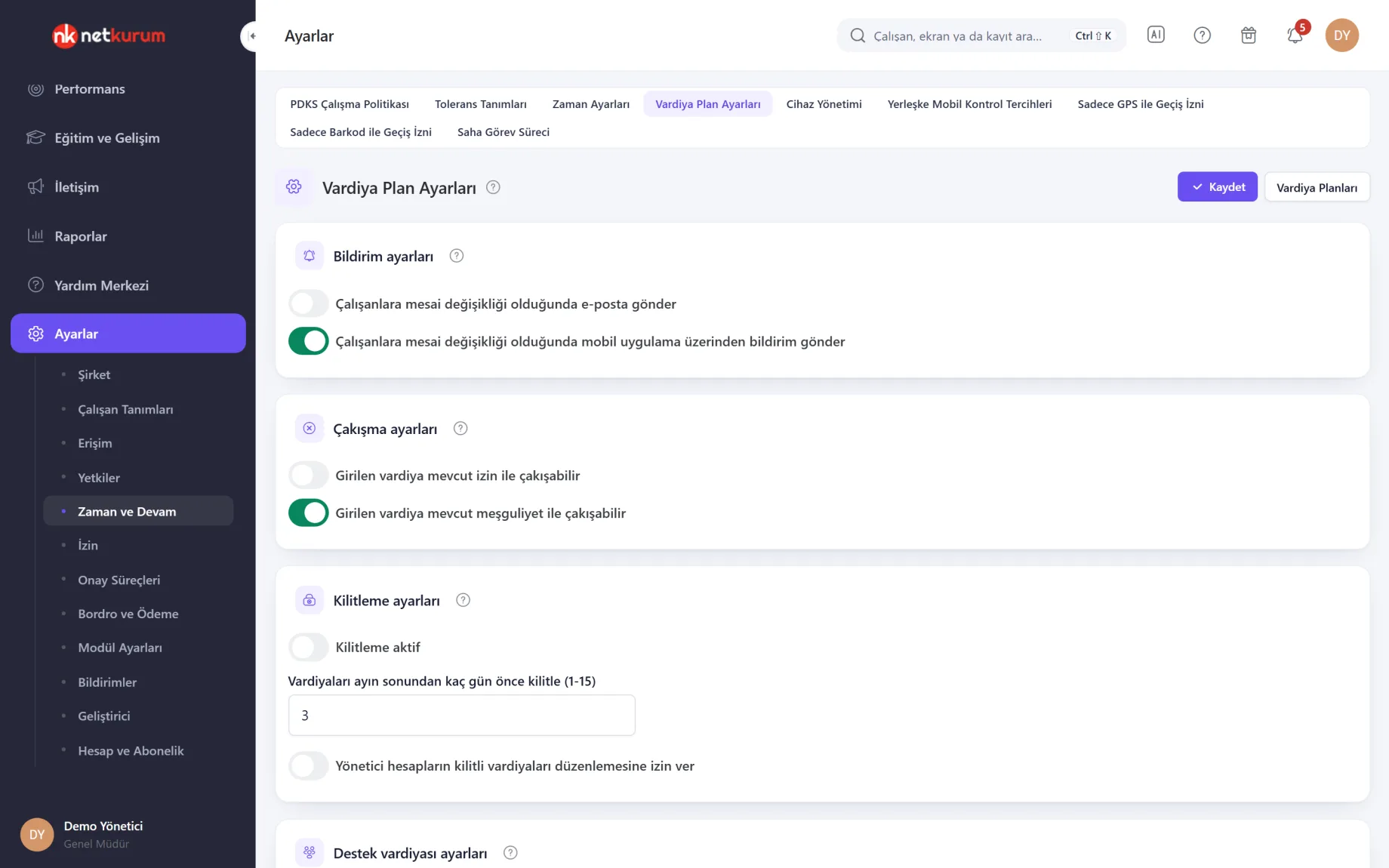
All planning rules sit on one screen: notifications, conflicts, locking, support shifts, template sharing, working time limits, night shifts, breaks and availability.
See details
Set the rules once and every planner works within the same limits.
With conflicts turned off, no shift can be written on a day with approved leave or a busy entry. With locking on, a month's shifts lock a set number of days before month end, and you decide whether managers may still edit locked days.
Daily, weekly and monthly net working time caps and consecutive working days are set separately for full-time and part-time staff; a shift over the cap is not saved. Night window, rest after a night shift and minimum breaks start from defaults based on Turkish Labour Law and can be adjusted.
- Notifications: email and in-app notification
- Locking: 1 to 15 days before month end
- Time limits: separate for full-time and part-time
Weekly hours, defined once
Shifts
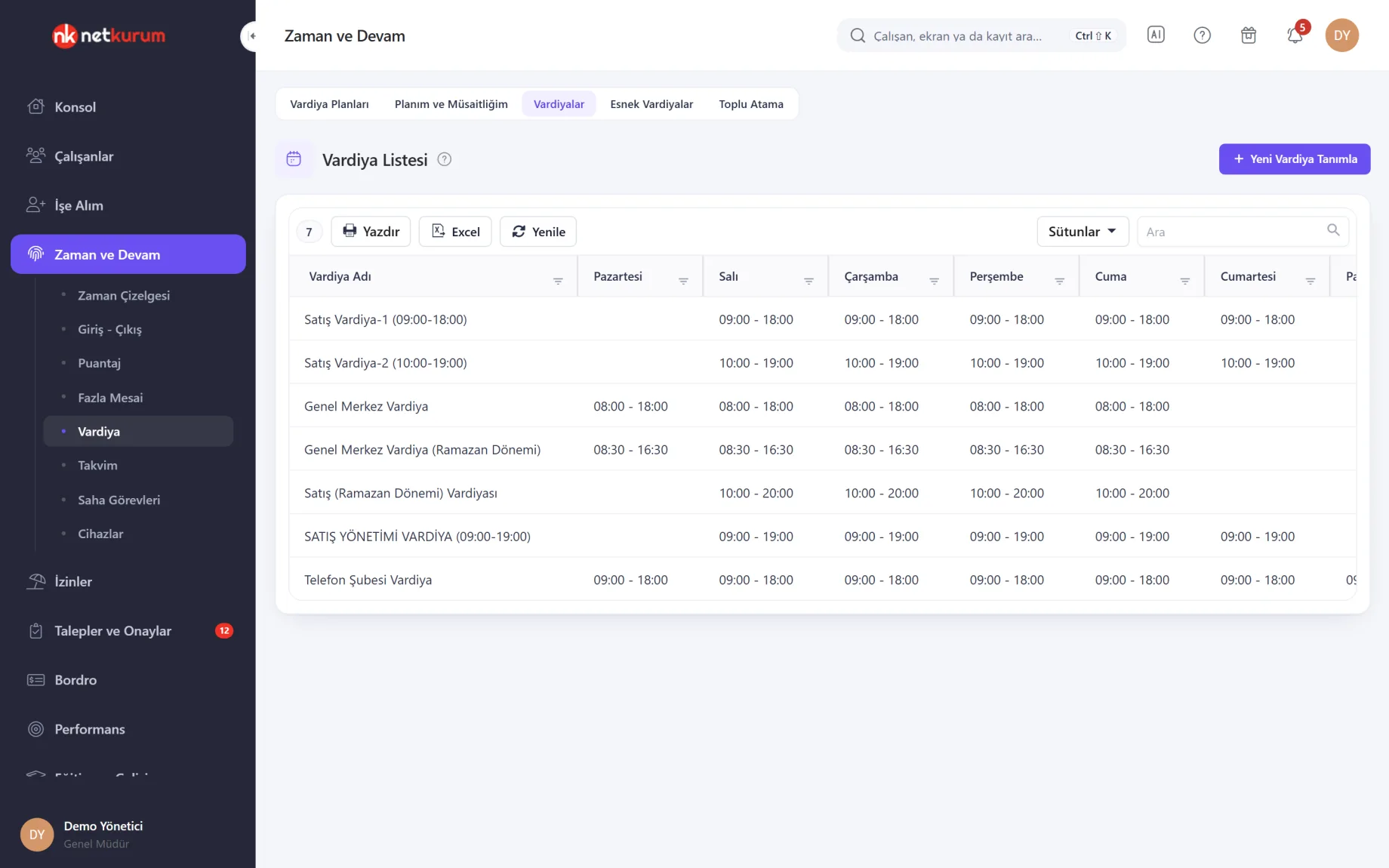
The organization's shift definitions are listed with start and end times for each day of the week. Temporary patterns such as Ramadan hours are defined as separate shifts.
See details
Attendance, late arrival and overtime are calculated against the employee's shift definition.
"New Shift" takes the hours for each day and lets you mark a default shift; double-click a row to edit it. The list can be printed or exported to Excel.
Flexible shifts group several shifts under one name, useful for teams such as a call centre that work different hours within the day.
- Definition: start and end time for each day
- Flexible shift: a group made of several shifts
Day-by-day assignment
Monthly assignment
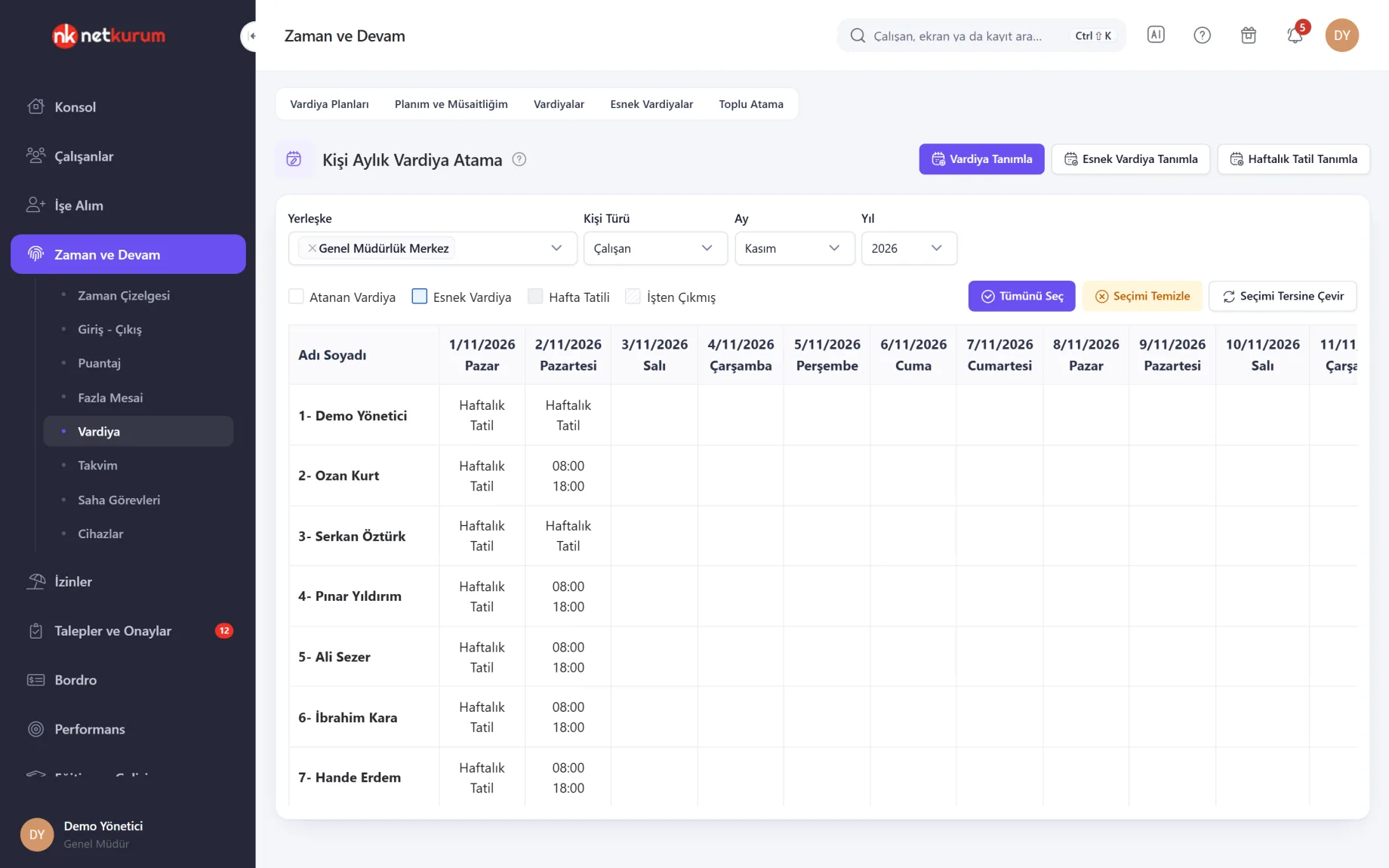
Pick a site, employee type and month to get each employee's month as a grid. Click or drag to select cells, then assign a shift, a flexible shift or a weekly day off.
See details
The fastest way to handle patterns that change from day to day within a month.
Clicking a row or column header selects that employee or that day; Select All, Clear and Invert make bulk selection easy. "Define Shift" writes start and end times, night flag and up to three breaks onto the selected days.
Colours tell assigned shifts, flexible shifts, days off and days after the employee's leaving date apart. To move a whole team onto one shift, use the bulk assignment screen.
- Assign: shift, flexible shift, weekly day off
- Select: click, drag, whole rows and columns
Changes scheduled ahead
Calendar assignment
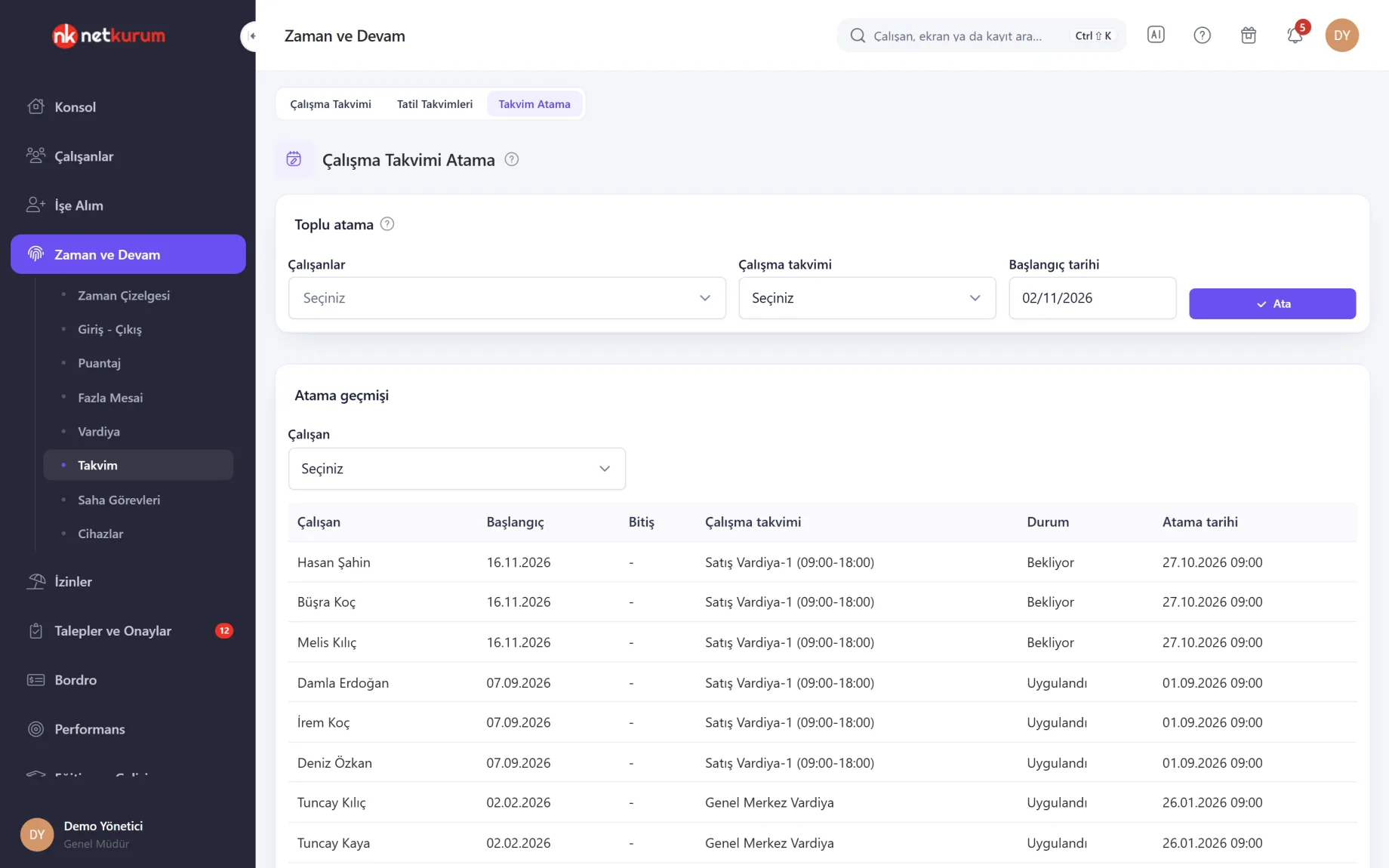
Assign a work calendar to many employees with a start date. If the date is in the future, the assignment applies itself on that day; the history lists pending and applied assignments.
See details
Set up next period's pattern in advance and do nothing by hand when the day comes.
Past records and approved leave are not affected. An employee can have several assignments, and the history shows when each calendar started and ended.
- Start: today, a past date or a future date
- History: assignment list per employee
Leave, holidays, birthdays
Work calendar
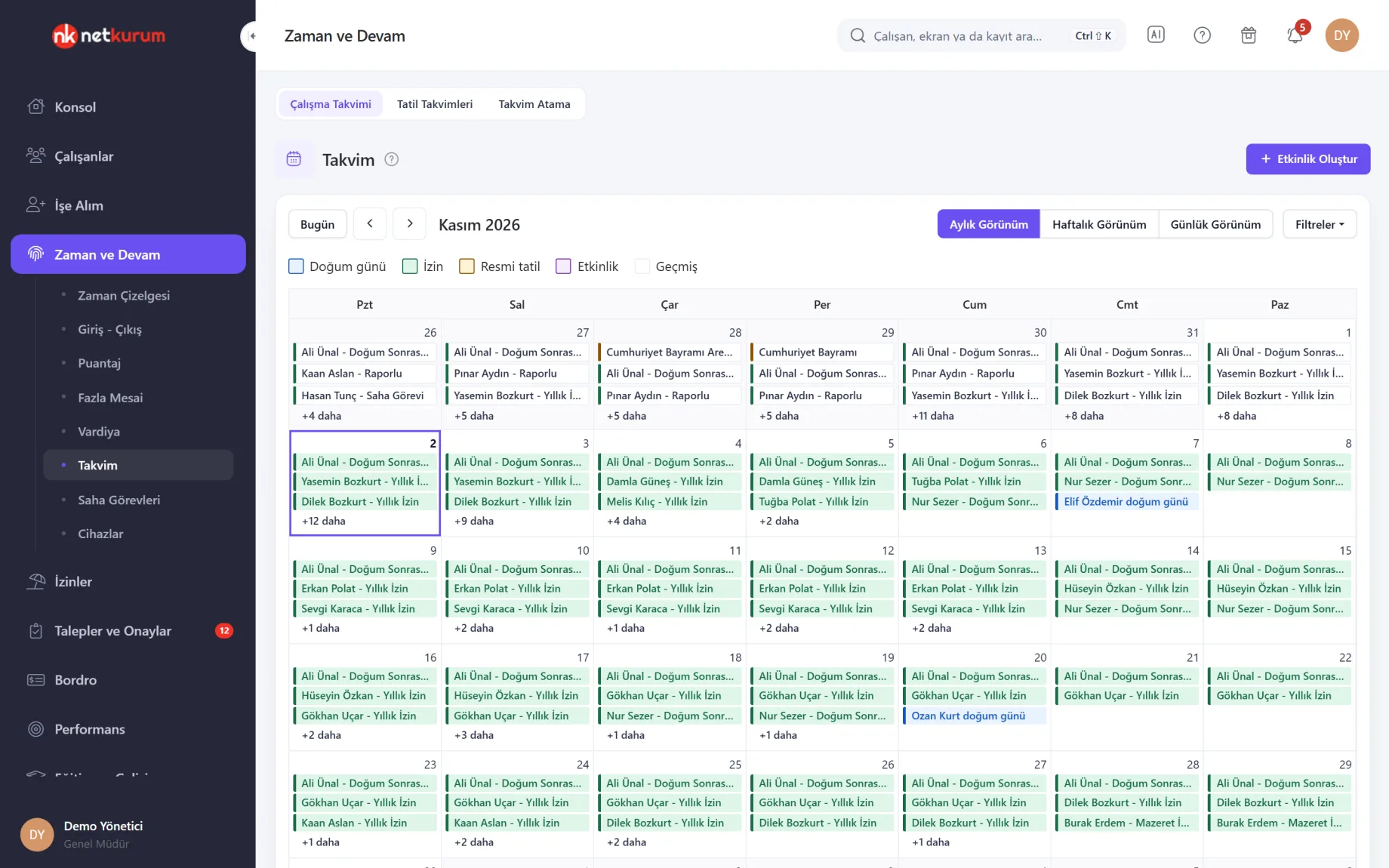
Approved leave, public holidays, birthdays and company events come together in one calendar with monthly, weekly and daily views. Filters switch layers off.
See details
Before you plan, you see at a glance who is on leave and which days are holidays.
The Turkish public holiday calendar comes ready. On the holiday calendars screen you can create company-specific calendars, add extra days and bridge days, and assign them to units.
"Create Event" takes a title, date and time. Which layers employees can see is chosen in the time management settings.
- Layers: leave, public holiday, birthday, event
- Holiday calendars: built-in Turkish calendar and your own
What's included in shifts and work calendars?
- Daily, weekly and monthly shift plans per unit
- Draft and published shifts, with employees notified on publish
- Repeat a week, weekly templates and bulk shift assignment
- Excel import of plans in weekly grid, list or time-band layout
- Support shifts from sister units, with escalation one level up
- Each employee's own plan and availability, on web and mobile
- Rules for conflicts, locking, working time, night shifts and breaks
- Shift definitions with start and end times per day, plus flexible shifts
- Monthly assignment on a person-by-day grid and bulk assignment
- Future-dated work calendar assignment with history
- Built-in Turkish public holiday calendar and company-specific holiday calendars
How do you get started?
- Define your shifts Enter each working pattern with start and end times per day; add flexible shifts if you need them.
- Assign employees Link teams to a shift with a start date using calendar assignment or bulk assignment.
- Choose the rules In the plan settings, decide on conflicts, locking, time limits and notifications.
- Plan the week and publish Prepare the draft in shift plans and press Publish; employees see their plan on their phone.
Frequently asked questions
Where do employees see their shifts?
On the My Plan and Availability screen or in the NetKurum mobile app. Only published shifts are visible; drafts stay with the planners.
Does the shift plan change the attendance sheet?
Attendance, late arrival and overtime are calculated from the employee's shift definition. Shift plans are a separate planning layer and do not change the attendance sheet in this version; if you choose so in the time management settings, the planned hours on the timesheet come from the published plan.
Can we import our current rota from Excel?
Yes. Import recognises a weekly grid (rows are employees, columns are days), a list and a time-band layout. The preview shows invalid rows; imported shifts arrive as drafts for you to check and publish.
Can someone on leave be scheduled by mistake?
Approved leave and unavailable hours are shown on the plan. If the plan settings do not allow conflicts, no shift can be saved on those days.
How do I enter a night shift?
Enter an end time earlier than the start time; the shift is treated as a night shift running into the next day. The night window, rest after a night shift and night work duration are set in the plan settings.
Related features
-
 Timesheets, Attendance and Overtime
Planned and actual hours side by side, a monthly attendance sheet, tolerance rules and overtime approval. Review Now
-
 Leave Management
Leave policies and accrual, mobile requests, approval flow, leave calendar and balance reports. Review Now
-
 Check-In and Check-Out
Clock in from the phone with QR code and location checks; you choose the method for every site and access point. Review Now
Try NetKurum in your organization
Create your own demo in minutes and explore an organization full of sample data for 14 days.