Mobile App
Mobile App
Employees start their shift from their phone, see their leave balance and shift plan, submit requests and acknowledge payslips, while managers approve pending requests in the same app.
What does it solve?
Most questions HR gets are the same few: how many leave days do I have left, where is my request, is this month's payslip out, which shift am I on tomorrow. The NetKurum mobile app puts those answers on the employee's phone and puts approvals in the manager's pocket.
- "How many days do I have left?" The leave bar on My Account shows remaining, used and total entitlement, calculated with your organization's leave policies.
- Requests on paper or by email Leave, advance, expense, overtime and visa document requests are submitted in the app and routed to the assigned approval flow; employees follow the status under My Requests.
- Approvals tied to a desk Managers see the requests waiting for them on the Tasks tab, review each step and approve, or reject with a reason.
- Payslips nobody opens Shared payslips open in the app, and both the time they were viewed and the employee's "I have seen it" confirmation are recorded.
- Calls asking about next week's plan Published shifts appear on the employee's phone week by week, and employees flag the hours they are busy before the plan is made.
The mobile app, screen by screen
These images are real screens from the NetKurum demo organization; names of people and companies are fictitious.
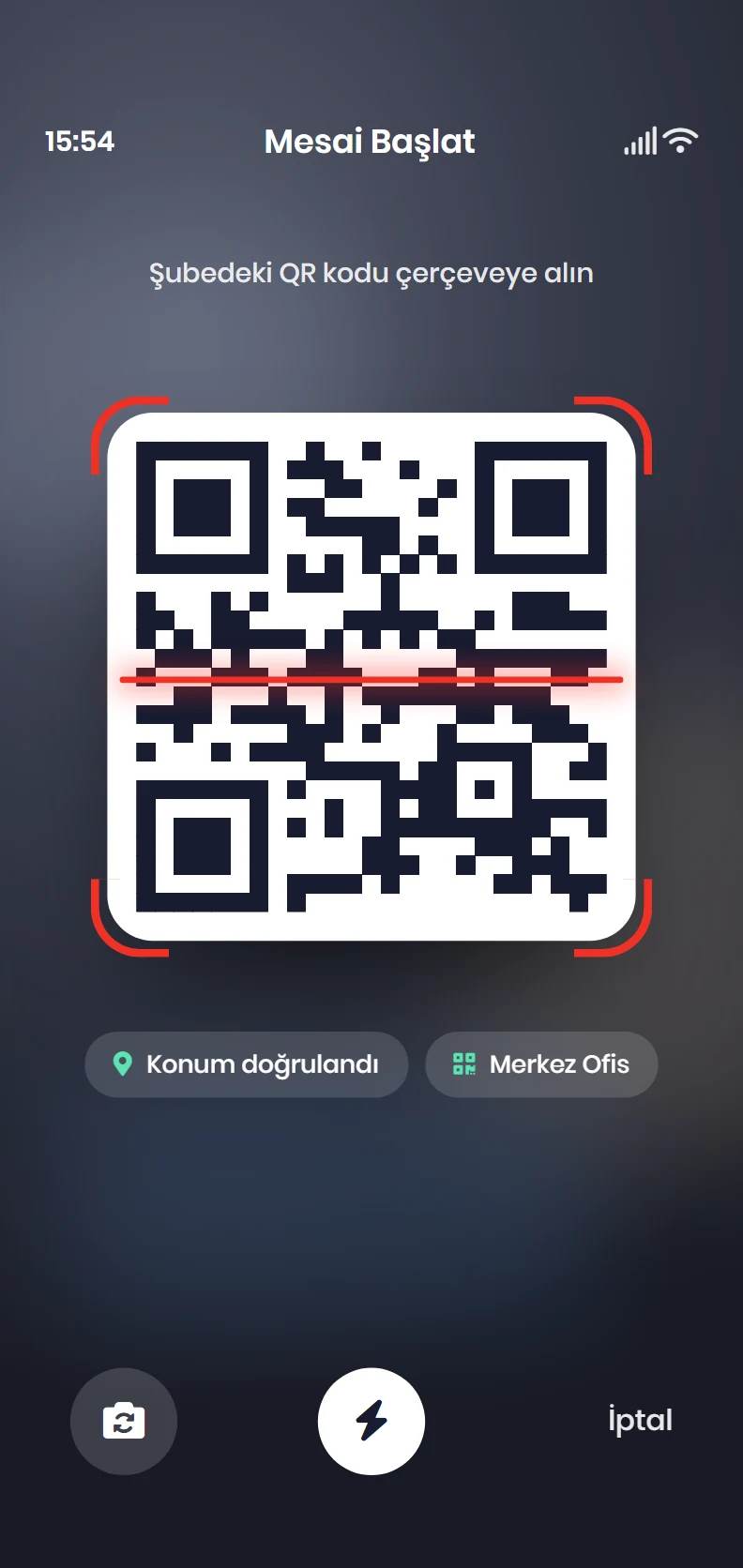
Clock in with QR and location
Start and end the shift
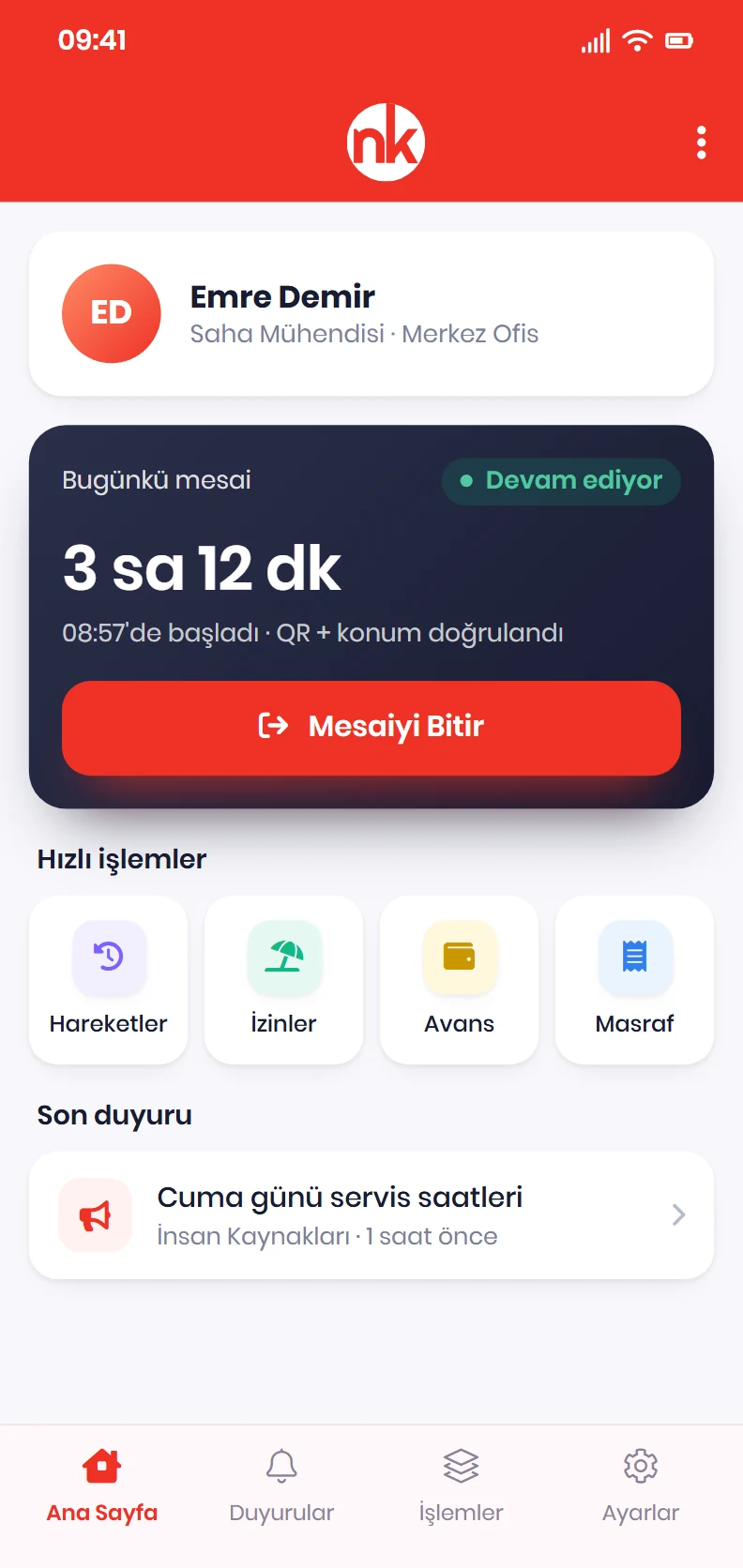
Employees start and end their shift by scanning the QR code at the branch or passing a location check. Site and access point rules decide which verification is required.
See details
No extra hardware; the entry appears in the panel, the daily summary and the attendance sheet at once.
The work timer shows how long the shift has been running based on server time, so changing the phone's clock has no effect. If the time passes the maximum working time your organization sets, the timer closes and a forgotten check-out becomes visible.
When time tracking is on, employees who forget to check out get a reminder: a set number of minutes after their planned end time if they have a shift, otherwise shortly before the maximum duration runs out. Employees can switch the reminder off themselves.
- Verification: QR code, location or both
- Timer: runs on server time
- Reminder: at most one per person per day
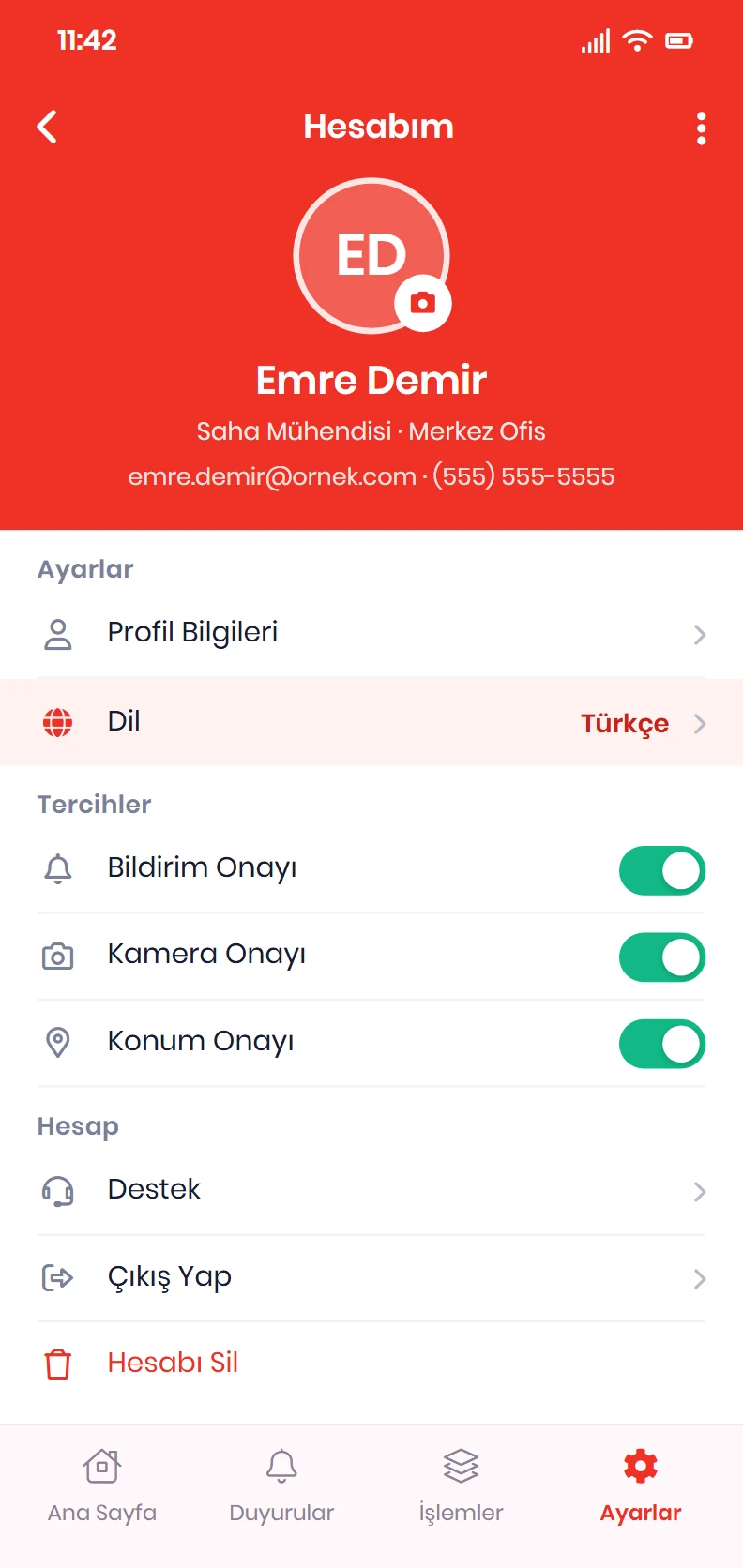
My Account in one place
My Account
The employee's own record lives in the app: position and branch, the leave bar, My Requests, My Information, My Career, My Leave, My Payments, My Overtime, My Files, My Payslips and My Assets. Password change and language preference are here too.
See details
Organization settings decide which sections are open; a closed section simply doesn't appear in the menu.
My Information shows work, citizenship, education, family, address, bank, contact and emergency contact details section by section. Employees can only edit the sections opened under Request and Profile Settings, and manager-only fields are never shown on mobile.
My Career lists position and salary history, My Assets the items assigned to the employee, and My Files the personnel files shared with them.
- Leave bar: remaining, used and total entitlement
- Profile: only opened sections are editable
- Security: password change under your password policy
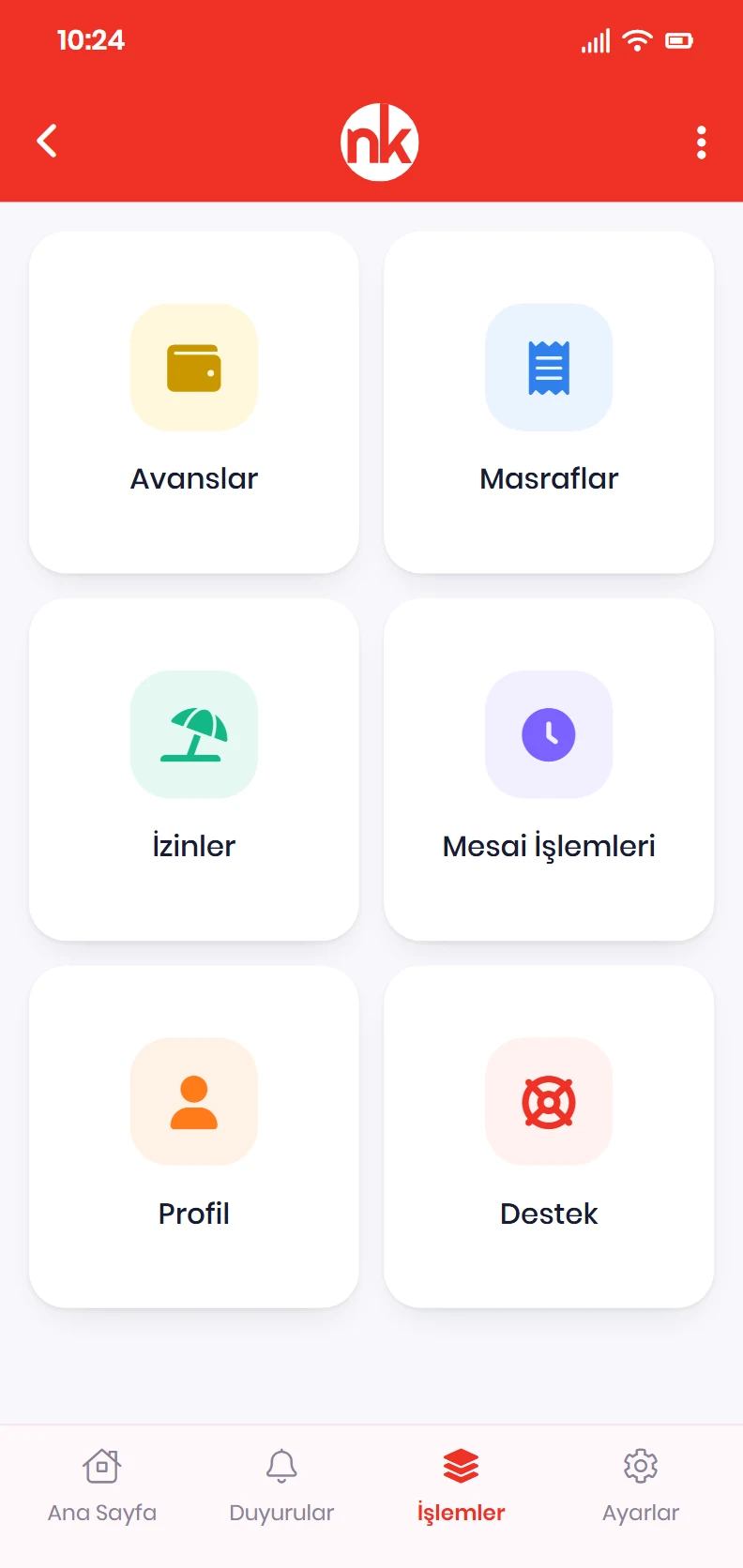
Request and approve
Requests and Tasks
From the actions menu employees submit leave, advance, expense, overtime and visa document requests. On the manager's Tasks tab, requests waiting for a decision show up with a counter.
See details
Every request goes through the approval flow set up in the panel; there are no separate rules for mobile.
My Requests lists every type of request in one list with date and status, and employees can withdraw a pending request. Request types your organization doesn't use are switched off under Request Settings and disappear from the app.
Opening a request shows managers its approval steps; they approve it, or reject it with a note. Authorized managers also see their employees' leave balances and can create leave on an employee's behalf.
- Request types: leave, advance, expense, overtime, visa document
- Rejection: a note is required
- Badge: pending count on the Tasks tab
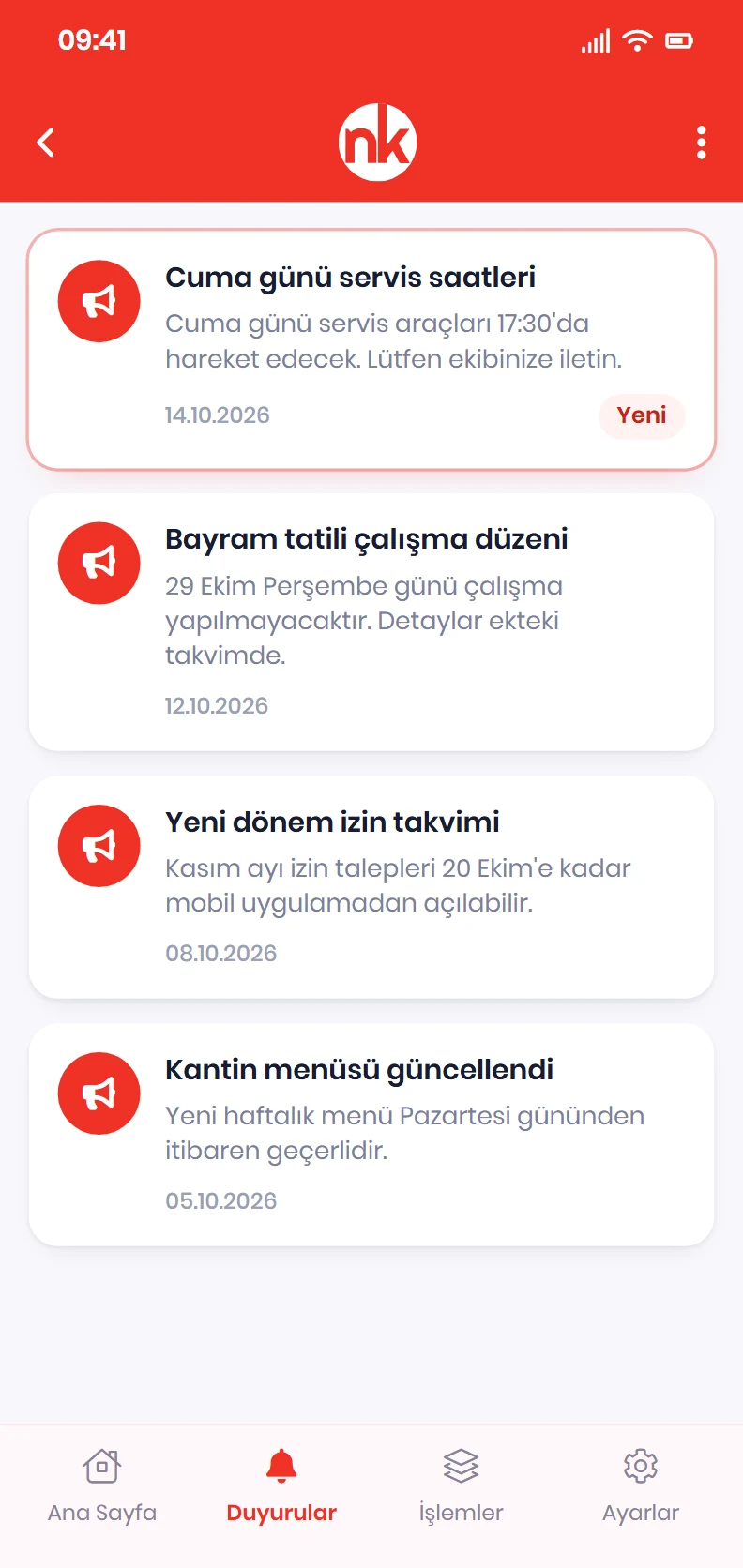
Announcements, feed, emergencies
Announcements and feed
Company announcements land in the app; when an announcement asks for confirmation, employees tap "I have read it" and the panel tracks who did. The feed shows upcoming leave, public holidays, birthdays and new joiners.
See details
The notification inbox gathers unread notifications and approval results in one place.
When the organization starts an emergency scenario, employees reply from the app with "I'm safe" or ask for help, optionally sharing their location.
The People tab shows colleagues' positions, units and work contact details. Access Settings decide whether the list is open and whether phone numbers appear; personal phone numbers are never shown.
- Announcements: pinned posts and read confirmation
- Feed: leave, holidays, birthdays, new joiners
- Emergency: "I'm safe" or a call for help
Weekly plan and availability
My Plan and Availability
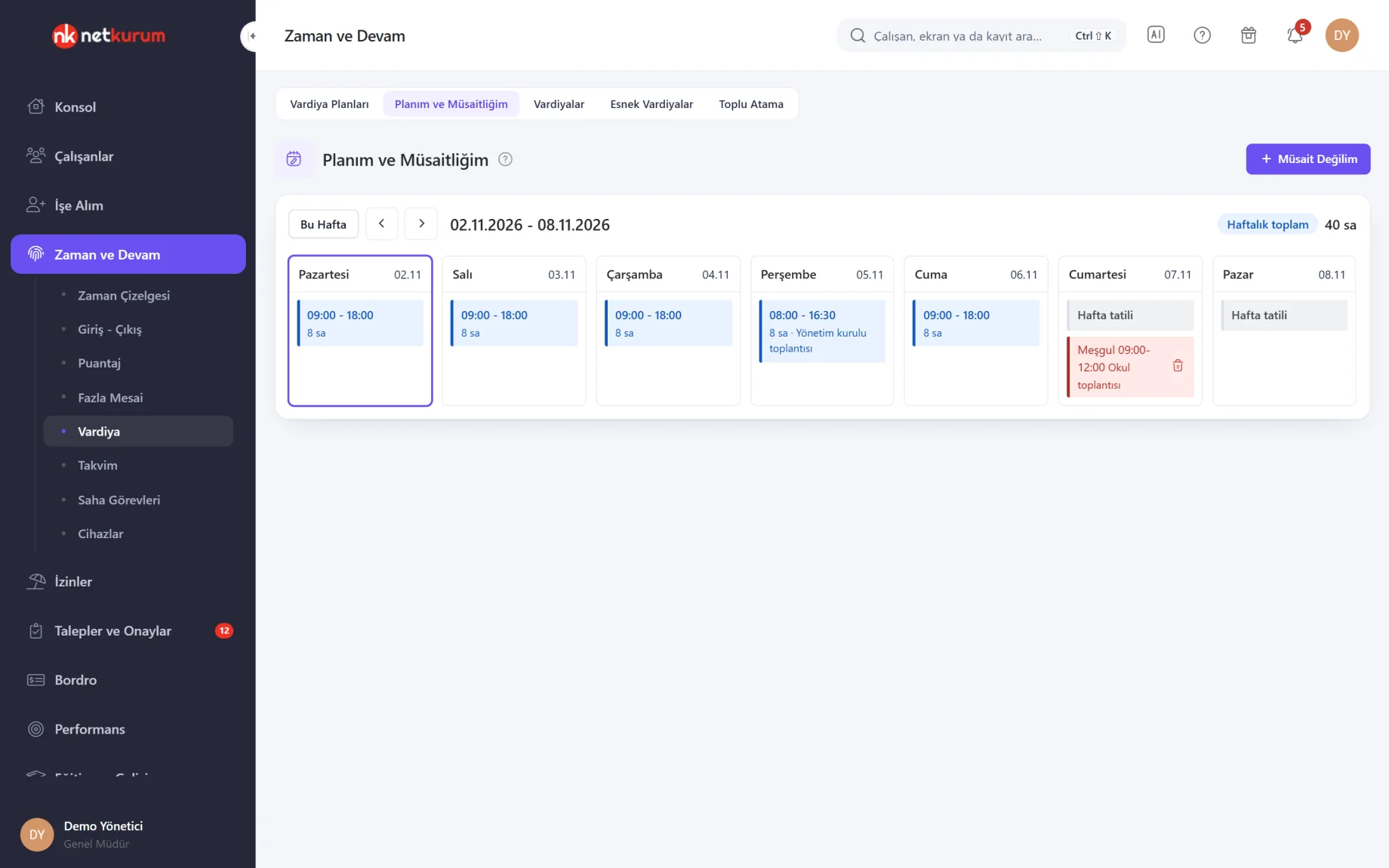
Employees see the shifts their manager has published as weekly cards; draft plans stay hidden. With "Not Available" they enter the hours they are busy, and managers see those hours while planning.
See details
The plan screen in the mobile app and the web screen use the same data.
Approved leave days are marked separately, and the weekly total is net shift time with breaks deducted. Today's card is outlined so it stands out.
Your organization's limits also apply to availability, such as the maximum busy hours on weekdays and allowing only one busy day at the weekend. Past days can't be entered, and employees can delete only their own entries.
- Visible: published shifts only
- Availability: day and time range, optional note
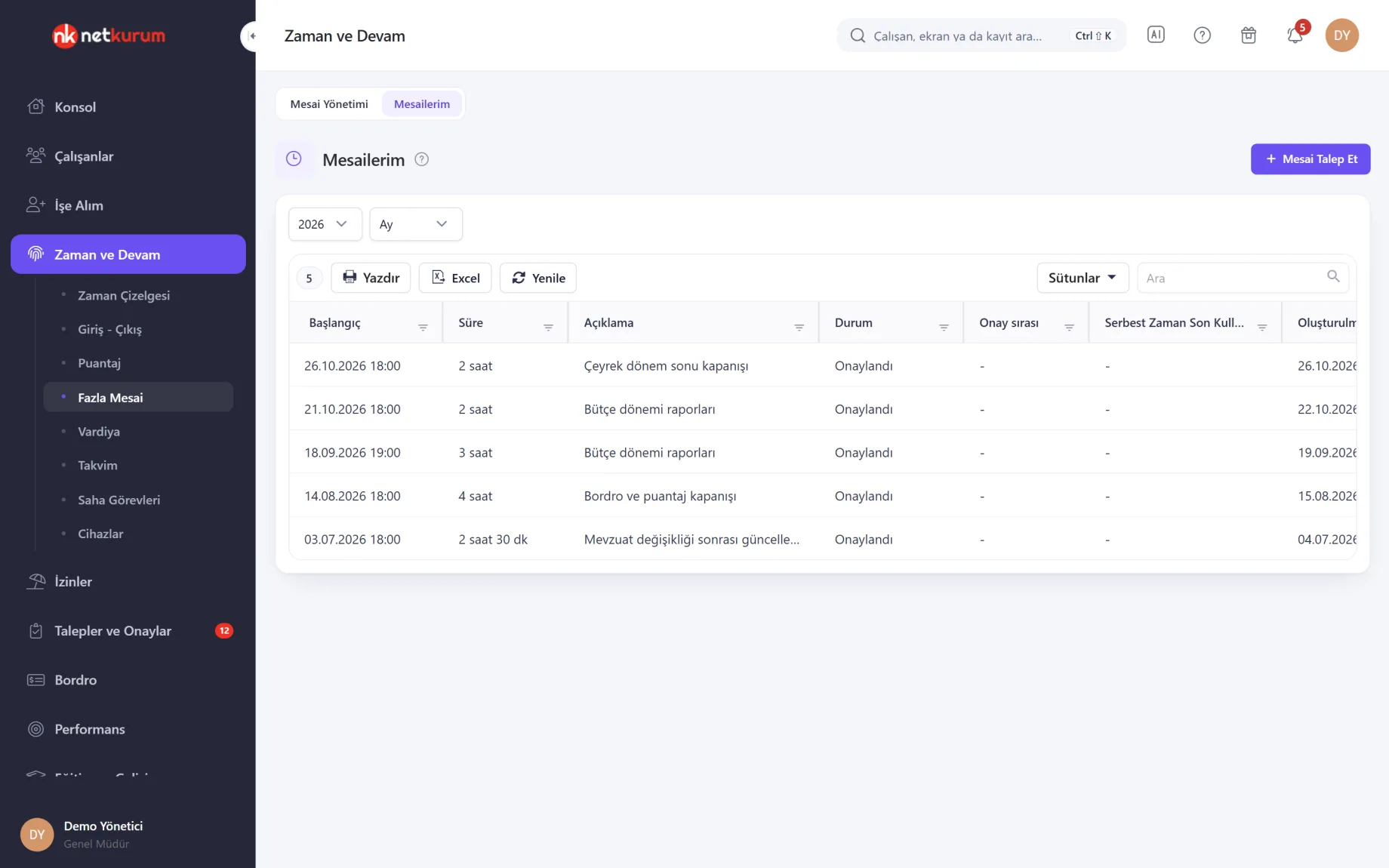
Overtime requests
My Overtime
Employees see past and upcoming overtime records, filtered by month and year. "Request Overtime" takes a date, time and duration, and the request goes to the assigned overtime approval flow.
See details
The decision comes back as a notification, and a pending request can be cancelled.
If the approval flow allows showing whose turn it is, a pending overtime record shows who it is waiting with.
Organizations that don't use the feature turn it off under Payment and Overtime Settings; while it is off, employees can't request overtime.
- Filter: year and month
- Flow: request, approval flow, notification
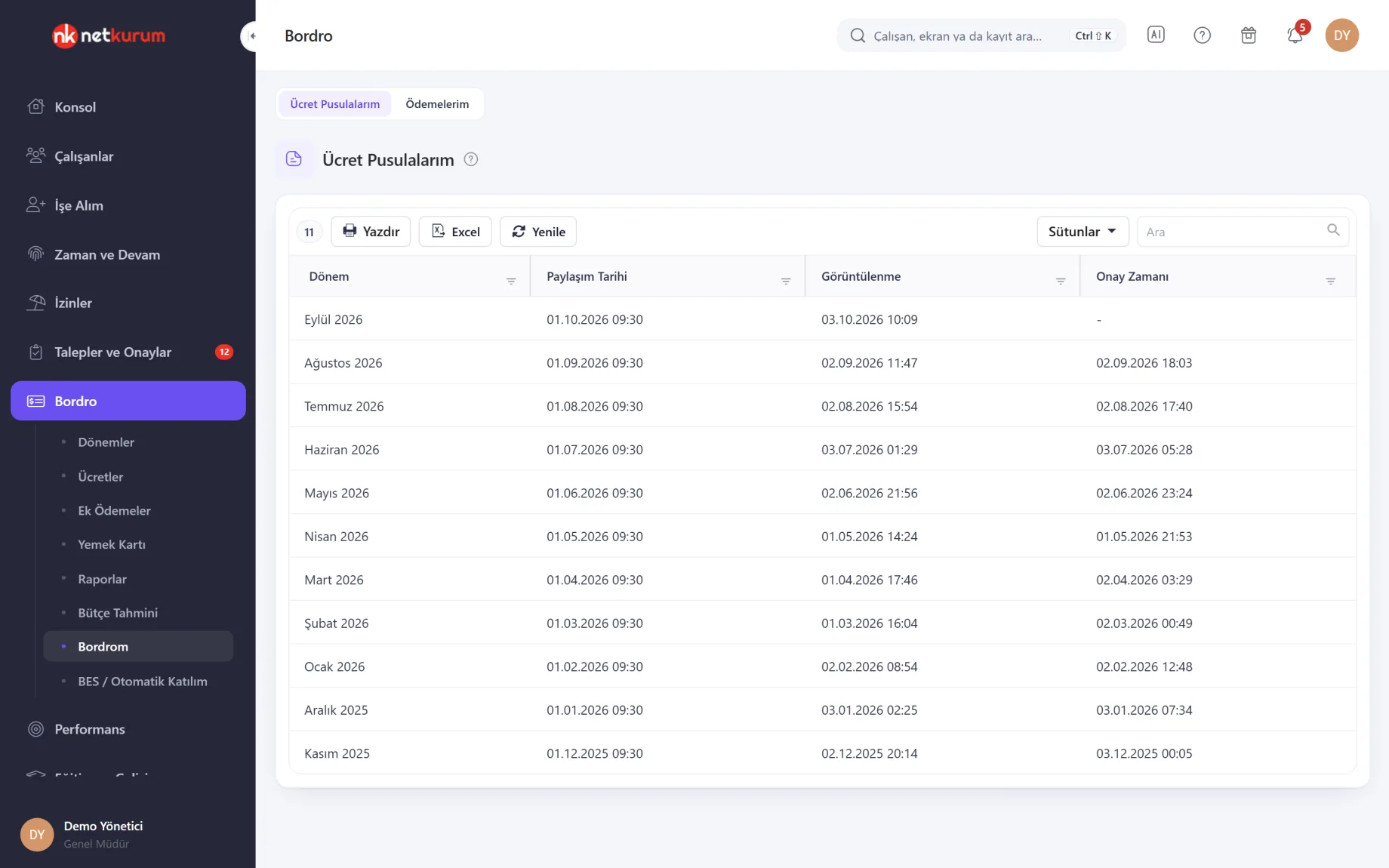
Payslips with acknowledgement
My Payslips
Each shared payslip is listed with its period, share date, view time and confirmation time. Opening a payslip records the view time, and tapping "I have seen my payments and confirm" records the confirmation.
See details
Whether a payslip reached the employee is a matter of record, not a guess.
Payslips can be downloaded as PDF. If Payroll Settings allow it, unit managers see the shared payslips of their team read-only, and opening one doesn't change the employee's view record.
My Payslips in the app and on the web use the same record, so it doesn't matter which channel the employee opens it from.
- Recorded: share, view and confirmation times
- Output: PDF
What's included in the mobile app?
- Start and end the shift with QR code and location checks, plus a work timer based on server time
- My Account: leave bar, personal information, career, files, assets, password and language
- Leave, advance, expense, overtime and visa document requests, with status tracking under My Requests
- Tasks for managers: approve pending requests or reject them with a reason (Approval Box)
- Weekly shift plan and unavailable hours
- My Payments and My Overtime: additional payments, deductions, expenses and overtime records
- Payslips as PDF with an "I have seen it" confirmation
- Performance goals, goal results and competency reviews
- My workflow tasks: onboarding and offboarding checklists
- Announcements with read confirmation, notification inbox, feed and employee directory
- A one-tap "I'm safe" reply in an emergency
- iOS, Android, Huawei and Windows; device records on the Mobile Device Management screen
How do you get started?
- Choose requests and profile permissions Under Request and Profile Settings, turn on the request types you use and the sections employees may edit themselves.
- Send sign-in invitations From the Access screen, send employees a link to create their password; the link is valid for 48 hours.
- Let them install the app Employees install the app from their store and sign in with their email address and password.
- Approve from your phone Requests enter the approval flow, and managers decide on them from the Tasks tab.
Frequently asked questions
How do employees sign in to the app?
With their own email address and password. Employees create the password themselves through the invitation link sent from the Access screen, and if they forget it they reset it with "Forgot my password" on the sign-in screen.
What happens when an employee changes phones?
A manager deletes the old device record on the Mobile Device Management screen, and the employee signs in from the new phone. The screen shows each device's model, app version and last access time.
What about employees without a smartphone?
The same work can be done in the panel: check-in and check-out run in the browser under the same rules, and My Plan and Availability, My Overtime and My Payslips are available on the web too. There is also a desktop app for Windows computers.
Who decides which screens employees see?
Your organization. Request types are switched on and off under Request Settings, profile editing under Profile Settings and the colleague directory under Access Settings; mobile permissions of each role sit on a separate tab in Role Permissions. Some screens require the latest version of the app.
Can managers approve leave requests from the app?
Yes. Leave, advance, expense and overtime requests assigned to a manager are collected on the Tasks tab, with their approval steps visible; a rejection requires a note.
Related features
-
 Check-In and Check-Out
Clock in from the phone with QR code and location checks; you choose the method for every site and access point. Review Now
-
 Leave Management
Leave policies and accrual, mobile requests, approval flow, leave calendar and balance reports. Review Now
-
 Communication, Announcements and Documents
Targeted announcements with read tracking, acknowledged company documents, motivation cards and notification settings. Review Now
Try NetKurum in your organization
Create your own demo in minutes and explore an organization full of sample data for 14 days.