

Leave
Leave Management
Employees request leave from their phone, managers approve it while seeing the balance impact and who else on the team is off, and accrual, carry-over and remaining days are calculated from the rule automatically.
What does it solve?
When leave runs on paper forms, email or spreadsheets, remaining days get disputed, half the team ends up off in the same week and carried-over days quietly disappear. NetKurum ties requests, approvals and balances to one rule.
- Remaining days worked out by hand The leave rule calculates accrual, extra days for seniority, carry-over and forfeited days; employees and managers see the same balance.
- The whole team off at once Each request row shows how many people in the same department are off in that period, and the request detail lists their names; the leave calendar shows the whole team day by day.
- Requests nobody can locate A request moves step by step through the organization's approval flow, and every step records who decided, when and with what note.
- Requests that break the rules Minimum and maximum days, waiting periods, notice periods and negative balance rules are shown as warnings before the request is saved.
- Leave records from previous years Past leave is imported in bulk with an Excel template; if a single row is invalid, nothing is written.
Leave management, screen by screen
These images are real screens from the NetKurum demo organization; names of people and companies are fictitious.
Requests waiting on you
Leave management
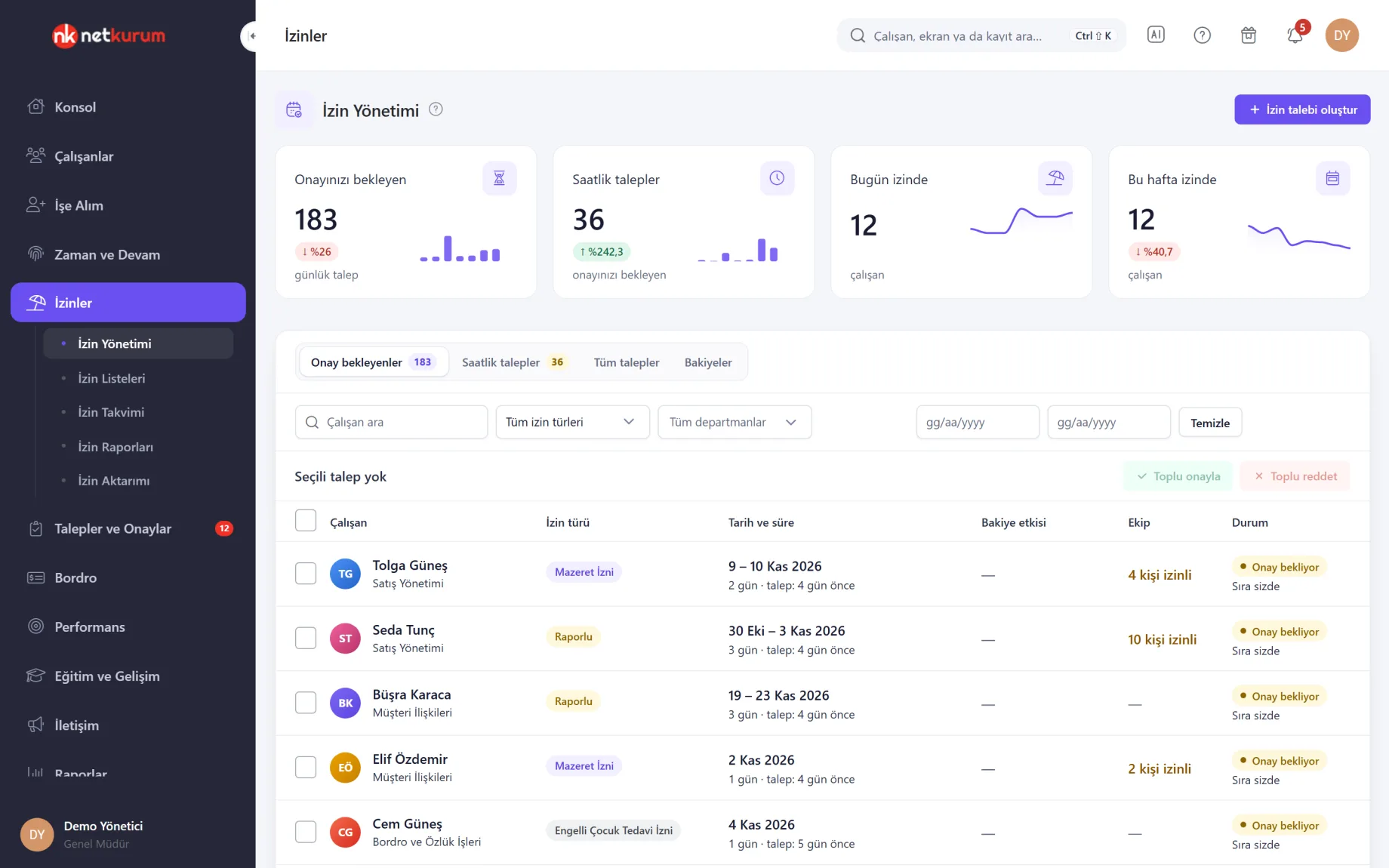
Counters at the top show daily and hourly requests awaiting your approval and who is off today and this week. Each request row puts leave type, dates and duration, balance impact, team members off at the same time and approval status side by side.
See details
Managers see the balance and the team situation on the same row before they decide.
There are four views: pending, hourly requests, all requests in the organization and employee balances. All requests can be filtered by status, type, department, dates and employee name; requests that are not yours to decide show the position they are waiting on.
Bulk approve and bulk reject settle the selected requests with one decision note; a reason is required for rejection. "Create leave request" opens a request on an employee's behalf.
- Counters: pending daily and hourly requests, off today and this week
- Row: balance impact, team, status
- Bulk decision: approve, or reject with a reason
Approval flow and team
Leave request
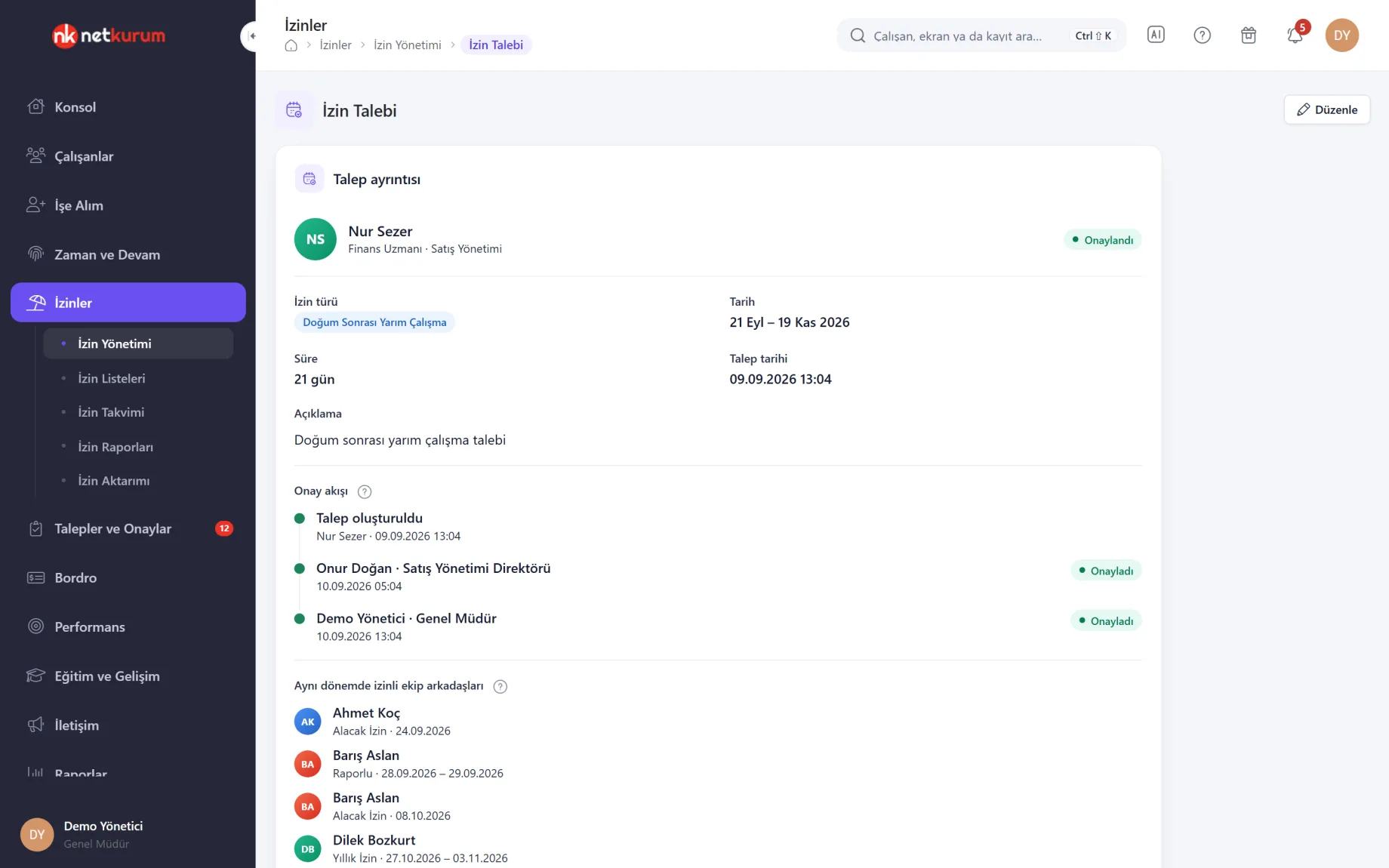
Below the leave type, dates, duration and note, the request detail shows the approval flow step by step, followed by team members who are off in the same period.
See details
Where the request is waiting and who approved it, readable at a glance.
Approved steps are green, rejected red, the pending step orange and steps not yet reached grey; the decision maker's name, time and note appear under each step. If it is not your turn, the approve and reject buttons are hidden.
If a pending request is edited, steps that already decided are reset and the flow starts again.
- Flow: creation and each approval step
- Team: people off in the same period
Who is off, and when
Leave calendar
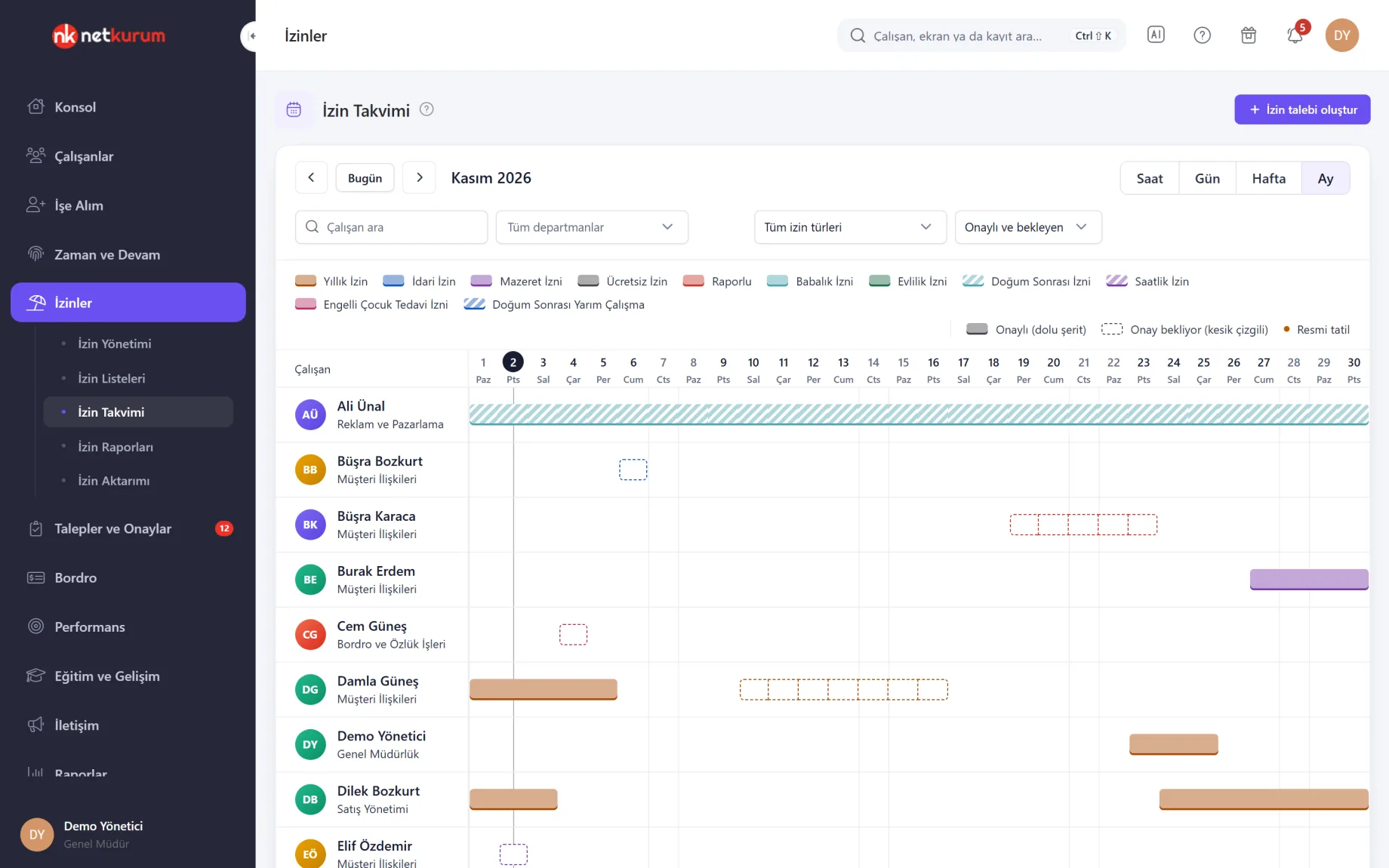
Rows are employees, columns are days. A solid bar is approved leave, a dashed bar is pending, and the colour shows the leave type; half days and hourly leave are drawn as thin bars.
See details
The answer to "who is out that week?" in every planning meeting.
Filter by department, leave type and status, or search for an employee; public holidays are marked under the day, and each day shows how many people are off. Clicking a bar opens the request detail.
Whether non-managers can see the leave type is set per type in the rule; hidden types simply show as "On leave".
- Views: month and week
- Bars: approved, pending, half day, hourly
The employee's balance
Employee leave summary
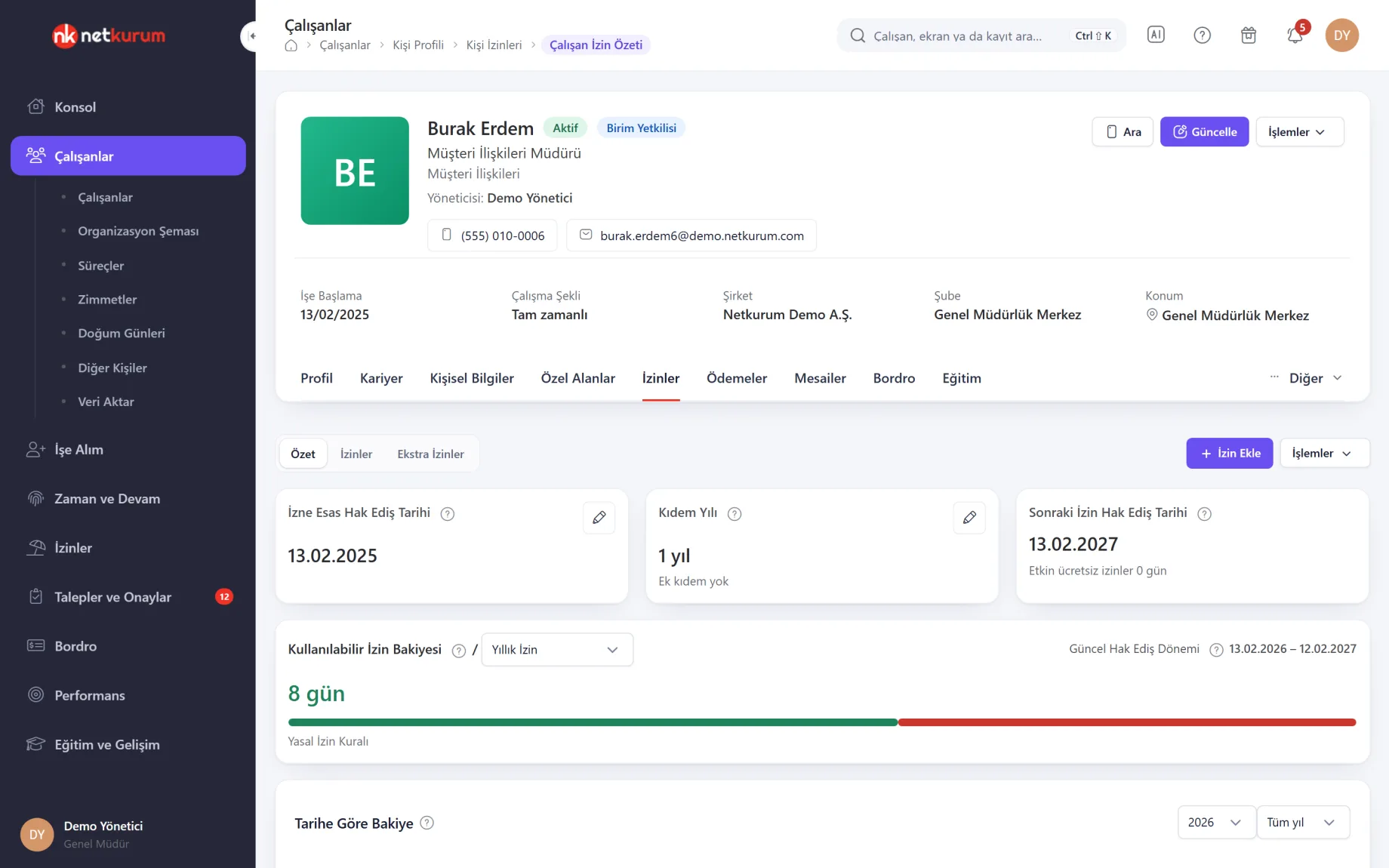
The leave summary on the employee record shows the accrual start date, years of service, next accrual date and available balance. The bar separates remaining, upcoming and used leave.
See details
Employees answer "how many days do I have left?" themselves.
Total accrued, used, carried over, usable carry-over and forfeited days are listed separately, and the balance can be calculated as of a chosen year and month end. Service from a previous employer can be added in years, months and days.
A leave reconciliation form can be downloaded for a chosen type and range. Managers add extra leave days, which join the balance of the relevant type on their accrual date. The summary is visible to the employee, their manager and authorized users.
- Tabs: summary, leave, extra leave
- Balance: accrued, used, carried over, forfeited
- Document: leave reconciliation form
Accrual and carry-over
Leave rules
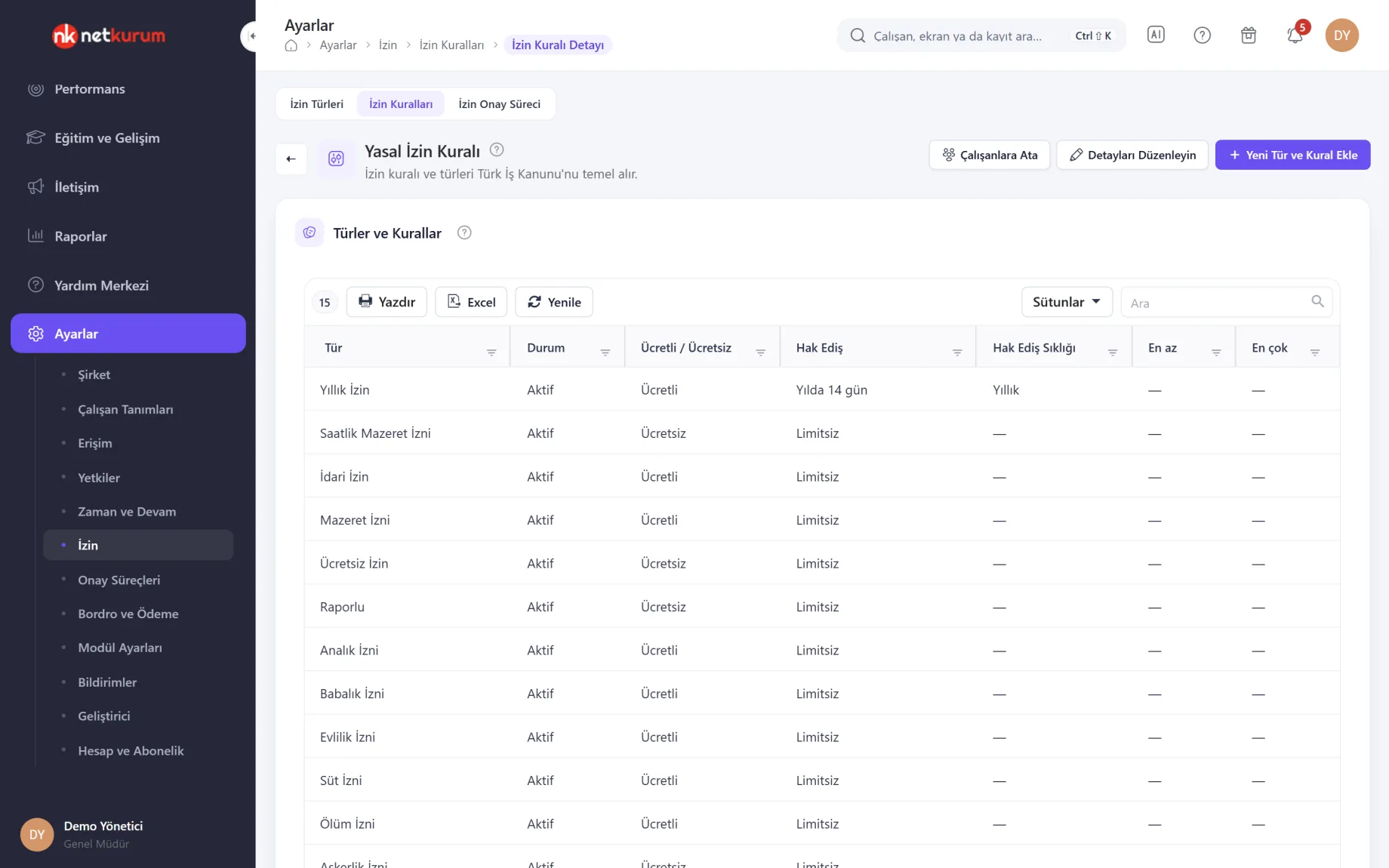
A leave rule is a set of accrual, carry-over and request settings for several leave types. Status, paid or unpaid, accrual, frequency and minimum and maximum days for each type sit in one table.
See details
A statutory leave rule comes ready, and you derive your own rules from it.
A six-step type wizard covers the limit (unlimited, per year or per request), negative balance, yearly or monthly accrual, start or end of period, extra days by seniority, age exceptions, carry-over, waiting period and notice period. Presets cover maternity, paternity and compassionate leave.
Carry-over can reset, carry everything, cap the total, cap the days carried or expire after the first months of the new period. "Assign to Employees" links the rule, and each employee's balance is recalculated under it.
- Accrual: yearly or monthly, with seniority and age exceptions
- Carry-over: five options, forfeited days tracked separately
- Ready-made rules: statutory rule and a public sector rule
Overlaps and signatures
Leave lists
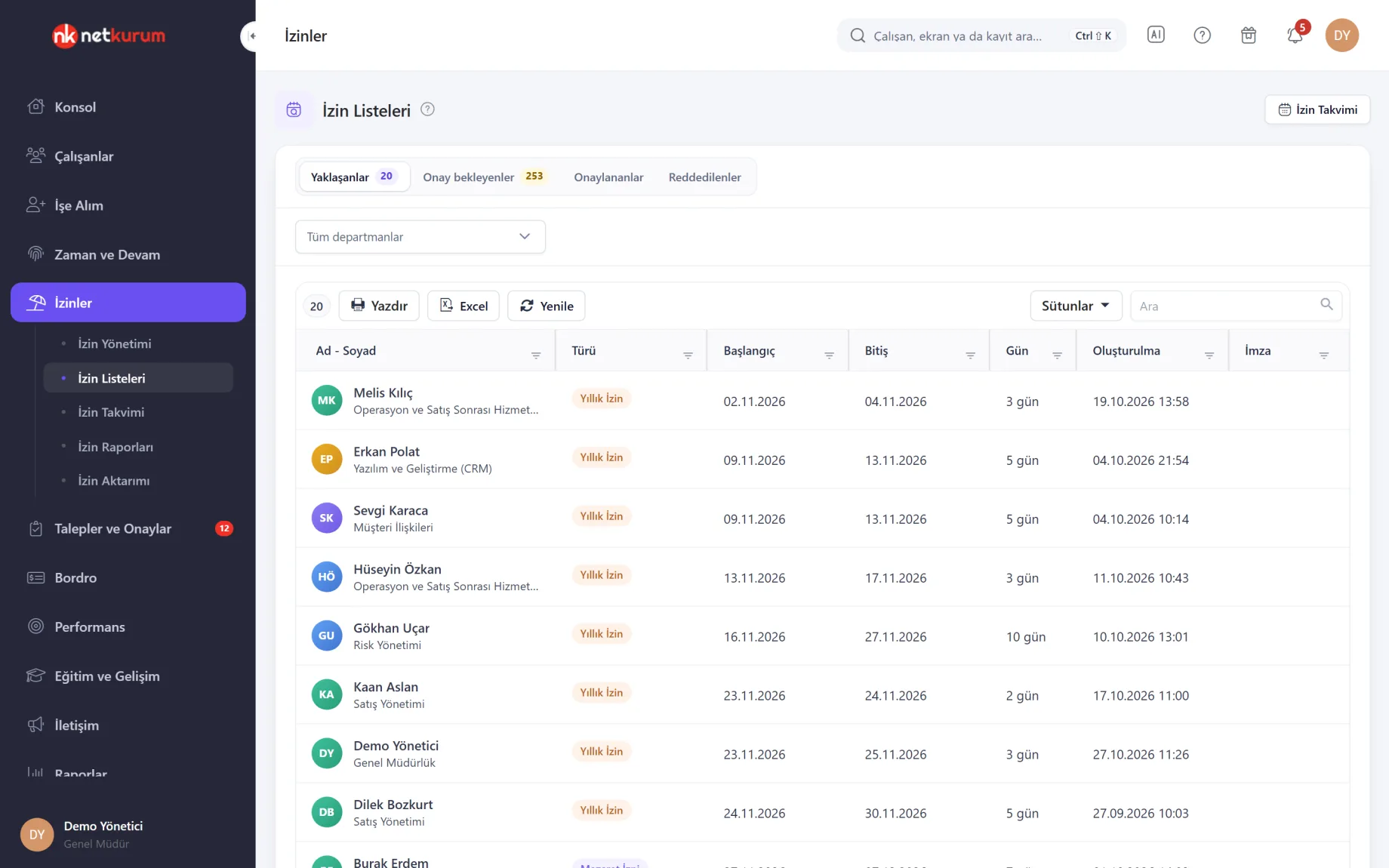
Upcoming, pending, approved and rejected leave are listed together with hourly leave and can be filtered by department. The Signature column on the approved tab shows whether the signed document has been collected.
See details
Unsigned leave forms no longer pile up until month end.
Double-click a leave to see other approved and pending leave in the same department on the same dates on a seven-day chart, with public holidays in the range listed below.
Print the document from the employee record, have it signed, upload it to the employee's documents and mark the row as "Signature received".
- Tabs: upcoming, pending, approved, rejected
- Signature: received flag
Leave requests from the phone
Mobile leave requests
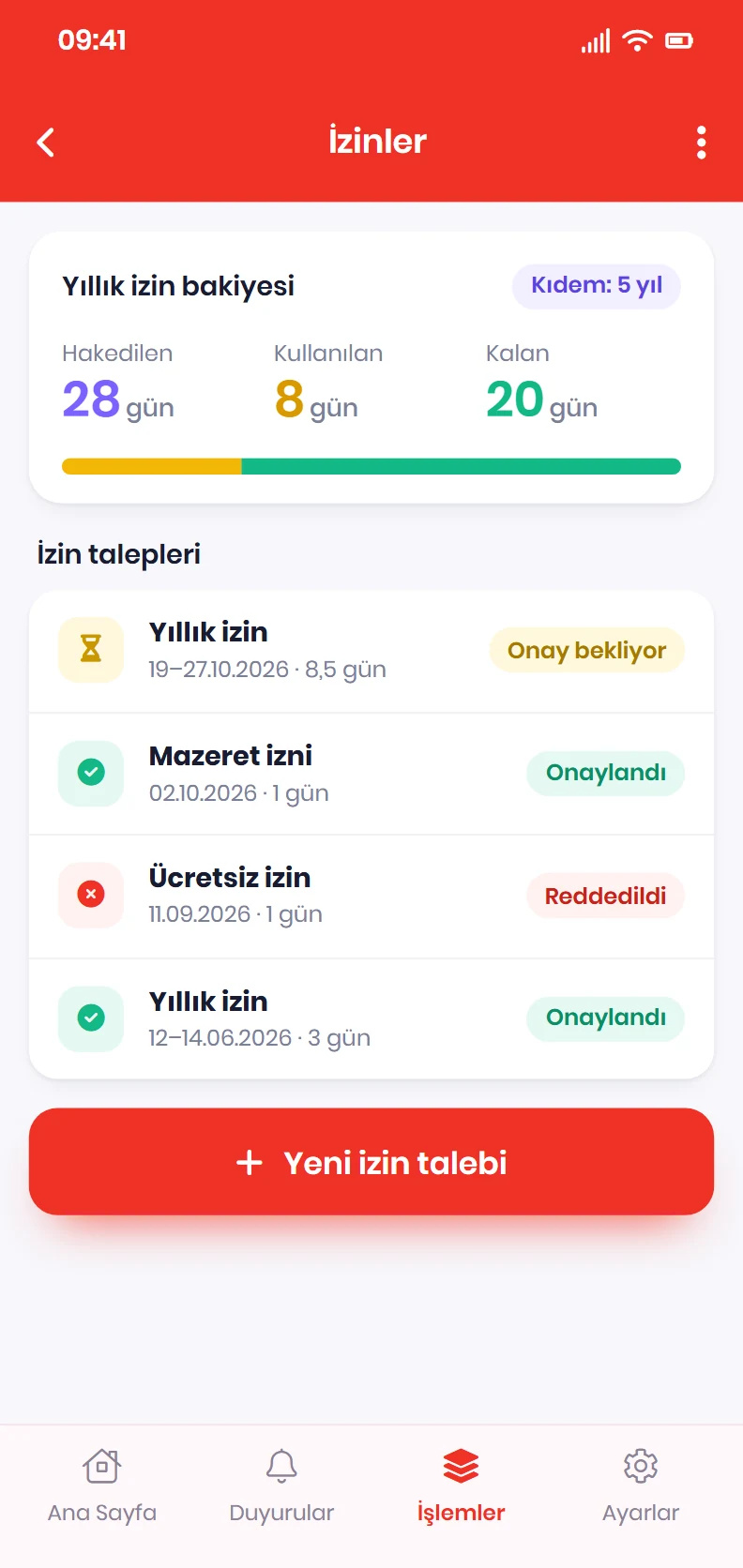
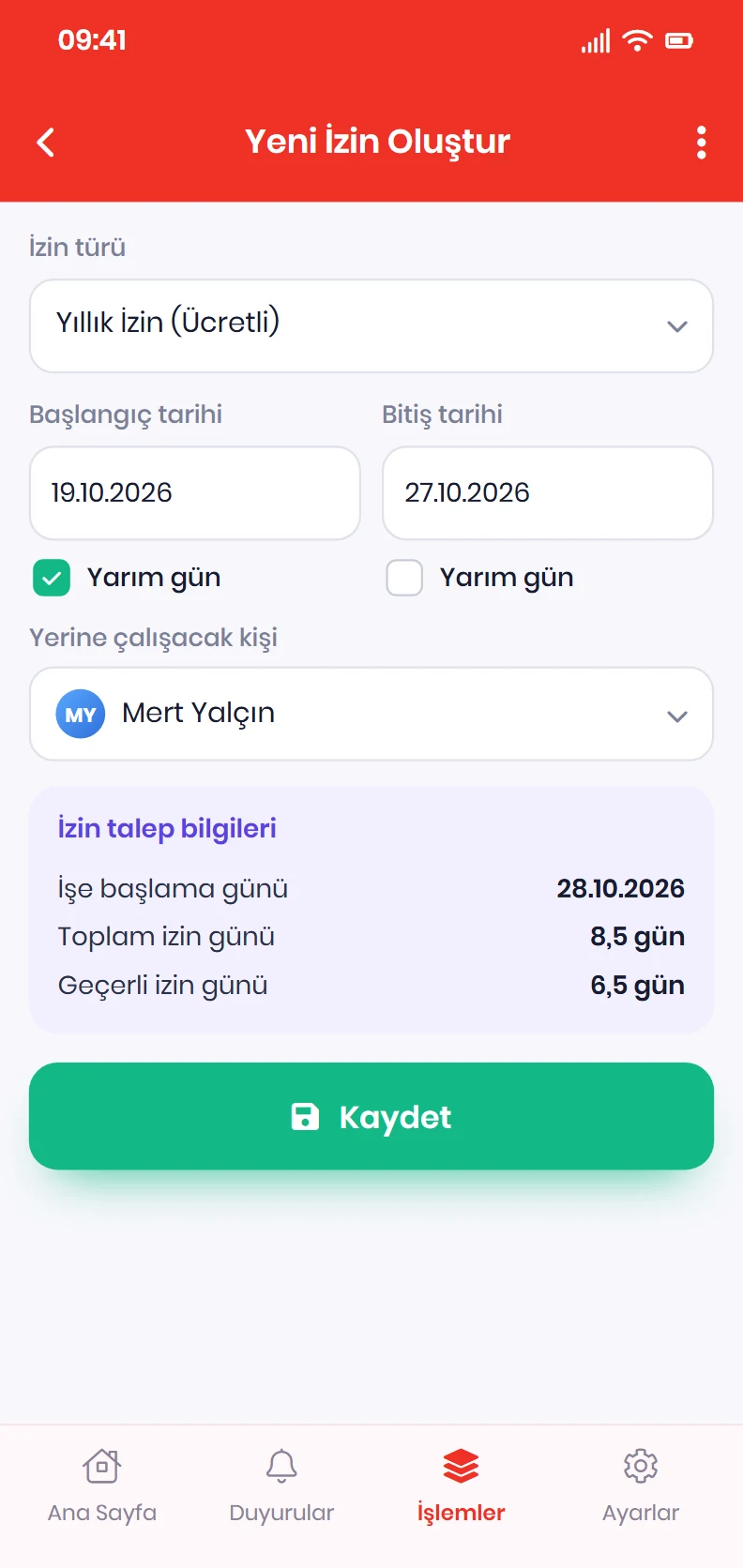
Employees pick the leave type and dates and send the request from their phone; they follow their balance and the status of past requests in the same app.
See details
No paper form; the request goes straight into the approval flow.
The request moves through the organization's leave approval flow and the decision reaches the employee as a notification. Managers can also see their team's leave in the mobile app and enter leave on an employee's behalf.
- Employee: request, balance, history
- Manager: team leave and leave on someone's behalf
What's included in leave management?
- Leave types tailored to your organization, with optional document upload
- Leave rules with accrual, seniority, age exceptions and carry-over
- Presets for statutory leave durations and a ready-made public sector rule
- Four approval routes: hierarchical, selected positions, custom order and shortened hierarchical
- An approval screen with balance impact and team view, bulk approve and reject
- Full-day, half-day and hourly leave
- Person-by-day leave calendar and overlapping leave
- Employee leave summary with usable balance, carry-over and forfeited days, plus a reconciliation form
- Signature tracking for approved leave
- Email reminders for SGK (social security) reporting deadlines on sick leave
- Leave usage, accrual and annual leave reports
- Excel import for past leave
How do you get started?
- Review types and the rule Check the statutory rule that comes ready and add your own leave types and durations.
- Choose the approval route In the leave approval settings, apply a hierarchical, selected-position, custom or shortened flow.
- Import the history Upload past leave with the Excel template and have employees sign the leave reconciliation form.
- Invite employees Employees request leave from the mobile app, and approvals run from leave management and the phone.
Frequently asked questions
How is annual leave entitlement calculated?
By the leave rule the employee belongs to: accrual start date, extra days by years of service, age exceptions and carry-over settings are calculated together. Employees without an assigned rule follow the organization's default rule; the statutory rule that comes ready is based on Turkish Labour Law.
Can different employee groups have different rules?
Yes. Create several leave rules and assign them to employees; each employee belongs to one rule, and the same leave type can have different settings in different rules.
How do we import our old leave records?
With the Excel template on the leave import screen. Rows are previewed as valid or invalid, and if a single row is invalid nothing is saved; imported leave is recorded as approved and no notifications are sent.
Is hourly leave supported?
Yes. Hourly requests are approved on their own list, and for types calculated in hours, usage is deducted from the balance in fractions of a day.
Can employees cancel their own leave?
Employees can cancel their own upcoming leave that has not been rejected by giving a reason; past leave is cancelled by a manager. The reason stays on record and the people involved are emailed.
Related features
-
 Requests and Approvals
Expenses, advances, overtime, visa documents and field tasks in one approval inbox, each with its own approval chain. Review Now
-
 Mobile App
Check-in, requests, leave balance, payslips, announcements and approvals in every employee's pocket. Review Now
-
 Reports
Ready-made reports, a report builder of your own, scheduled emails and an activity log. Review Now
Try NetKurum in your organization
Create your own demo in minutes and explore an organization full of sample data for 14 days.