

Employees
Workflows and Processes
Tie every task for a joiner or a leaver to one workflow with an owner and a due date, and see on the Employee Processes screen who is late on which task.
What does it solve?
When onboarding and offboarding steps live in email threads and personal lists, something always slips: the social security notice, the equipment return, the final pay calculation. NetKurum ties each step to a workflow, an owner and a date.
- Rebuilding the checklist for every hire Define a workflow once and assign it to each employee; task dates are calculated from the start or exit date.
- Unclear ownership Every task has an owner (the employee, system administrators or a named colleague) and a checklist, and owners see it under My Tasks.
- Delays nobody notices Employee Processes shows progress, remaining and overdue tasks for each person.
- Repeating the same action person by person Bulk Actions assigns a work calendar, training, leave rule, extra payment or manager to the selected employees in one go.
- Not knowing who must approve Approval flows define the order and the approvers for each request, assigned by unit, position, site or person.
Workflows and processes, screen by screen
These images are real screens from the NetKurum demo organization; names of people and companies are fictitious.
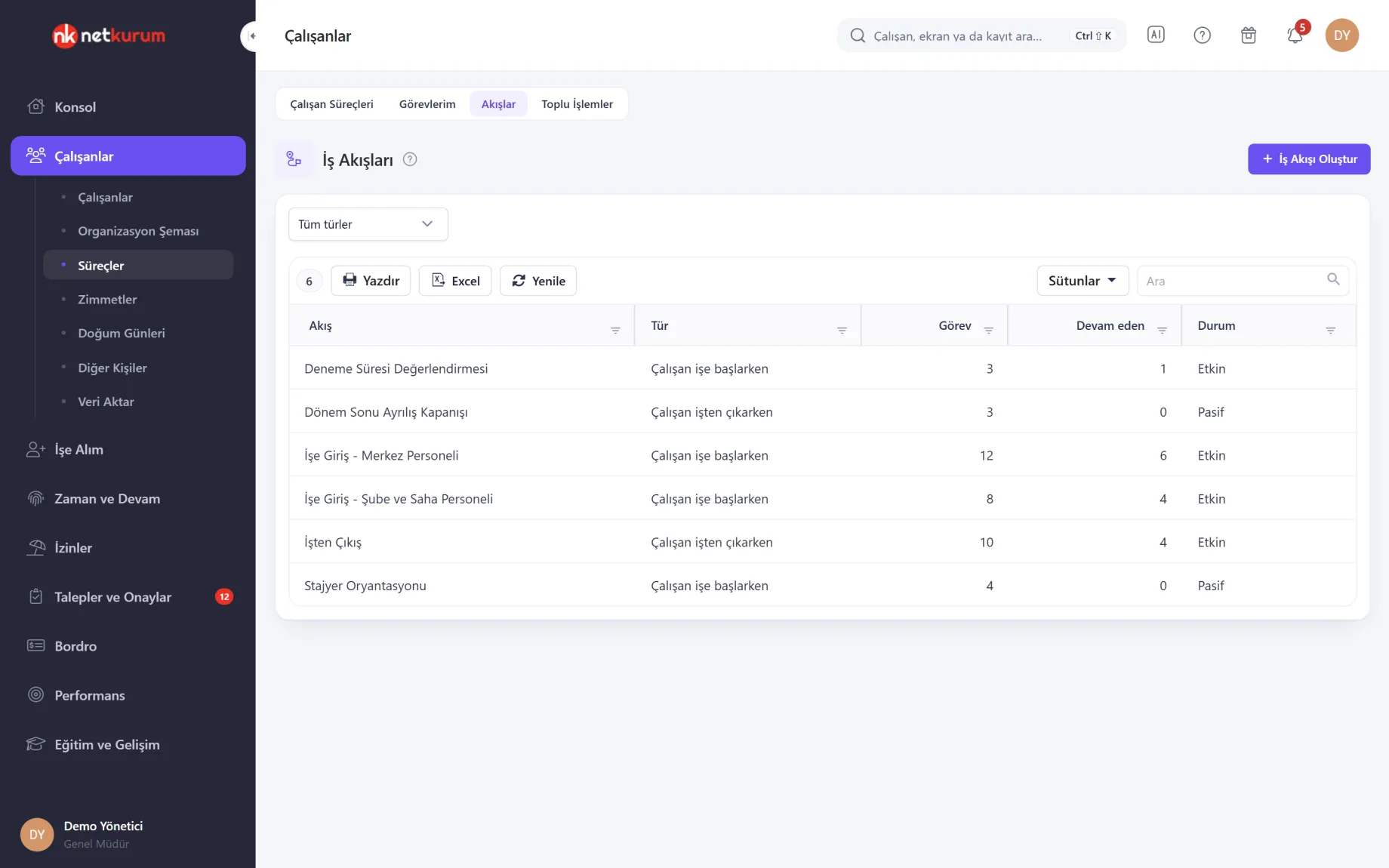
Joiner and leaver workflows
Workflows
Tasks for employees starting or leaving are defined as separate workflows; the list shows each workflow's type, task count, active assignments and status. Head office and field staff can have different workflows.
See details
Organizations with no workflows start with Standard Onboarding and Standard Offboarding ready, in passive state.
In a workflow you add tasks, each with an owner, a due day and a checklist. The due day is counted from the start (or exit) date; -3 means three days before.
A workflow without at least one task cannot be activated. Edit the tasks and owners of the ready workflows to fit your organization, then activate them.
- Types: employee starting, employee leaving
- Task: owner, due day and checklist
- Status: active or passive
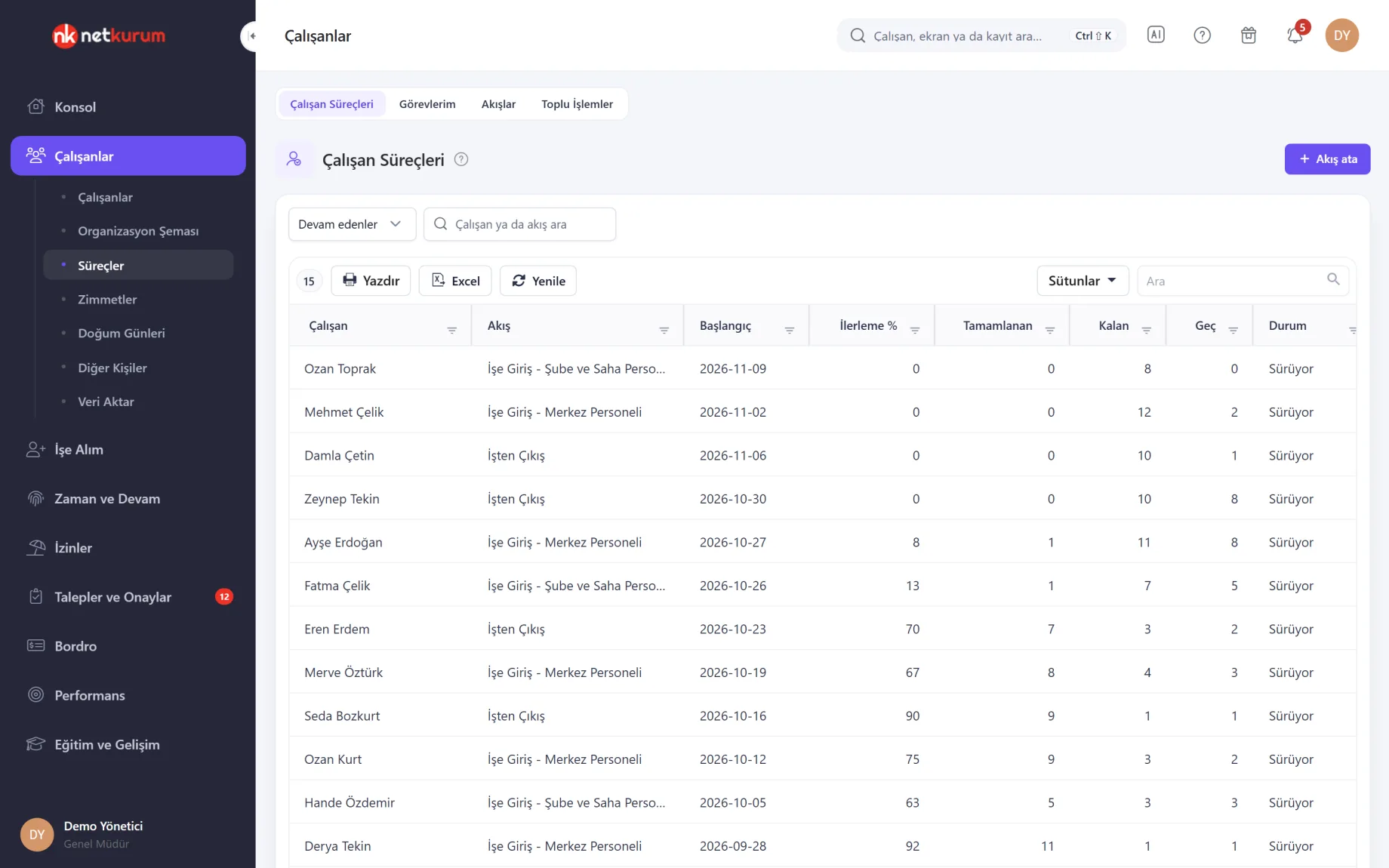
Progress and delays
Employee processes
Every workflow assigned to an employee is listed with progress percentage and completed, remaining and overdue task counts. Ongoing, completed and cancelled processes are filtered separately.
See details
In the assignment window, choosing the employee and workflow fills in the start date automatically.
For onboarding the date comes from the employee's start date, for offboarding from the exit date; you can change it on the calendar.
In the details you view open tasks or all tasks, tick the checklist and complete the task. Who completed it and when is recorded.
- Columns: progress, completed, remaining, overdue
- Filter: ongoing, completed, cancelled
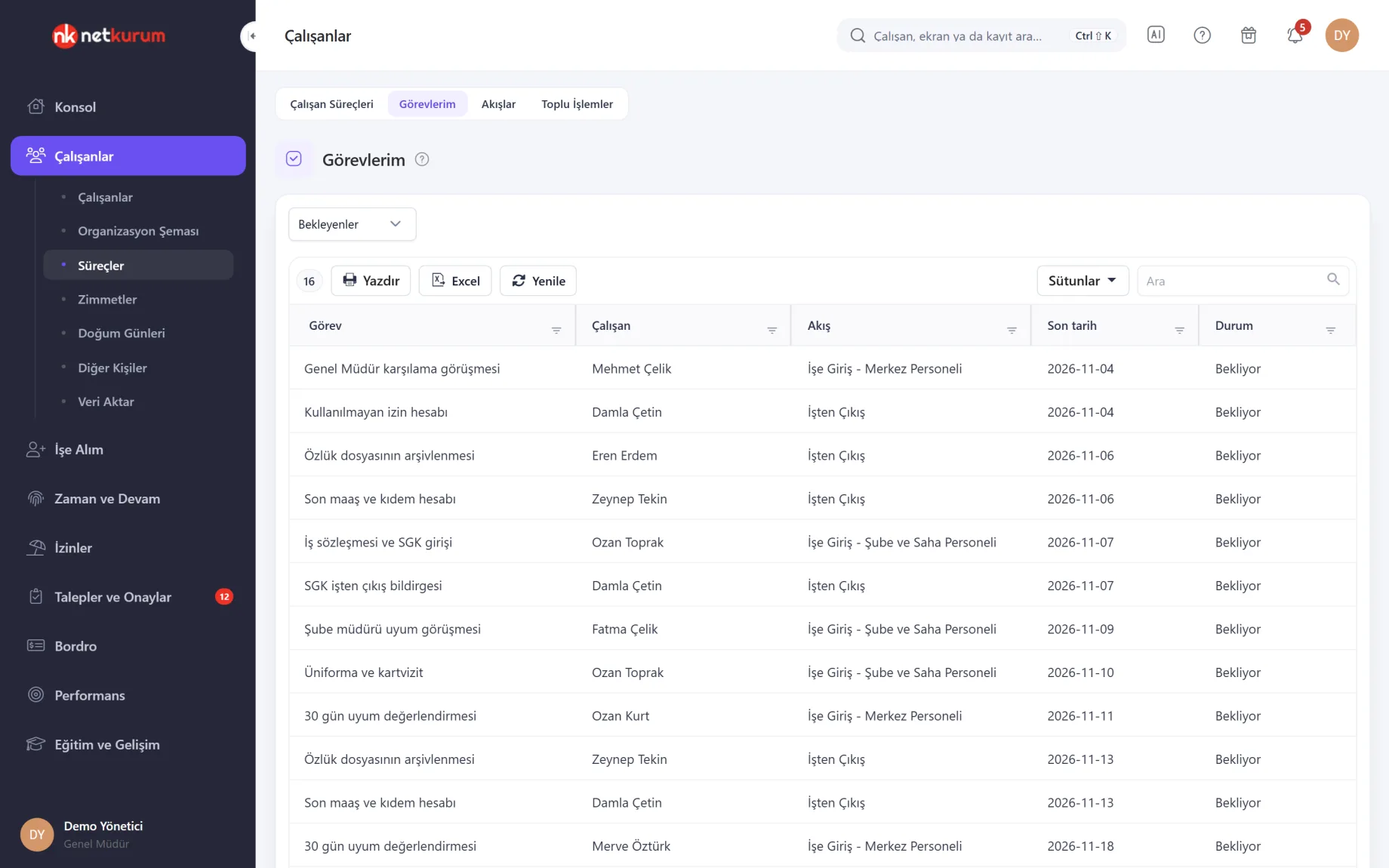
Tasks by due date
My Tasks
Tasks assigned to you are sorted by due date, with the related employee and workflow on each row. Open a task, tick its checklist and press Complete.
See details
Administrators also receive tasks assigned to system administrators in this list.
Pending, overdue and completed tasks are filtered separately. Tasks owned by the employee themselves, such as handing in documents, appear in that employee's own list.
Overdue workflow tasks trigger a mobile notification, and the current version of the mobile app also lists and completes tasks.
- Filter: pending, overdue, completed
- Completion: checklist and Complete
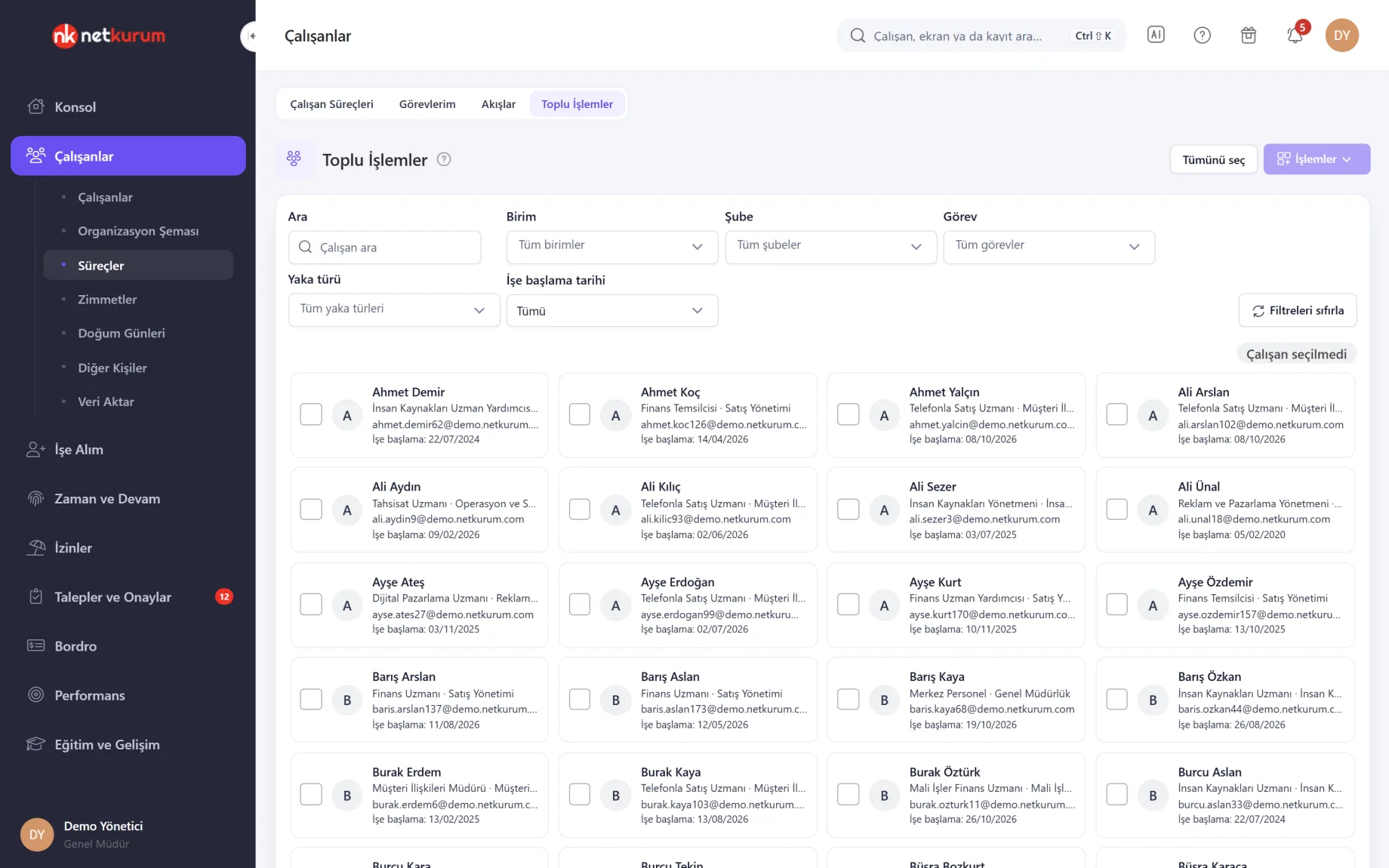
Filter, select, apply
Bulk Actions
Select employees with unit, branch, position, collar type and start date filters, then apply one action to all of them from the Actions menu. The preview shows for each employee whether the action will apply, and why not.
See details
The "starting today" and "starting after today" filters are made for onboarding week.
Actions: assign work calendar, assign training, add extra payment, bonus or premium, add overtime, send login details, assign leave rule, update meal and travel allowance, assign manager. Each action uses the rules and permission checks of its own module.
After applying, the result is reported per employee and logged under Recent bulk actions. Up to 500 employees can be selected at once, and only administrators use the screen.
- Flow: fill in fields, preview, apply
- Limit: 500 active employees per run
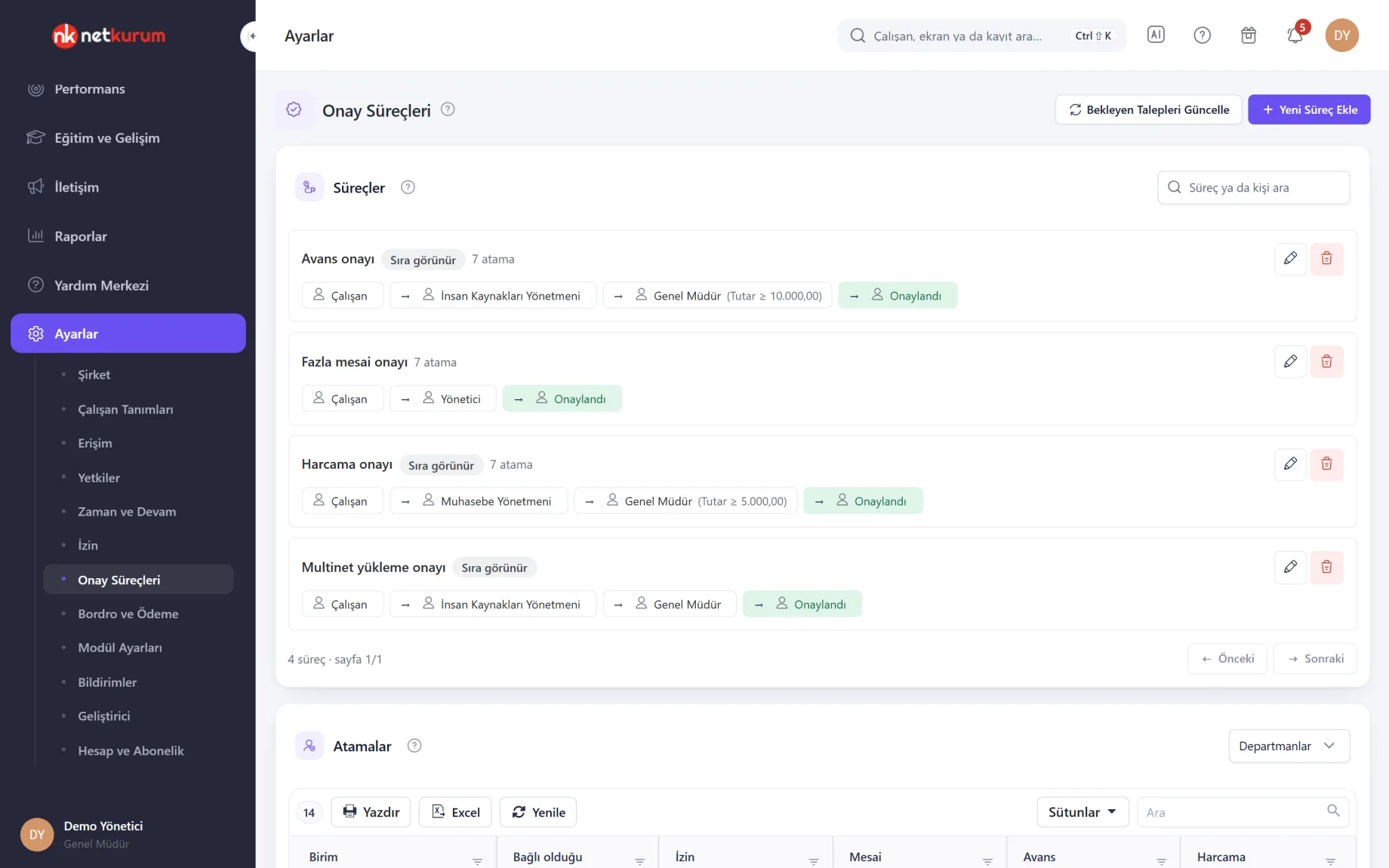
Approvers in order
Approval flows
Each flow has a name and up to six approvers in order: a named person, a position, a role, the employee's manager or the account owner. Flows are assigned to a unit, position, site or person, separately for expenses, advances and overtime.
See details
A "minimum amount" or "minimum duration" condition adds a step only for larger requests, such as an extra sign-off for expenses above a threshold.
The flow that applies is found from the most specific to the most general: personal assignment, position, department, site, then the organization's default flow. Nobody approves their own request, and when an approver is away with a delegate defined, the delegate decides.
Pending requests opened before an assignment are moved with "Update pending requests". Leave approval keeps running on the organization-wide setup in Leave Approval Process; leave assignments made here are saved and shown in the report.
- Steps: up to 6, ordered by drag and drop
- Condition: amount or duration threshold
- Delegation: a stand-in approver for a date range
What's included in workflows and processes?
- Separate workflows for onboarding and offboarding, with standard workflows ready to edit
- Owner, due day and checklist for every task
- Due dates calculated from the start or exit date
- Progress, remaining and overdue tasks per employee
- My Tasks list, with mobile notifications for overdue tasks
- Bulk Actions with a preview and a per-employee result report
- Bulk assignment of work calendars, training, leave rules, extra payments and managers
- Send login details to selected employees in one go
- Ordered approval flows for expenses, advances and overtime
- Conditional approval steps by amount or duration, plus delegation
- Approval Inbox collecting decisions, with bulk decisions on up to 50 requests
- Approval flows report showing which flow is assigned to which unit
How do you get started?
- Adapt a ready workflow Edit the tasks, owners and due days of Standard Onboarding and Offboarding, then activate them.
- Assign it In Employee Processes, choose the employee and the workflow; dates fill in automatically.
- Set the approval order In Approval Flows, define flows for expenses, advances and overtime and assign them to units.
- Follow up Owners close tasks from My Tasks while you track progress and delays in Employee Processes.
Frequently asked questions
Who can a workflow task be assigned to?
A task's owner can be the employee, the system administrators or a named colleague. The task lands in the owner's My Tasks list with its due date.
How are task dates set?
The due day is entered relative to the start or exit date; -3 means three days before, 7 means a week after. When the workflow is assigned, dates are calculated from that employee's own date.
What if a bulk action hits the wrong people?
Before applying, the preview shows for every employee whether the action will run and why not. Each action goes through its own module's rules and permission checks, and the result is reported per employee.
Do approval flows cover leave requests too?
Approval flows set the order for expense, advance and overtime requests. Leave approval runs on the organization-wide setup in Leave Approval Process; leave assignments are saved and appear in the approval flows report.
Do requests wait when an approver is on leave?
If a delegate is defined, the "named person" step switches to the delegate on the day the request is opened. If the only approver in a step is the requester, the step goes up to an administrator.
Related features
-
 Employee Management
Employee records, personnel files, assets, org chart and bulk data import from Excel. Review Now
-
 Recruiting (ATS)
Postings, careers page, talent pool, pipeline board and interviews, with AI-assisted CV review. Review Now
-
 Requests and Approvals
Expenses, advances, overtime, visa documents and field tasks in one approval inbox, each with its own approval chain. Review Now
Try NetKurum in your organization
Create your own demo in minutes and explore an organization full of sample data for 14 days.