

Settings and Permissions
Access and Permissions
One chain decides who can sign in, which screens they see and whose data they can reach: person, position, role and page.
What does it solve?
HR data includes salaries, health details and ID numbers; "everyone sees everything" doesn't hold up, and neither does granting every screen one by one. NetKurum ties permissions to positions, narrows data scope by unit and makes sign-in follow your organization's rules.
- No clear view of who can sign in The Access screen counts active users, pending invitations, revoked accounts and employees with no access at all, and access is revoked or restored in one click.
- Permissions granted person by person Permissions are bundled into roles and linked to positions; everyone in a position sees the same screens, and changing position changes permissions.
- Managers who see the whole company With unit-level access, a manager reaches only the data of employees in the branch, department or position they are responsible for.
- Weak passwords The password policy sets length and character rules and a password expiry period; Google sign-in and two-step verification can be turned on.
- Deciding what employees see Access Settings and Request and Profile Settings decide, gate by gate, what employees reach on the home page, on colleagues' records and in their own profile.
Access and permissions, screen by screen
These images are real screens from the NetKurum demo organization; names of people and companies are fictitious.
Who can sign in?
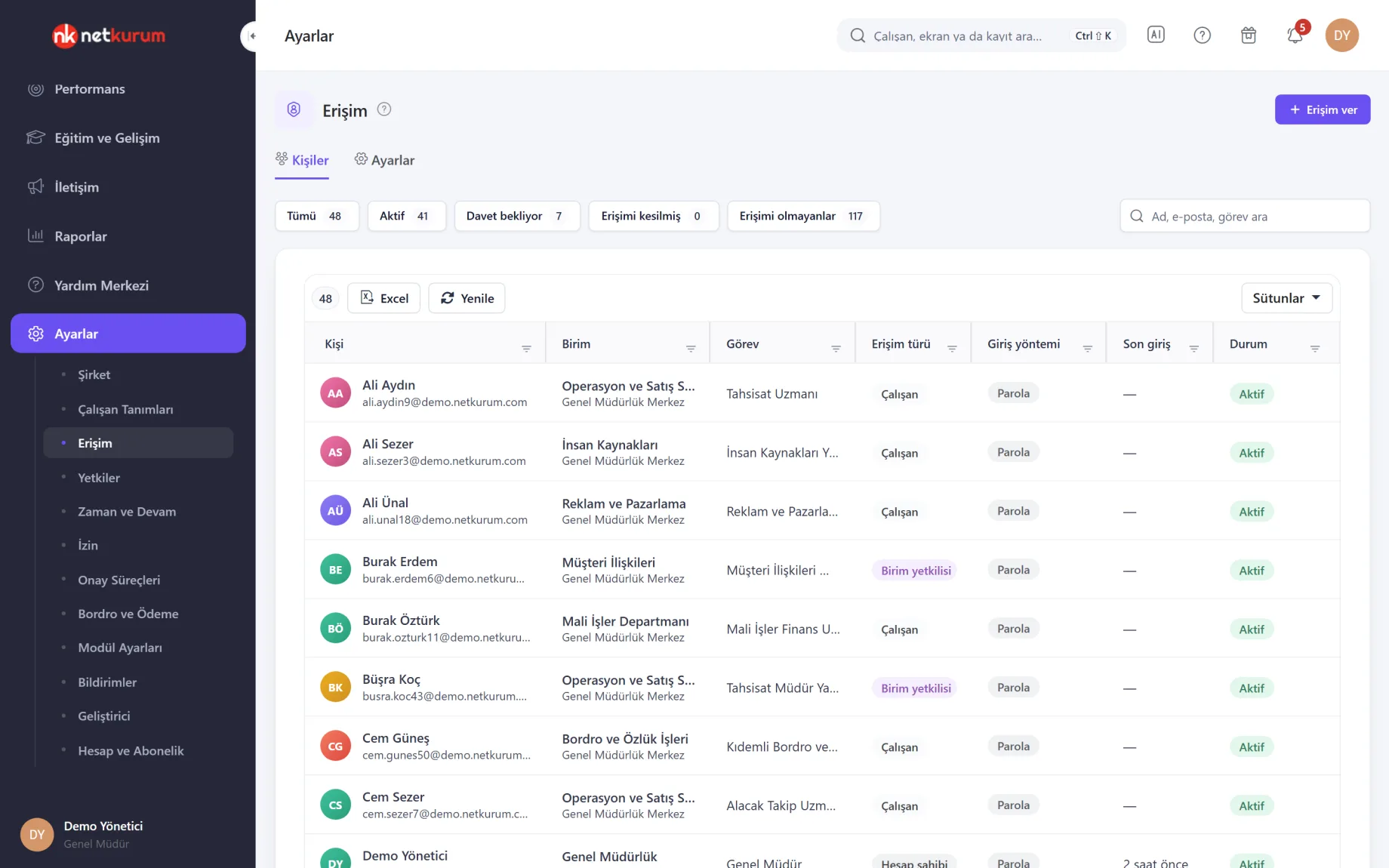
Access
The People tab lists each employee's unit, position, access type, sign-in method, last sign-in and status. Buttons at the top filter the list by active, invitation pending, access revoked and no access.
See details
There are four access types: account owner, administrator, unit manager and employee, who sees only their own data.
"Grant access" sends employees without an account an invitation to create a password, up to 200 people at a time; the link is valid for 48 hours and works once. "Revoke access" also closes the person's open sessions, and the last active administrator can't be revoked.
The Settings tab manages Google sign-in (allowed domains, required Workspace account, Google-only sign-in and emergency accounts), the password policy and two-step verification methods. An authenticator app, passkeys and SMS can be offered as the second step, and before you make it mandatory the screen shows how many accounts have no second step yet.
- Statuses: active, invitation pending, revoked, no access
- Sign-in: password, Google sign-in, two-step verification
- Invitation: valid for 48 hours, single use
A role is a bundle of permissions
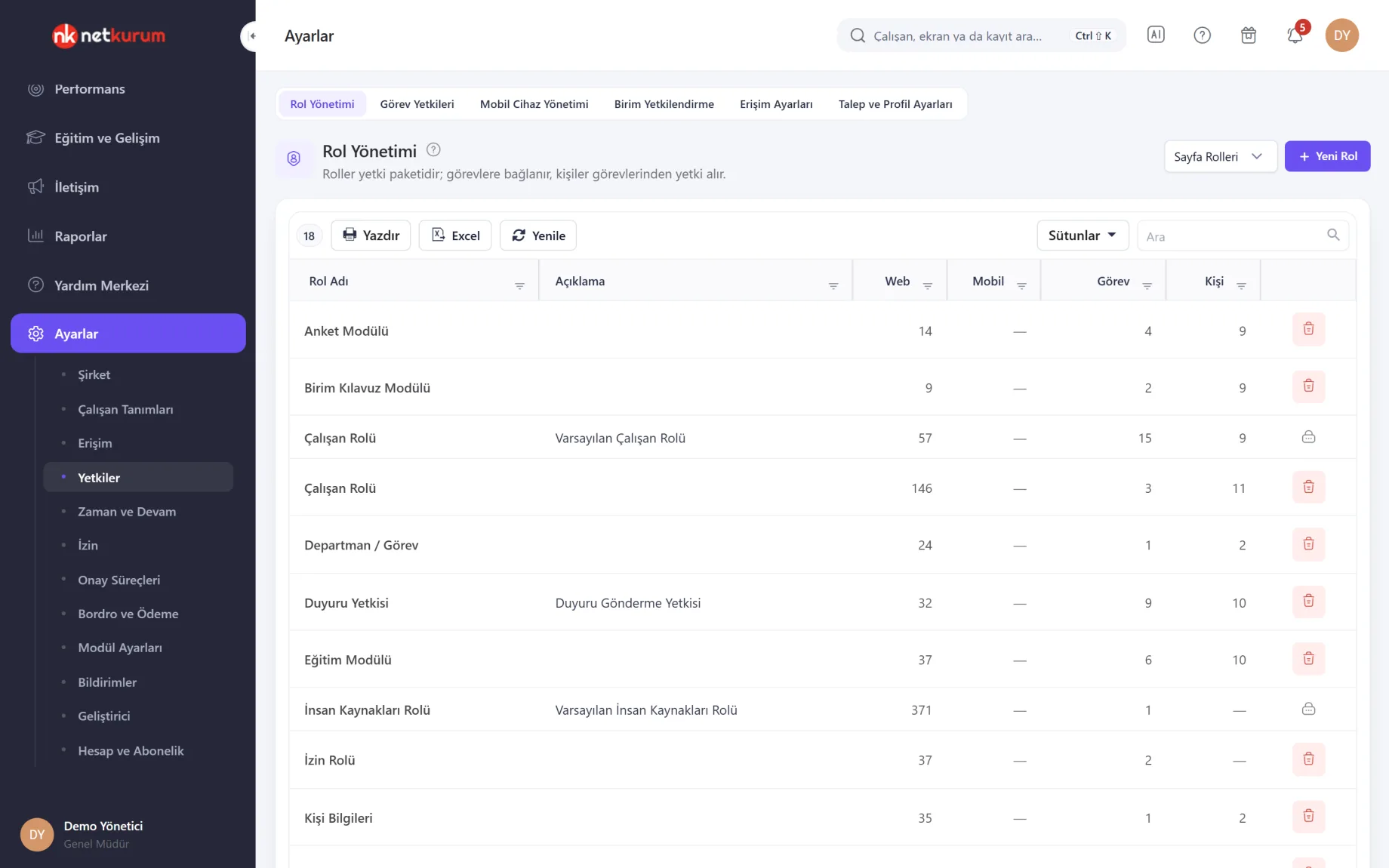
Role Management
The list shows how many web pages and mobile screens each role opens, how many positions it is linked to and how many people it reaches. A role linked to no position is flagged with a warning badge.
See details
People don't get roles, they get positions; the roles on a position combine into the person's permissions.
On the Role Permissions screen, web and mobile permissions are ticked in the same tree, section by section, and a section row applies to everything below it. "Create a copy" opens a new role with the same permissions.
Action permissions, which unlock actions rather than screens, are listed separately. The last role giving the root position access to Role Management can't be deleted, so an administrator can always get back in to fix a mistake.
- Columns: web, mobile, positions, people
- Role types: page role, action permission
Action permissions per position
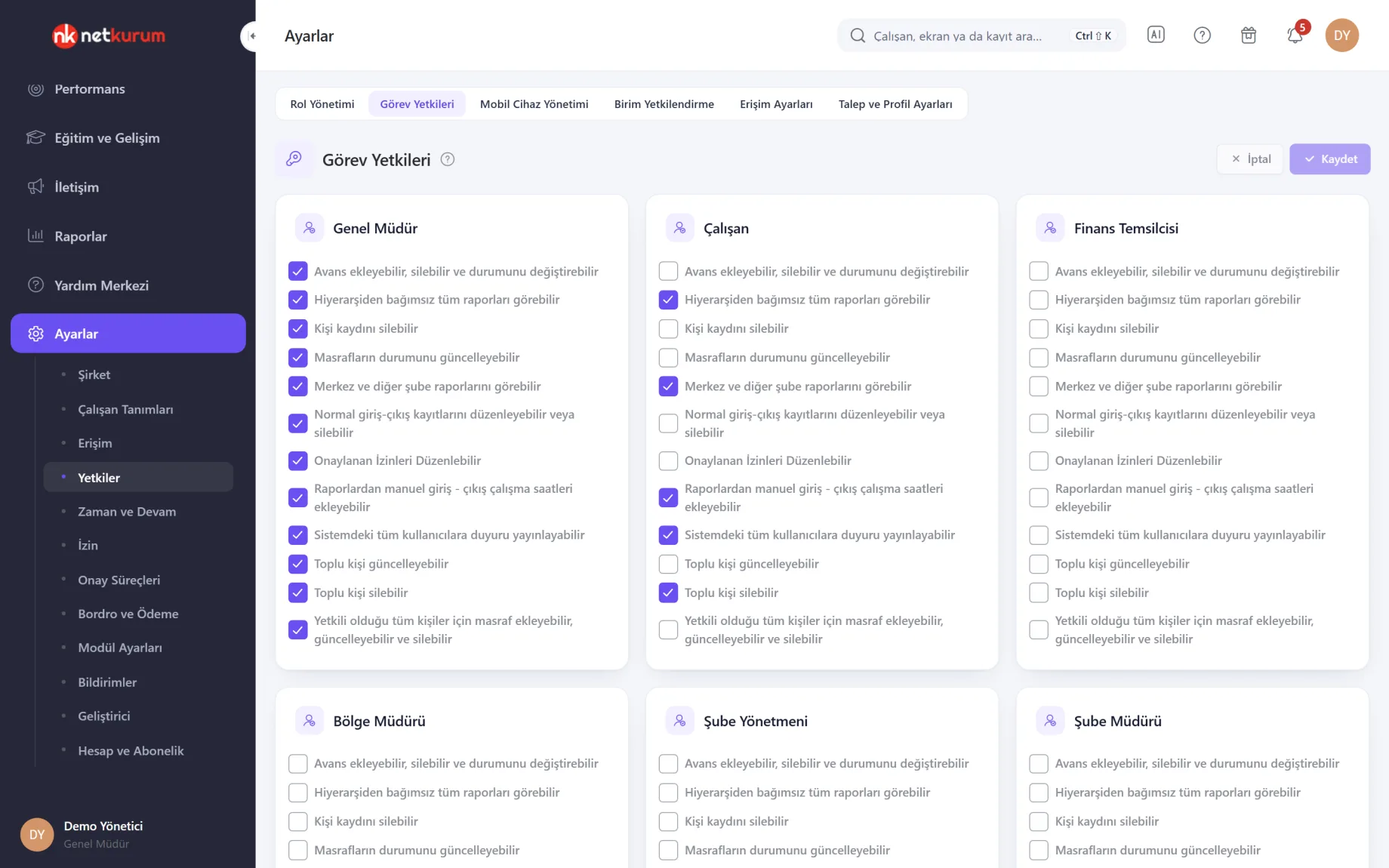
Position Permissions
Checkboxes decide which actions each position may perform, such as changing an advance's status, deleting a person record, editing approved leave, running bulk updates or publishing an announcement to all users.
See details
Seeing a screen and performing a critical action on it are separate permissions.
Positions sit side by side as cards; making a change enables Save and Cancel, and nothing changes until you save.
Broad permissions, such as reports independent of the hierarchy or reports for head office and other branches, are also granted to positions here.
- Examples: delete person, bulk update, edit approved leave
- Scope: report visibility, publishing announcements
Only their own unit's data
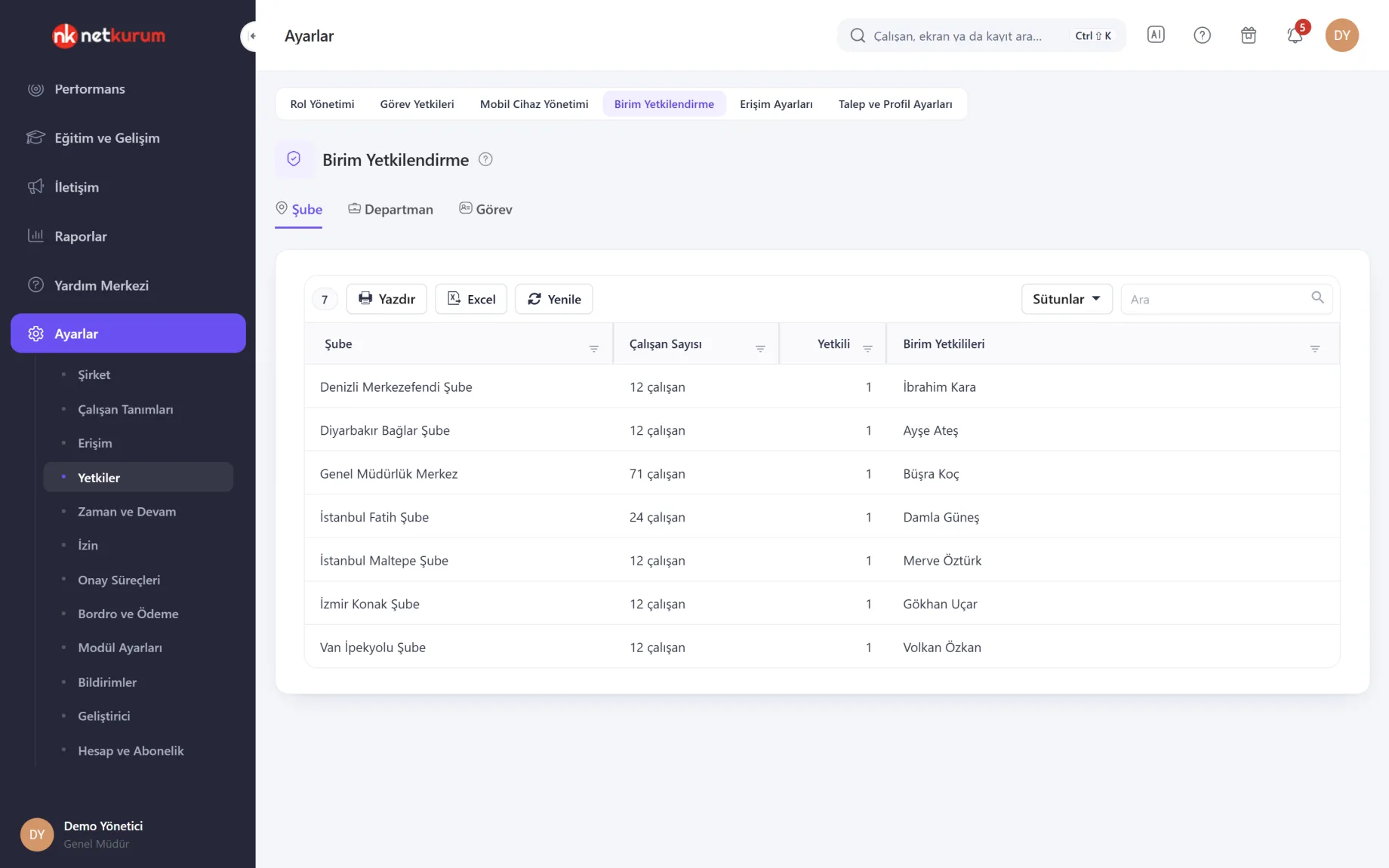
Unit Authorization
Pick a unit on the Branch, Department or Position tab and add an authorized person to it. The list shows each unit's headcount and its unit managers.
See details
Roles decide which screens open; unit authorization decides whose data appears on them.
Each authorized person has three options: access to payment and salary data, reports for their own unit, and view only. The same person can be authorized for several units.
Unit managers run reports only for their own units and open records only for employees in the units they are authorized for.
- Tabs: branch, department, position
- Options: salary access, unit reports, view only
What do employees see?
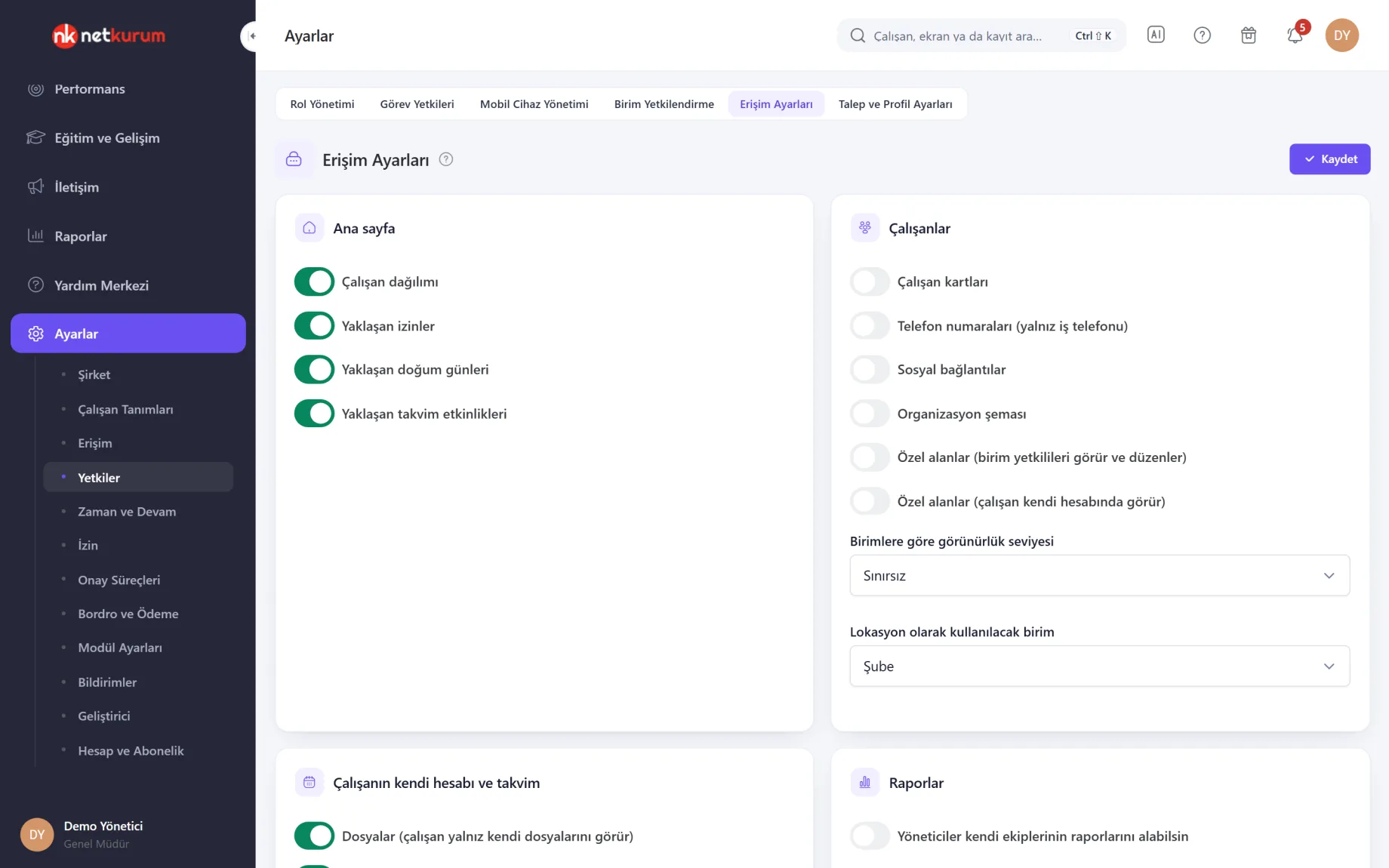
Access Settings
Every setting is a gate: when it is on, employees get access; when it is off, only administrators see it. Home page cards, employee records, work phone numbers, social links, the org chart and custom fields are switched on one by one.
See details
No setting ever exposes personal phone numbers or someone else's leave balance to employees.
Visibility by unit lets employees see colleagues only within the same branch, department or position. With files and assets turned on, employees see only their own.
Request and Profile Settings work the same way: they choose which request types employees can submit and which profile sections they can update themselves.
- Home page: headcount breakdown, upcoming leave, birthdays, events
- Employees: records, work phones, org chart, custom fields
- Reports: let managers run reports for their own teams
Registered phones
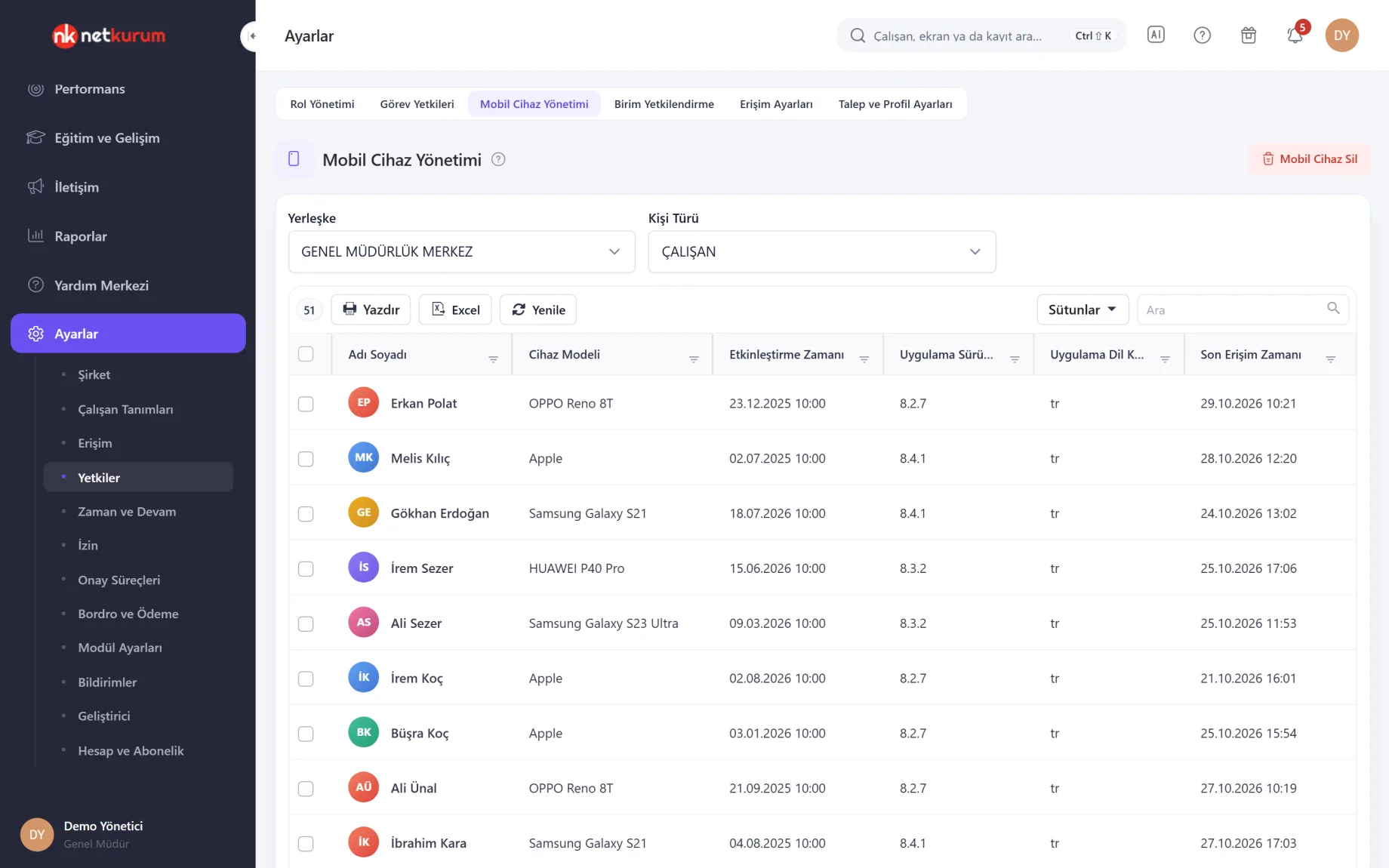
Mobile Device Management
The devices employees use with the app are listed by site and person type: device model, activation time, app version, app language and last access time.
See details
When an employee changes phones, the old device record is deleted and they sign in from the new one.
Select people and use "Delete Mobile Device" to remove several at once, or double-click a row to remove one.
The app version column makes it easy to spot people still running an outdated version.
- Filters: site, person type
- Details: model, version, language, last access
Data protection and account requests
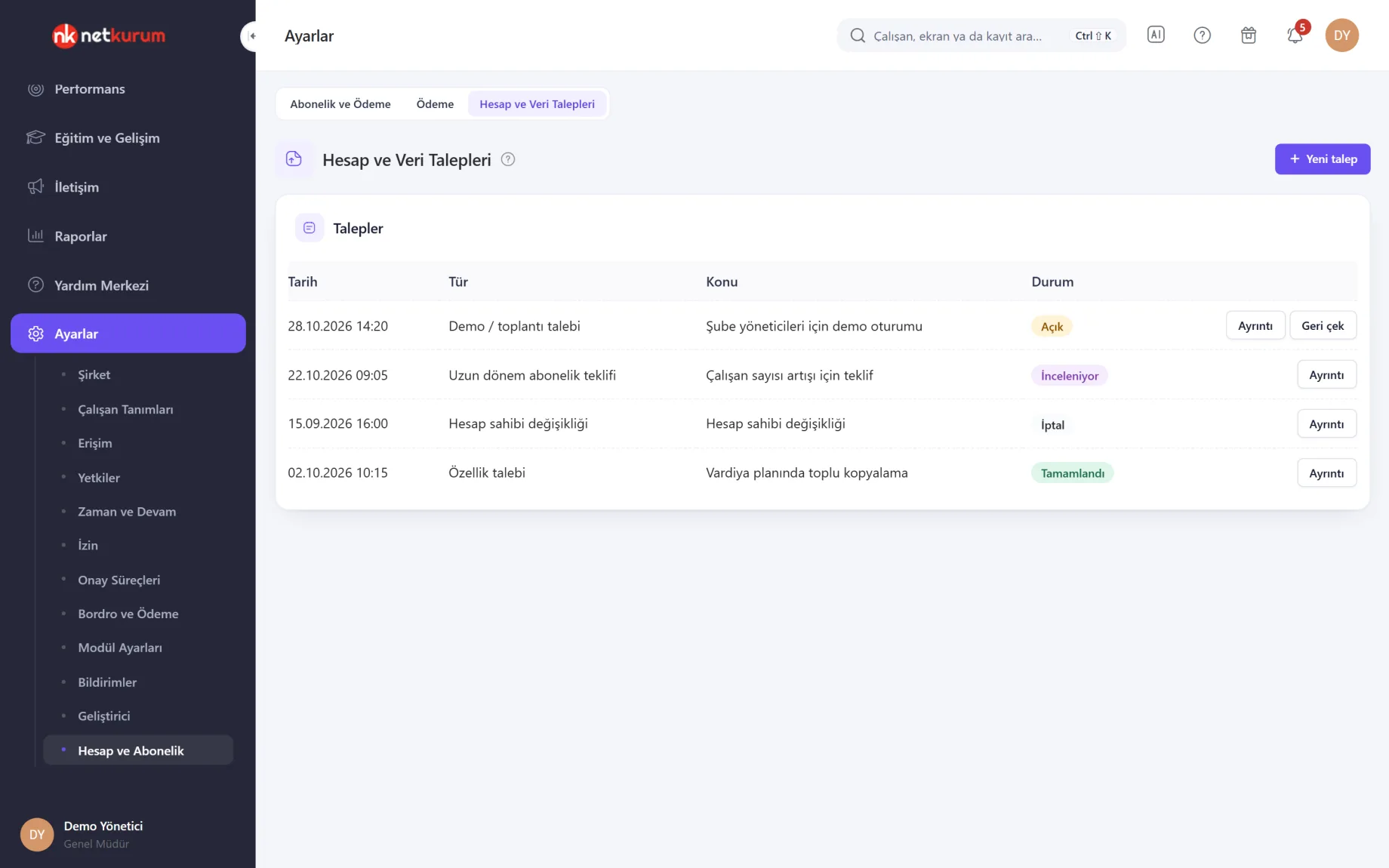
Account and Data Requests
Requests to delete data, receive data as a report, change the account owner or change the subscription are opened and tracked here. An open request can be withdrawn, and the outcome and reply appear in its details.
See details
Only the account owner can open sensitive requests, confirming that written approval with authorized signatures will follow.
Data deletion can't be undone; it covers employees' personal data, files, leave, training and expense records and, where used, performance, payroll and shift data. Each request is reviewed and carried out by hand; the screen doesn't delete anything on its own.
Anyone can open other requests, such as feature requests or demo and meeting requests.
- Sensitive: data deletion, data export, account owner change
- Tracking: status, withdrawal, reply
What's included in access and permissions?
- Permissions built on the chain of person, position, role and page
- Roles with web and mobile permissions in the same tree, plus role copying
- Action permissions per position
- Unit-level access by branch, department or position
- Sign-in invitations, revoking and restoring access, password reset links
- Google sign-in with allowed domains, required Workspace accounts and emergency accounts
- Password policy and password expiry
- Two-step verification with an authenticator app, passkeys or SMS, plus trusted devices
- Access Settings and Request and Profile Settings that define what employees can see
- Mobile device records and device removal
- Account and data requests for data deletion and export
- Audit records for sensitive actions such as password changes, support access and account requests
How do you get started?
- Link roles to positions Use the built-in roles or copy them into your own, then assign roles to every position.
- Choose unit managers Authorize branch and department managers for their own units, and decide separately on salary and report access.
- Set the sign-in rules Define the password policy and, if you like, turn on Google sign-in and two-step verification.
- Grant access Send invitations to employees and follow who has signed in on the Access screen.
Frequently asked questions
How do we make a manager see only their own team?
On the Unit Authorization screen, authorize the manager for the branch, department or position they are responsible for. Reports and employee records then open only for employees in those units, and access to salary and payment data is a separate choice.
Can we make two-step verification mandatory?
Yes. First at least one method (authenticator app, passkey or SMS) is turned on and users set up their own; when you make it mandatory, the screen shows how many accounts have no second step and asks you to confirm.
Can employees sign in with their company Google account?
Yes. Turn on Google sign-in and only accounts on your organization's domains are accepted; password sign-in can be switched off entirely, in which case at least one emergency account is defined.
Can the support team access our data?
Only with a temporary support password that you generate, and only for 30 minutes. Support passwords, password changes and account requests are written to the audit log.
How do we handle personal data deletion requests?
Your organization is the data controller under KVKK (Turkey's personal data protection law). The account owner opens a request on the Account and Data Requests screen to delete data or receive it as a report, and it is processed after written approval with authorized signatures.
How is our data protected?
NetKurum holds ISO/IEC 27001 and ISO 9001 certification. Passwords are stored as irreversible hashes, idle sessions are closed, and repeated failed sign-ins trigger a temporary block.
Related features
-
 Company Structure and Subcontractors
Holding, companies, sites, departments and the position tree, plus subcontractors and person types. Review Now
-
 Employee Management
Employee records, personnel files, assets, org chart and bulk data import from Excel. Review Now
-
 Communication, Announcements and Documents
Targeted announcements with read tracking, acknowledged company documents, motivation cards and notification settings. Review Now
Try NetKurum in your organization
Create your own demo in minutes and explore an organization full of sample data for 14 days.