

Recruiting
Recruiting (ATS)
Once a job request is approved the posting is ready; applications arrive through your careers page or a bulk CV upload, candidates move across the pipeline board by drag and drop, and the one who accepts the offer becomes an employee record in a single step.
What does it solve?
When hiring is spread across inboxes, shared folders and spreadsheets, nobody knows which candidate is waiting at which stage, who still owes feedback or how long candidate data has been kept. NetKurum keeps the posting, the candidate, the interview and the offer on one record.
- Positions opened without approval Line managers raise a job request in the panel; it goes through the defined approval steps and becomes a draft posting after the final approval.
- Reading hundreds of CVs one by one CVs are uploaded in bulk and parsed on the server; job title, experience, education, city and skills become list columns, and each candidate is scored against the posting's requirements.
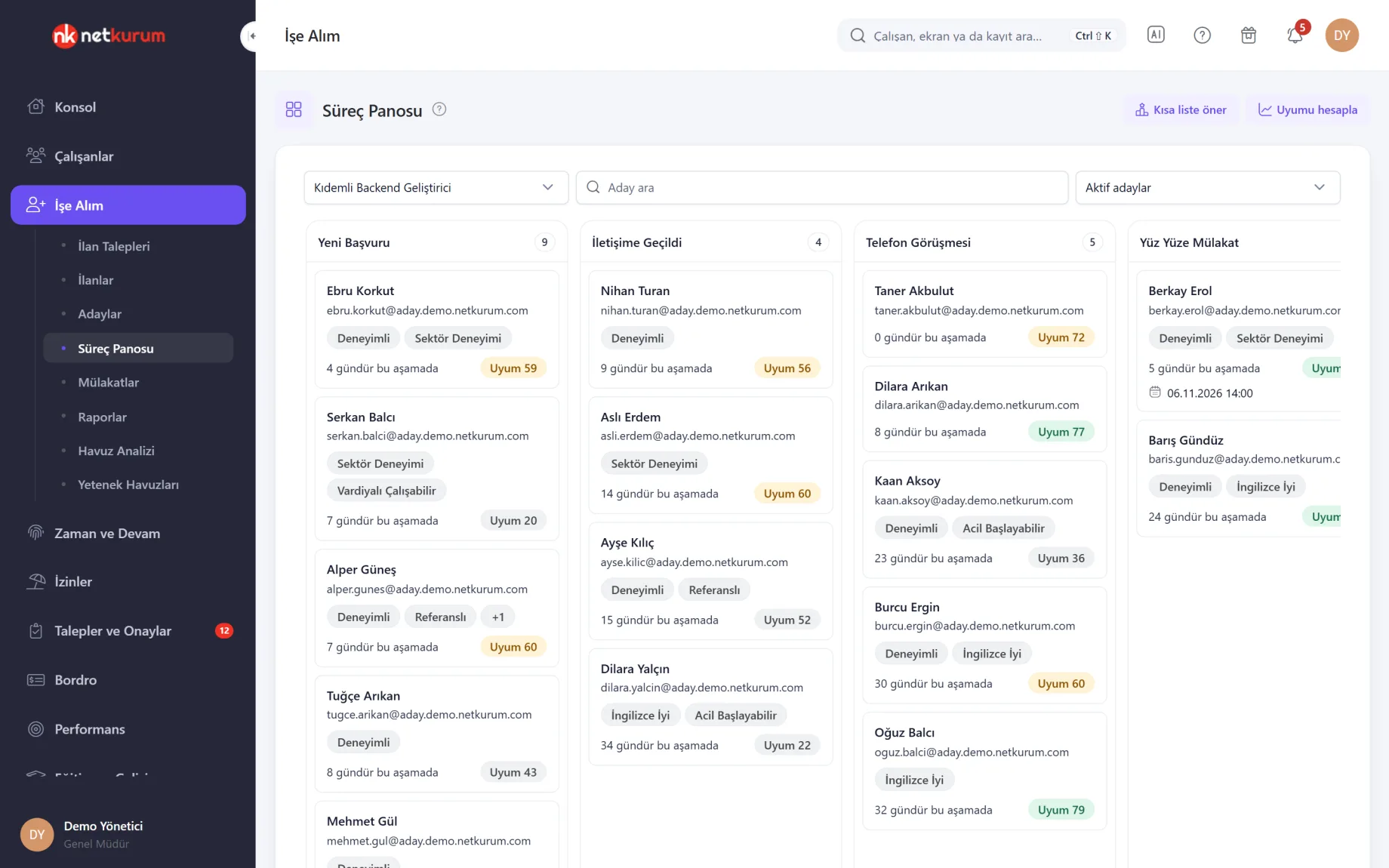
- A process where nobody knows what is pending The pipeline board shows each posting's candidates in stage columns, with days in stage, match score and any scheduled interview on the card.
- Calendar ping-pong and forgotten feedback Interviews are scheduled in the panel, candidates can pick a slot themselves, and interviewers who are late with feedback get a panel notification.
- Candidate data kept too long Candidates past the retention period are flagged; anonymization, deletion and data subject requests run from one screen with an audit trail.
Recruiting, screen by screen
These images are real screens from the NetKurum demo organization; names of people and companies are fictitious.
Positions open with approval
Job requests
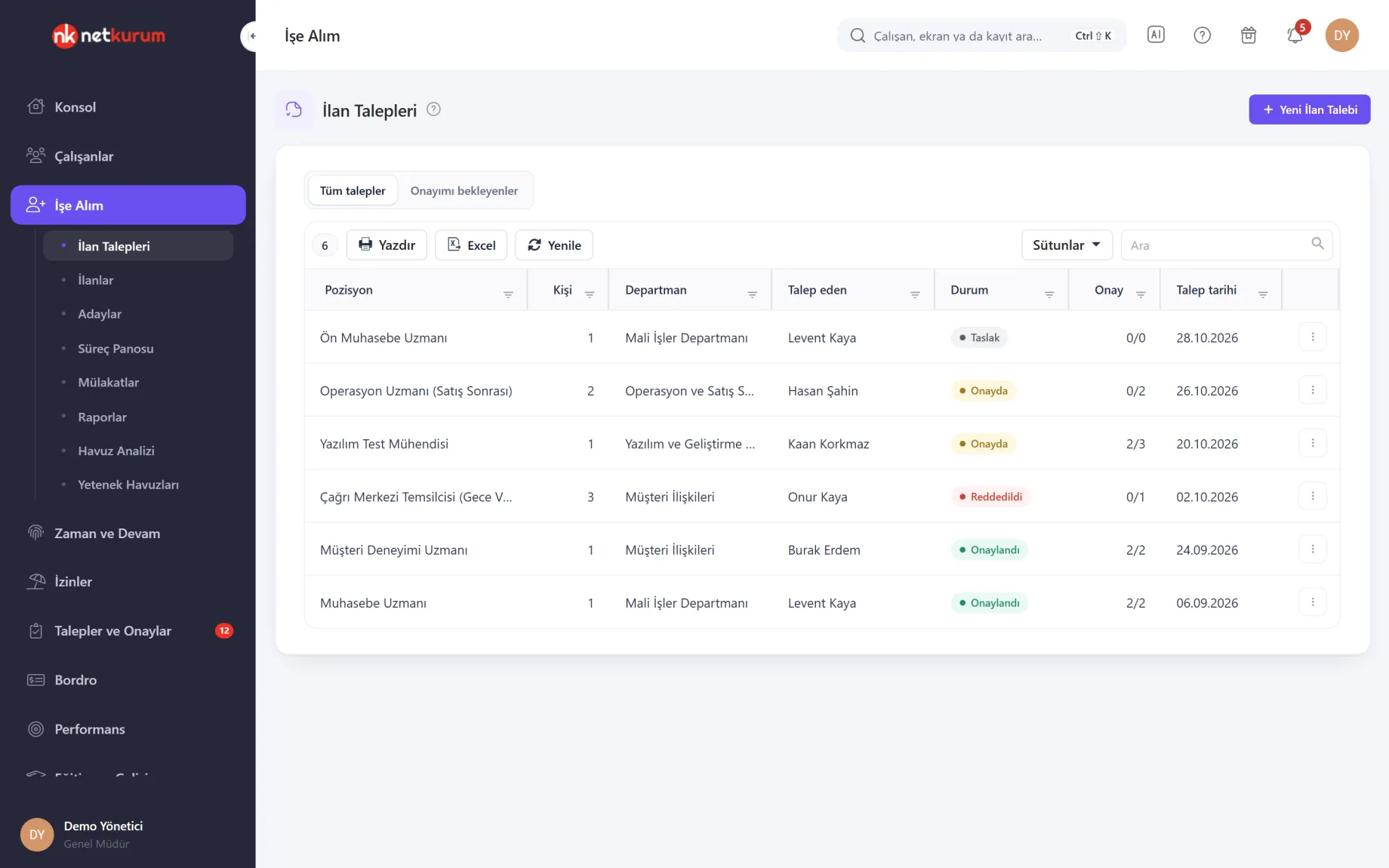
A line manager requests the position they need with headcount and department. The list shows each request's status (draft, pending approval, rejected, approved) and how many approvals it has; the "Awaiting my approval" tab separates an approver's own queue.
See details
Hiring starts from an approved need; no posting is created before the request is approved.
Requests are saved as drafts; "Start approval flow" notifies the next approvers. Once all mandatory approvals in a step are in, the request moves to the next step, and a mandatory rejection rejects it.
When the last step is approved, a draft posting is created from the request. Questions from the request form template are added for the unit to answer, and the request summary prints without menus or buttons.
- Flow: approval template matched to the department, with editable steps
- Result: a draft posting from the approved request
Posting, form and requirements
Job posting editor
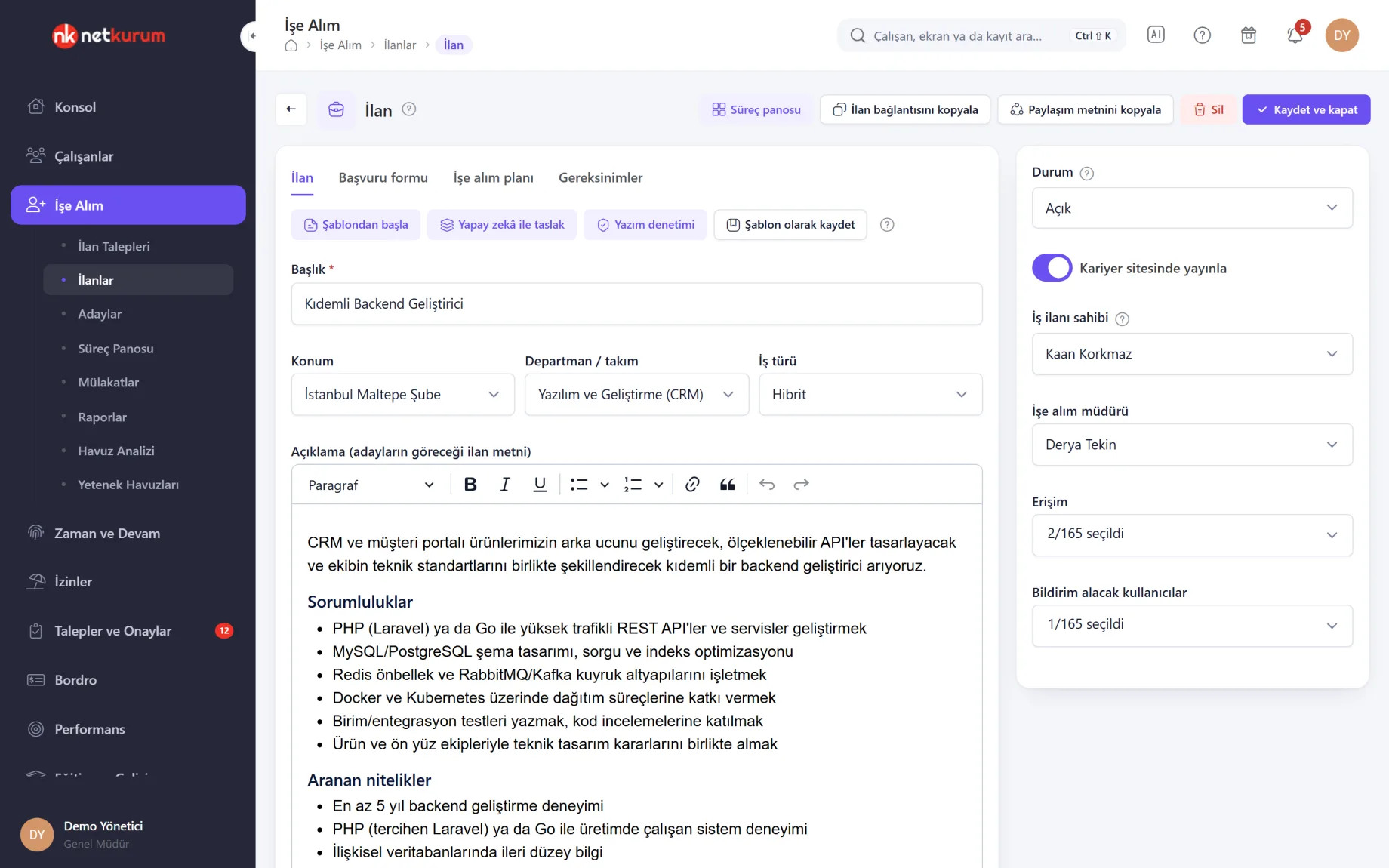
A posting is prepared in four tabs: posting text, application form, requirements and hiring plan. The side panel sets the status, careers page publishing, the posting owner, the hiring manager and who else may access the posting.
See details
Requirements are the yardstick for scoring candidates against this posting.
Add posting-specific questions to the application form (text, multiple choice or number; required or sensitive). Requirements cover skills, experience, education, language, location and conditions on application answers, each weighted 1 to 10; age, gender or marital status cannot be criteria.
Open postings marked "Publish on careers site" are listed on your organization's public careers page. "Copy share text" turns the posting into plain text ready to paste into LinkedIn, WhatsApp or an email.
With the hiring plan on, positions and target closing dates are tracked; when the accepted candidate is converted to an employee, the next open position is filled automatically.
- Statuses: draft, open, on hold, closed, archived
- Criteria: can be marked required or knockout
- Access: posting owner, hiring manager and access list
The whole talent pool in one list
Candidates
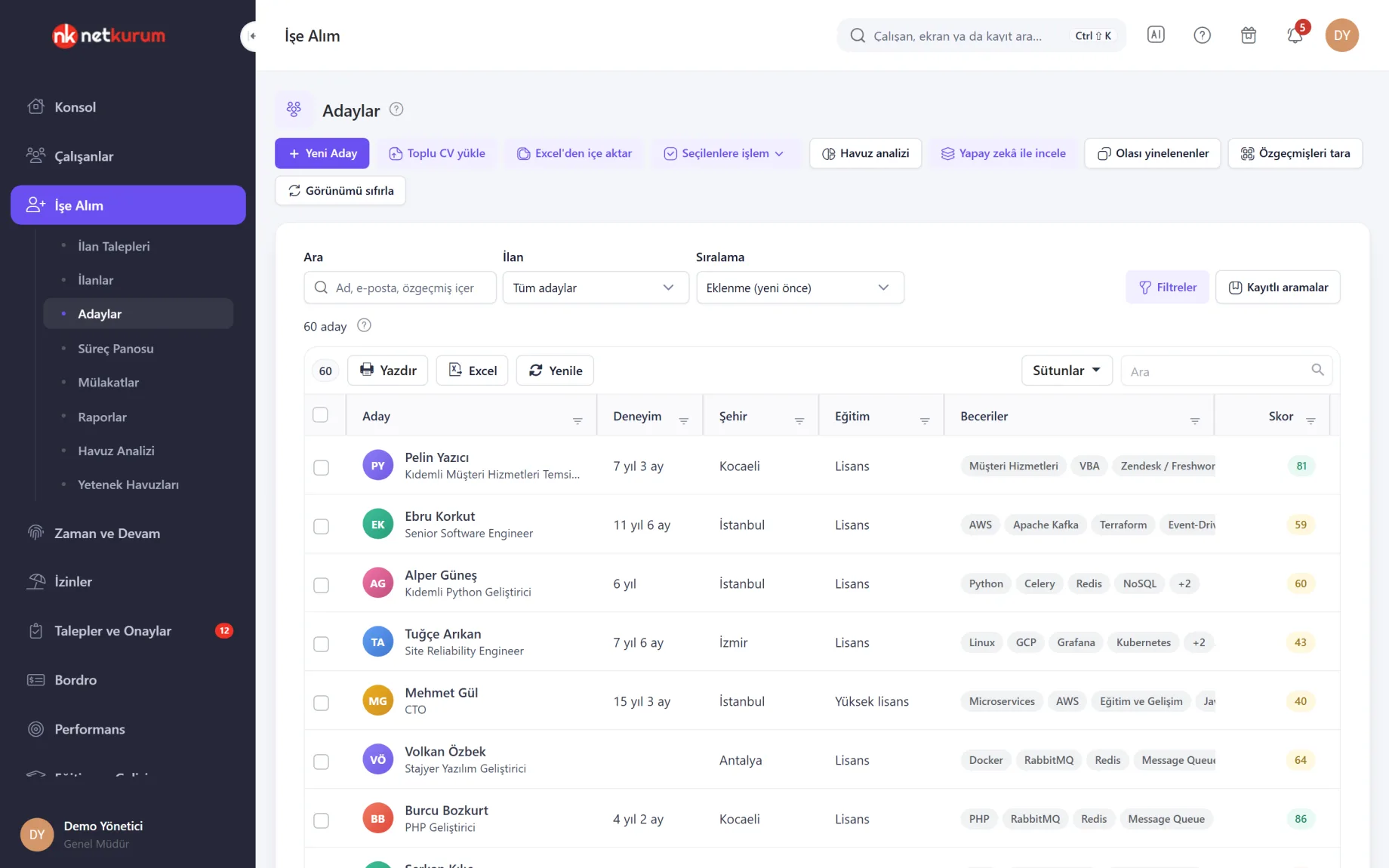
Job title, total experience, city, education and top skills parsed from each CV sit side by side in the list. Pick a posting and its match score and knockout flag become columns too.
See details
Search looks inside CVs as well; use exact phrases such as "spring boot" or AND, OR, NOT.
New Candidate adds one person; Bulk CV upload creates up to 1,000 candidates in one go, taking name and contact details from each CV. If a candidate with the same email already exists, no new record is created.
PDF, Word, ODT, RTF, plain text and image CVs are read and parsed on the server, and scanned documents go through text recognition. Files are not sent to any external service for parsing.
Send bulk emails, add tags, attach to a posting, move to a stage or reject selected candidates. Frequently used filters are saved and shared with the team, and each user's column layout is remembered.
- Filters: skills with minimum years, experience, education, city, tags
- Import: bulk CVs and application answers from Excel
- Duplicates: same email, phone or LinkedIn address is flagged
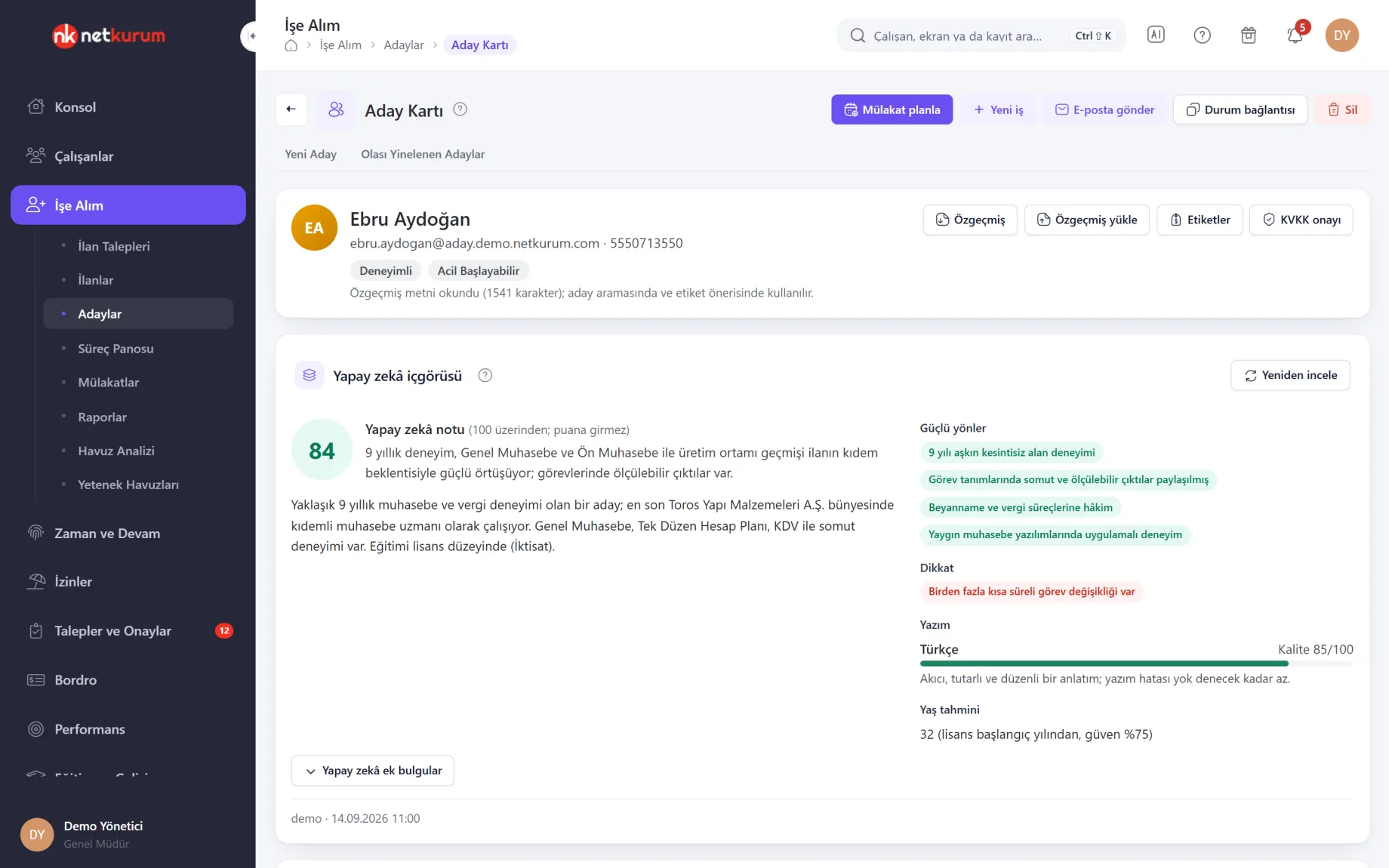
A candidate's full history
Candidate profile
The jobs a candidate applied for, their stage, comments, forms, interviews and offer sit on one profile. The buttons at the top schedule an interview, link the candidate to another job, send an email and copy the candidate's status link.
See details
The whole team works on the same profile; offers and sensitive details open only to people with permission.
Mention teammates in comments; the Activities tab lists stage changes, interviews, feedback and emails in time order. CV analysis and the experience timeline reveal career gaps and overlapping roles.
For interviews run with an interview kit, scores are collected in a debrief table. Interviewers cannot see others' scores until they submit their own.
A candidate who accepts the offer is turned into an employee record with Convert to employee; national ID number, start date, position and branch are required, and the record passes the regular employee validation.
- Tabs: overview, comments, activities, forms, interview, offer
- Candidate link: application status and interview slot selection
- Data protection: the candidate's consent record on the profile
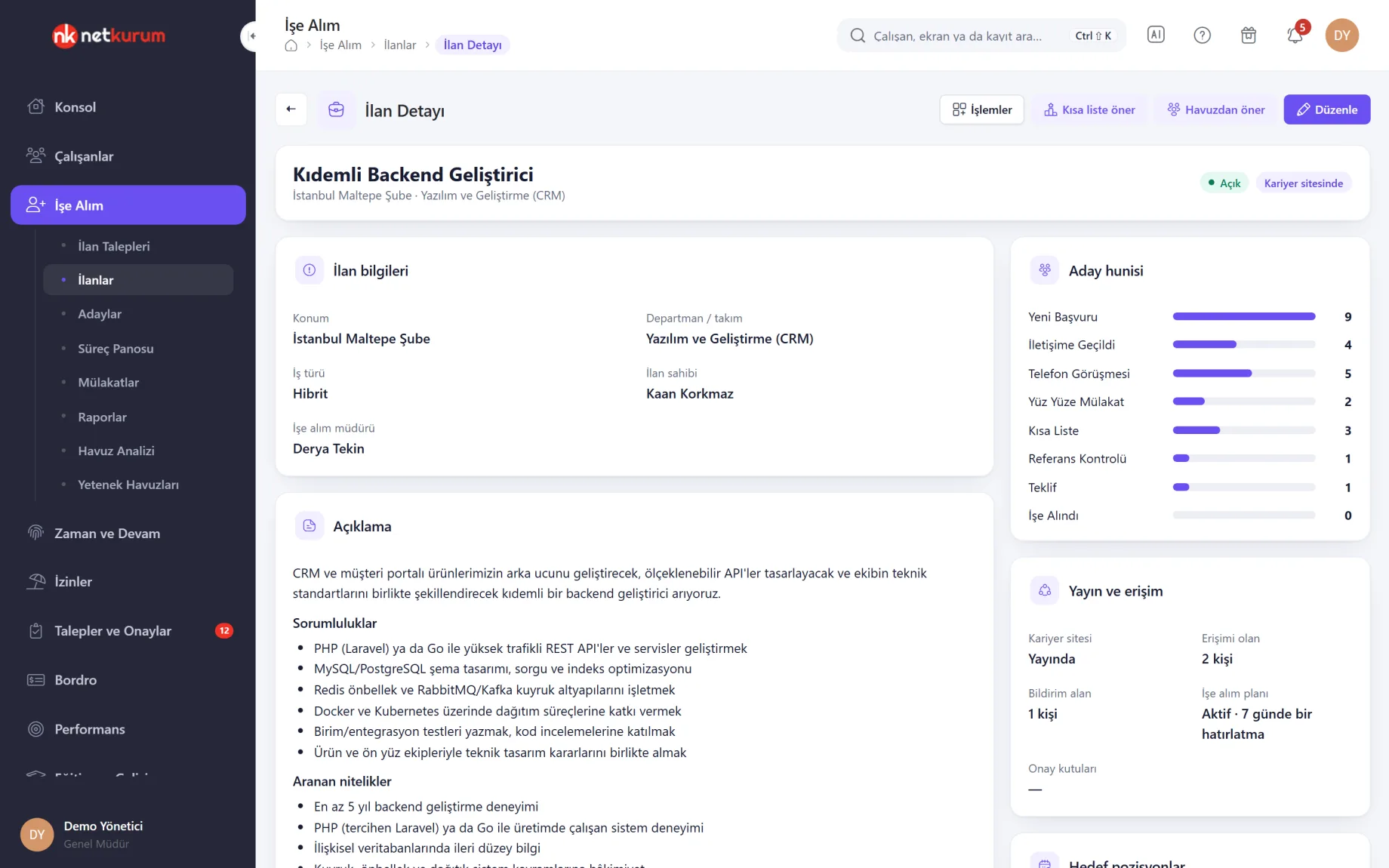
A posting at a glance
Posting detail
Posting details, description, candidate funnel and publishing status are on one page. The funnel shows how many candidates are waiting at each stage; the Publishing and access card tells you whether the posting is on the careers page and who can access it.
See details
The posting owner's morning view: how many candidates at which stage, and how far from the plan's target.
Suggest from pool scores candidates who have not applied yet against the posting's requirements, showing strengths and gaps on each row; Add to posting attaches them at the first stage.
Suggest shortlist ranks active applications and splits them into shortlist, review and knock out. It never moves anyone on its own; the applications you select move to the target stage only when you confirm.
- Funnel: candidates per stage
- Suggestions: candidates from the pool and a shortlist
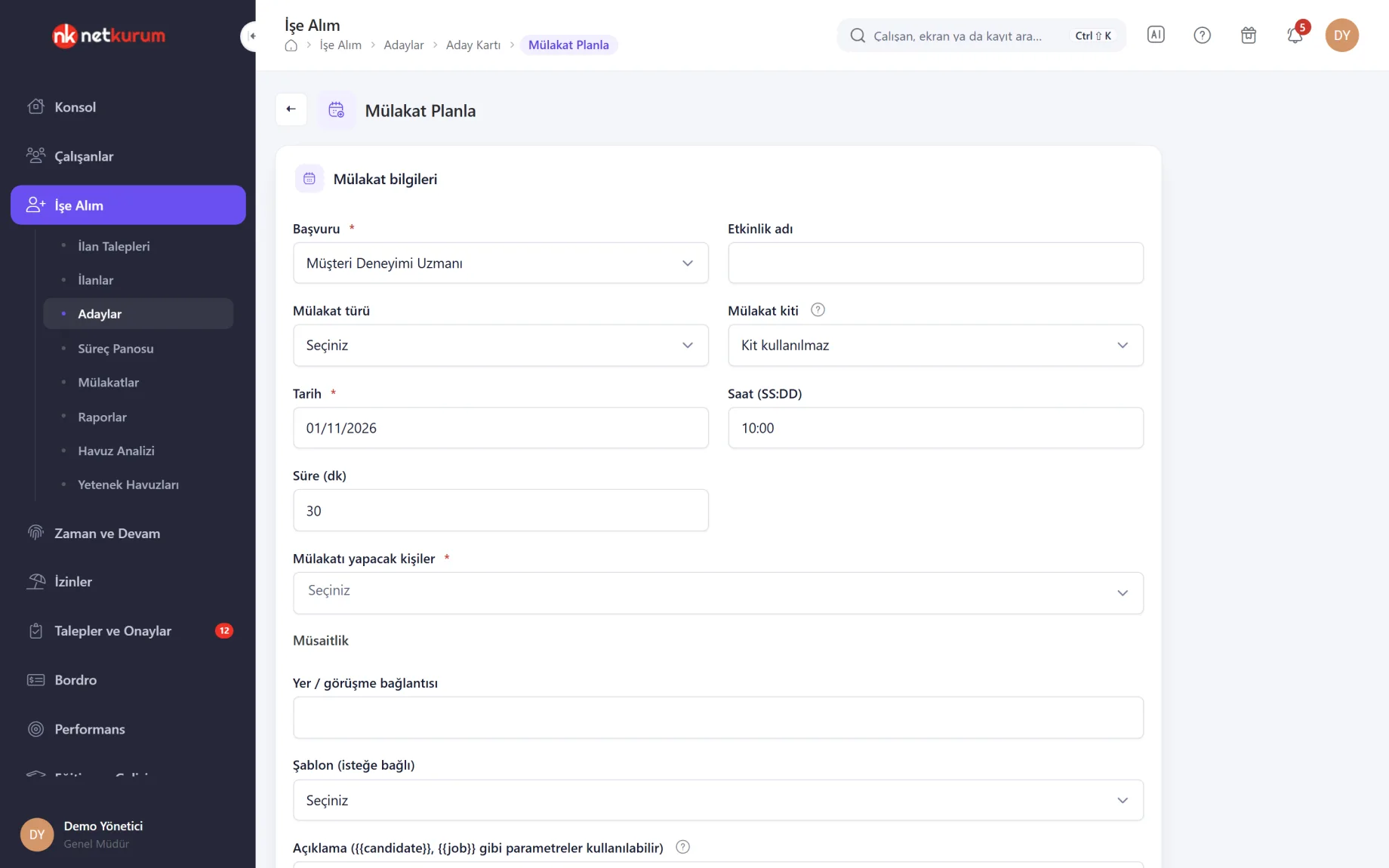
Interview, kit and calendar
Interview scheduling
Pick the application, interview type, date, time, duration and interviewers; each interviewer's busy slots that day are shown and conflicts raise a warning. Video call links go into the Location field.
See details
With an interview kit, every interviewer asks the same questions and scores on the same 1-5 scale.
"Let the candidate choose" proposes 2 to 10 available slots and sends the candidate an invitation with a booking link. When the candidate picks a slot, the interview moves there and interviewers receive a notification and a calendar file.
Scheduling, updates and cancellations send interviewers, and optionally the candidate, an email with an .ics attachment. There is no direct Google or Outlook calendar connection; a standard calendar file is used instead.
If no feedback is entered after an interview has passed, the interviewer gets a panel notification the next day and then weekly.
- Kit: competencies, questions and scoring guide
- Calendar: .ics file and conflict warning
- Feedback: template, scorecard and overall recommendation
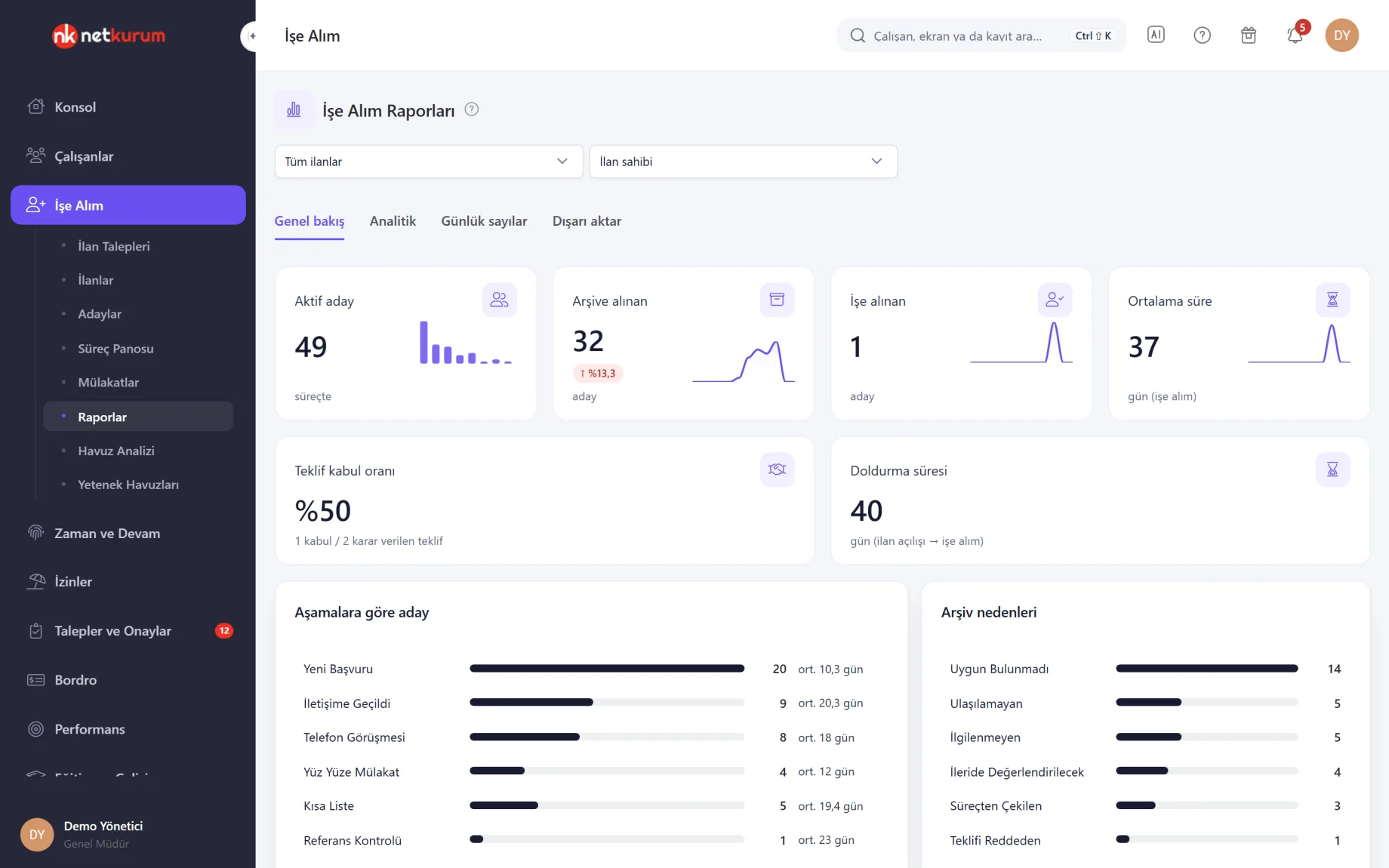
Process data as reports
Recruiting reports
The overview gives active, archived and hired candidate counts, average time to hire and time to fill, offer acceptance rate, stage distribution and archive reasons. Posting and owner filters apply across every tab.
See details
Bottleneck stages and the sources that bring good candidates show up as numbers.
The Analytics tab shows funnel conversion for the selected period, time spent in each stage, source effectiveness and the health of open postings; postings with no movement or no applications are flagged.
Daily counts chart the last 30 days of applications, interviews, archives and hires, and Export downloads every report to Excel. No report is produced by sensitive fields such as age or gender.
- Tabs: overview, analytics, daily counts, export
- Offer data: only for users allowed to see offers
What's included in recruiting?
- Job requests with approval flows and draft postings created from them
- Posting templates, posting-specific application questions and weighted requirements
- A public careers page listing your open postings, where candidates upload a CV and apply with explicit consent
- A status link that shows candidates their own application stage and scheduled interview
- Bulk CV upload, server-side parsing and search inside CVs
- Drag-and-drop pipeline board with stage rules (required form, automatic email, tag, notification)
- Interview kits, candidate self-scheduling and independent scoring
- Offers, and converting the candidate who accepts into an employee
- Pool analysis and talent pools
- Blind review: candidate profiles with name and contact details hidden
- Data protection and audit: retention period, anonymization, data subject requests and audit trail
- AI-assisted CV review, posting drafts and posting review
How do you get started?
- Define the process In Recruiting Settings, set up stages, archive reasons, email and consent templates, and each user's recruiting role.
- Open the posting Start from the draft created by an approved request or from a template; add application questions and requirements.
- Collect applications Publish the careers page, upload existing CVs in bulk or import them from Excel.
- Move candidates on the board Drag candidates through stages, schedule interviews, collect feedback and turn the accepted offer into an employee record.
Frequently asked questions
How do candidates apply?
When the careers page is published, candidates see your open postings at a public address, upload a CV, answer the questions and apply with explicit consent under KVKK (Turkey's personal data protection law). The application lands in the posting's first stage. You can also add candidates one by one, upload CVs in bulk or import from Excel.
Are CVs sent to an external service?
Parsing happens on the server; files are not sent to any external service. If you turn on AI review, the CV text is sent with name, contact details, ID numbers, address and date of birth masked.
Are candidates who miss a requirement rejected automatically?
No. A candidate who fails a knockout criterion is flagged; the decision to reject or advance stays with the hiring team.
How do interviews get into our calendars?
Every scheduling, update and cancellation produces a standard calendar file (.ics) sent by email, which you can add to Google, Outlook or any other calendar. There is no direct connection to calendar accounts.
How do we handle candidate data under data protection rules?
Consent text is collected at application. Candidates past the retention period are flagged every night; nothing is deleted automatically, you anonymize, delete or postpone. Access, deletion and correction requests are tracked against a response deadline, and important changes to candidate data are kept in an audit trail.
Do we need to re-enter a hired candidate?
No. The candidate who accepts the offer becomes an employee record with Convert to employee on the candidate profile; you enter national ID number, start date, position and branch.
Related features
-
 AI
CV review with a match score, posting drafts and review, and plain-language questions in the panel. Review Now
-
 Workflows and Processes
Onboarding and offboarding checklists, employee processes, bulk actions and approval flows. Review Now
-
 Employee Management
Employee records, personnel files, assets, org chart and bulk data import from Excel. Review Now
Try NetKurum in your organization
Create your own demo in minutes and explore an organization full of sample data for 14 days.