

Features
Integration and Data Transfer
Connect NetKurum to your HR and ERP systems with HTTP/JSON web services, and import your existing personnel lists from Excel in one go.
What does it solve?
If existing records have to be re-entered by hand and it does not talk to other systems, a new HR system becomes yet another data island. NetKurum makes both importing and exporting easy.
- Re-entering records by hand The personnel list is imported with an Excel template; Excel columns are matched to NetKurum fields.
- Separate personnel cards in two systems Person and branch records are matched with the IDs in the organization's own system through web services; adding, updating and status changes are done through the service.
- Check-in/out data needed in another system Check-in/out records are pulled sequentially from the web service; records from other devices are sent in bulk.
- Distributing reports by hand Reports go to managers by scheduled email; lists are exported to Excel.
- Distributing the mobile app The panel's Install App page contains the download links for the Android and iOS apps.
Integration and data transfer, screen by screen
The visuals are illustrations based on NetKurum screens; person and company names are examples.
Excel template
Bulk person import with Excel
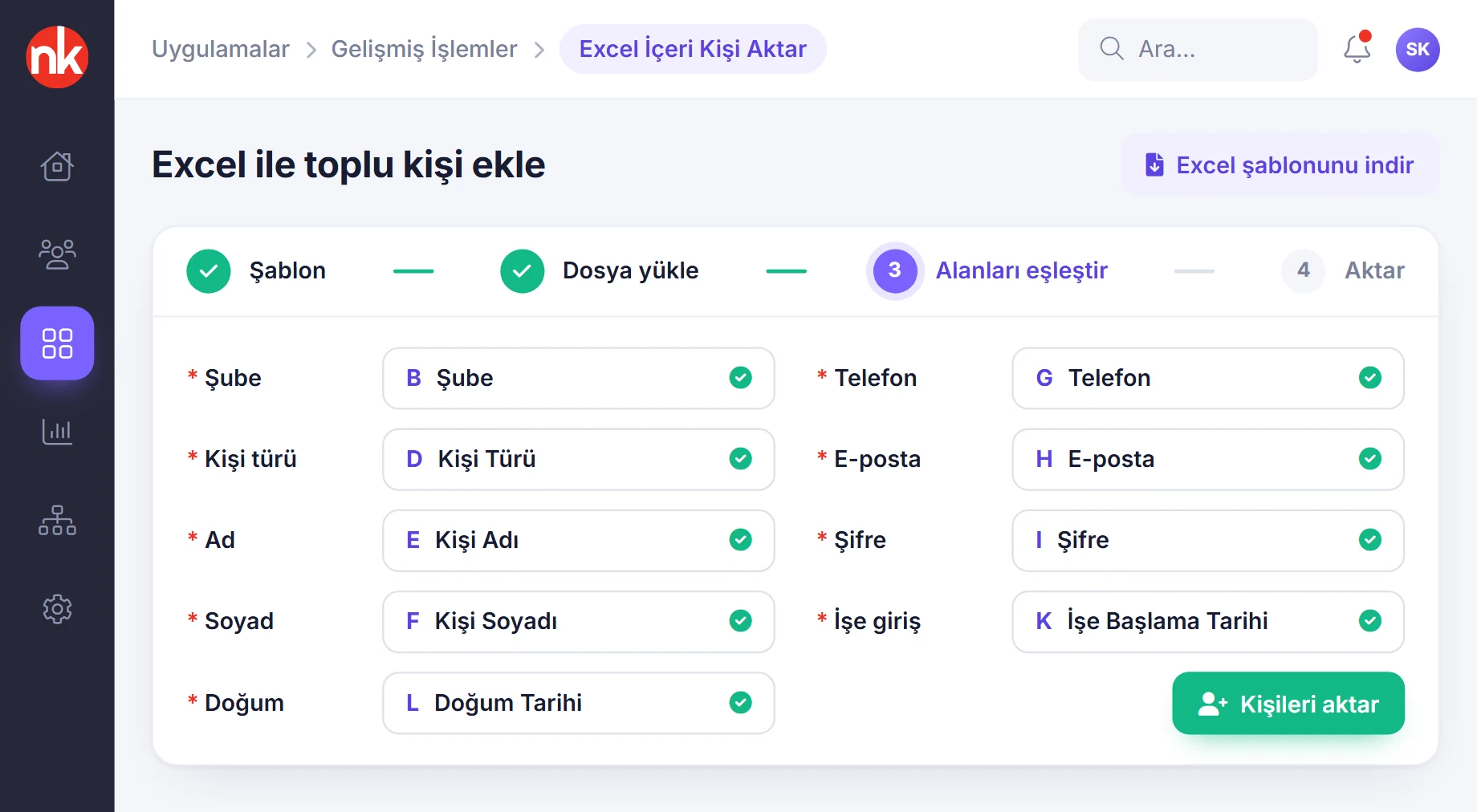
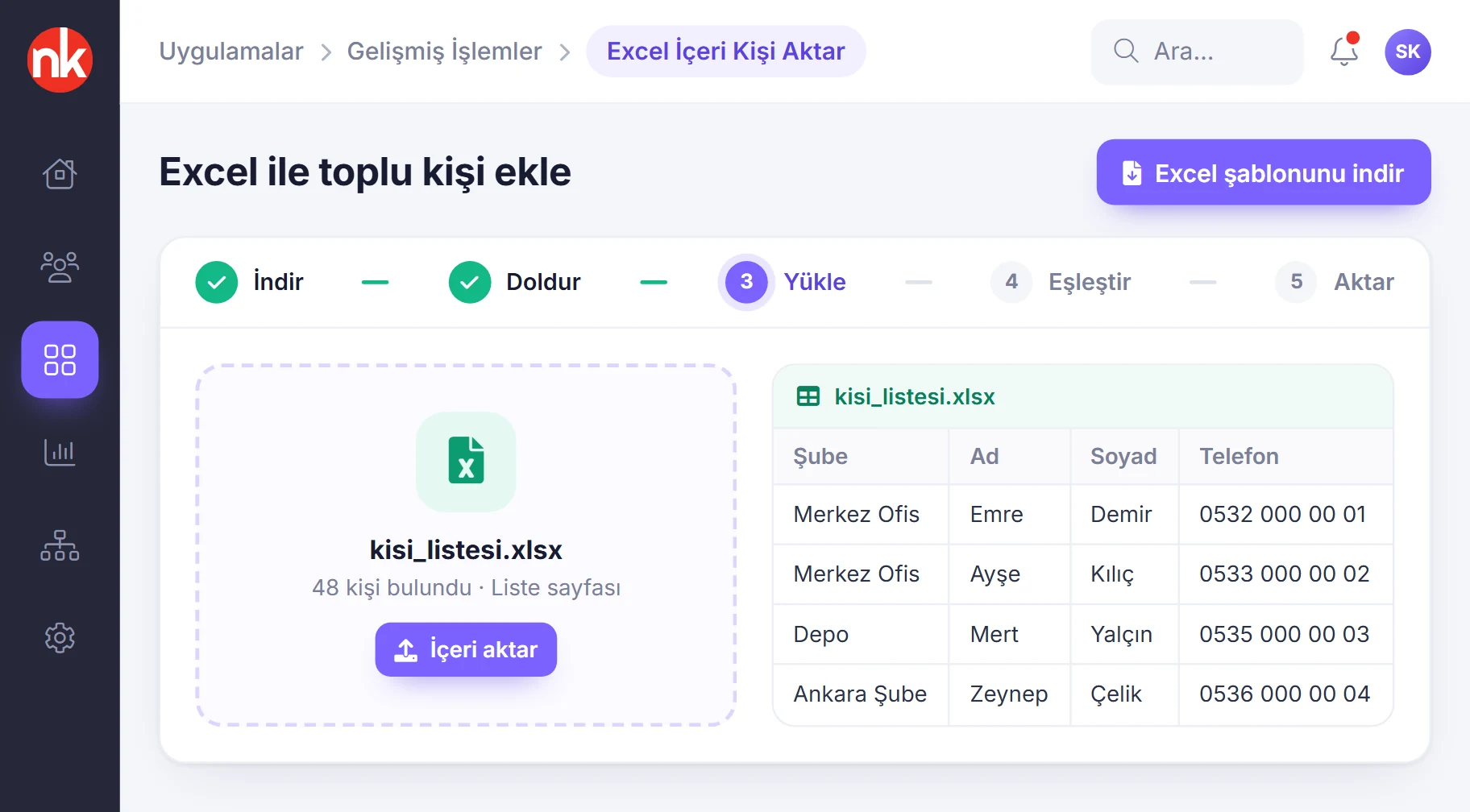
On the Import People from Excel page, you first download the template and fill in the person details. The file is uploaded with the Import File button; then the fields are matched and the people are imported.
See details
Bulk person import brings hundreds of employees into the system from a single file.
The template includes the national ID number, branch, position, person type, first name, last name, phone, email, password, system access, hire date and date of birth fields.
In the Match Fields step, the Excel column is selected for each NetKurum field. The links next to the branch, position and person type fields open the relevant definition screen; missing definitions are completed before the import.
- Steps: download the template, fill it in, upload, match, import
- Required fields: branch, person type, first name, last name, phone, email, password, hire date and date of birth
New and to be updated
Import preview (construction site example)
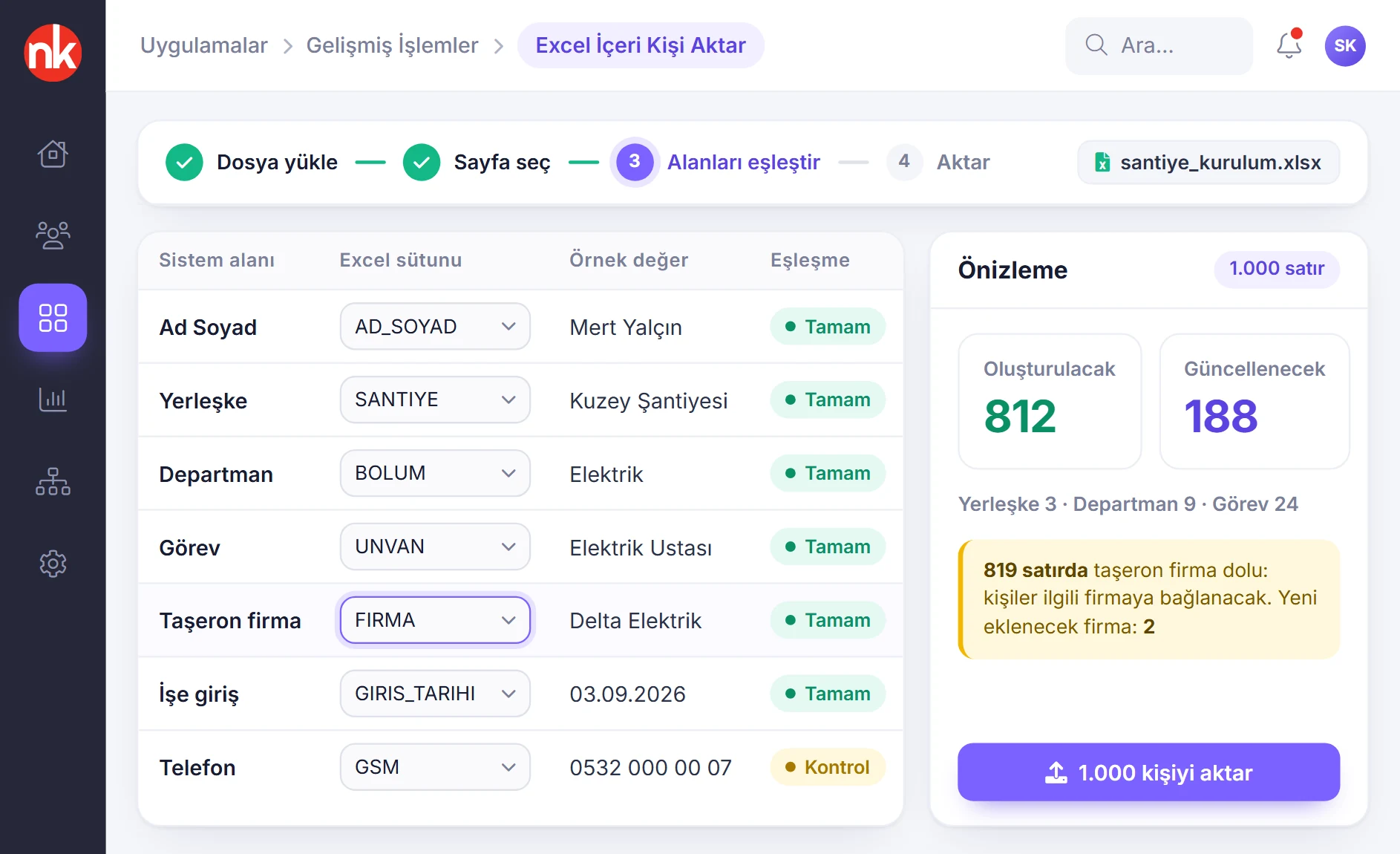
In the construction site deployment, branch, department, position and person records were imported from a single file. The preview counts records to be created and records to be updated separately; rows with the subcontractor column filled in are linked to the relevant company. The image is taken from the deployment adapted for RAMS Türkiye.
See details
The preview shows how many records will be added and which ones will be updated before the import is run.
In the field matching table, the system field, Excel column, sample value and match status sit side by side; fields with a different format, such as phone numbers, are flagged with a warning.
The import proceeds through the steps of uploading the file, selecting the sheet, matching the fields and importing.
- Check: sample value and match status
- Result: number of new records and records to be updated
- Subcontractor: automatic linking from the company column
Delivery time and period
Automatic email delivery list
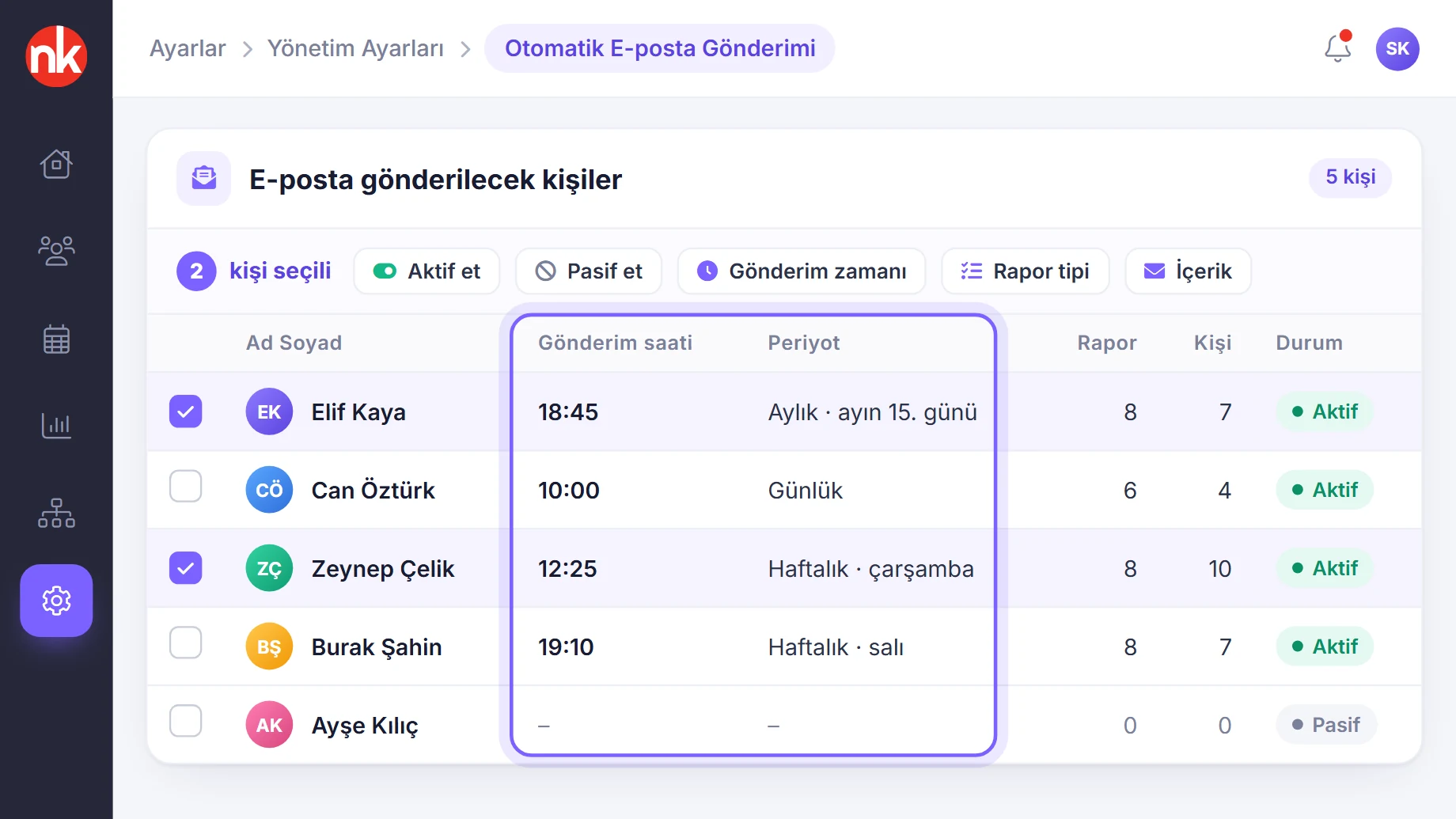
Automatic report emails assigned to people are listed with delivery time, period, number of selected reports and number of people included in the report; for selected people, delivery is turned on or off or rescheduled in bulk.
See details
The email delivery list shows in a single table who receives reports and when.
The bulk actions menu offers activate, deactivate, delivery time, select report type and email subject/body options.
Double-clicking a person lets you add people to the report scope and set the delivery time, period, report types and email content.
- Columns: delivery time, period, number of reports, number of assigned people, status
- Bulk actions: active/inactive, time, report type, content
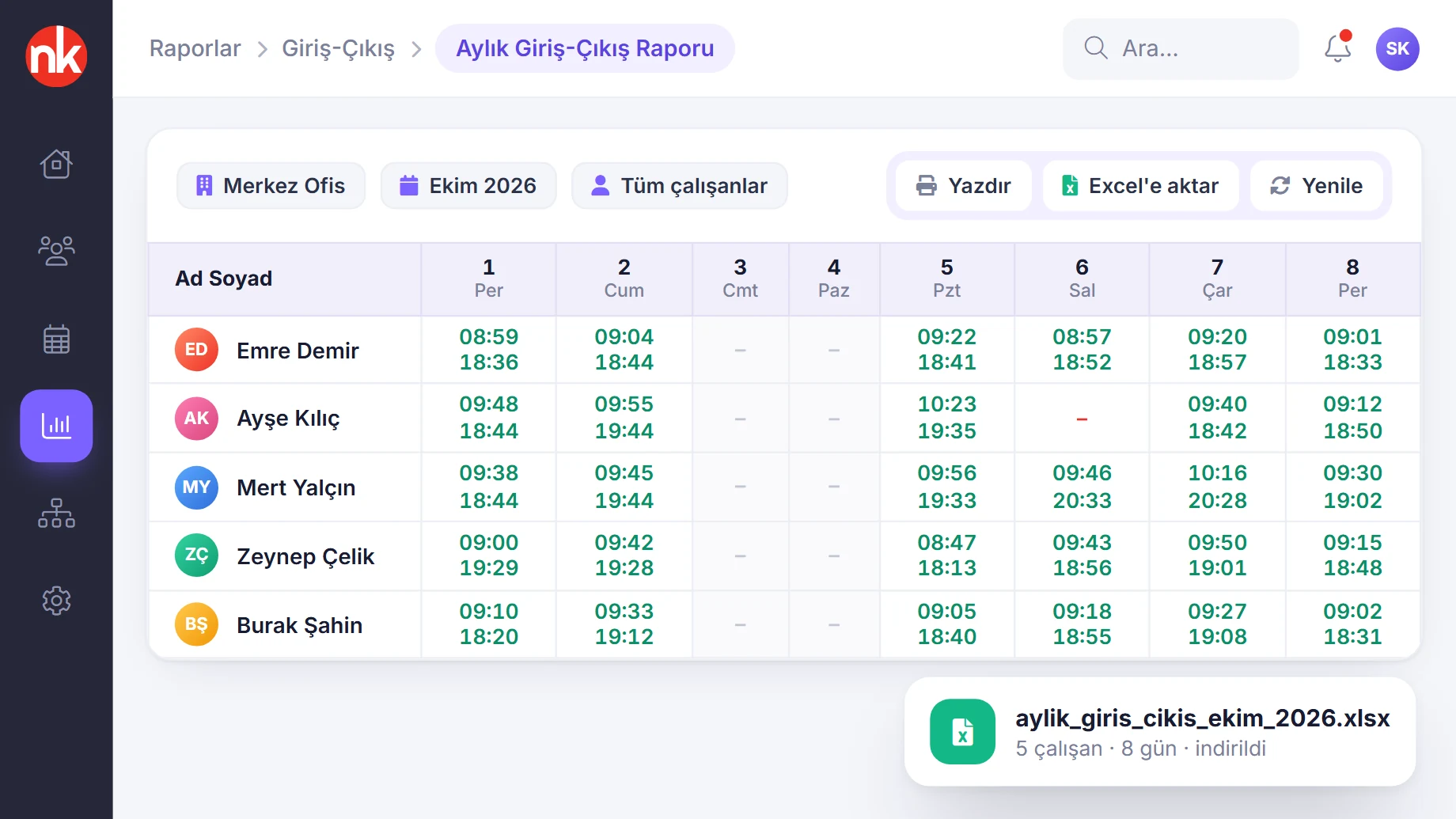
Export to Excel
Exporting reports
Reports and lists can be printed and exported to Excel. The monthly check-in/out report shows employees' first check-in and last check-out times day by day throughout the month.
See details
Excel exports make it easier to use NetKurum data in payroll, accounting or management reports.
The Print and Excel buttons at the top of list screens export the data shown with the current filters. The Detailed Monthly Report is downloaded as Excel from the Actions menu.
The expense claim form is also obtained as Excel for the selected person and date range.
- Outputs: print and Excel
- Examples: check-in/out reports, Detailed Monthly Report, expense claim form
What does integration include?
- HTTP POST and JSON-based web services with key-based authorization
- Person services: listing, details, adding, updating, deleting, active/inactive status
- Matching with the person, branch and position IDs in the organization's own system
- Sending the profile photo through the service
- Branch services: listing and creating or updating
- Branch QR code services: listing and adding normal or dynamic QR codes
- Pulling check-in/out records sequentially
- Sending check-ins/outs from external devices in bulk
- Service documentation with sample requests and responses for developers
- Bulk person import with an Excel template and field matching
- Exporting lists and reports to Excel
- Scheduled report emails
- Connection device for turnstiles and card reader panels
How does it work?
- Import your existing data Bring in your personnel and organization lists with the Excel template.
- Get service access Contact us for the service documentation and an access key.
- Match the systems Synchronize people and branches by matching them with the IDs in your own system.
- Use the data Pull check-in/out records through the service, or receive reports via Excel and email.
Frequently asked questions
Can we connect NetKurum to our HR or ERP system?
Yes. HTTP/JSON web services are provided for person, branch, QR code and check-in/out records. Person and branch records are added and updated by matching them with the IDs in your own system.
Can we pull check-in/out data into our own system?
Yes. Check-in/out records are pulled sequentially through the service, starting after the last record retrieved.
Can we send records from other devices to NetKurum?
Yes. The bulk check-in/out record service accepts the activity of multiple employees in a single request; it is used for synchronizing external devices.
What information is imported from Excel?
The template has the national ID number, branch, position, person type, first name, last name, phone, email, password, system access, hire date and date of birth fields; columns are matched during the import.
How do we get the service documentation?
You can reach us through the contact page for the service documentation and access details.
Related features
-
 Personnel Management
Employee records, bulk updates, person profiles and personnel files in one place. Review Now
Personnel Management
Employee records, bulk updates, person profiles and personnel files in one place. Review Now
-
 Reporting
Daily, monthly and advanced reports; scheduled email delivery. Review Now
Reporting
Daily, monthly and advanced reports; scheduled email delivery. Review Now
-
 Card Access and Turnstiles
Connect turnstiles and card reader panels to the cloud without opening ports. Review Now
Card Access and Turnstiles
Connect turnstiles and card reader panels to the cloud without opening ports. Review Now
Try NetKurum in your organization
Request your free trial; our team will contact you to set up your account.