

Features
Reporting
Ready-made reports from late arrivals to overtime, from color-coded timesheets to leave entitlement; the reports you choose go automatically to managers' email at the time you set.
What does it solve?
If check-in/out data is being collected but reports are still prepared by hand every morning and every month-end, the data delivers only half its value. NetKurum calculates reports itself based on shift and tolerance definitions.
- Lists pulled manually every morning Late arrivals, early departures and absentees are ready in the daily reports; they are also sent by email at the set time.
- The month-end timesheet burden The timesheet table shows the hours each person worked day by day; cells are colored as normal, extra, missing hours, did not work and public holiday.
- Not knowing where a figure comes from Clicking any cell in the timesheet opens that day's check-in/out activity; a missing day is completed from the same window.
- Manual corrections going unnoticed Manually edited records and people who forgot to check in/out are listed in separate reports.
- Breakdown by branch and subcontractor Reports are narrowed with branch, subcontractor company and person category filters; every report can be exported to Excel.
Reporting, screen by screen
The visuals are illustrations based on NetKurum screens; person and company names are examples.
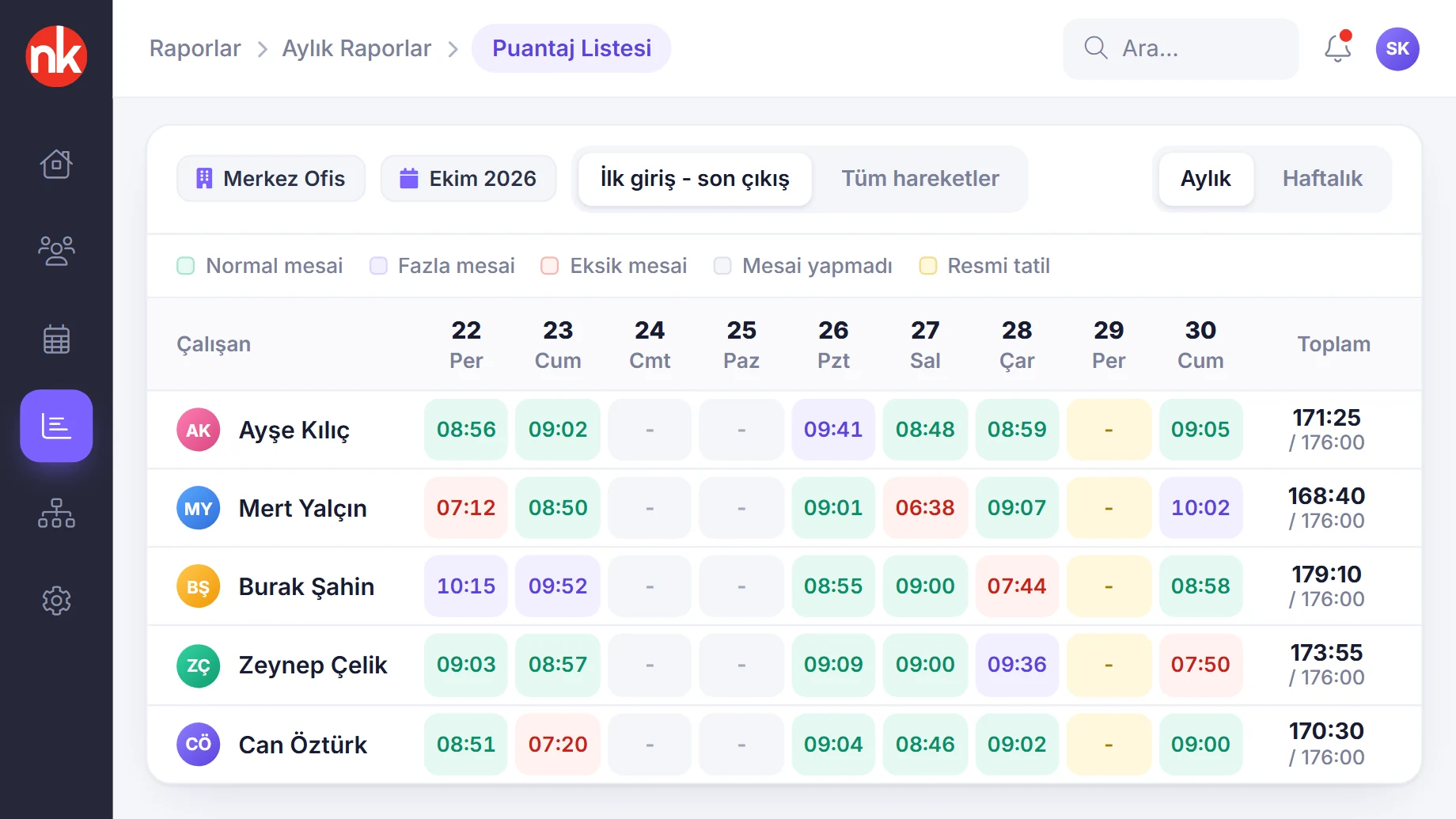
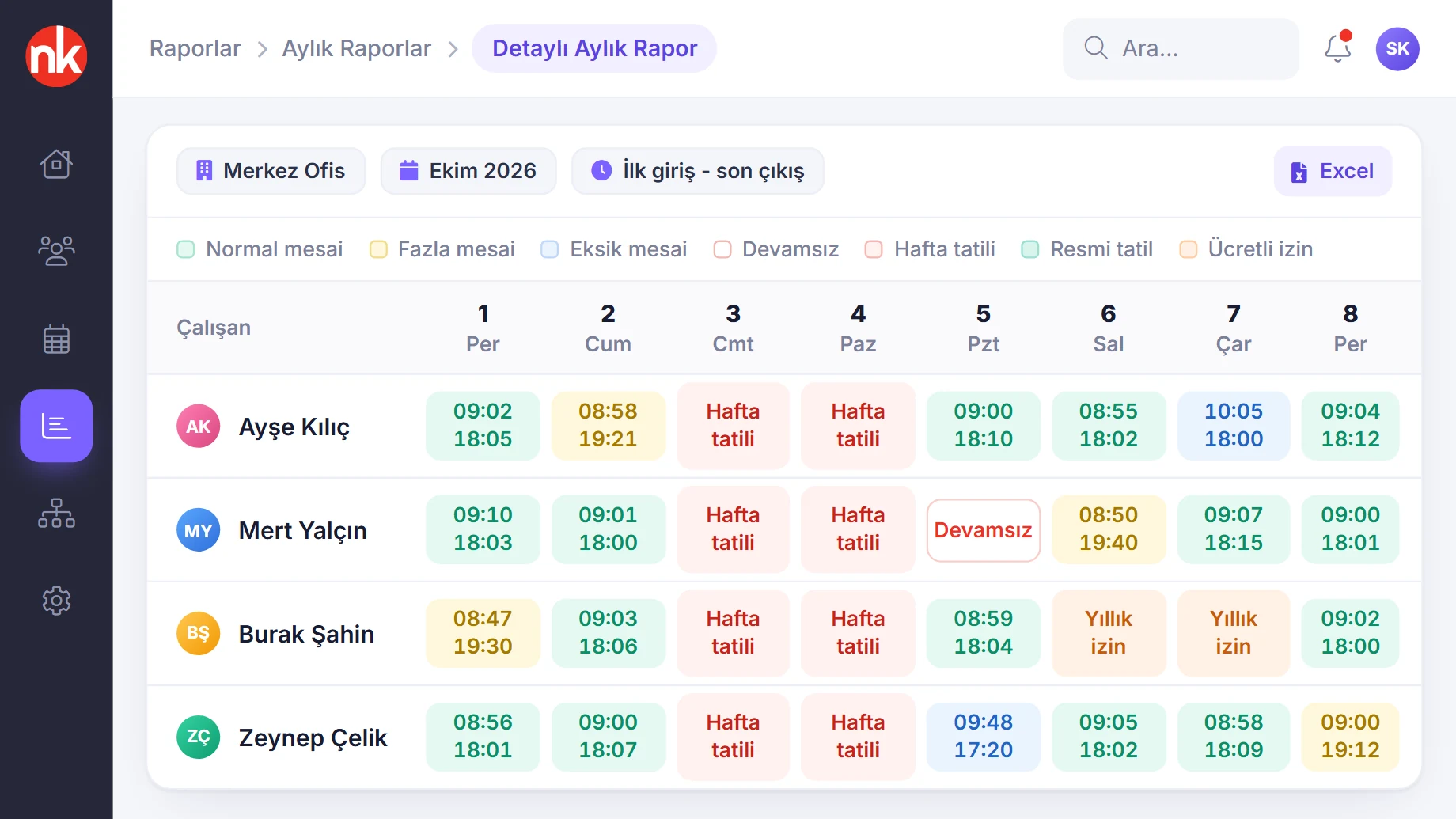
Color-coded days
Timesheet Management
The monthly or weekly timesheet table shows how many hours employees worked day by day; the total duration appears at the end of each row. It can be calculated based on the first check-in and last check-out, or on all check-ins/outs.
See details
The timesheet builds a month's working table on a single screen and drills down to the activity behind each cell with a single click.
After selecting the branch, year and month, you choose the calculation method: based on the first check-in and last check-out, or on all check-ins and check-outs. Cells are colored according to the Normal Hours, Extra Hours, Missing Hours, Did Not Work and Public Holiday statuses.
Clicking a cell opens that day's activity and hourly leave. New leave and work are added from the same window; manually added records can be deleted.
- View: monthly and weekly
- Calculation: first check-in/last check-out or all activity
- Day details: activity, hourly leave, adding leave and work
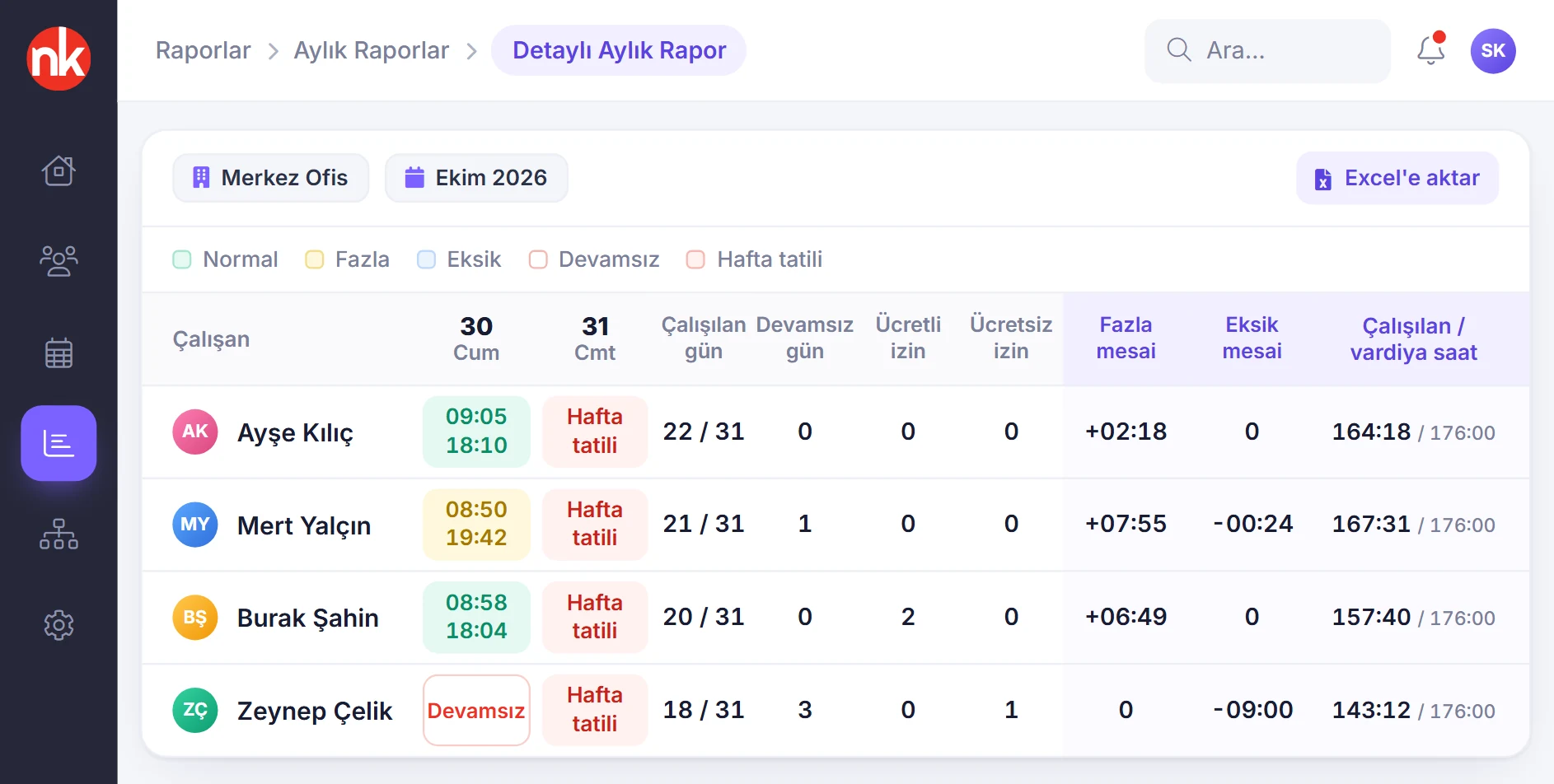
Overtime and undertime
Detailed Monthly Report
Employees' check-in/out times and working statuses day by day throughout the month in a single table; the end of each row shows totals for days worked, days absent, paid and unpaid leave, overtime and undertime, and worked/shift hours.
See details
The Detailed Monthly Report is the main report for checking timesheets, overtime and absence.
Cells are colored according to the No Shift Defined, Normal Hours, Missing Hours / On Unpaid Leave, Absent, Overtime, Weekly Day Off, Public Holiday, On Paid Leave and Not Working statuses. Hovering over a cell shows the shortfall or excess in working time.
Clicking a cell opens the day details, as in the timesheet. The report is filtered by branch, month, year, person category and check-in/out setting, and downloaded to Excel with a single click. In organizations that use card access, the point where the check-in/out took place can also be shown in the cell.
- Statuses: normal, overtime, undertime, absent, holiday, paid/unpaid leave
- Totals: overtime, undertime, worked/shift hours
- Export: Excel
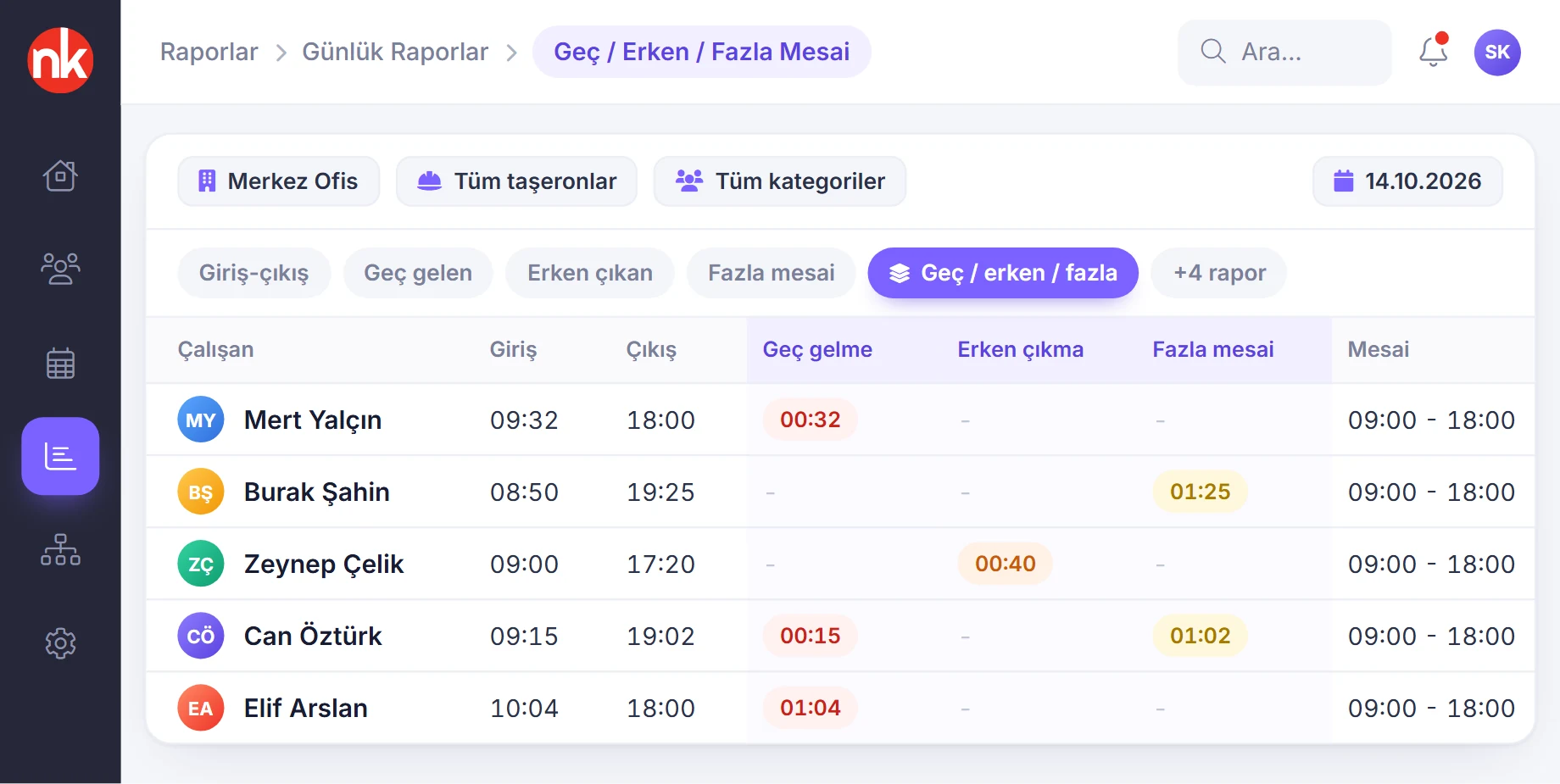
Late, early, overtime
Daily reports
Daily reports give the picture for the selected day: check-in/out, late arrivals, early departures, overtime, absence, excess break use, undertime and check-in/out from a different branch. Late arrivals, early departures and overtime can be combined in one report.
See details
Daily reports let you see the day's problem records first thing in the morning.
The late arrivals report shows the check-in time, the length of the delay and the branch where the check-in took place; the early departures report shows the check-out time and how early the person left; the overtime report shows the overtime duration. For subcontractor employees, the subcontractor company is also listed.
The excess break report lists those who exceeded the defined break time, and the undertime report lists those who did not complete the daily working time, with their actual and missing durations.
- Reports: check-in/out, late arrivals, early departures, overtime, combined, absence, excess breaks, undertime, different branch
- Filter: branch, subcontractor company, person category, date
Check-in and check-out branch
Check-in/out from a different branch
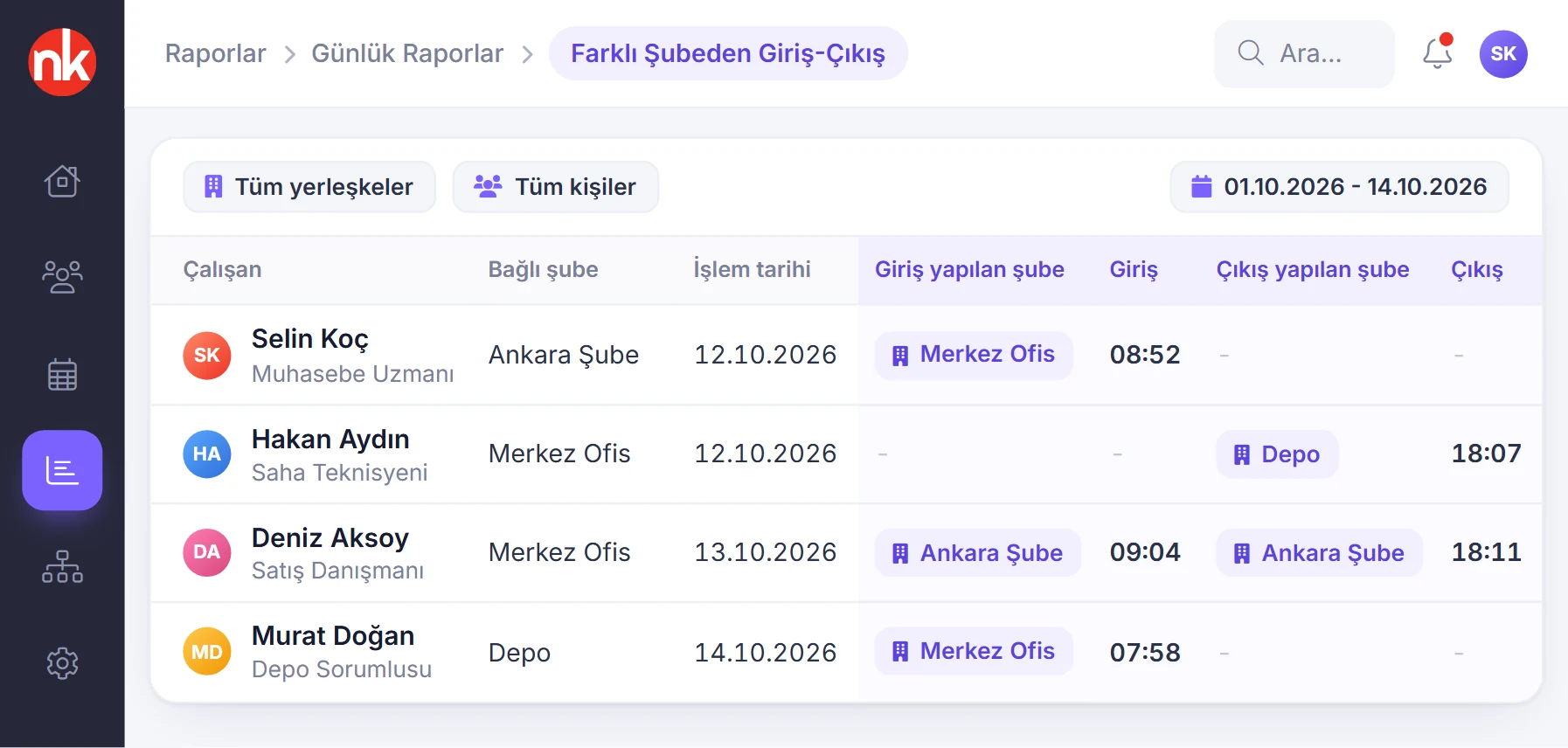
Employees who checked in or out at a branch other than the one they belong to are listed: their assigned branch, the branch where they checked in and out, and the times.
See details
In multi-branch organizations, this report makes employees' movement between branches visible.
The report is filtered by date range, site and person category. Even if the time and attendance working policy allows check-in from all branches, these movements are tracked separately.
- Columns: position, branch, action date, check-in and check-out branch, time
Report types
Automatic report emails
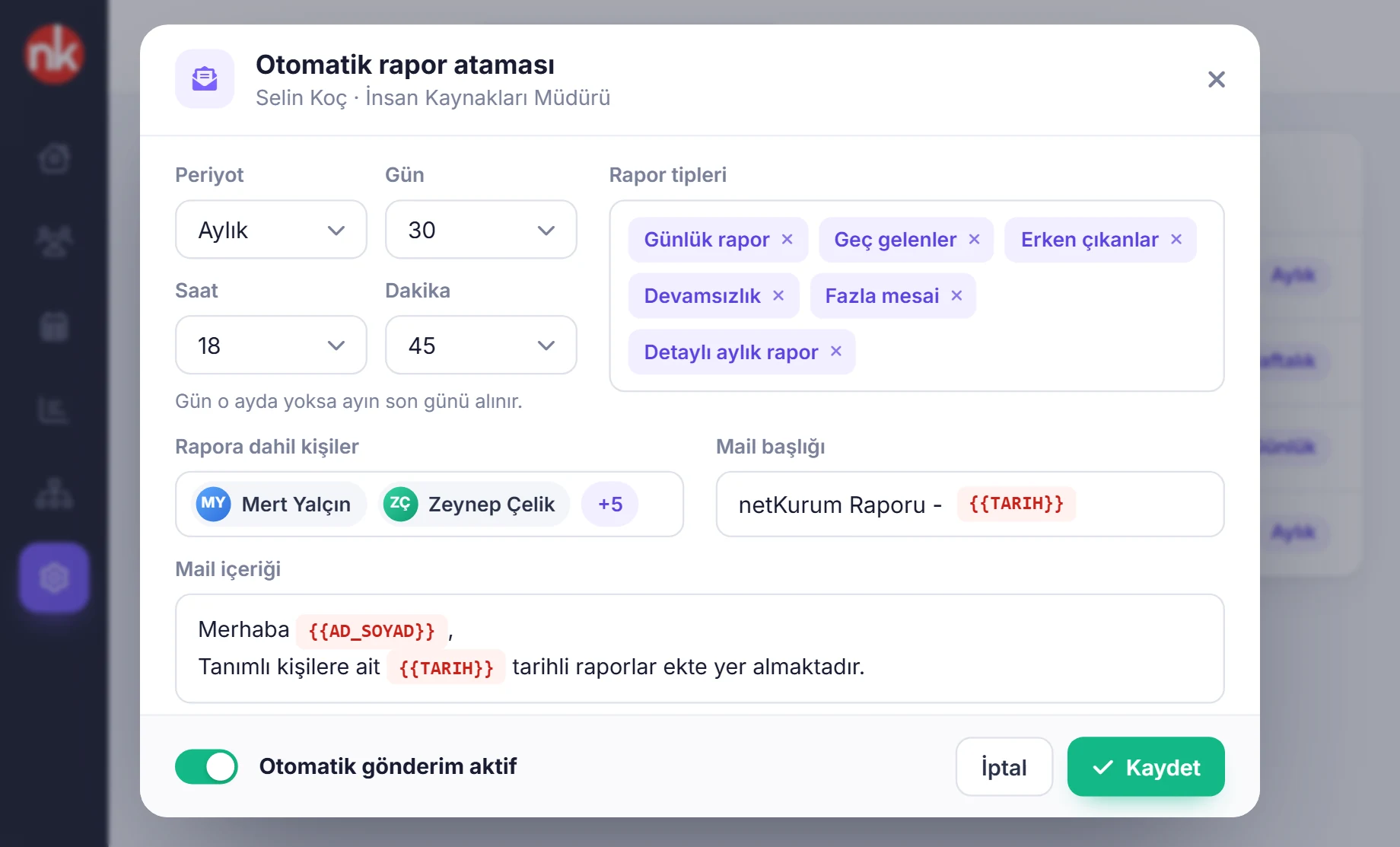
For each manager, you define which reports are sent, how often, and on which day and at what time. People are added to the report scope; the email subject and body are personalized with tags.
See details
With automatic report emails, reports land in the relevant manager's inbox at the set time without anyone logging in to the panel.
You select the period (daily, weekly, monthly), day, hour and minute. Report types include the daily report, late arrivals, early departures, absence, overtime, the combined report, the Detailed Monthly Report and the timesheet report.
The Automatic Email Delivery Recipient List page shows each person's delivery time, period, number of selected reports and number of assigned people; the delivery settings of selected people are edited in bulk.
- Scheduling: period, day, hour, minute
- Scope: people to include in the report
- Content: subject and text, with person and date tags
{{AD_SOYAD}} tag
Report email templates
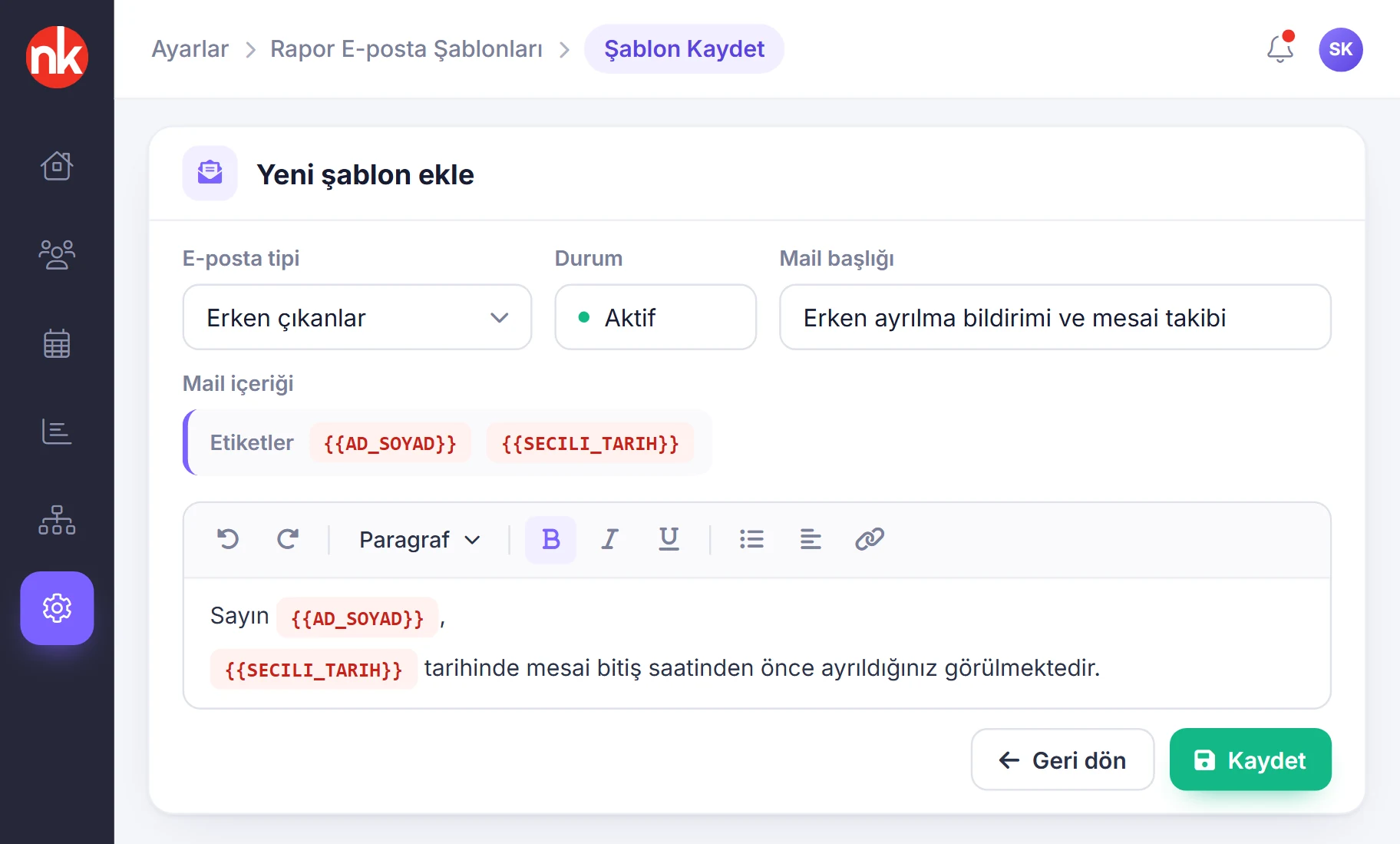
You define the template for emails sent to employees from the late arrivals, early departures and absence reports. The {{AD_SOYAD}} and {{SECILI_TARIH}} tags are used in the text.
See details
Templates let the organization set the wording of the notification emails sent to employees.
In the template, you enter the email type, status, email subject and email body. The tags are filled in with the employee's name and the relevant date at the time of sending.
Templates appear in the list with type, subject, status, action date and the person who performed the action; they are edited by double-clicking.
- Types: late arrivals, early departures, absence
- Tags: {{AD_SOYAD}}, {{SECILI_TARIH}}
What does reporting include?
- Daily check-in/out, late arrivals, early departures and overtime reports
- Combined late arrivals / early departures / overtime report
- Absence, excess break and undertime reports
- Check-In/Out from a Different Branch report
- Color-coded monthly and weekly timesheets
- Detailed Monthly Report and shift summary columns
- Monthly check-in/out and per-person check-in/out reports
- Headcount by month report
- Leave usage, leave entitlement, annual leave and personnel leave usage reports
- Reports on people who forgot to check in/out and on manually edited records
- Currently inside report
- Branch, subcontractor company and person category filters
- Printing and exporting to Excel
- Scheduled automatic report emails and email templates
How does it work?
- Define shifts and tolerances Reports are calculated based on shift, tolerance and leave definitions.
- Choose a report Open the one you need from the daily, monthly or advanced reports and apply filters.
- Drill down Click a cell in the timesheet or the Detailed Monthly Report to see the day's activity.
- Schedule delivery Set which reports go to managers and when in the automatic email settings.
Frequently asked questions
Can reports be exported to Excel?
Yes. Lists and reports have print and export to Excel buttons; the Detailed Monthly Report is downloaded as Excel from the Actions menu.
Can reports be sent by email?
Yes. In the automatic email settings, the period, day, time and report types are selected per person; reports are sent at the set time.
How is late arrival calculated?
The check-in time in the employee's shift is compared with the actual check-in time; if tolerance definitions are active, delays within the tolerance are not counted as late arrival.
Can we report on subcontractor employees separately?
Yes. Daily reports show the subcontractor company, and reports can be narrowed with the subcontractor company filter. The filter is made visible from the Organization Module/Feature Management setting.
How do we track manually corrected records?
The Manually Edited Records report lists all manually added check-ins/outs with action type, date, time and branch.
Related features
-
 Check-In/Out Management
Employees scan the branch QR code or verify their location; the record is in the panel instantly. You pick the method per site. Review Now
Check-In/Out Management
Employees scan the branch QR code or verify their location; the record is in the panel instantly. You pick the method per site. Review Now
-
 Shift Management
Night shifts, breaks, tolerance and bulk assignment from the calendar. Review Now
Shift Management
Night shifts, breaks, tolerance and bulk assignment from the calendar. Review Now
-
 Integration and Data Transfer
Web services, bulk import with Excel and Excel exports. Review Now
Integration and Data Transfer
Web services, bulk import with Excel and Excel exports. Review Now
Try NetKurum in your organization
Request your free trial; our team will contact you to set up your account.