

Learning and Development
Learning and Development
Define a training once and assign it to many employees; reminders go to the employee and their manager before it expires, mobile courses are watched on the phone, and reports show who stopped where.
What does it solve?
When training records live in certificate folders and spreadsheets, finding out who took which training, whose certificate is expiring and how many training hours were delivered this year means counting by hand. NetKurum ties training, attendance and validity to the employee record.
- Mandatory training that quietly expires For trainings with a validity period, the expiry date is calculated automatically, and the employee and their first-line manager get an email and panel notification before it.
- One record per employee, one by one A defined training is added to many employees from a single window; people who already have it are skipped.
- Teams you can't gather in a classroom Courses with video and PDF content are watched in the mobile app, and viewing time and completion are recorded per item.
- No way to gauge training impact Employees rate each training from 1 to 5, and the training information report gives total hours, average hours per person and cost.
- Keeping a finger on the team's pulse Anonymous or named surveys reach the mobile app by notification, and results read as a heat map by branch and an eNPS score.
Learning and development, screen by screen
These images are real screens from the NetKurum demo organization; names of people and companies are fictitious.
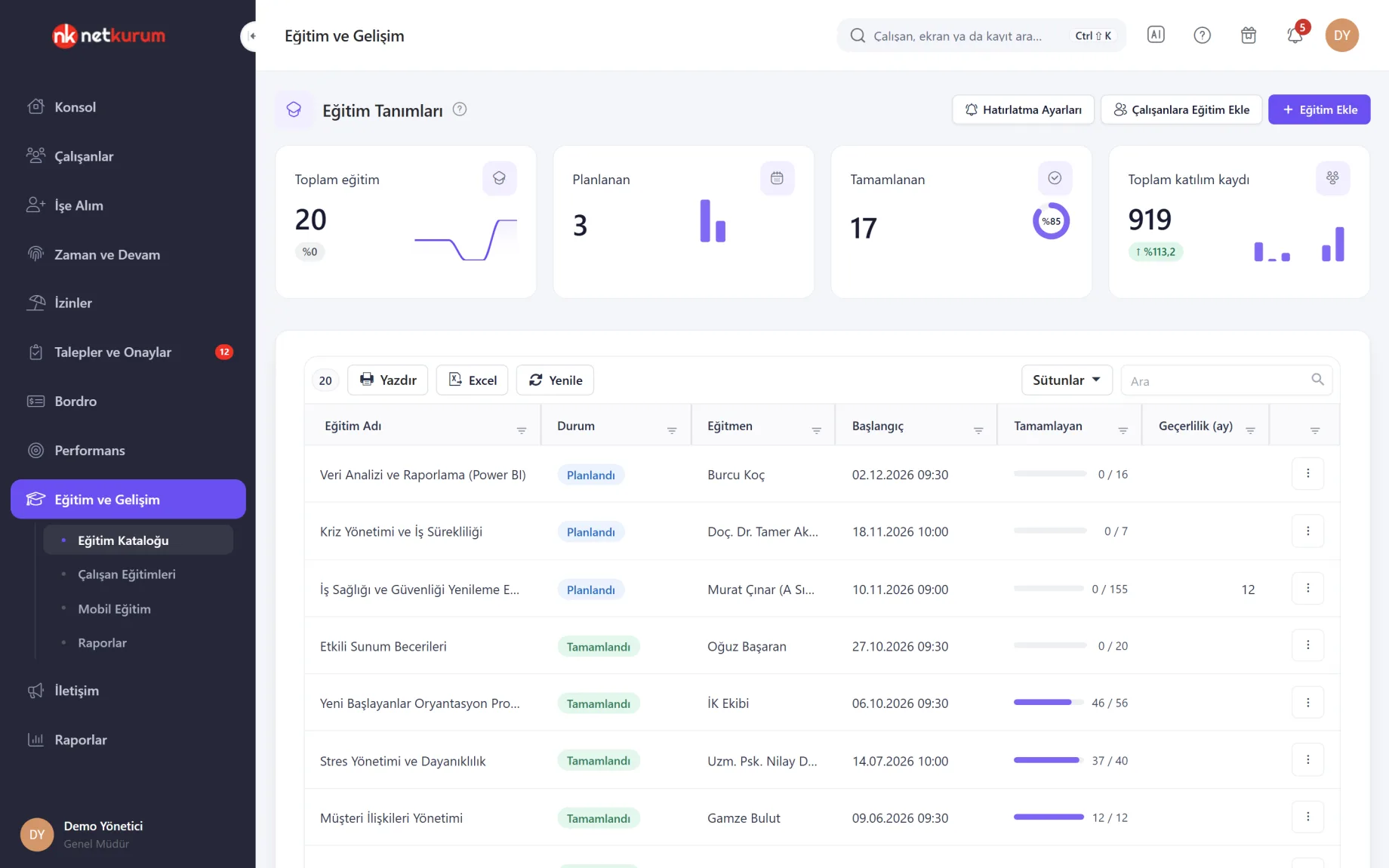
All attendance for one training
Training detail
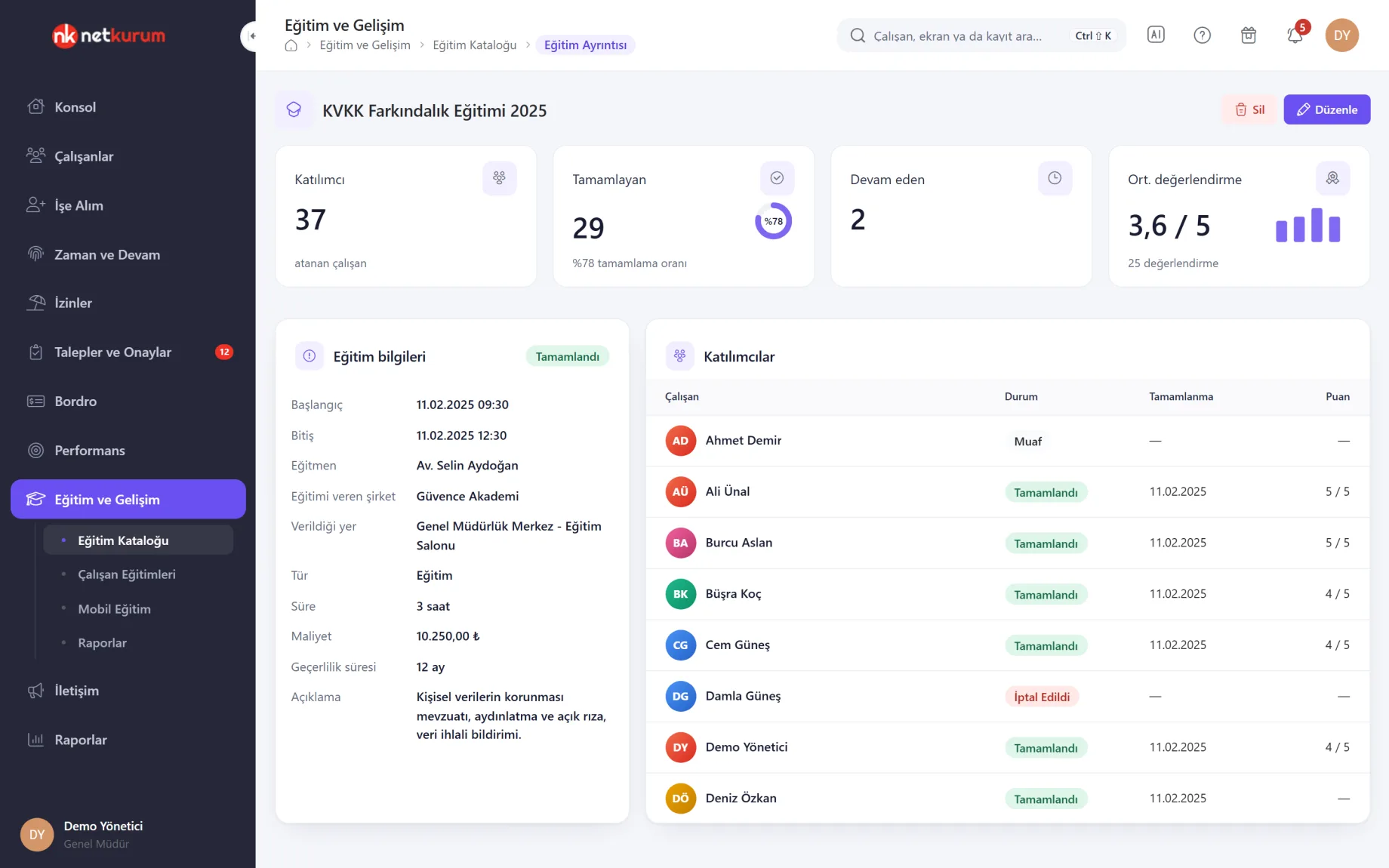
For a catalogue training, the number of assigned employees, completion rate, those in progress and the average rating are at the top; training details and each participant's status, completion date and rating are below.
See details
Trainer, provider, venue, type, duration, cost and validity period are entered once on the training definition.
In Add Training, name, start and end are required; trainer, provider, venue, validity period and description are optional. If the validity period changes, the expiry date of everyone who completed the training is recalculated.
Add Training to Employees adds it to several employees, or to everyone, in one go; the result message says how many were added and how many were skipped.
- Statuses: pending, in progress, completed, cancelled, exempt, skipped
- Validity: in months; empty means no expiry
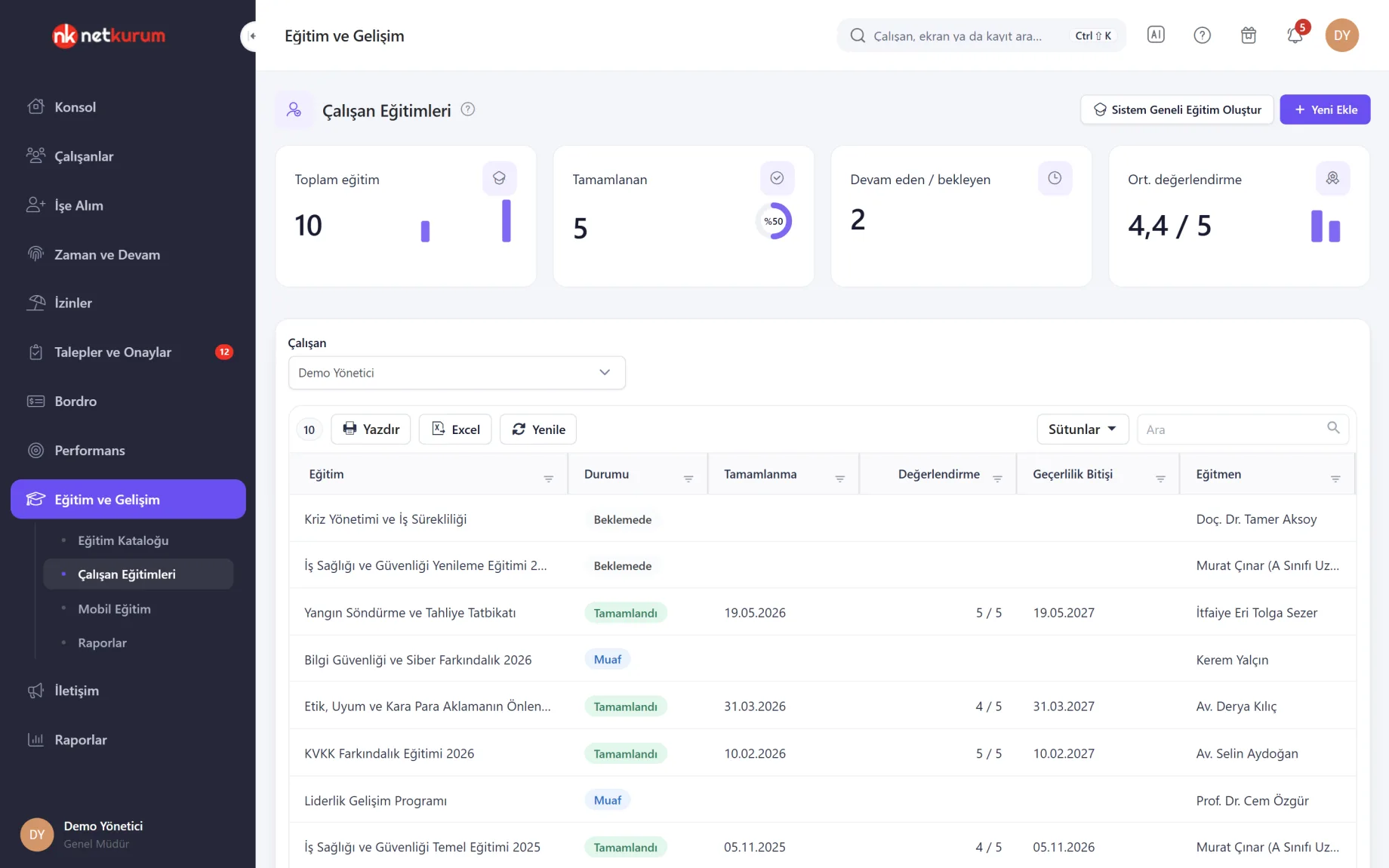
An employee's training history
Employee trainings
Every training of the selected employee is listed with status, completion date, rating, expiry and trainer. Cards at the top show total, completed and in-progress trainings and the average rating.
See details
Employees rate their success or the training's value from 1 to 5.
New adds a catalogue training to the employee; the same training cannot be added twice. Choosing Completed makes the completion date required and calculates the expiry date.
Mandatory training rules make a training required for all employees, a position or a unit; missing, expired and soon-to-expire records (within 60 days) appear on a separate list.
- Expiry reminder: email and panel notification 1-12 weeks before
- Weekly digest: ongoing and expiring trainings to a shared address
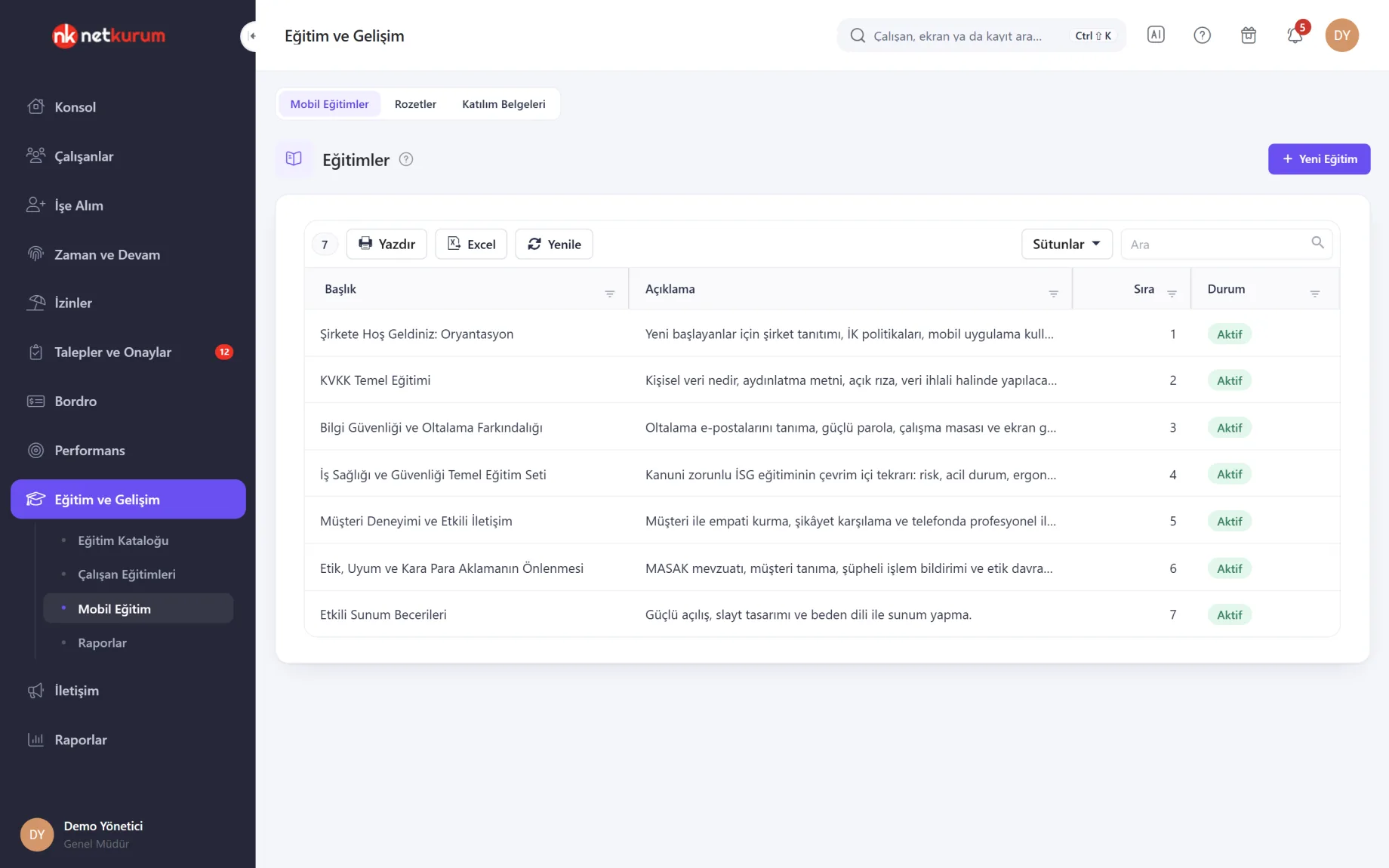
Training in every pocket
Mobile courses
Courses employees watch in the mobile app are listed with title, description, order and status. Each course's video and document items are sorted by drag and drop, and that order is the viewing order in the app.
See details
Recurring trainings such as onboarding, data protection or workplace safety reach everyone without setting up a classroom.
Video items are uploaded as .mp4 and documents as .pdf; large videos upload in chunks and are converted to a mobile-friendly format, with processing status shown in the list.
Groups decide who sees each course. Badges and certificates linked to a course are assigned from the participant list, one by one or in bulk.
- Content: video and PDF
- Audience: groups
- Rewards: badges and certificates of attendance
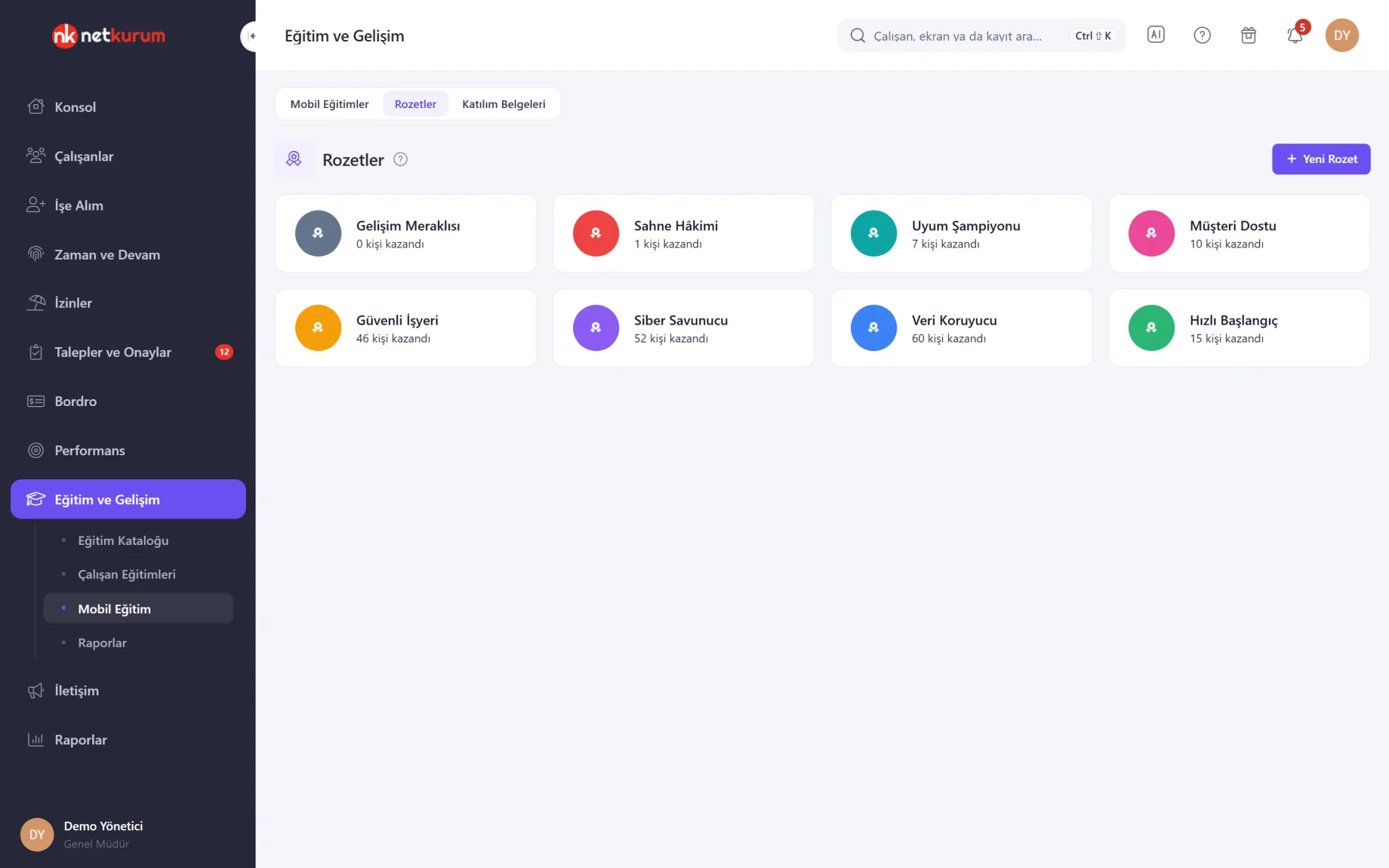
A badge for finishing
Badges and certificates
Badges awarded for completing mobile courses are defined as cards with a name and colour, and each card shows how many people earned it. The colour becomes the badge's background in the mobile app.
See details
Certificates of attendance are uploaded as PDF or image files, and the list shows how many people received each one.
Badges and certificates are linked to a course from its window on the Mobile Courses screen, where new ones can also be created.
Assignment happens on the Participant List: double-click a person to see their current badges and certificates ticked, or assign to all selected rows at once.
- Badge: name and colour
- Certificate: PDF, JPG, PNG or GIF file
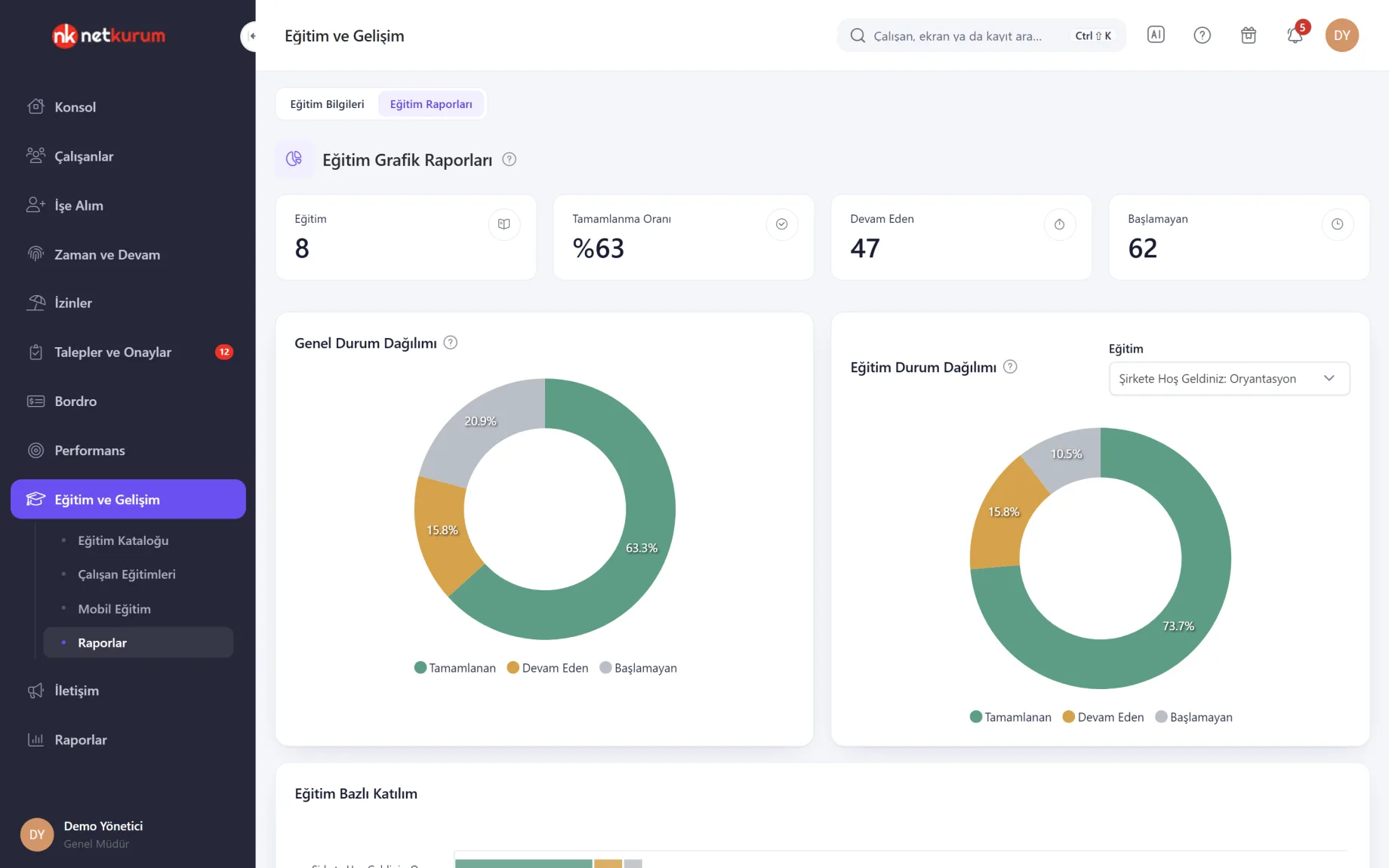
Who started, who finished?
Training reports
The chart report gives the number of courses, completion rate, and people in progress or not started; donut charts show the status breakdown across all courses and for a selected course.
See details
Click a slice and the list of people in that status opens below the chart.
Detail reports cover participation and success rate per person, participants per course, completed and in-progress counts per content item, and for each person the viewing time and last view of every item.
Branch, position, course and status filters work together, and every list can be printed or exported to Excel.
- Breakdown: person, course, content item
- Measures: viewing time and last view
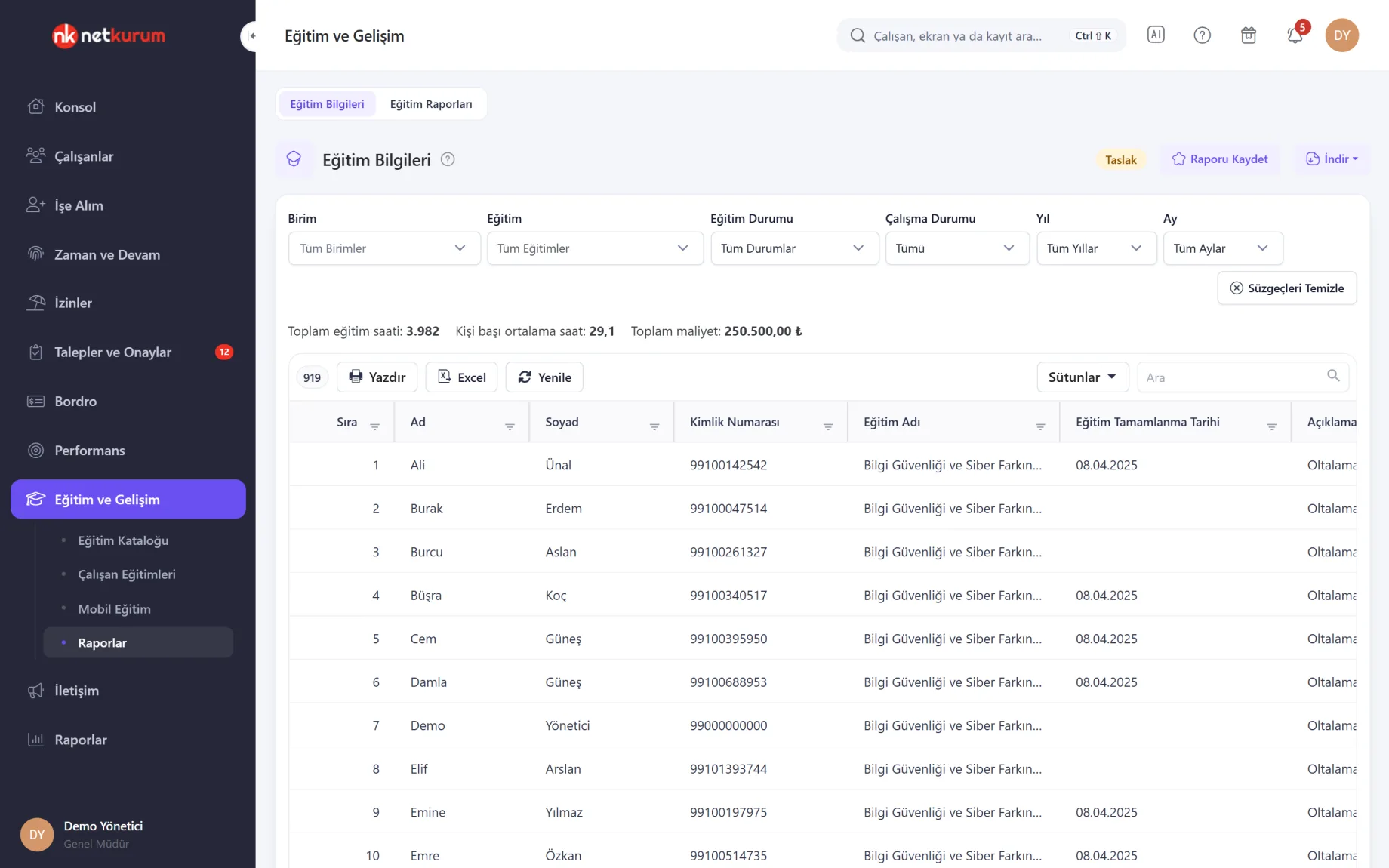
Hours, cost and records
Training information report
All employee training records come together in one list, refreshed by unit, training, training status, employment status, year and month filters.
See details
Above the table you see total training hours, average hours per person and total cost for the completed records in the filter.
Duration, cost and type (training or seminar) come from the training definition. Double-click a row to open the employee record in a new tab.
The Download menu produces Excel or PDF with the filters on screen, and the file downloads straight to your computer.
- Summary: total hours, hours per person, cost
- Output: Excel and PDF
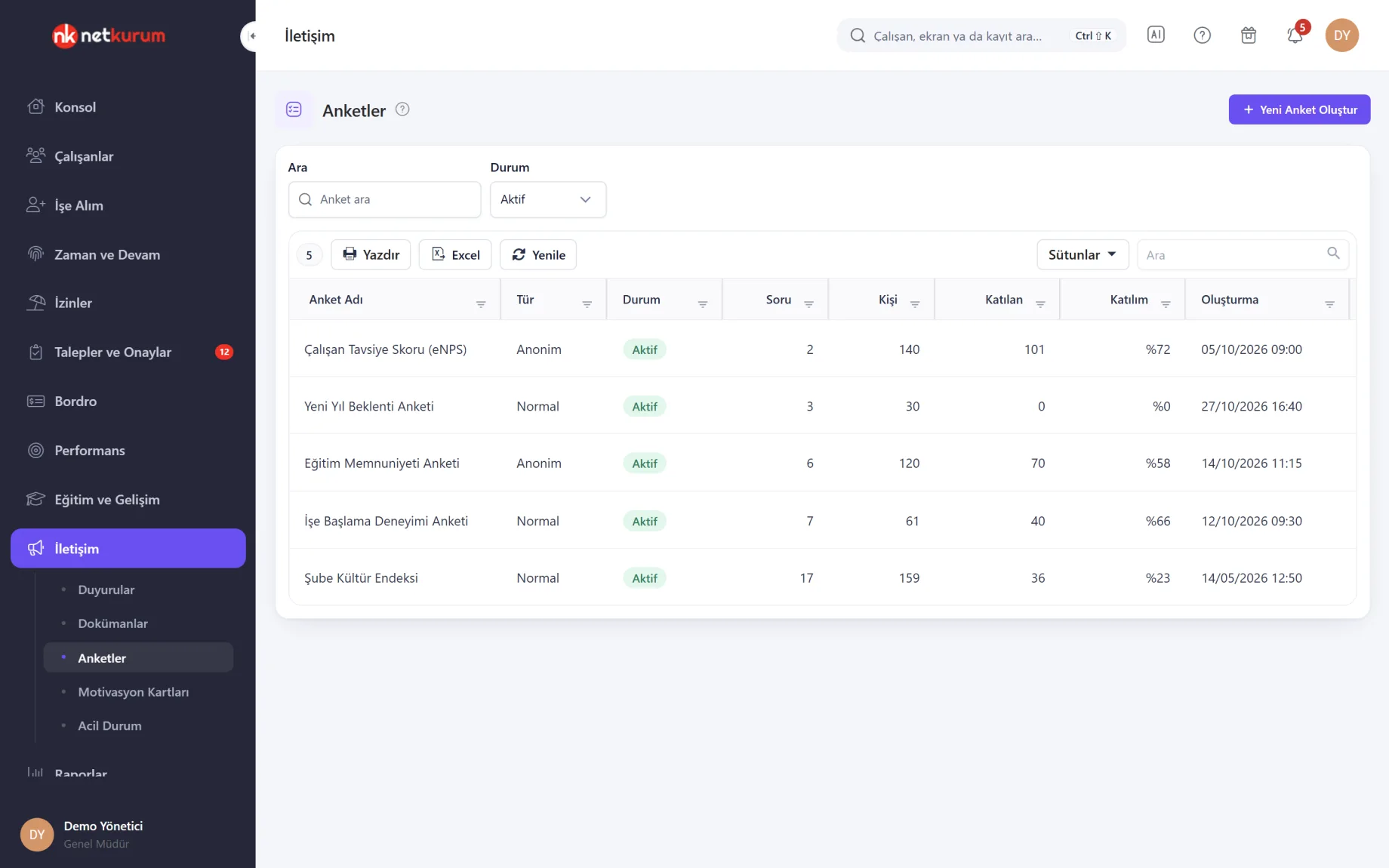
The team's voice, measurable
Surveys
Surveys are listed with type (named or anonymous), question count, people invited and responding, and participation rate. Surveys reach employees through a mobile app notification.
See details
Built-in templates include eNPS, employee wellbeing, exit interview, performance process feedback and a workplace bullying awareness check.
In an anonymous survey answers are not linked to people, and results narrowed by branch or date are hidden below five responses. The type cannot be changed once the survey is created.
The general report shows the distribution per question and option, a heat map by branch for scored questions and the eNPS score. Duplicate a survey to repeat it and compare against the previous round.
- Type: named or anonymous
- Report: distribution, heat map, eNPS, period comparison
What's included in learning and development?
- A training catalogue for classroom and external training: trainer, provider, venue, duration, cost, validity
- Bulk training assignment that skips people who already have it
- Expiry calculation, expiry reminders and a weekly digest email
- Mandatory training rules for all employees, a position or a unit, with a missing list
- Each employee's training history and a 1-5 training rating
- Video and PDF courses in the mobile app, with group-based audiences
- Badges and certificates of attendance, with bulk assignment
- Chart reports and tracking reports by person, course and content item
- A training information report with total hours, hours per person and cost
- Anonymous or named surveys, built-in templates, heat map and eNPS
- A direct path from a skills matrix gap to a training assignment
How do you get started?
- Build the catalogue Define your trainings with trainer, duration, cost and validity period.
- Assign Use Add Training to Employees to add a training to many people at once, or set a mandatory training rule.
- Turn on reminders In Reminder Settings, choose how many weeks before expiry notifications go out.
- Add mobile courses Upload video and PDF content, choose groups, link badges and certificates, and follow progress in the reports.
Frequently asked questions
How do we track expiring certificates?
Enter a validity period on the training; the expiry date is calculated on each completed record. The employee and their first-line manager get an email and panel notification the number of weeks you choose beforehand, and the mandatory training list shows expired and expiring records separately.
Do mobile courses need a separate app?
No. Mobile courses are watched in the NetKurum mobile app. Video and PDF content is uploaded from the panel, and groups decide who sees each course.
Can we record training from external providers?
Yes. The training definition holds trainer, provider, venue, duration and cost; the training is added to employees and totalled as hours and cost in the reports.
Are surveys really anonymous?
In an anonymous survey answers are not linked to people, and there is no per-person tracking or Excel export. Results narrowed by branch or date are hidden below five responses, so individuals in small groups are not exposed.
Can we export training records?
Yes. The training information report downloads as Excel or PDF with the filters on screen, and every list can be printed or exported to Excel.
Related features
-
 Performance Management
Goals, competency reviews, one-on-ones, skills matrix and mentoring. Review Now
-
 Mobile App
Check-in, requests, leave balance, payslips, announcements and approvals in every employee's pocket. Review Now
-
 Communication, Announcements and Documents
Targeted announcements with read tracking, acknowledged company documents, motivation cards and notification settings. Review Now
Try NetKurum in your organization
Create your own demo in minutes and explore an organization full of sample data for 14 days.