

An HR system holds some of a company's most sensitive data: who came to work and when, who is on sick leave, how many days of leave each person has left, who received how much in salary advances. A system where everyone can see this data is insecure; a system where no one can see it is useless. The right balance is for each person to see only the data they need for their own job.
In this article we cover the two dimensions of permission design, why tying roles to positions matters, the one account–one device rule on the mobile side, and the access lifecycle.
Two dimensions: page permissions and data scope
A permission is not a single "yes/no." There are two separate questions:
- Page permissions: what can they do? Can they open the employee list, run reports, approve leave, correct records manually, manage devices, define roles?
- Data scope: whose data do they see? Only their own site, their region, their own subcontractor company, or the entire organization?
A branch manager can open the "approve leave" page (page permission) but sees only requests from their own branch (data scope). An HR specialist sees the whole organization but cannot define roles. A permission system built without separating the two ends up either too open or too closed.
Tie roles to positions, not people
When permissions are granted to individuals one by one, two problems arise: when a person changes, the permission is forgotten (a departed manager's account stays open for months), and nobody has a consolidated view of who can see what. The right model is roles: the "Branch manager" role is defined once and linked to the branch manager position; a new manager assigned to the position receives the role, and when the old manager leaves the position, the role goes with them.
A typical set of roles:
| Role | Page permissions | Data scope |
|---|---|---|
| HR manager | Everything, including roles and working policies | Entire organization |
| HR specialist | Employees, shifts, leave, reports; excluding role management | Entire organization |
| Regional manager | Reports, leave approval | Sites in their region |
| Branch / site manager | Daily reports, leave approval, limited corrections | Their own site |
| Subcontractor supervisor | Lists and reports (read-only) | Their own company |
| Accounting | Timesheets, advances/expenses, man-days reports | Entire organization (read-only) |
| Employee | Mobile: their own records and requests | Only themselves |
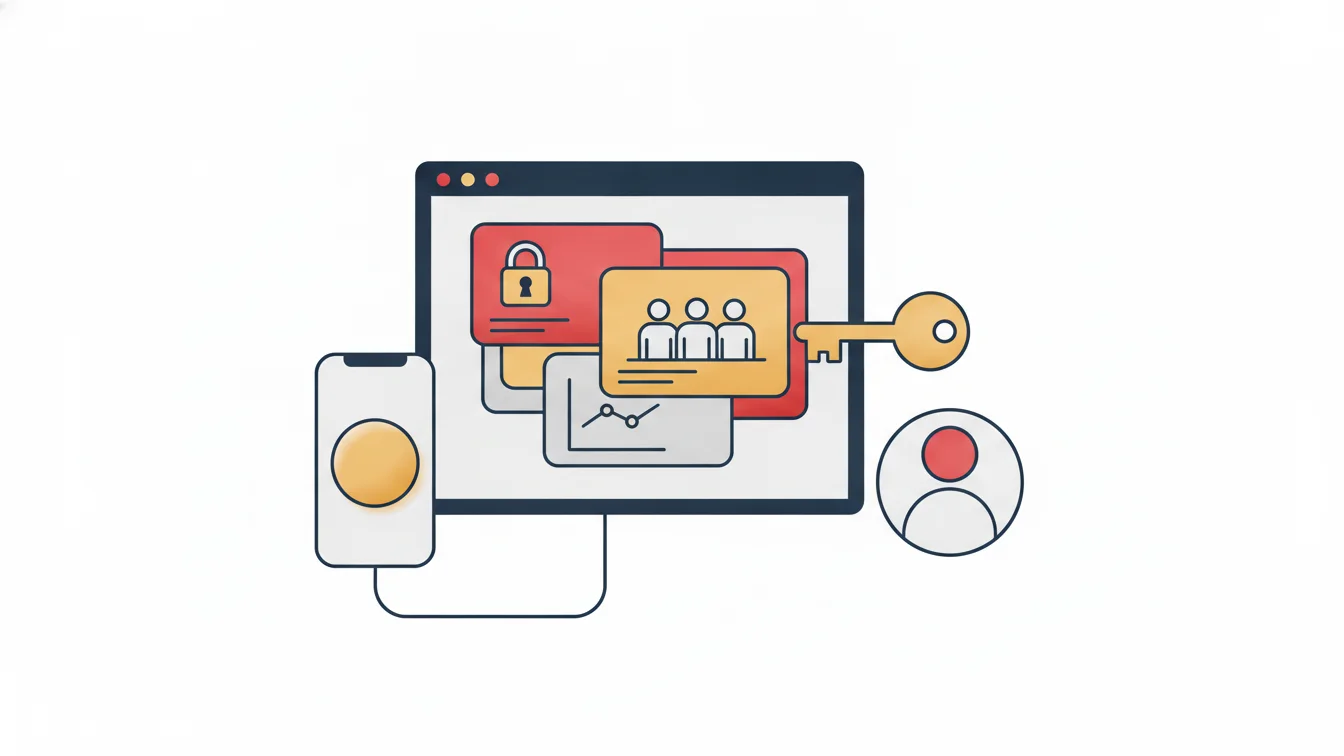
The permissions screen should be a tree: main sections (employees, reports, leave, settings) with their pages underneath, so you can see at a glance which branches are open to a role.
One account, one device
On the mobile side, the counterpart of permissions is device pairing. Each employee account is paired with a single phone; no clock-in can be recorded from another device. This has three practical consequences:
- Clocking in from a colleague's phone is impossible.
- When a phone is replaced, the pairing is reset with manager approval, so no one can switch devices unnoticed.
- For an employee whose device is faulty, location checks can be temporarily disabled; the exception is logged and the rule stays the same.
The mobile device management screen lists which account is paired with which device; in suspicious cases, the pairing is removed.
A trail of every change: manual edit logs
Corrections made by authorized users are the most sensitive operations in the system: a clock-in added after the fact, a changed time, a closed day. Each one should be logged with who, when and why, and be readable in a separate report. This report is used not only for audits but also to judge whether the permission design is right: if a branch manager makes corrections every day, there is a problem either with the rule or with how it is used.
The access lifecycle
- Onboarding: the employee record is created, the role linked to the position is applied, the mobile account is paired with a device at first sign-in, and the card is configured according to the group.
- Change of position: the position is updated and the role changes automatically; no old permissions linger.
- Extended leave: approval authority passes to a deputy; the account remains active.
- Offboarding: the account is deactivated, the card is removed from the devices within seconds, the mobile pairing is dropped, and the personnel file is kept according to the retention period.
The fourth step is the one most often skipped. An open account for someone who has left makes even the best permission design meaningless.
Permissions and device management in NetKurum
In NetKurum, page access permissions are granted in a tree structure by role and position; each position definition specifies the hierarchy and the roles it is entitled to. Data scope is limited by site and subcontractor company. Mobile device management lists account–device pairings; the manual edits report shows every correction with its operation type, time, reason and the person who made it. Bulk deactivation and card revocation are a single operation. Learn more: Access Management.
Security is not something you configure once; it is a setup that is tested again with every hire and every departure.
Frequently asked questions
Can one person have more than one role?
Yes; the permissions are combined. Still, keeping roles tied to positions is healthier because it reduces exceptions.
Can a branch manager correct a record at their own branch?
Yes, if their role includes correction rights; the operation appears in the manual edits report and is visible to HR.
Can an employee use a second phone?
Only one device can be paired at a time; device changes are made with manager approval.
Can a subcontractor supervisor see their own staff's leave?
That depends on the role's page permissions; in most organizations, subcontractor supervisors see only clock-in/clock-out and man-days reports.
Let's review your permission design
We can map your current roles and permissions together and close the gaps and overlaps. Start your free trial or contact us.
About the author
Selin Kaya
Digital Content Specialist
Writes for NetKurum's digital content team on time and attendance, leave and shift management. She explains how the product works and answers HR teams' everyday questions in plain language.