


A new system loses the most ground on day one: an empty dashboard opens, entering hundreds of employees by hand takes weeks, and in the meantime the team drifts back to the old spreadsheet. A successful switch depends on the system starting out populated on day one. The good news: your existing Excel spreadsheets, however messy, can be imported in a few hours when they're prepared properly.
In this article we walk through the steps of moving from Excel to a time and attendance system (PDKS): which data, in what order, and how to clean it up, plus the first week after the switch.
Import order: structure first, then people
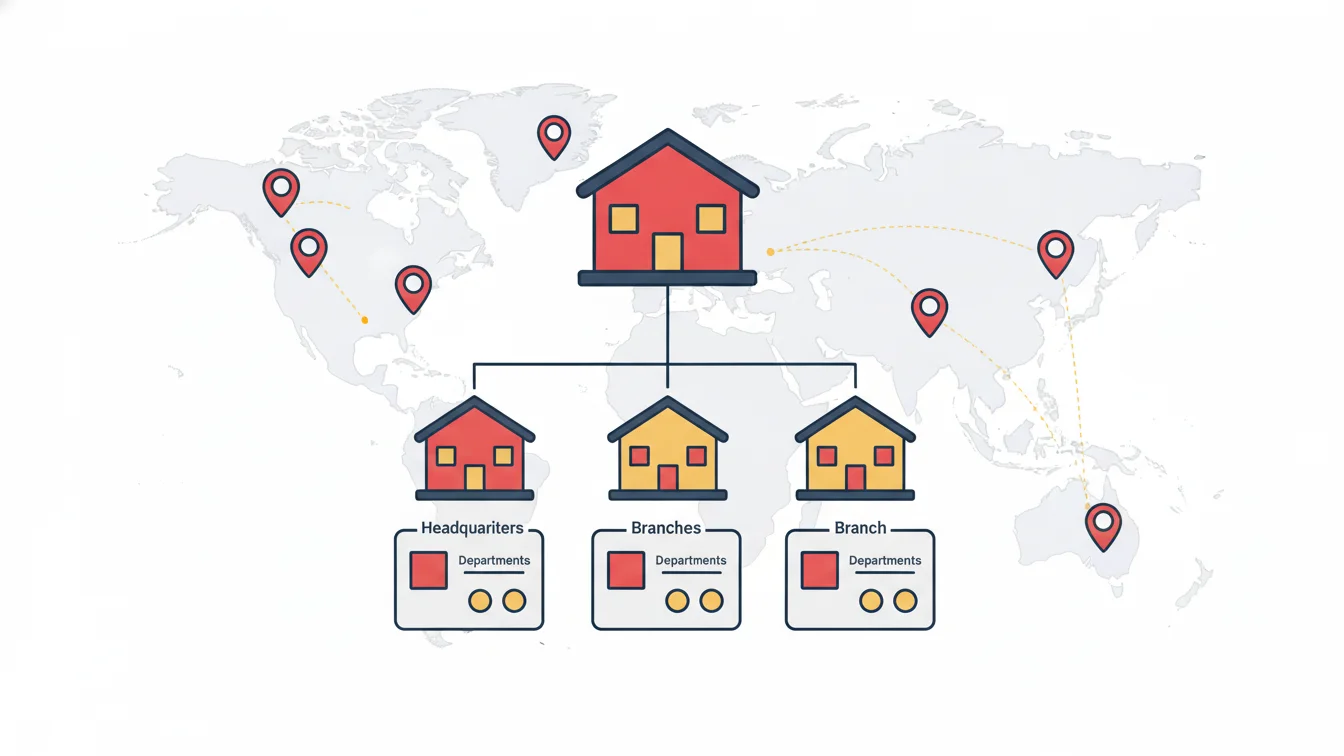
Each employee record is linked to a branch, a department and a position, so the structure is set up first:
- Sites (branches): name, address, location; the mobile verification method for each site (QR, location or both) is selected later.
- Departments: the units on your organization chart.
- Positions: job titles and the position tree (who reports to whom), which approval workflows rely on.
- Subcontractor companies (if any).
- Employees: full name, employee ID, hire date, site, department, position, email, phone, person type, card number.
The field-mapping wizard matches the columns in your spreadsheet to the fields in the system; your "Branch" column goes to the "site" field, your "Title" column to the "position" field. Rows with the subcontractor column filled in are automatically linked to the relevant company.
Clean up before importing: a 20-minute checklist
- Duplicate people: is the same person on two rows (one with an old job title)? The employee ID or email must be unique.
- Spelling variations: are "Accounting," "ACCOUNTING" and "Accounting Dept." the same department? Standardize them to a single spelling before importing; otherwise three departments will be created.
- Former employees: are they still on the list? If they're being imported, they should come in marked as "inactive"; if not, remove them.
- Hire date: if it's blank, leave entitlement can't be calculated. For unknown dates, at least confirm the year.
- Email: must be unique and correct for mobile app sign-in; shared addresses (accounting@) can't be linked to an individual.
- Card numbers: if you use card access, is the format consistent? Leading zeros may have been dropped, a classic Excel trap.
- Person type: if you have types other than employee, such as intern, subcontractor, visitor or student, specify them in a column; reports are filtered accordingly.
Existing leave balances
The most frequently asked question: "How do we carry over accrued leave?" For each employee, the remaining leave balance on the switch date is entered as a carry-over record; from that date on, entitlement accrues in the system. Confirming the carry-over figure with the employee on a reconciliation form brings objections in the first month down to zero. Timesheets from previous years aren't migrated; they stay in the old system or the archive.
The first week of the switch
Day 1: structure and people are in
The import is completed, and ten random employee records are opened to check the fields: correct branch, correct position, correct hire date.
Day 2: shifts and grace periods
Shift definitions are set up and assigned to people and groups; grace period and break rules are configured. Skip this step and the first timesheet will be meaningless.
Day 3: leave types and approval workflow
Leave types, document requirements and the approval model are defined; carry-over balances are entered.
Day 4: mobile app and devices
QR codes for each site are generated and posted; employees receive an announcement about downloading the app and signing in for the first time. If you use card access, devices are connected and cards are assigned by group.
Day 5: roles and reports
Roles are assigned to managers (who sees what), and automated report delivery is set up (who gets which report, and when).
The first month: running in parallel
Don't drop the old spreadsheet completely in the first month; at month-end, compare the system's timesheet with the old attendance sheet. Almost all discrepancies come from grace period and shift definitions; fix them and start the second month clean.
Three common mistakes
- Turning everything on at once. Attendance tracking first, leave two weeks later, advances and expenses a month after that. The team absorbs each step.
- Leaving managers until the last day. Approval workflows and reports don't work without managers; their roles and notifications should be ready in the first week.
- Making the announcement by email. Give employees a short meeting and an in-app announcement; if you don't explain the "why," people will ask "why are we being monitored?" The answer is simple: so the timesheet is accurate, leave balances are visible and nobody gets called at month-end.
Importing data in NetKurum
In NetKurum, branch, department, position and employee records are imported from Excel with the field-mapping wizard; rows with the subcontractor column filled in are created under the relevant company. Besides employees, you can define person types such as student, customer, member, donor, supplier and visitor; bulk updates and bulk deactivation are done from the list. If you have enterprise HR and ERP systems, employee and branch data are synchronized via web services. Details: Employee Management.
A system that opens empty gets abandoned. A system that opens populated on day one gets used.
Frequently asked questions
Our spreadsheet is very messy. Can it still be imported?
Yes. Running through the checklist above before importing is enough; the wizard maps the columns, and missing fields can be bulk-updated later.
If something goes wrong during the import, can it be undone?
The import comes with a preview, and faulty rows are reported. Records created by mistake can be bulk-deactivated or deleted.
How do employees sign in to the app?
With the email address on their employee record; they set a password on first sign-in, and the account is paired with that phone.
Do we have to migrate historical timesheet data?
No. Only leave carry-over balances are entered; records from previous periods stay in the archive.
Send us your spreadsheet, and we'll launch the system populated
We can review your current employee spreadsheet together and complete the import on day one. Start your free trial or get in touch with us.
About the author
Selin Kaya
Digital Content Specialist
Writes for NetKurum's digital content team on time and attendance, leave and shift management. She explains how the product works and answers HR teams' everyday questions in plain language.